Workflow Visual Editor




WARNING: This extension is currently in early development and can have a few bugs. Please save your changes on Git before updating your Workflows
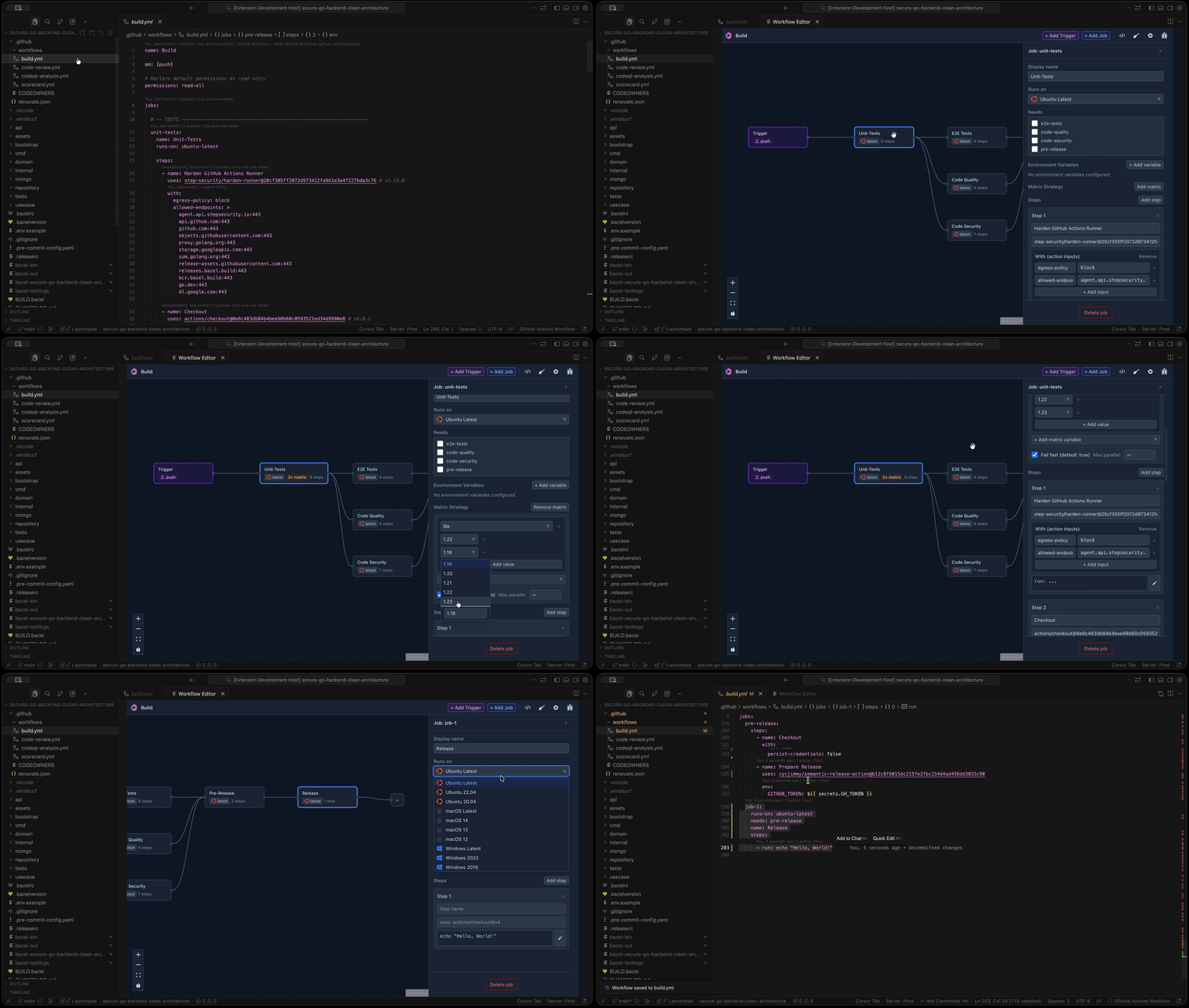
A VSCode extension providing a visual editor for GitHub Actions workflow files. Open a workflow (YAML), view jobs and steps as a diagram, edit job properties in a side panel, and save back to YAML.
Features
- Diagram: Jobs as nodes, edges from
needs dependencies. Built with React Flow.
- Trigger visualization: Visual trigger nodes showing workflow triggers (push, pull_request, schedule, etc.) with connections to jobs.
- Trigger editing: Edit workflow triggers with a dedicated panel supporting all trigger types and configurations (branches, tags, paths, cron schedules, etc.).
- Workflow dispatch inputs: Define
workflow_dispatch and workflow_call inputs directly in the trigger panel — set name, description, type (string, boolean, number, choice, environment), required flag, and default value.
- Property panel: Click a job node to edit name, runs-on, needs, matrix strategy, and steps (N8N-style). Reusable workflow caller jobs (
uses) display a dedicated panel showing the referenced workflow, inputs (with), and secrets instead of runs-on/steps.
- Reusable workflow support: Workflows that call a reusable workflow via
job.uses are parsed, displayed, and serialized correctly — runs-on and steps are never added to caller jobs, preventing linter errors.
- Matrix strategy: Configure matrix builds with multiple variable combinations. Visual indicator shows total matrix combinations (e.g., "6× matrix").
- Source code preview: View and edit workflow YAML in a large dialog. Changes apply only when saved.
- Run script editor: Edit step run scripts in a full-size popup dialog with a comfortable code-style editor (same font and theme as the app). Click "Edit script" next to a step's run field to open the dialog; save with Save changes or Ctrl/Cmd+S, cancel with Escape.
- Workflow validation: Automatic validation using the official @actions/workflow-parser (same as the GitHub Actions VS Code extension). Reports schema and syntax errors with detailed messages.
- VSCode Integration: Open workflow files via context menu or command palette; save directly to workspace. Theme automatically follows your IDE theme (no in-editor theme toggle).
- Multiple workflow tabs: Opening another workflow (e.g. from the Explorer or "Open Workflow File") opens in a new editor tab instead of replacing the current one, so unsaved changes are not lost. Re-opening the same file reveals its existing tab.
- Simplified navbar: Toolbar keeps View source, Clear/Load sample, Add Trigger/Job, and workflow config. Save, Open file, Paste YAML, and theme buttons were removed for a cleaner UX; use the command palette or context menu to open workflows, and Ctrl/Cmd+S to save.
- Validation: Parse errors and lint errors shown in a banner when opening or editing workflows.
Installation
From Marketplace
- Open VSCode (or Cursor, Windsurf, or other VSCode-based IDE)
- Go to Extensions (Ctrl+Shift+X / Cmd+Shift+X)
- Search for "Workflow Visual Editor"
- Click Install
From VSIX
- Download the
.vsix file from the latest release
- Open VSCode
- Go to Extensions → ... → Install from VSIX...
- Select the downloaded
.vsix file
Note: The .vsix file is attached to each GitHub release as an asset.
Usage
Open Workflow Editor
- Command Palette: Press
Ctrl+Shift+P (or Cmd+Shift+P on Mac), type "Workflow Editor: Open", and press Enter
- Context Menu: Right-click a
.yml or .yaml file in the Explorer, select "Open with Workflow Editor"
- Command:
workflow-visual-editor.open - Opens an empty editor
- Command:
workflow-visual-editor.openFile - Opens file picker to load a workflow
Keyboard Shortcuts
- Ctrl/Cmd+Z: Undo last change (when the Workflow Editor tab is focused)
- Ctrl/Cmd+S: Save workflow (when the Workflow Editor tab is focused; uses VSCode command so it works reliably)
- Escape: Close property panel, source dialog, or run script dialog
File Operations
- Open: Use the Command Palette ("Workflow Editor: Open Workflow File") or right-click a
.yml/.yaml file in the Explorer and choose "Open with Workflow Editor". Each workflow opens in its own tab; opening the same file again focuses that tab.
- Save: Press Ctrl/Cmd+S when the workflow editor tab is focused (Save and Undo apply to the active tab).
- View Source: Click the code icon to view/edit raw YAML
Security & quality
This project is built and maintained with security and quality in mind:
- OpenSSF Scorecard & Best Practices: The repository is scored by OpenSSF Scorecard and follows OpenSSF Best Practices (see badges above).
- Hardened CI: All GitHub Actions use step-security/harden-runner with egress blocking — only explicitly allowed endpoints can be reached. This limits supply chain attacks (e.g. compromised dependencies phoning home or pulling malicious payloads) during build and test.
- Dependency checks: Dependency Review runs on every PR; CI runs
pnpm audit --audit-level=high. Known exceptions are documented in osv-scanner.toml.
- CodeQL: CodeQL analysis runs on push/PR and on a schedule for JavaScript/TypeScript.
- Code coverage: Tests run with coverage and results are uploaded to Codecov (see badge above).
- Fuzzing: Property-based tests with fast-check for parse/serialize logic (satisfies the OpenSSF Scorecard fuzzing criterion).
- React Doctor: React Doctor scans the React webview code for correctness, performance, and accessibility. It runs on every pull request (diff-only on changed files) and posts a comment with the report; you can also run it locally (see CONTRIBUTING.md).
- AI code review: Pull requests receive AI-assisted review via CodeRabbit for consistency and best practices.
Compatibility
- VSCode: Full support (minimum version 1.80.0)
- Cursor: Compatible (VSCode-compatible extension)
- Windsurf: Compatible (VSCode-compatible extension)
- Other VSCode-based IDEs: Should work with any IDE that supports VSCode extensions
Workflow Metrics — An open-source dashboard that surfaces GitHub Actions metrics (run history, DORA metrics, build minutes, efficiency insights) and lets you optimize workflows with AI-powered suggestions. If you use Workflow Editor to build your workflows, Workflow Metrics is the natural next step to measure and improve them.
Contributing
Contributions are welcome! See CONTRIBUTING.md for setup, coding standards, and how to submit a pull request.
| |

