
Native Visual Studio Code language support for Frictional Games' HPL3 Engine .hps scripts used by:
- SOMA
- Amnesia: Rebirth
- Amnesia: The Bunker
HPL3 Language Tools understands the engine's AngelScript-based dialect instead
of treating scripts as C++. It provides useful feedback while a script is still
being written, without applying unrelated C++ style rules.
Preview
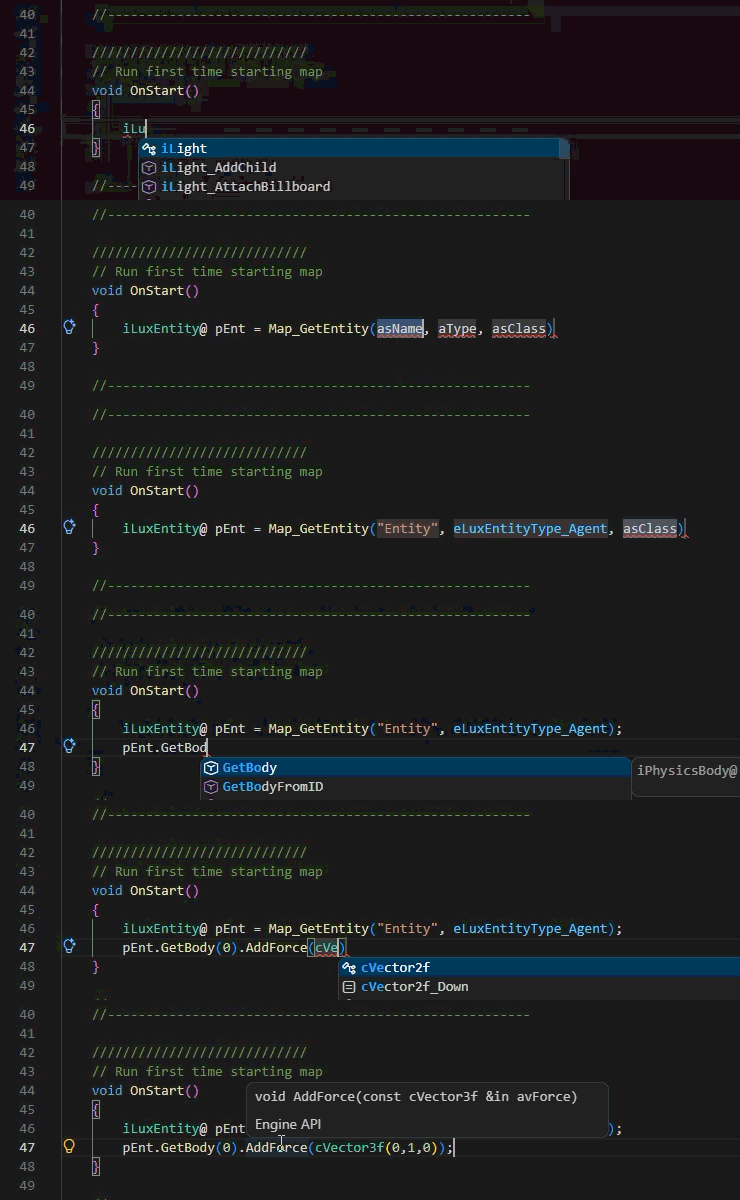
HPL3-aware IntelliSense
Engine APIs, project declarations, inherited members, enum values, arrays, and
include-visible symbols are suggested as you type.
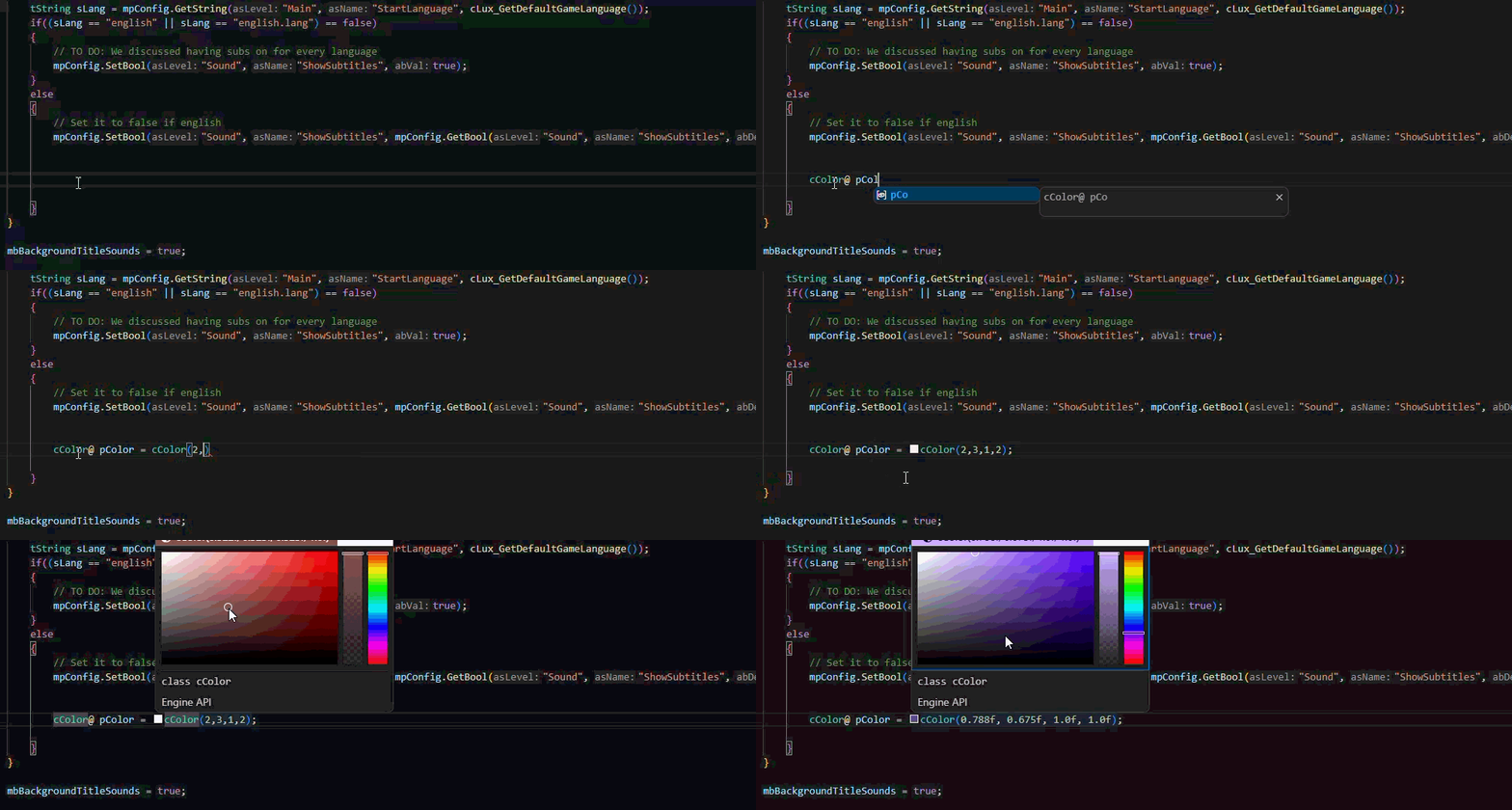
Color previews and picker
Literal cColor(...) values receive an editor color preview. Select the preview
to adjust the value with Visual Studio Code's color picker.
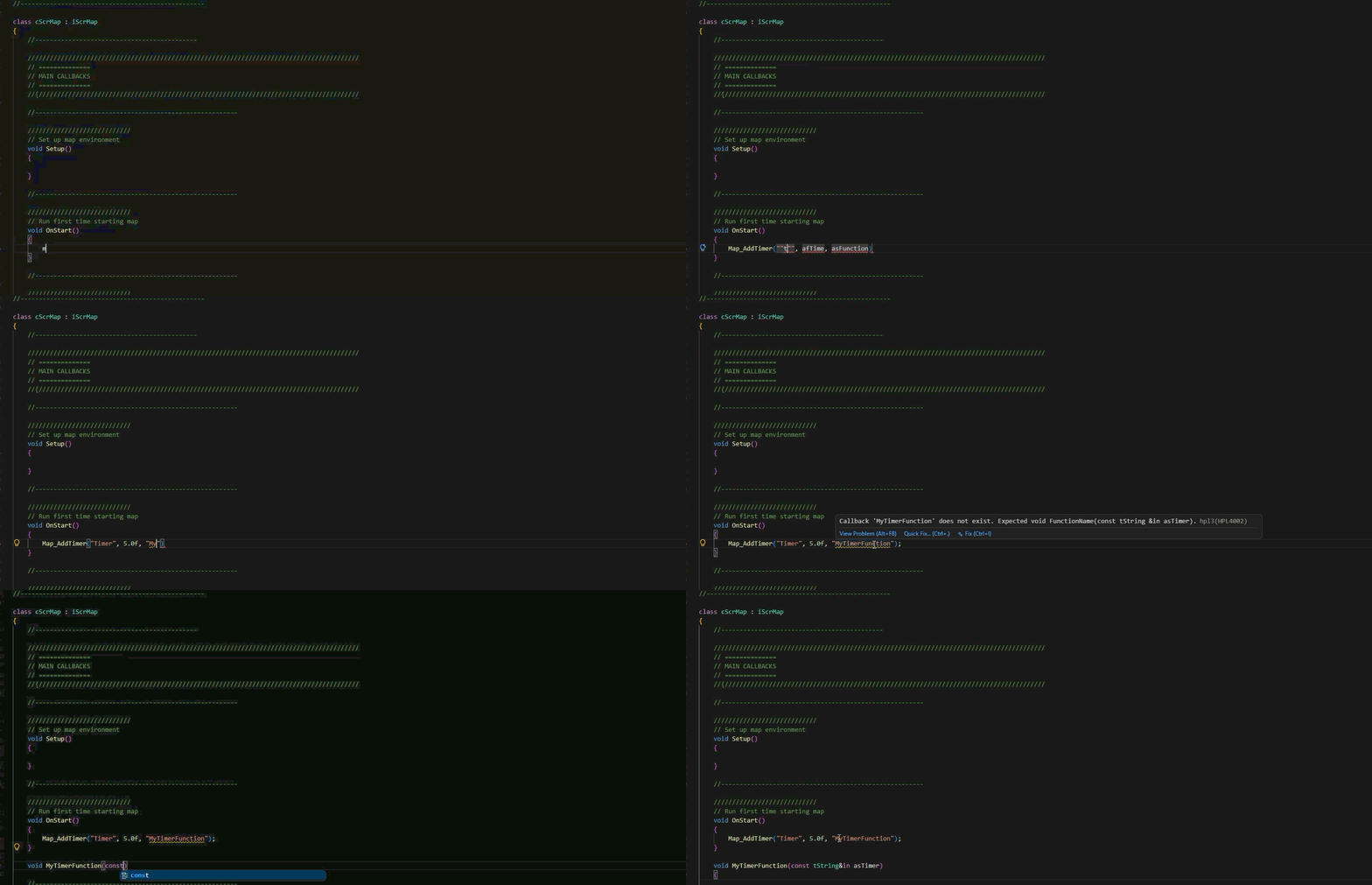
Callback validation
Literal callback names are checked against reachable script functions and
known callback signatures.
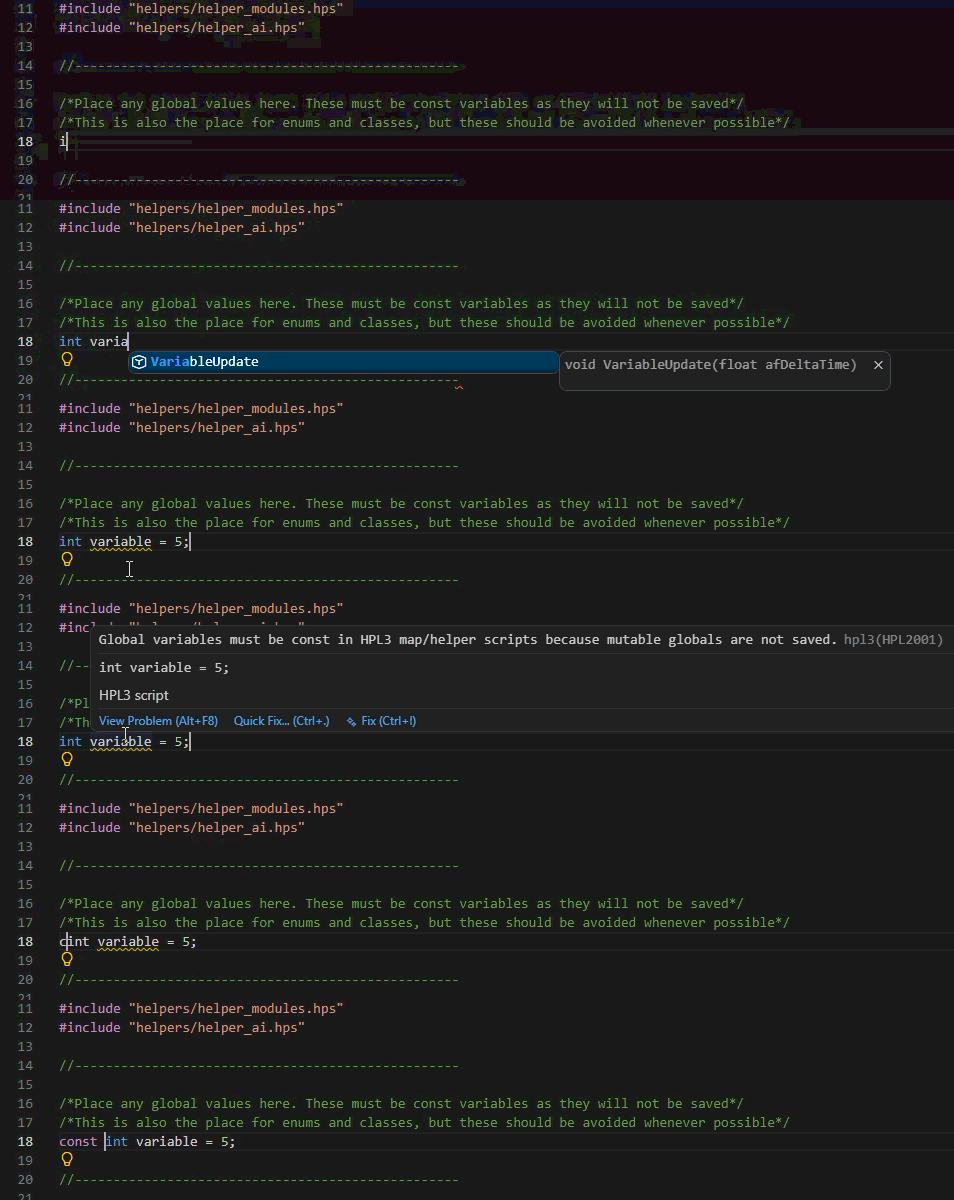
Conservative diagnostics
Diagnostics focus on likely HPL3 failures and use warnings where the engine
permits dynamic behavior.
Mod dependency and overlay resolution
Selecting an active mod indexes its reachable UID-based dependencies and
resolves their scripts through the same overlay used by includes, completion,
diagnostics, and definitions.
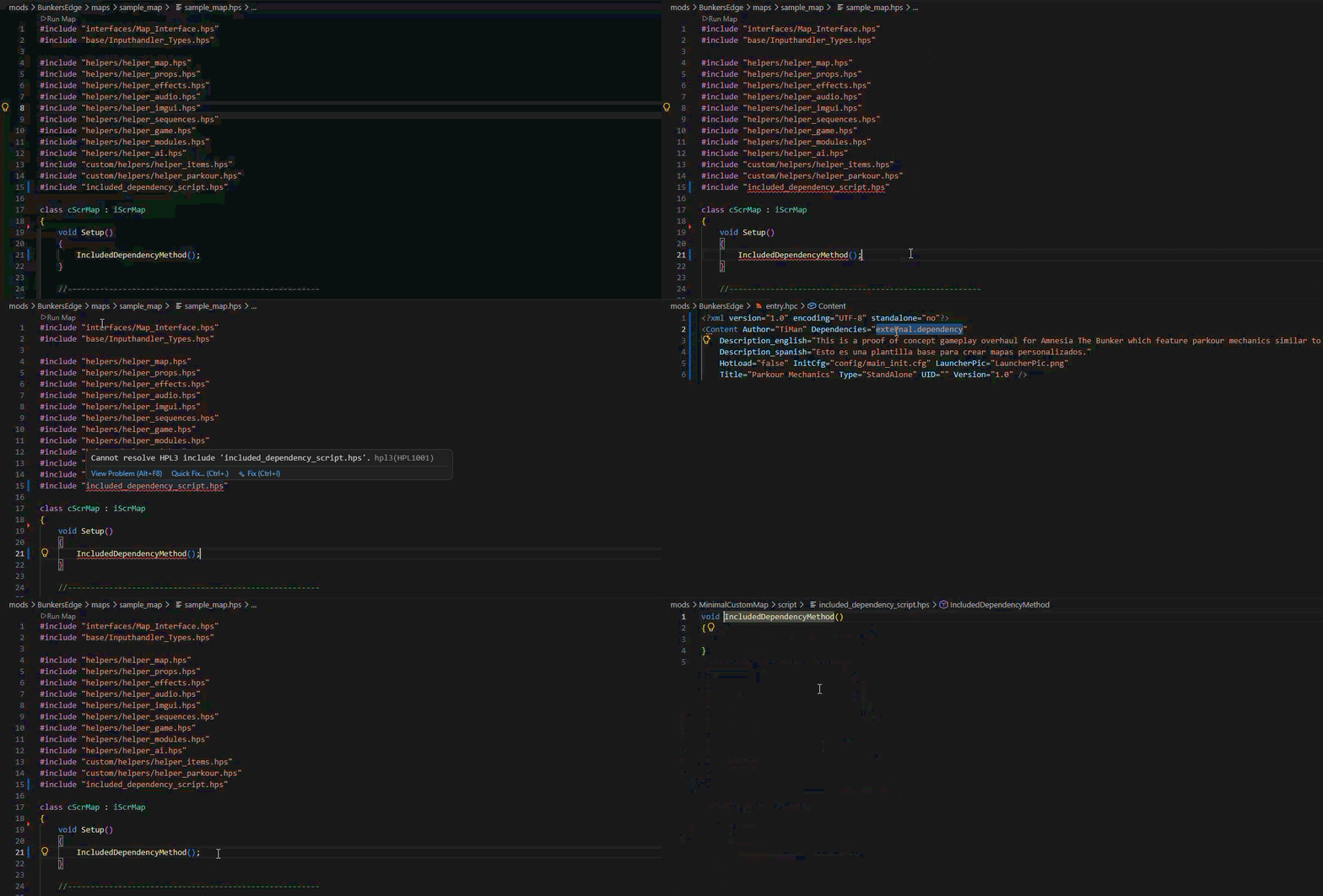
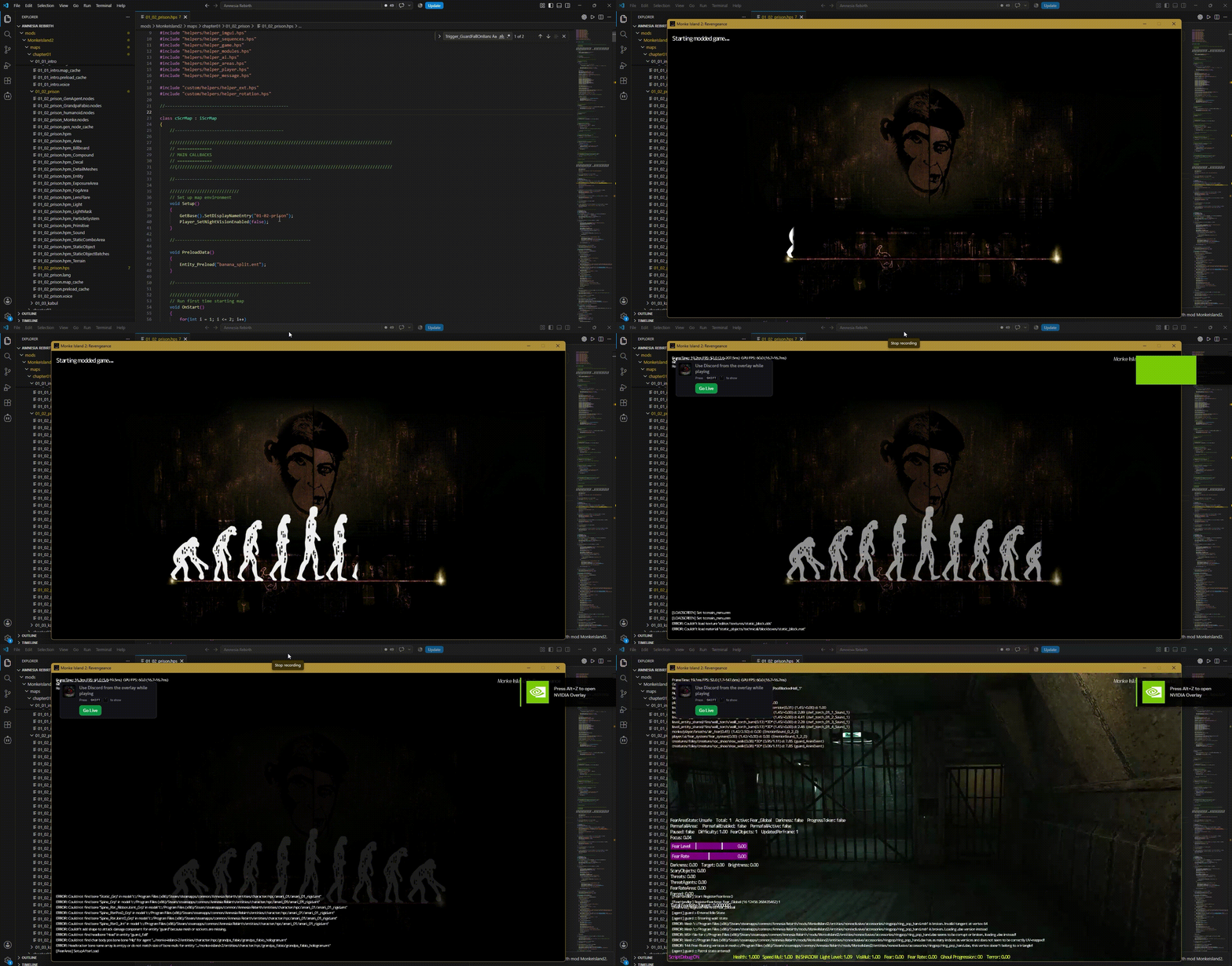
Run maps from Visual Studio Code
Confirmed map scripts can launch their matching map through the CodeLens or
editor-title play button.
Main features
- Live completion for engine APIs, project functions, classes, inherited
members, enums, arrays, handles, and include paths.
- Hover documentation and signature help sourced from the selected game's
hps_api.hps.
- Go to definition, find references, read/write highlights, conservative
code-symbol rename, implementations, type hierarchy, document/workspace
symbols, and include navigation.
- HPL3-aware diagnostics for syntax, includes, declarations, primitive types,
assignments, constructors, overloads, members, callbacks, and unsupported
dialect features.
- Occurrence-aware semantic highlighting for types, functions, members,
variables, enum values, and HPL3 keywords.
- Configurable parameter/out/inferred-type inlay hints and editor color
previews for literal
cColor(...) values.
- Quick fixes for unsupported
array.clear(), reliably described missing
callbacks, and inherited method stubs.
- Active-mod overlays and transitive UID-based mod dependency indexing.
- Context-aware resolution where an active mod shadows dependencies and the
base game without leaking mod-only symbols into base-game scripts.
- A Run Map CodeLens and editor play button for scripts with a matching
.hpm or legacy .map asset.
- Incremental, error-tolerant analysis that automatically refreshes as files
are edited or saved.
- Parsing and project diagnostics run in separate workers. The previous usable
project snapshot stays active during rebuilds, while a persistent cache makes
unchanged startup substantially faster.
Why use it instead of a C++ configuration?
.hps is registered as its own language, so C++-only errors and style
warnings are not applied.- Completions and diagnostics understand HPL3 APIs, callbacks, resource
overlays, mod dependencies, handles, and AngelScript-specific syntax.
- The extension resolves symbols using the game and mod that own the current
file, rather than presenting every script as one flat codebase.
- Language features run locally and offline. No compiler, Rust installation,
running game, or network connection is required for editing.
The game compiler remains the final authority for runtime behavior.
Requirements
- Windows for officially supported use and the Run Map feature.
- Visual Studio Code 1.95 or newer.
- A local installation of at least one supported HPL3 game.
- Access to the selected game's
hps_api.hps, resources.cfg, and script
directory.
Linux compatibility
Linux is not officially supported or tested yet. The language server,
diagnostics, and IntelliSense may work when hpl3.gameRoot points to the
game's Steam/Proton installation, but Run Map currently detects and
launches Windows game executables directly and is therefore Windows-only.
Installation
From the Visual Studio Marketplace
- Open the Extensions view in Visual Studio Code.
- Search for HPL3 Language Tools.
- Select the extension published by TiManGames and choose Install.
From a local VSIX
- Open the Command Palette.
- Run Extensions: Install from VSIX...
- Select the downloaded
.vsix file.
Quick start
- Open a supported game's root folder, a mod folder, or a folder containing
your HPL3 project.
- Open any
.hps file. Its language mode should be HPL3 HPS.
- If the game root cannot be found automatically, run
HPL3: Select Game Root and choose the game installation folder.
- Leave
hpl3.activeMod set to auto, or run
HPL3: Select Active Mod when you want to pin a specific mod profile.
Mods exposed through a directory junction or symbolic link under mods/
remain selectable even when the link target is elsewhere on disk.
- Wait for the HPL3 status item to report that indexing is ready.
When the opened workspace is the game folder, the extension normally discovers
the game root automatically. Common Steam locations include:
C:\Program Files (x86)\Steam\steamapps\common\SOMA
C:\Program Files (x86)\Steam\steamapps\common\Amnesia Rebirth
C:\Program Files (x86)\Steam\steamapps\common\Amnesia The Bunker
If VS Code already associates *.hps with C++, the extension shows a one-time
remediation prompt. It never rewrites your file-association settings
automatically.
Run the current map
A Run Map CodeLens and play icon appear only when the current .hps script
resolves to a matching .hpm or .map asset through the active overlay.
Launching a map:
- Saves all dirty workspace files.
- Resolves the current game, selected top-level mod, and physical map asset.
- Starts the detected game executable with developer configuration and map
arguments.
- Writes the complete launch target and arguments to the
HPL3 Map Launcher output channel.
The extension does not generate or modify .bat files. Launching occurs only
when you explicitly use the command or play button.
Commands
| Command |
Purpose |
| HPL3: Select Game Root |
Choose a SOMA, Rebirth, or Bunker installation. |
| HPL3: Select Active Mod |
Select the top-level mod overlay and dependency profile. |
| HPL3: Rebuild Language Index |
Discard caches and re-read APIs, resources, and scripts. |
| HPL3: Validate Workspace |
Run diagnostics across the full indexed project. |
| HPL3: Run Current Map |
Launch the map associated with the active script. |
Settings
| Setting |
Default |
Purpose |
hpl3.gameRoot |
Auto-detect |
Absolute path to a supported HPL3 game. |
hpl3.activeMod |
auto |
Automatically detected or explicitly selected mod. |
hpl3.extraResourceRoots |
[] |
Additional read-only resource roots searched last. |
hpl3.diagnostics.maxPerFile |
100 |
Maximum problems shown for one HPS file at a time. Extra diagnostics in that file are suppressed until earlier problems are fixed; other files are still analyzed normally. |
hpl3.inlayHints.parameterNames |
literals |
Show parameter-name hints for none, literal, or all arguments. |
hpl3.inlayHints.showOutParameters |
true |
Mark out and inout call arguments. |
hpl3.inlayHints.showInferredTypes |
true |
Show inferred types beside auto declarations. |
hpl3.trace.server |
off |
Language-server protocol tracing level. |
hpl3.launch.executable |
Auto-detect |
Optional absolute or game-root-relative executable override. |
hpl3.launch.user |
Dev |
User profile passed to the game launcher. |
hpl3.launch.config |
config/main_init_dev.cfg |
Developer configuration passed to the game. |
hpl3.launch.extraArgs |
[] |
Extra launch arguments appended without shell interpretation. |
Diagnostic philosophy
The default checks focus on likely engine or script failures: malformed syntax,
unresolved includes, unknown symbols or members, incompatible primitive types,
invalid calls, bad overloads, and callback mismatches. Callback and mutable
global checks that can be valid in dynamic HPL3 usage are reported as warnings
where appropriate.
The extension intentionally does not enforce C++ naming, formatting,
pointer-style, include-guard, unused-variable, or conversion-style rules.
Generated hps_api.hps declarations are indexed as API input rather than
validated as ordinary game scripts.
Troubleshooting
Completion does not appear
- Confirm the status bar language mode is HPL3 HPS, not C++.
- Remove any explicit
"*.hps": "cpp" file association if VS Code keeps
selecting C++.
- Confirm the HPL3 status item shows the expected game and active mod.
- Run HPL3: Rebuild Language Index after changing game or resource files.
The project is marked degraded
Open View: Toggle Output, select the HPL3 Language Server channel, and
review the reported API, manifest, dependency, or resource issue. The server
suppresses unreliable unknown-engine-symbol errors when API indexing is
degraded.
The wrong helper or definition is selected
Run HPL3: Select Active Mod and verify the selected top-level mod. Active
mod files shadow dependencies and the base game; equal-priority dependency
collisions are reported as ambiguous.
Run Map is not available
Confirm that the script has a matching .hpm or .map asset in the selected
overlay and that the current active-mod profile can reach it.
Privacy and runtime behavior
Analysis is local and offline. The extension reads scripts and configuration
from the selected game, mod dependencies, and configured resource roots. It
does not launch a game unless Run Current Map is explicitly invoked.
Source and support
HPL3, SOMA, and Amnesia are trademarks of Frictional Games. This community
extension is not affiliated with or endorsed by Frictional Games.

