Template String Converter

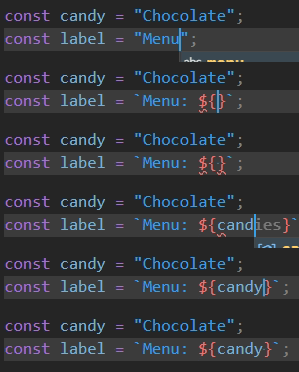
Template String Converter is a powerful yet lightweight VS Code extension that streamlines your JavaScript and TypeScript development. It automatically converts regular strings (single or double quotes) into template strings (backticks) the moment you start typing a dynamic expression—${.
This is a for of [https://github.com/meganrogge/template-string-converter](https://github.com/stevenjburrows/template-string-conve/blob/HEAD/Megan Roe's) work but with added features and languages
No more manual quote swapping while building dynamic strings!
🚀 Features
- Automated Conversion: Instantly transforms
'...' or "..." to `...` when you type ${.
- Manual Toggle: Use
Ctrl+Shift+\`` (Cmd+Shift+`` on Mac) to toggle any string under the cursor between regular quotes and a template string — no need to type ${. The shortcut is customisable via VS Code's Keyboard Shortcuts editor.
- Intelligent Context: Works within JSX attributes, standard strings, and even nested templates.
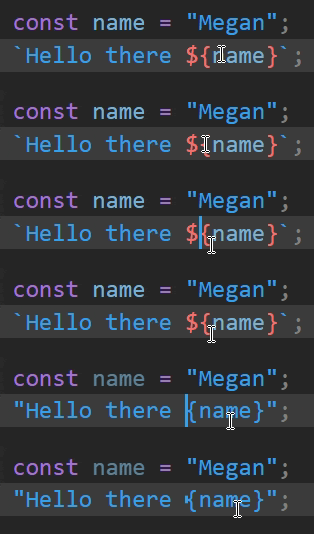
- Auto-Cleanup: Optionally reverts backticks to regular quotes if you delete the
${ sequence.
- Language Support: Out-the-box support for JavaScript, TypeScript, JSX, TSX, and Svelte.
- Highly Configurable: Control precisely which quotes to convert and in which languages.
- KeyboardShortcut: You can now use
Ctrl+Shift+\ / Cmd+Shift+\ to toggle between a string and a template sting
📦 Installation
- Open Visual Studio Code.
- Go to the Extensions view (
Ctrl+Shift+X or Cmd+Shift+X).
- Search for
Template String Converter.
- Click Install.
📖 Usage Examples
JavaScript / TypeScript
Before typing ${:
const greeting = "Hello, world";
While typing ${name}:
const greeting = `Hello, ${name}`; // Quotes automatically changed to backticks!
JSX / TSX
Before typing ${:
<div className="container"></div>
While typing ${active ? 'active' : ''}:
<div className={`container ${active ? 'active' : ''}`}></div>
[!TIP]
Enable addBracketsToProps for JSX to automatically wrap your template strings in {} when working with props.
⚙️ Settings
You can customize the extension behavior in your VS Code settings (settings.json):
| Setting |
Type |
Default |
Description |
template-string-converter.enabled |
boolean |
true |
Enable/disable the extension entirely. |
template-string-converter.quoteType |
string |
"both" |
Which quotes to convert: "single", "double", or "both". |
template-string-converter.autoRemoveTemplateString |
boolean |
false |
Reverts backticks to quotes if ${ is removed. |
template-string-converter.addBracketsToProps |
boolean |
false |
Automatically adds {} around template strings in JSX props. |
template-string-converter.convertOutermostQuotes |
boolean |
false |
For nested strings, converts the outermost quotes to backticks. |
template-string-converter.convertWithinTemplateString |
boolean |
true |
Enables conversion inside already existing template strings. |
template-string-converter.validLanguages |
array |
[...] |
Languages where the extension is active. |
⌨️ Keyboard Shortcut
| Command |
Windows / Linux |
Mac |
| Toggle Template String |
Ctrl+Shift+\`` | Cmd+Shift+`` |
|
To change the default, open File → Preferences → Keyboard Shortcuts (Ctrl+K Ctrl+S / Cmd+K Cmd+S) and search for "Toggle Template String".
📸 Demos
Basic Conversion
Auto-Remove on Deletion
JSX Property Wrapping

🛠️ Contributing
Contributions are welcome! If you'd like to help improve Template String Converter V2:
- Clone the repository:
git clone https://github.com/stevenjburrows/template-string-converter-v2git
- Install dependencies:
npm install
- Launch the extension:
Press
F5 in VS Code to open a "Extension Development Host" window with your changes active.
- Submit a PR:
Ensure your code passes the linter with
npm run lint.
🐞 Known Issues / Limitations
- The extension requires the
${ characters to be typed sequentially inside an existing string.
- Complex nested string scenarios may require specific setting adjustments (like
convertOutermostQuotes).
If you find a bug, please file an issue.
📄 License
This project is licensed under the MIT License. See the LICENSE file for details.
Originally Developed with ❤️ by Megan Rogge.

