Code to ConsoleCopy file and diff references for terminal agents, and open the terminal beside your code. Installation Launch VS Code Quick Open ( Ctrl+P), paste the following command, and press enter.Copied to clipboard |

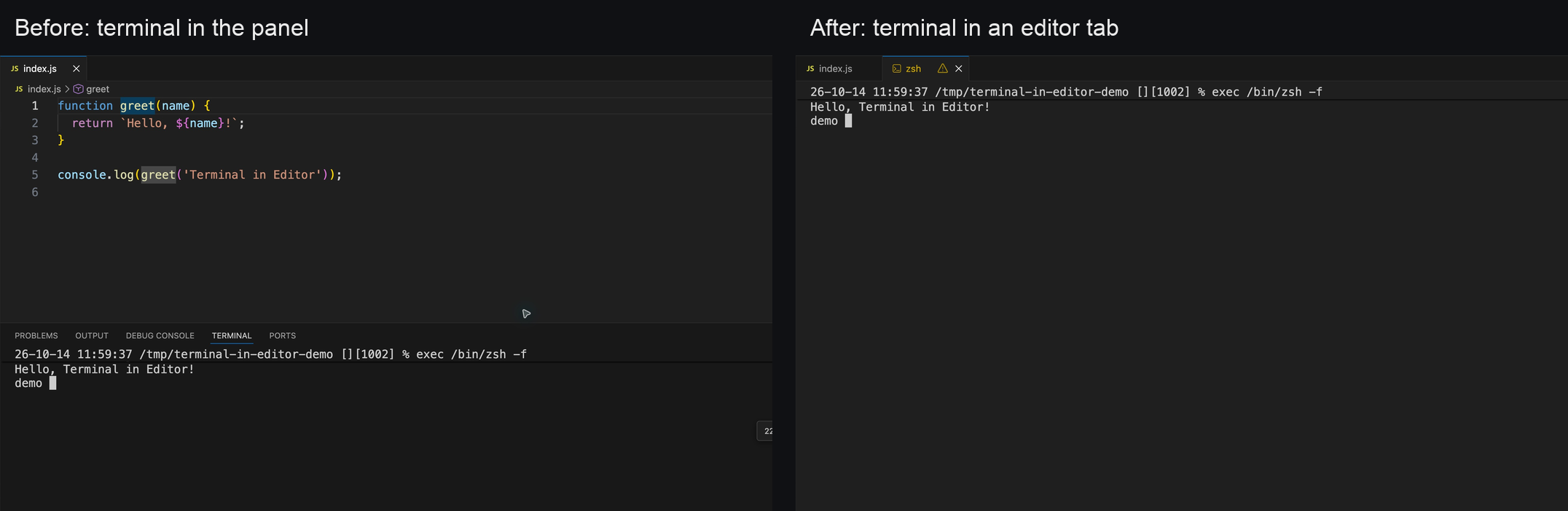
Code to ConsolePut your integrated terminal in an editor tab with one click. Keep it beside your code, split it into another editor group, or give it the full editor area. Copy file and diff references for an agent running in that terminal. Send contextOpen your agent in a VS Code integrated terminal, then return to your code. Select some lines or place the cursor, and press Cmd+L on macOS (Ctrl+L on Windows/Linux). The context is copied to the clipboard and the most recently active terminal receives focus. Paste using your terminal's normal shortcut (Cmd+V on macOS), then submit when ready. You can also click the terminal icon in the editor title, use the editor's right-click menu, or run Code to Console: Copy Context and Focus Terminal. Code to Console: Copy Context copies the same text to the clipboard. To paste automatically, enable Code to Console: Auto Paste Context in
Settings, or add this to This setting is off by default. When enabled, the shortcut and editor action also paste the copied context using VS Code's normal terminal paste handling. The extension does not add Enter. Copy Context always copies only. A regular file includes its repository, path, and selected lines: A diff includes both versions and the side you selected: VS Code Git and Git Graph diffs include their revision metadata. Renamed files include both paths. Other text diffs retain the two resource references when revision metadata is unavailable. Unsaved selections include their actual text; with no selection, they include the current line. Paths follow the editor's host, including Remote SSH. Rebind the shortcutOpen Preferences: Open Keyboard Shortcuts and search for Code to Console: Copy Context and Focus Terminal. Change or remove its binding, or assign one to Code to Console: Copy Context. The default replaces Select Line while the text editor has focus. To choose
another key in Use Open the terminal in an editor tabClick Terminal on the right side of the status bar.
You can also open the Command Palette (
InstallSearch for Code to Console by Talha Khalil in VS Code's Extensions view. Requires VS Code 1.109.0 or later. |