Qt Any
English | 简体中文
Qt Any is a powerful VS Code extension designed to streamline your Qt development workflow. It provides a comprehensive set of tools for creating Qt classes, managing resources, and integrating with external Qt tools.
Features
- Create Qt Classes: Quickly generate Qt-compatible C++ classes with
.h, .cpp, and optional .ui files.
- Visual QRC Editor: A WYSIWYG editor for Qt Resource files (
.qrc), supporting add/remove/preview operations.
- External Tool Integration: Seamlessly open
.ui files in Qt Designer and .ts files in Qt Linguist.
- Localization: Fully localized in English and Simplified Chinese.
- Create CMake Project: Quickly create CMake-based Qt projects with necessary file structure and configuration. Supports custom CMakeLists.txt templates.
- Context Menu Configuration: Enable/disable context menu items to customize your workflow.
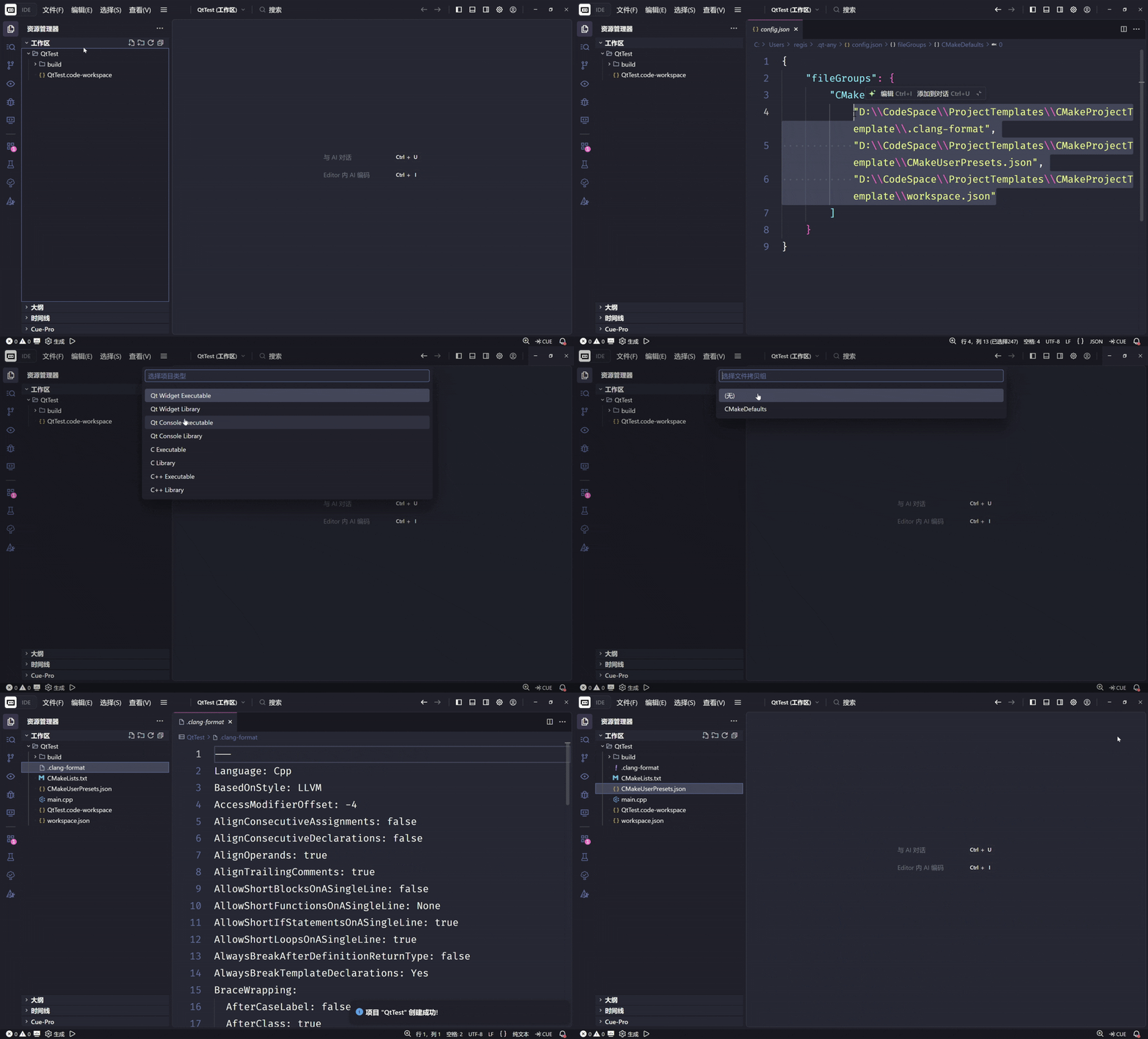
- Copy Files on Project Creation: Automatically copy specified files (e.g.,
.clang-format) to the project directory when creating a new project. Supports local file groups to avoid syncing path-specific configurations.
Usage
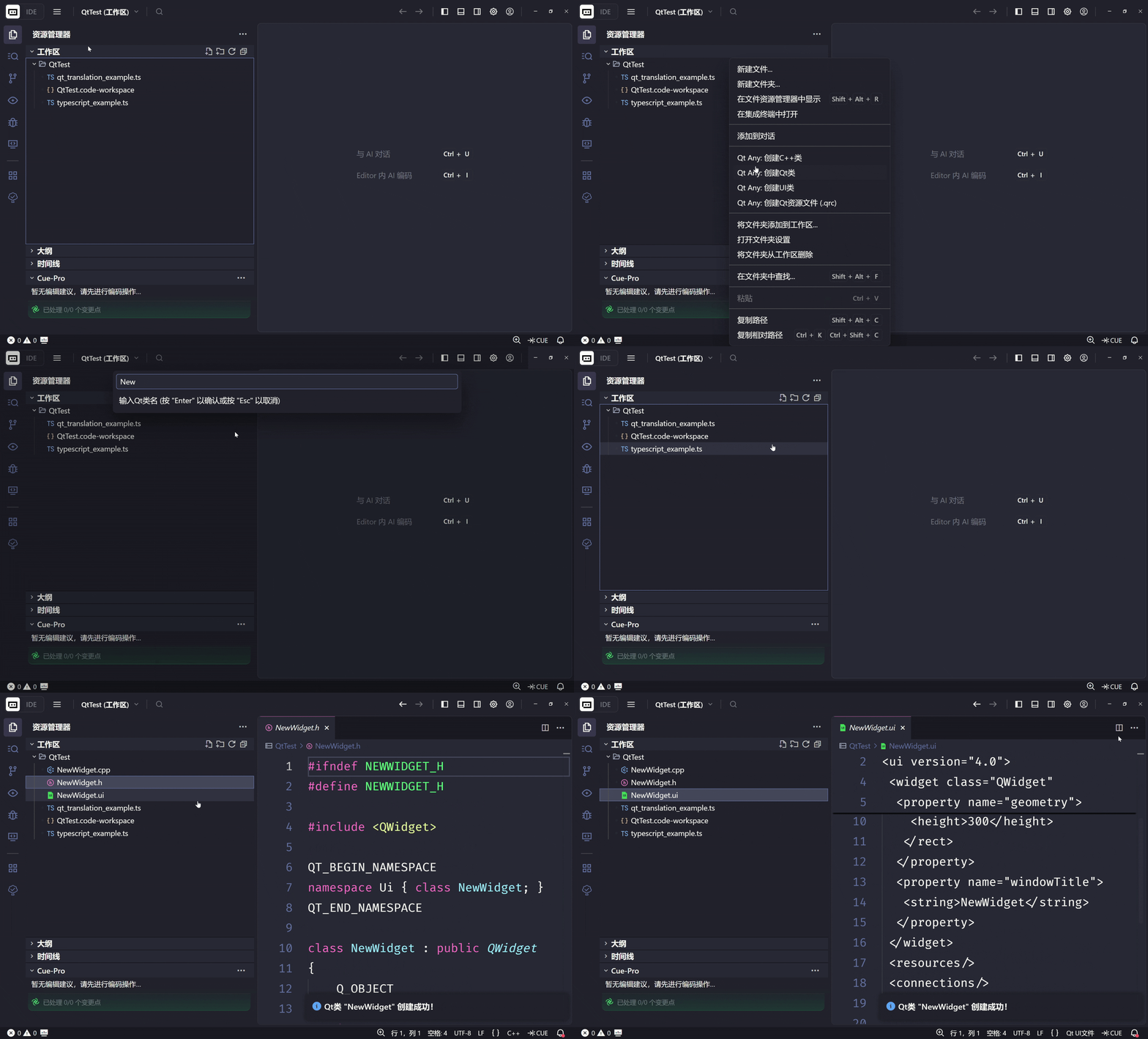
1. Create Qt Classes
Generate standard Qt class boilerplates effortlessly.
- Command:
Qt Any: Create Qt Class (Non-UI) or Qt Any: Create UI Class.
- How to use:
- Right-click on a folder in the File Explorer.
- Select Qt Any: Create Qt Class (for QObject-based) or Qt Any: Create UI Class (for QWidget-based).
- Enter the class name (e.g.,
MyWidget).
- (Optional) Select the base class (QWidget, QMainWindow, QDialog).
- Choose the filename style (lowercase, keep case, or custom).
2. Visual QRC Editor
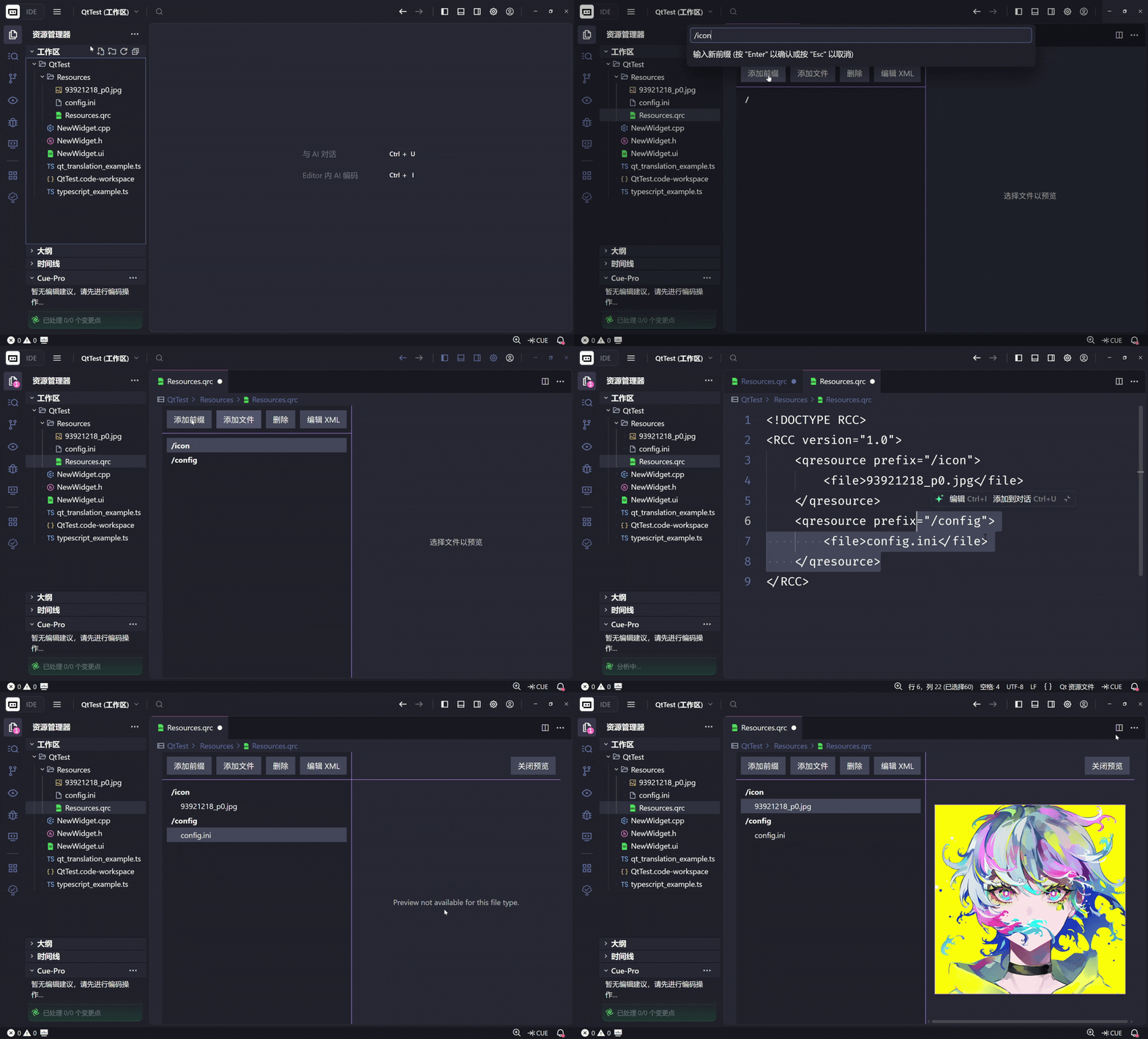
Manage your Qt resources (.qrc) with a user-friendly graphical interface.
- Open Editor: Simply click on any
.qrc file in the File Explorer.
- Features:
- Add Prefix: Create new resource prefixes (must start with
/).
- Add Files: Import files into specific prefixes.
- Preview: Click on any file (images, text) to preview its content in the right panel.
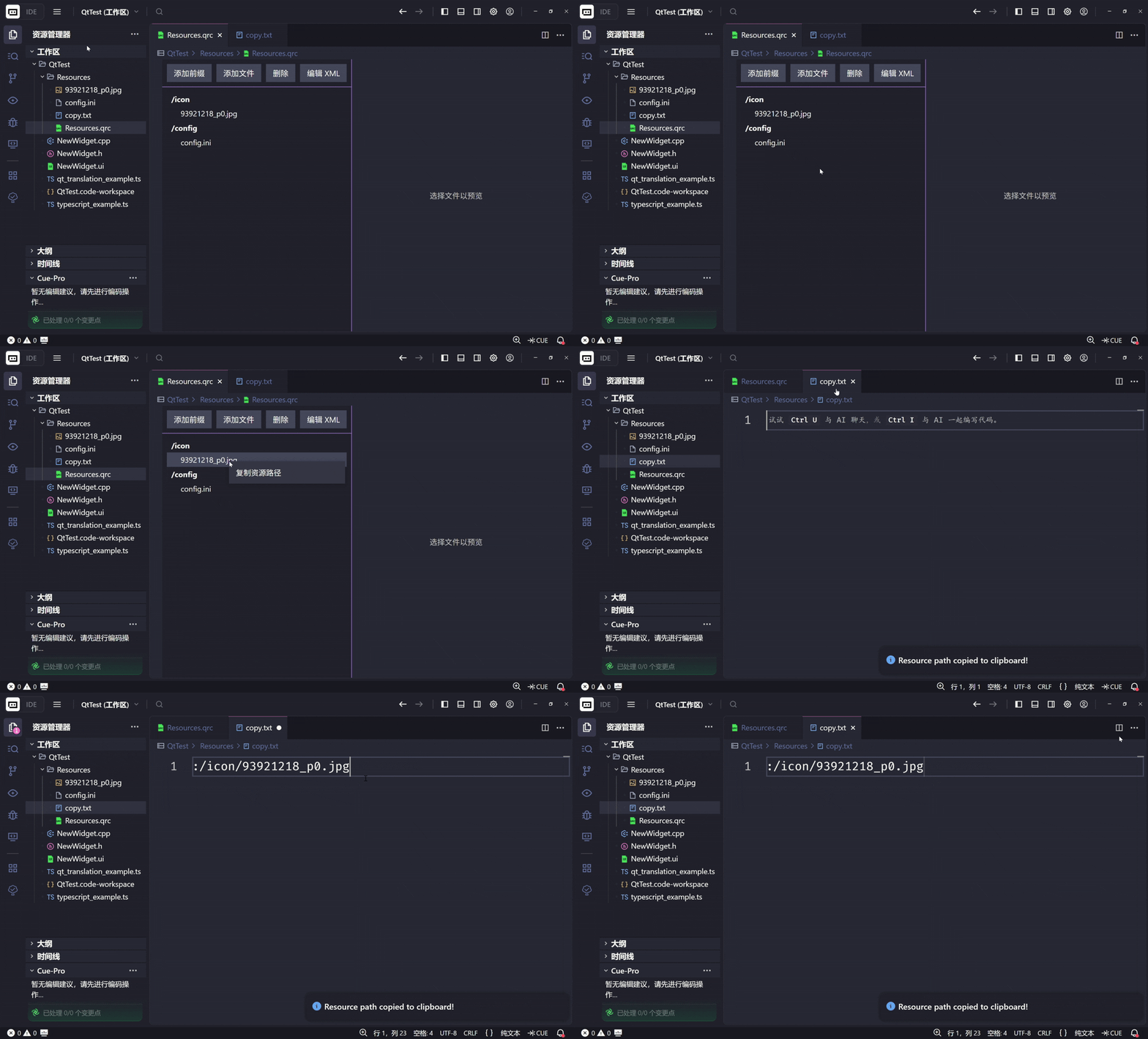
- Copy Resource Path: Right-click on a file node to copy its resource path (e.g.,
:/images/logo.png) to the clipboard.
- Edit as XML: Switch to raw XML editing mode if needed.
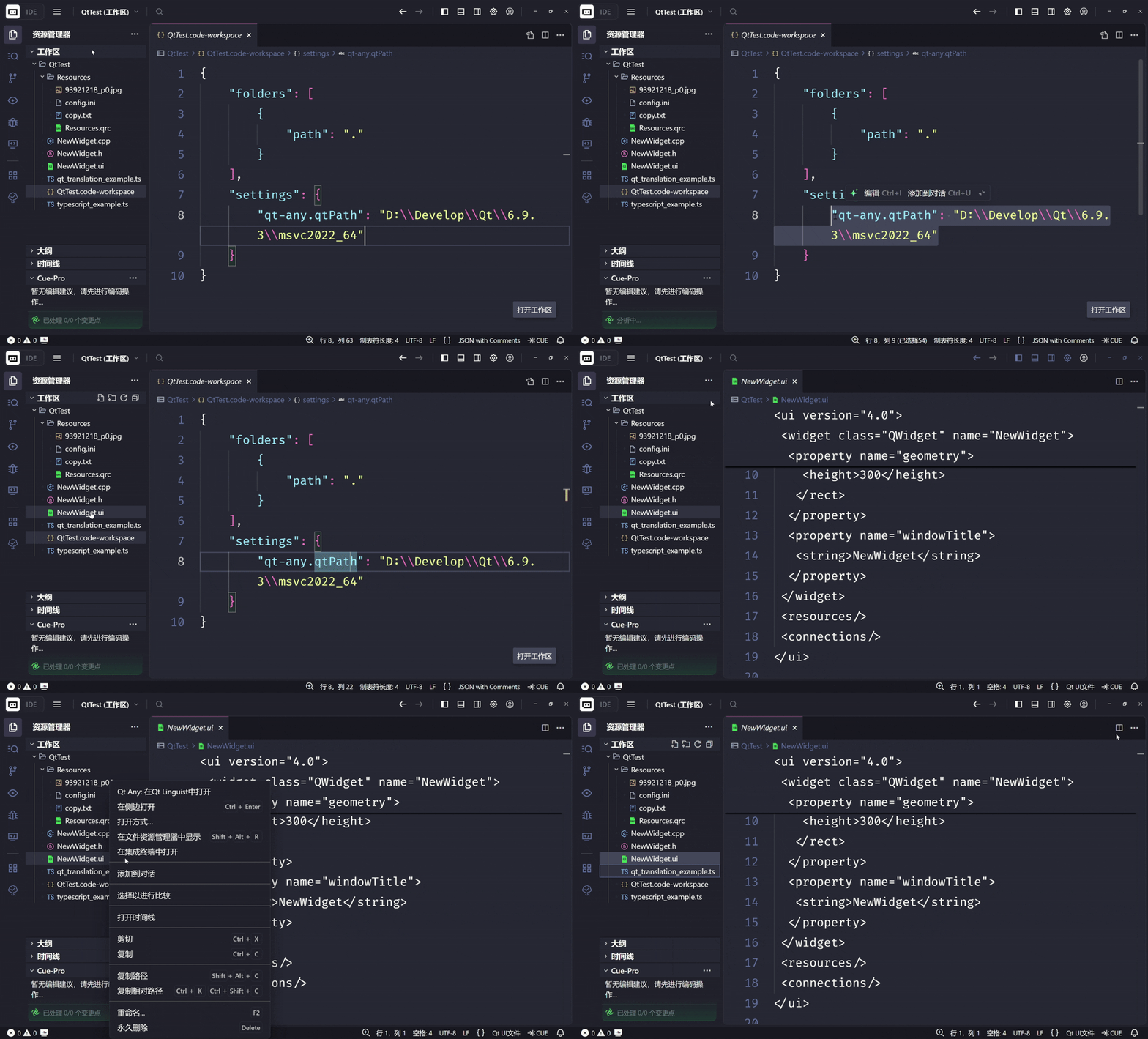
Open specific file types in their native Qt editors.
- Qt Designer: Right-click on a
.ui file -> Qt Any: Open in Qt Designer.
- Qt Linguist: Right-click on a
.ts file -> Qt Any: Open in Qt Linguist.
Note: This requires configuring the qt-any.qtPath setting.
4. Create Pure C++ Class
For non-Qt specific C++ classes.
- Command:
Qt Any: Create C++ Class.
- How to use: Right-click on a folder -> Qt Any: Create C++ Class -> Follow the wizard.
5. Create CMake Project
Create CMake-based Qt projects.
- Command:
Qt Any: Create CMake Project.
- How to use: Right-click on a folder -> Create CMake Project -> Follow the wizard.
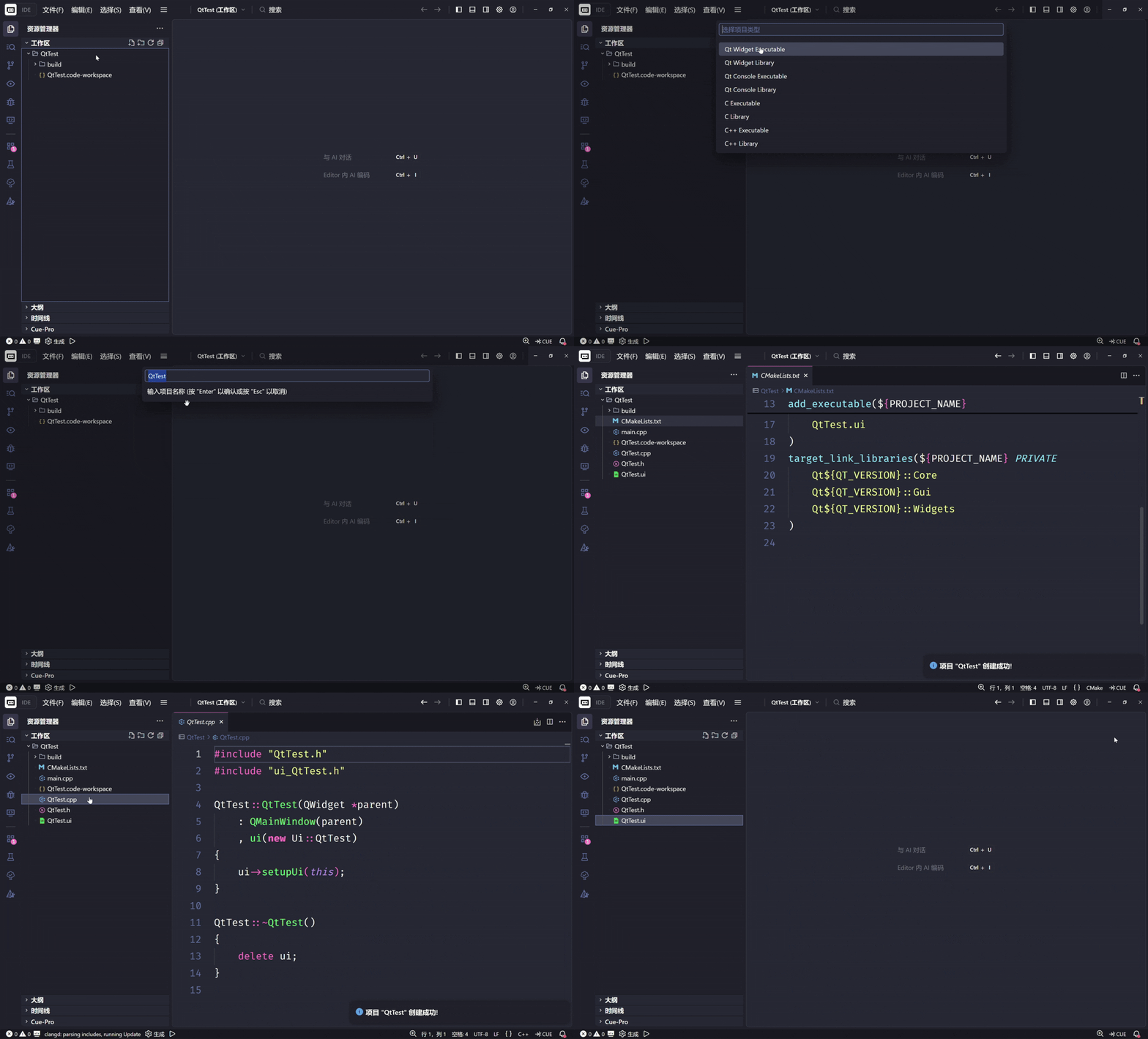
6. Copy Files on Project Creation
Copy specific files to the project directory when creating a new project.
- Configuration: Use Qt Any: Configure Local File Copying.
- How to use: Open the local configuration, create file groups, and enter the absolute paths of the files to copy. When creating a project, select the file group, and the files will be automatically copied to the project directory (existing files will be overwritten).
Configuration
To use external tools (Designer/Linguist), you must configure the path to your Qt installation.
- Open VS Code Settings (
Ctrl+,).
- Search for
qt-any.
- Set Qt Any: Qt Path to your Qt kit directory (the folder containing
bin, include, lib).
Example:
- Windows:
C:\Qt\6.5.0\mingw_64
- macOS:
/Users/username/Qt/6.5.0/macos
- Linux:
/opt/Qt/6.5.0/gcc_64
{
    "qt-any.qtPath": "C:\\Qt\\6.5.0\\mingw_64"
}
Enable or disable items in the context menu.
- Configuration: Settings starting with
qt-any.show....
- How to use: Open VS Code Settings, search for
qt-any, and check/uncheck the items you want to display in the context menu.

