SuuntoPlus EditorSuuntoPlus Editor License Agreement SuuntoPlus Editor can be used to develop SuuntoPlus apps and device connections with Suunto watches. You can create and edit a SuuntoPlus apps and load it into a Suunto watch. RequirementsSuuntoPlus Editor is supported on the following platforms:
Suunto watches can be connected to SuuntoPlus Editor with USB or with Bluetooth. Connecting a Suunto watch with Bluetooth is supported in macOS and in Windows version 10 or later. Before trying to pair your Suunto watch as Bluetooth device you have to unpair the watch from Suunto mobile application (Android or iOS). In watch settings menu, go to Connectivity > Paired devices > MobileApp > Forget to unpair the watch. Bluetooth support in SuuntoPlus Editor can be enabled or disabled with Enable Bluetooth setting in SuuntoPlus Editor extension settings. To enable Bluetooth pairing in macOS, you also have to set at least a partial serial number of the watch to macOS Bluetooth Serial in SuuntoPlus Editor extension settings. Quick Start
Editor FeaturesCommandsSuuntoPlus Editor provides the following commands to the VS Code command palette, available by selecting View > Command Palette or by typing Ctrl+Shift+P (Cmd+Shift+P in macOS):
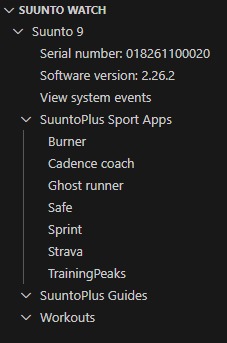
ViewsSuunto WatchSuunto Watch view shows information about a connected Suunto watch. In this view you can:
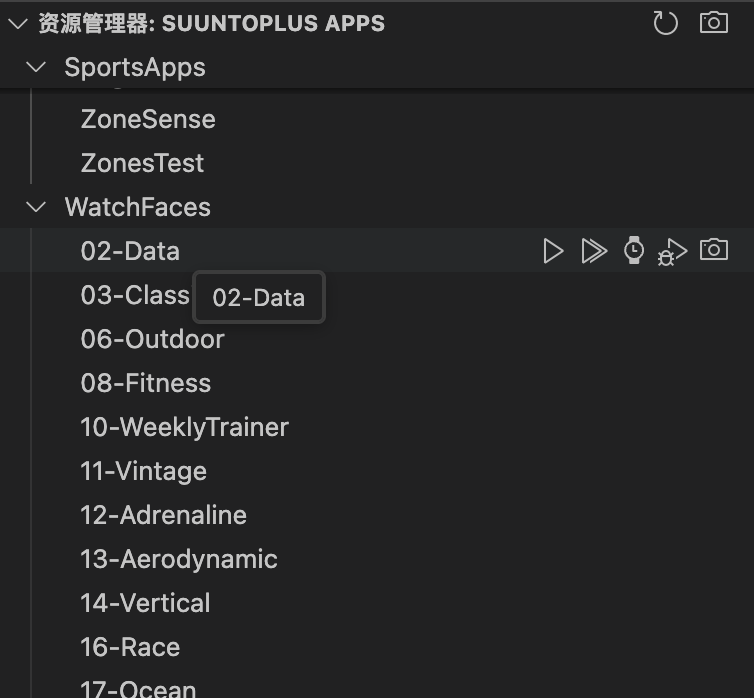
SuuntoPlus AppsSuuntoPlus Apps view shows a list of SuuntoPlus apps in your VS Code workspace. In this view you can:
SettingsThe following Visual Studio Code settings are available for the SuuntoPlus Editor extension. These can be configured as User Settings or as Workspace Settings.
SuuntoPlus buildRunning Build SuuntoPlus App or Deploy Default App To Watch will create a package (.dev file for apps that connect to an external BLE device and .fea file for other apps) that can be deployed to a Suunto watch. Application build also checks your application and shows warnings or errors if any issues are found. Application build steps are:
SuuntoPlus simulator
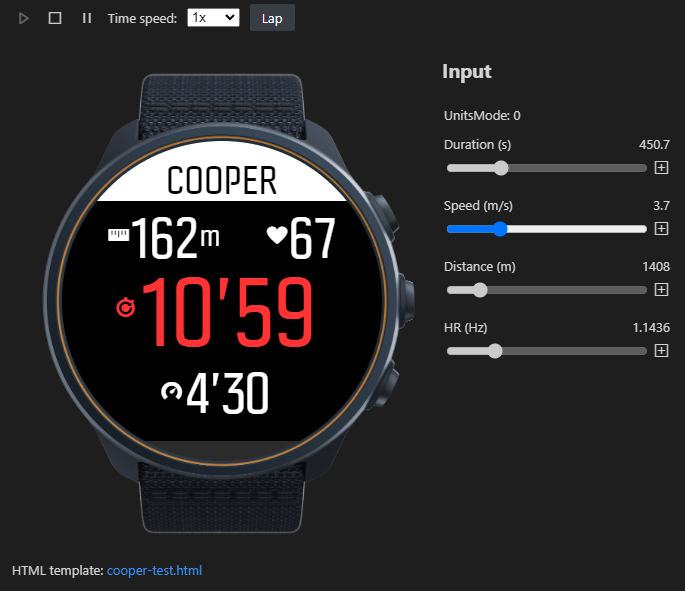
Test your SuuntoPlus app in VS Code using the SuuntoPlus simulator. It simulates watch measurement data (i.e. SuuntoPlus app input resources), such as GPS, heart rate and altitude data, and can be used to test your application's JavaScript code as well as user interface (HTML and image files). Suunto watches have different display sizes and also different user interfaces (CSS classes, fonts etc.). You can test your application for different watches by changing Display option in simulator. Watch resourcesSimulator automatically generates values for watch input resources. Alternatively you can adjust the values manually by dragging the sliders in Input data view. Watch resources can also be simulated using a workout file. Supported workout file formats are Suunto JSON file and FIT file. You can export a FIT file from Suunto mobile app (Android or iOS) or save a Suunto JSON workout file from your watch in SuuntoPlus Editor. The following data from workout file is used for simulating watch resources:
Data viewsSimulator data views show input and output data in the simulator.
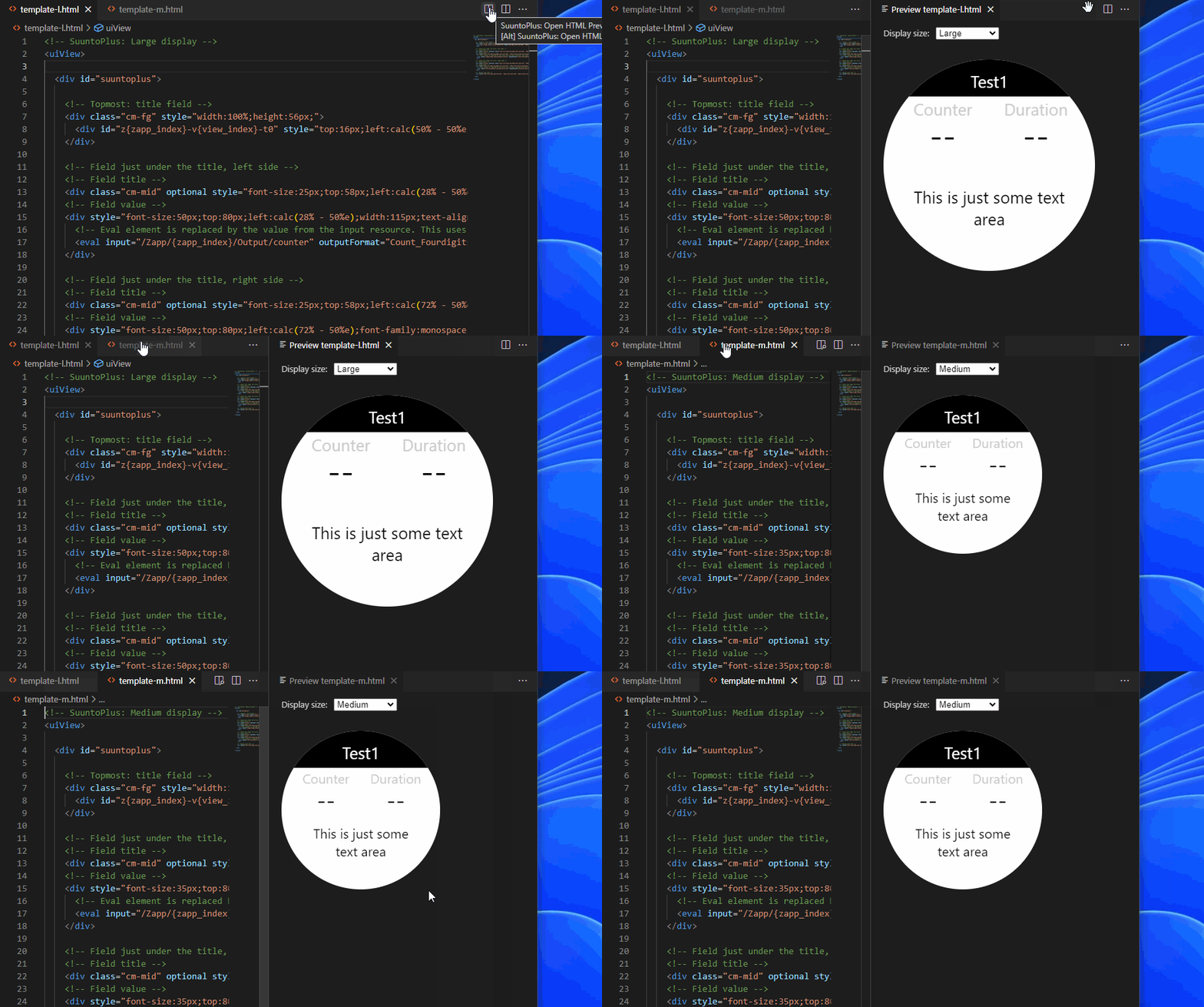
SuuntoPlus app settingsSimulator loads SuuntoPlus app settings from data.json settings file and provides JavaScript API functions for reading the settings (see developer documentation for more information). Simulator does not write to data.json, i.e. changing settings permanently is not supported. HTML previewSuuntoPlus Editor supports preview of HTML template files. To show the preview, right-click on the editor Tab and select SuuntoPlus: Open HTML Preview, click preview button in editor toolbar or run SuuntoPlus: Open HTML Preview to the Side command using Command Palette. Note that the preview may not always be identical to watch display due to differences in font rendering etc.
Other featuresSelect "Suunto Watch" in VS Code Explorer view to view system events and workout JSON from your watch. Choose View > Output and then choose SuuntoPlus in the Output panel to see SuuntoPlus editor messages. Note that you should disable syncing your watch with Suunto mobile app (or unpair your watch from the mobile app) while working with SuuntoPlus Editor. Otherwise Suunto app may remove your SuuntoPlus app from the watch. Note that running SuuntoLink may conflict with SuuntoPlus Editor. You should close SuuntoLink and disable "Start SuuntoLink automatically" in SuuntoLink settings when using SuuntoPlus Editor. SuuntoPlus examplesRun SuuntoPlus: Open Examples command from Command Palette to open the examples in a new VS Code window. Note that the examples are located in SuuntoPlus Editor VS Code extension folder and any changes to them are lost when the extension is updated or uninstalled. |