Git Baseline
中文使用说明

A VS Code extension that lets you pin a Git baseline and see all accumulated changes in VS Code, or project an A→B change set onto a later C state. Keep your normal Source Control view while reviewing baseline history.
- Pale green background: new files and pure inserted lines.
- Pale orange background: changed files and replacement blocks.
- Pale red background: the location of deleted text.
- Subdued projection colors: A→B changes that were later evolved in C.
- Compare unsaved editor contents, not just files on disk.
- Choose a different baseline without checking out a commit or changing Git history.
- Use local or remote Git workspaces; repository discovery is automatic.
Install
- Search for
Storehouseconsciousness.git-baseline-marker in the VS Code Extensions view after the Marketplace release is available.
- Until the first Marketplace release, download the
.vsix attachment from the latest release and run Extensions: Install from VSIX….
- Reload the VS Code window, then open a trusted Git workspace.
- Run Git Baseline: Select Baseline. Enter a commit hash, tag or branch.
The selection resolves to a full commit hash and is remembered for that repository. Moving a branch later does not move a baseline chosen with this command. No baseline is selected automatically on first use.
The Marketplace identifier is Storehouseconsciousness.git-baseline-marker. The repository also distributes source and VSIX packages for local or pre-release installation.
Use
| Command |
Purpose |
| Git Baseline: Select Baseline |
Choose a comparison commit for the current repository. |
| Git Baseline: Select A→B Projection onto C |
Choose A, B and C, then project A→B changes onto C. |
| Git Baseline: Toggle Highlights |
Show or hide the decorations. |
| Git Baseline: Refresh Highlights |
Recalculate file and line changes. |
| Git Baseline: Show Legend |
Explain the colors and limits. |
| Git Baseline: Set Base for All Repositories |
Pin one baseline in every discovered repository. |
The status bar shows the selected baseline. Hover over decorations for their meaning. When several Git repositories are open, each discovered repository keeps its own baseline and visible editors are decorated according to their repository; the status bar follows the active editor.
The Git Baseline view lists discovered repositories and their changed files. Select a repository in the view to choose its baseline, or use the title command to set one baseline in every repository. Nested repositories are discovered up to three directory levels by default; configure gitBaselineHighlights.scanDepth to change that.
Changes to visible, unsaved text are compared after a short debounce. Saves, file operations, window focus and Git metadata changes refresh file badges. Manual refresh is available when an external change does not emit an event.
Coexist with Git decorations
By default, baseline changes use only subtle whole-line backgrounds. Git keeps its existing gutter indicators, overview ruler and Explorer status badges. Read cumulative baseline changes from the background and uncommitted Git changes from the usual Git indicators.
A line added and committed after the baseline retains a green background without an uncommitted Git indicator. Editing it again can display both. Hover over the background for its baseline meaning. Deletions use a red background on a neighboring existing line; an empty document has no line to mark.
These optional settings default to false. Enabling them may overlap Git or other extensions:
gitBaselineHighlights.showGutterIcons: colored gutter diamonds.gitBaselineHighlights.showOverviewRuler: overview ruler marks.gitBaselineHighlights.showFileBadges: Explorer A/M/D/R badges and changed-folder markers.
Settings take effect automatically without reloading. Keep the defaults for the coexistence layout.
Project A→B changes onto C
Run Git Baseline: Select A→B Projection onto C and enter A, B, and C. A is the change start, B is the change end, and C is the target state. A must be an ancestor of B, and B must be an ancestor of C. If B is left empty, the command falls back to the original single-baseline behavior and compares A with the current working state. The extension never checks out a commit: it reads C's snapshots and maps the projection onto the open editor content.
Retained A→B changes use the normal strong colors. Changes that C later evolved but still maps to use subdued colors. Changes reverted, deleted, or no longer mappable in C are not marked.
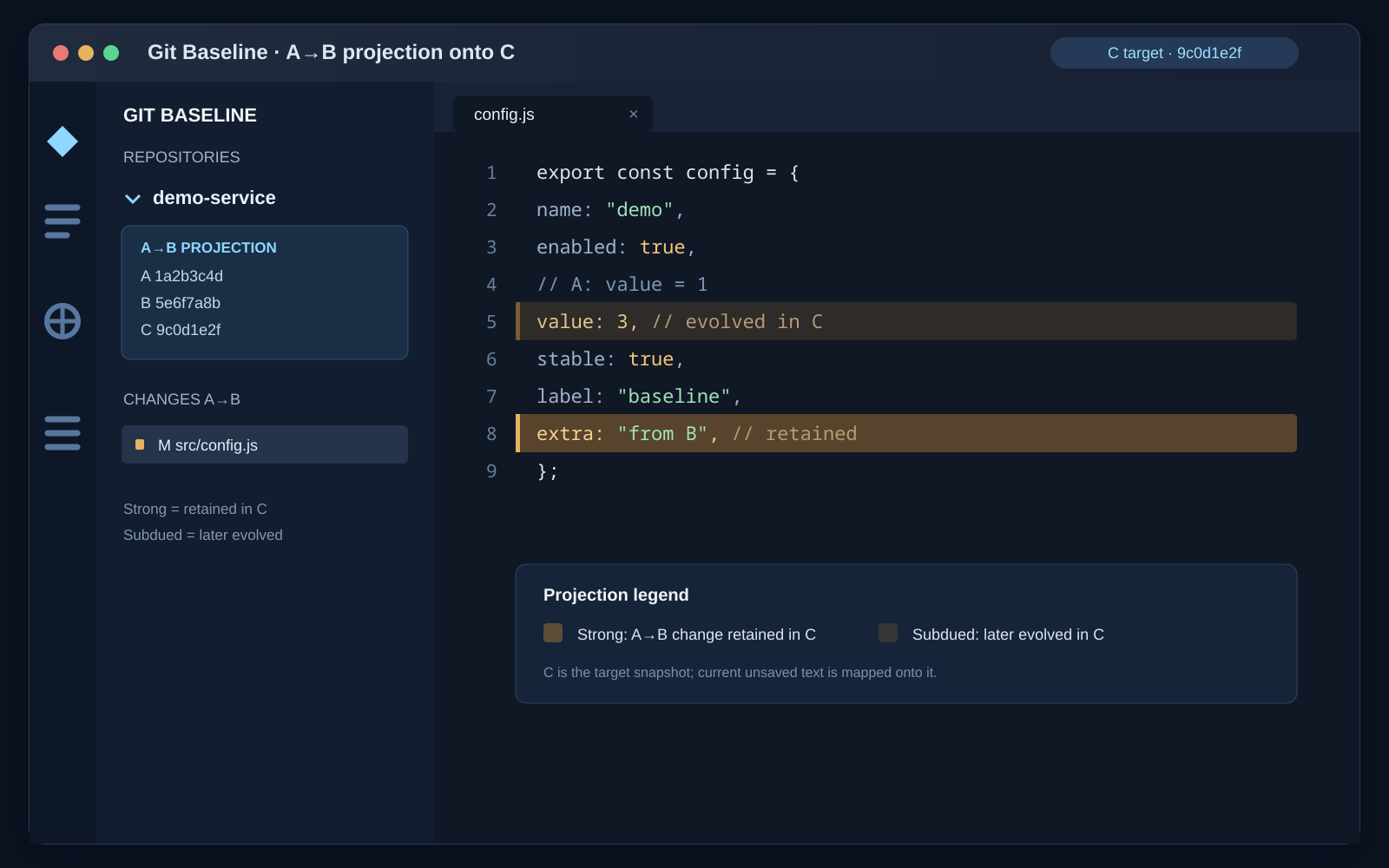
The example shows a retained A→B line with a strong background and a later-evolved line with a subdued background.
Configuration
Defaults work without adding a project configuration file. If needed, set these in User Settings to keep project files untouched:
gitBaselineHighlights.repository: optional repository directory; leave empty for automatic detection.gitBaselineHighlights.base: optional baseline override; leave empty to use the per-repository selection.gitBaselineHighlights.projectionStart: projection start A. If B and C are empty, A is used as the ordinary fixed baseline against the current working state.gitBaselineHighlights.projectionEnd: projection end B; set this together with A and C to enable projection.gitBaselineHighlights.projectionTarget: projection target C; set this together with A and B, and make it equal to or later than B.gitBaselineHighlights.comparisonMode: direct compares to the selected commit; mergeBase compares to the common ancestor of the selected ref and HEAD, which is useful for PR-style review.gitBaselineHighlights.followBase: re-resolve a configured branch or tag on every refresh; disabled by default to preserve fixed-commit semantics.gitBaselineHighlights.scanDepth: nested Git repository discovery depth, defaulting to 3.
Changing the configured baseline expression resolves and saves it once. It stays fixed across refreshes unless followBase is enabled. A later command selection replaces the saved baseline without changing settings; changing the configuration expression again resolves a new baseline.
What stays unchanged
The extension reads Git data and draws editor decorations. It does not write source files, stage changes, switch branches, create commits, alter Git configuration or write workspace settings. Selections and toggles use VS Code's extension workspace storage. Each discovered repository stores its baseline independently.
Temporary text comparisons use the operating system's temporary directory and are removed after comparison. An abruptly terminated process can leave a temporary directory behind.
Limits
- Ignored files do not become new-file highlights merely because they are opened. Tracked files remain eligible even if an ignore rule matches them.
- NUL-containing binary data, files over 2 MiB and documents over 100,000 lines skip line highlighting.
- Replacement blocks are orange as a whole; this is line-level highlighting, not character-level attribution.
- Renames appear as an R status in the changes view; the old path is retained as a deleted status for decoration purposes.
- Deleted text is represented by an anchor on a neighboring current line, not recreated in the document.
- Special encodings or line-ending conversions can appear as broad replacement blocks.
- Optional Explorer badges can interact with other decoration providers; the Git Source Control view remains available.
- Git must be installed. VS Code 1.85 or later is required. Linux is locally verified; CI is configured to exercise Linux, macOS and Windows.
Develop and package
Runtime code has no npm dependencies. Node.js 22 or later is recommended for development, and packaging uses the official @vscode/vsce CLI.
npm test
npm run package
When the npm registry is unavailable, npm run package:offline creates the same release package with the bundled standard-library packer.
If Marketplace reports An extension that was made public can't be changed to private, discard any older offline VSIX and rebuild it. The current offline packer writes <GalleryFlags>Public</GalleryFlags> into extension.vsixmanifest; verify it with unzip -p dist/git-baseline-marker-0.4.2.vsix extension.vsixmanifest | grep GalleryFlags before uploading.
For a local Azure-authenticated publish, sign in with Azure CLI and run npm run publish:azure. For the recommended release path, push a matching v*.*.* tag: GitHub Actions logs in to Microsoft Entra through GitHub OIDC, then runs npx @vscode/vsce publish --no-dependencies --no-yarn --azure-credential. Configure the marketplace environment and its AZURE_CLIENT_ID, AZURE_TENANT_ID, and AZURE_SUBSCRIPTION_ID secrets first. Add the Entra application or managed identity as a Contributor to the Storehouseconsciousness Marketplace publisher.
By default, vsce package writes <name>-<version>.vsix to the project root. To write this release to dist/, run npx --yes @vscode/vsce package --no-dependencies --no-yarn --out dist/git-baseline-marker-0.4.2.vsix. For a development session, open this folder in VS Code and run:
code --extensionDevelopmentPath="$(pwd)"
Tests create independent temporary Git repositories. They cover line changes, unusual filenames, ignored files, invalid baselines, unsaved text, repository selection, stale asynchronous results and Git index preservation.
License
MIT. Contributions and bug reports are welcome through this repository's issues and pull requests.

