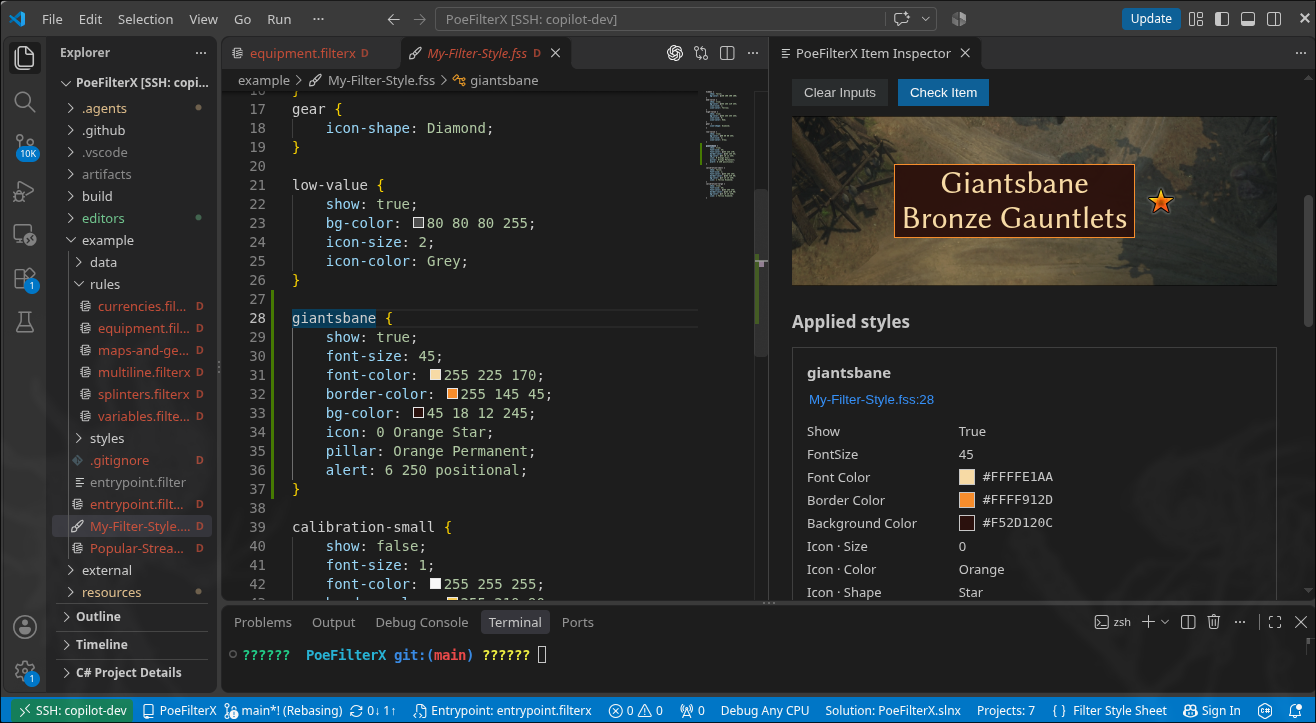
Edit your filterx projects, preview how items will look, and build your .filter files from VS Code.
Write and edit with assistance
Suggestions as you type for filter commands, style properties, values, style names, and imports.
Error and warning highlights with details in VS Code's Problems panel.
Hover help for commands, properties, and style declarations.
Color swatches and a color picker for adjusting your styles.
Go to Definition and Find References to navigate styles and their uses.
Rename styles across files to keep declarations and references in sync.
Formatting, highlighting, folding, and an outline to keep larger files easy to navigate.
Preview items and inspect their styles
Copy an item from Path of Exile and paste it into PoeFilterX: Inspect Item to see how your filter treats it.
Preview the item's label, text size, colors, border, and minimap icon.
See which filter block matches and which styles apply.
Follow links back to the rules and style declarations in your files.
Trace overridden values to understand where the final appearance comes from.
Inspect items from Path of Exile 1 or Path of Exile 2, with controls for area level and item properties.
Manage and build your project
Run PoeFilterX: Initialize Project to create a project in your workspace.
Choose your filter with PoeFilterX: Select Entrypoint, or click the entrypoint in the status bar.
Run PoeFilterX: Build to generate your .filter file and jump to build errors from the Problems panel.
Use VS Code's build tasks to build individual entrypoints.
Run PoeFilterX: Restore Packages to download your project's package dependencies.
Get started
Open your filter project folder in VS Code. Open the Command Palette and run PoeFilterX: Inspect Item to try the preview, or PoeFilterX: Build to build your filter.
For help creating your first filter project, follow this guide.