GraphPilot for VS Code
Explore your codebase as an interactive graph.
GraphPilot maps source files, symbols, imports, and calls so you can follow how a project fits together. Explore the graph visually, inspect code in context, and ask questions with a local or API based language model.




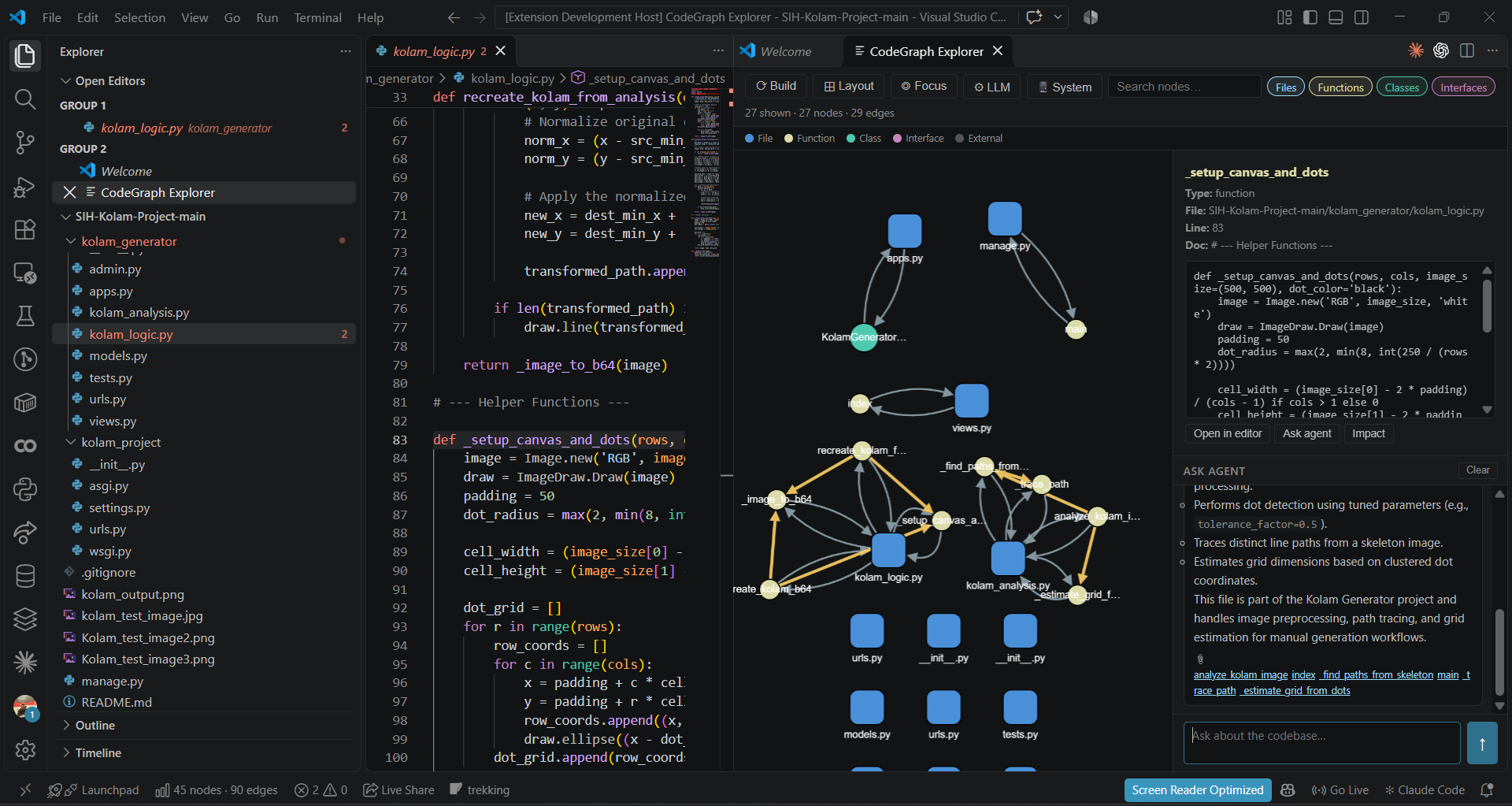
The graph shows files and symbols as nodes. Click a node to inspect its source and ask about it.
What you can do
- See the structure: browse files, functions, classes, interfaces, imports, and calls in one graph.
- Follow cross-file relationships: inspect imports and resolved calls between project files.
- Explore interactively: filter node types, search, rearrange the layout, focus the active file, and open a symbol in the editor.
- Ask about your code: use graph context with LM Studio or Ollama locally, or OpenAI and Anthropic APIs.
- Tune indexing to your computer: review RAM and CPU information and adjust file limits before building a large graph.
GraphPilot builds a static graph from supported source code. It does not execute your project. The graph does not require an LLM; configure one when you want natural-language answers.
See your first graph
- Open the project folder you want to explore in VS Code. GraphPilot indexes the open workspace folder. For a small practice project, open
examples/demo-workspace from this repository.
- Open the Command Palette with Ctrl+Shift+P.
- Run GraphPilot: Build Graph. You can also open GraphPilot Explorer and click Build.
- Wait for the indexing notification to finish. The graph appears with file and symbol nodes and relationship edges.
- Click a node to see its file, line, and source snippet. Use Search nodes…, the type filters, Layout, and Focus to explore.
If the graph says No graph yet, run Build once. The graph counts in the panel describe the indexed workspace; the VS Code status bar also shows the current node and edge totals. Building again refreshes the index. Supported-file changes are watched after a build.
After installing the VSIX into an already-open VS Code window, run Developer: Reload Window or invoke a GraphPilot command once. Startup activation runs after VS Code starts, so it will not fire retroactively in a window that was already open during installation.
What the connections mean
| Edge |
Meaning |
IMPORTS |
A source file imports another workspace file or an external dependency. |
CALLS |
A function calls a function GraphPilot can resolve in the same file or through an import. |
DEPENDS_ON |
A file-level dependency inferred from a resolved cross-file call. |
CONTAINS / DEFINED_IN |
A symbol belongs to a source file. |
EXTENDS / IMPLEMENTS |
A class extends or implements a symbol when the parser can identify it. |
Connections come from source syntax and static resolution, not runtime traces. Dynamic imports, reflection, generated code, complex re-exports, and unresolved aliases may not be linked. See how indexing and graph relationships work.
Connect a language model
- Open GraphPilot Explorer and click LLM, or run GraphPilot: LLM Settings from the Command Palette.
- Choose a provider tab: LM Studio, Ollama, OpenAI, or Anthropic.
- Enter the server URL/model, or API key/model, as appropriate.
- Click Test connection and wait for the success or error message.
- Click Save settings, then use the Ask Agent box in GraphPilot Explorer.
The graph builder and graph navigation work without a language model. Structural requests such as callers and impact can be answered directly from the graph.
LM Studio (local model)
- In LM Studio, load a model and start Local Server.
- In GraphPilot LLM Settings, choose LM Studio.
- Set the API URL to
http://localhost:1234/v1 (the default LM Studio server address).
- Leave Model ID as
local-model to use the first loaded model, or enter an ID returned by LM Studio's /v1/models endpoint.
- Click Test connection. When it succeeds, save the settings.
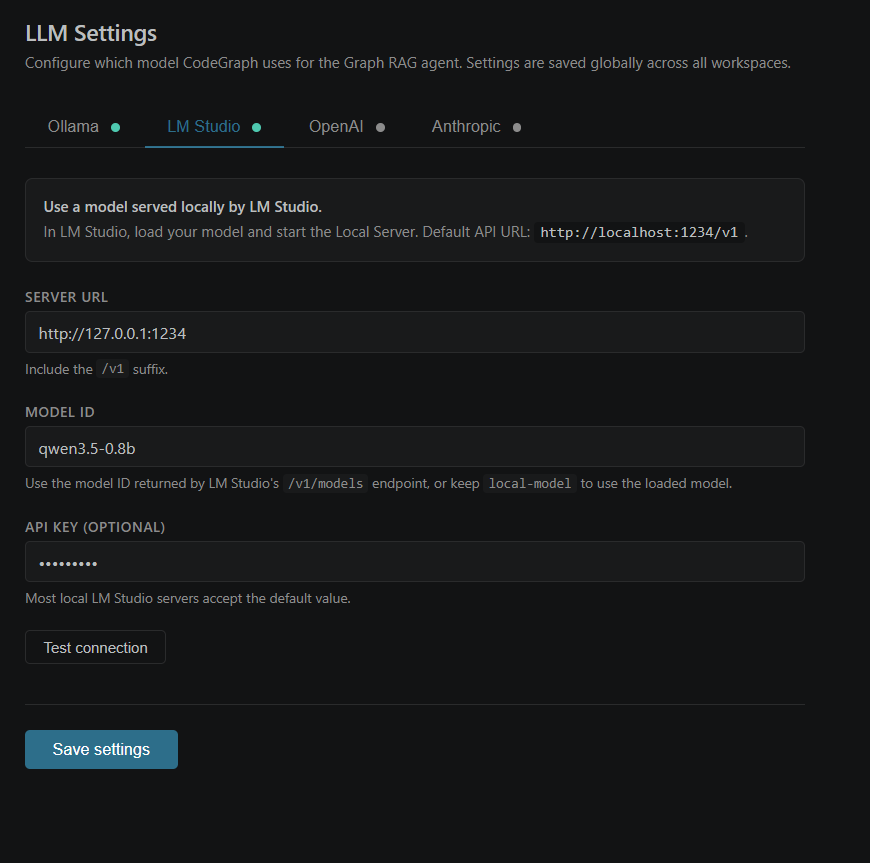
Optional VS Code settings.json configuration:
{
  "codegraph.llm.provider": "lmstudio",
  "codegraph.llm.lmStudioUrl": "http://localhost:1234/v1",
  "codegraph.llm.lmStudioModel": "local-model"
}
Ollama (local model)
- Make sure Ollama is running and the model is installed (
ollama list).
- Choose Ollama in GraphPilot LLM Settings.
- Use
http://localhost:11434 for the server URL and enter the model name, such as llama3.
- Test the connection, then save.
OpenAI or Anthropic (API)
- Choose OpenAI or Anthropic in GraphPilot LLM Settings.
- Enter the provider's API key and model.
- Test the connection and save the settings.
Keys entered in the settings panel are stored with VS Code SecretStorage. Avoid placing API keys in source control or a shared workspace settings.json file. Cloud providers receive your question and the retrieved code context; see privacy and provider details.
For provider endpoints, model behavior, and connection troubleshooting, see Language model providers.
Check system settings
- Click System in GraphPilot Explorer, or run GraphPilot: System Settings from the Command Palette.
- Review detected RAM, free memory, CPU cores, platform, and the memory tier/warnings.
- Compare Recommended Settings with the current maximum file count and maximum file size.
- Choose Apply Recommended, or enter limits under Custom Override and choose Save Custom.
- Rebuild the graph for the new indexing limits to take effect.
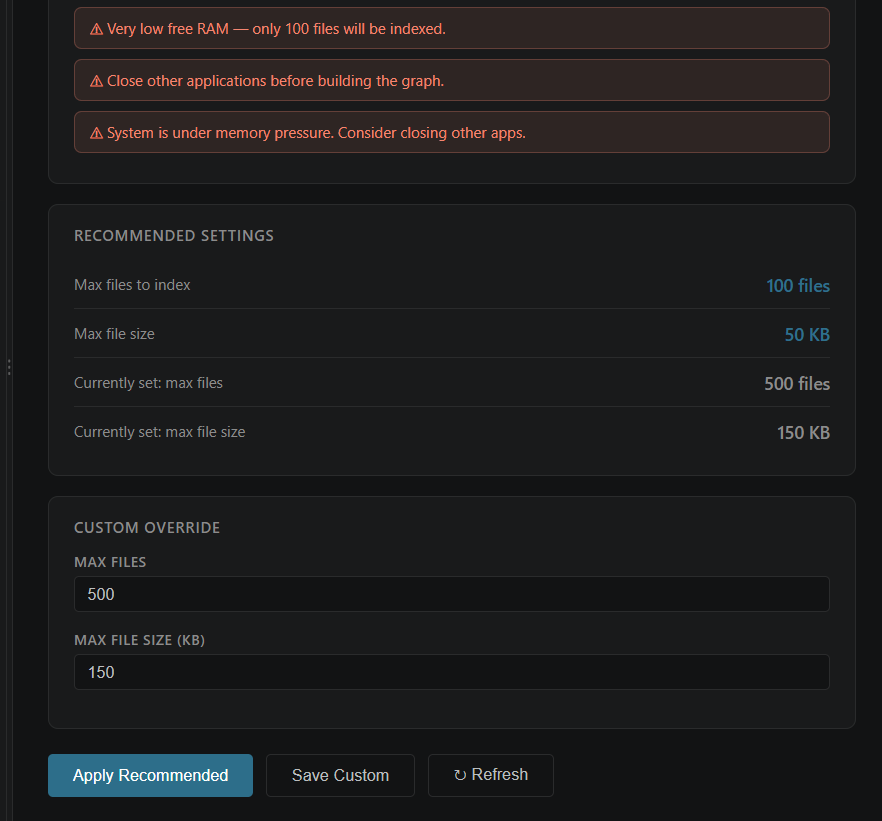
GraphPilot does not silently change these limits on startup. The settings panel lets you review and apply them deliberately. More details are in the configuration reference.
Commands
| Command |
What it does |
GraphPilot: Build Graph |
Scan and index the current workspace, then show the graph. |
GraphPilot: Ask Agent |
Ask a question about the indexed code. |
GraphPilot: Focus Current File |
Focus the active editor's file node in the graph. |
GraphPilot: Reset Index |
Clear the stored graph after confirmation and rebuild it. |
GraphPilot: LLM Settings |
Select, configure, and test a model provider. |
GraphPilot: System Settings |
Review system resources and adjust scan limits. |
GraphPilot: Impact Analysis (cursor) |
Show graph relationships affected by the symbol under the cursor. |
GraphPilot: Show Callers (cursor) |
Show callers of the symbol under the cursor. |
Supported source files
GraphPilot currently scans .ts, .tsx, .js, .jsx, .mjs, .cjs, and .py files. It skips common dependency, generated, and cache folders and applies configurable file-count and file-size limits. It does not currently provide full compiler-level symbol resolution, model-based embeddings, or parsers for Go, Rust, Java, and other languages.
The local retrieval index uses TF-IDF vectors; it does not download or run a separate embedding model.
Privacy
Scanning, graph construction, and the retrieval index run locally in the VS Code extension host. For a general question, GraphPilot sends the selected code snippets and graph context to the configured language model. LM Studio and Ollama receive those requests through localhost. OpenAI and Anthropic receive them through their APIs. Do not ask about files or code you are not allowed to send to the selected provider.
Documentation
Run the extension from source
Requirements: Node.js/npm and VS Code 1.85 or newer.
npm install
npm run compile
code .
In VS Code, press F5 and select Run Extension. In the separate Extension Development Host, open the project folder you want to analyze, then build the graph. When you change extension code, run npm run compile and restart the Extension Development Host so it loads the new output.
To run the project checks:
npm test
npm run lint

