🐻 Berko Multi-Agent Extension
Build AI agent teams that collaborate on complex tasks using GitHub Copilot



🎯 What is Berko?
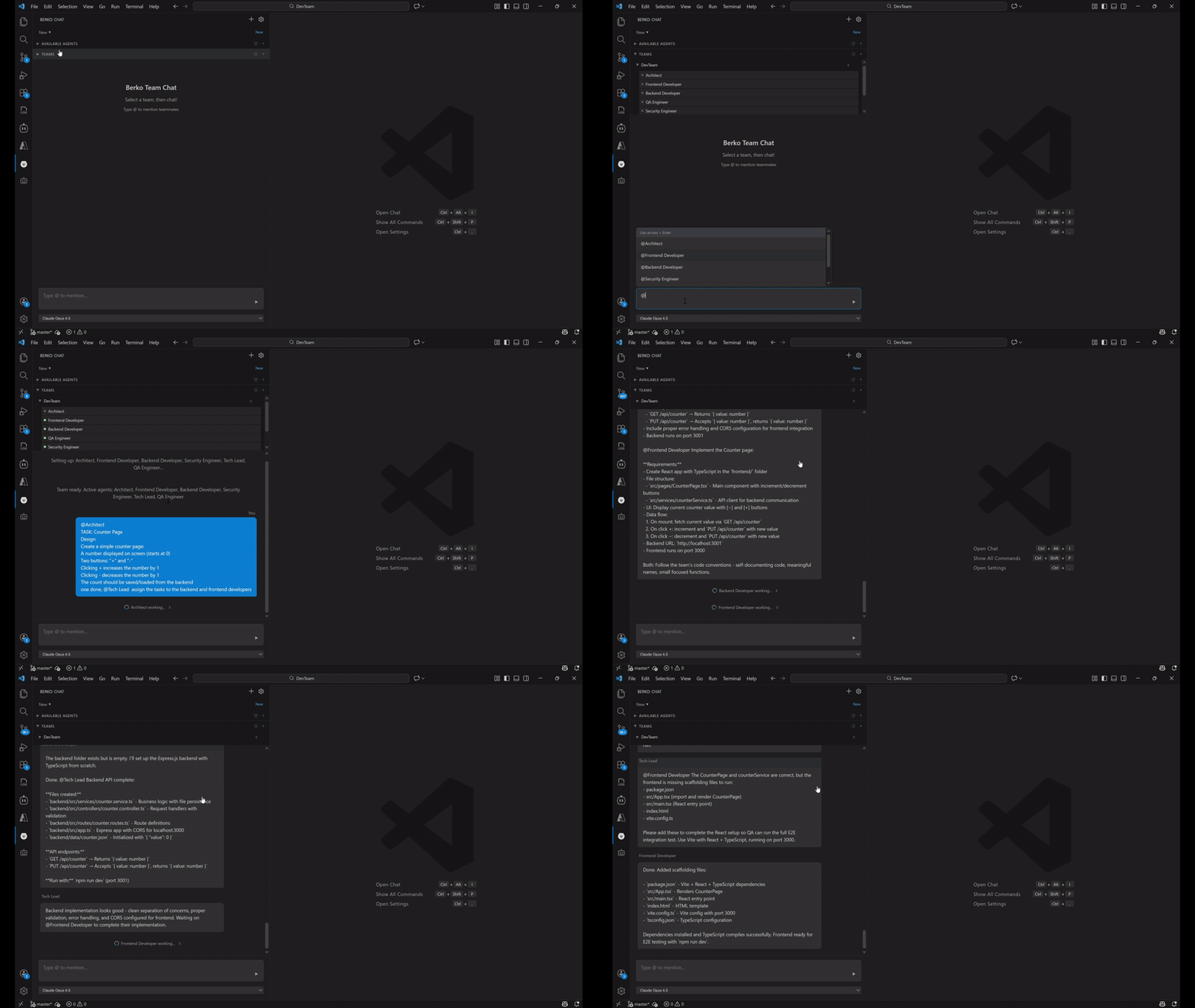
Berko is a VS Code extension that lets you create teams of AI agents that work together on your tasks. Instead of chatting with a single AI, you can:
- 🏗️ Create specialized agents (Frontend Dev, Backend Dev, QA, Tech Lead, etc.)
- 🤝 Watch them collaborate - agents can mention and delegate to each other
- 💬 Join the conversation - type messages anytime during agent discussions
- 📝 Persist context - each conversation remembers its history
- 📋 Define team rules - each team can have its own set of shared rules
- 🎨 Per-agent models - assign different AI models to different agents
- 🛠️ Skills support - agents can auto-discover and use skills from
.github/skills/
- 📂 Use existing agents - compatible with
.github/agents/ and standard agent formats
⚡ One-Time Setup (5 minutes)
Before using Berko, you need to install and authenticate the GitHub Copilot CLI.
Prerequisites:
Step 1: Install GitHub Copilot CLI
Open VS Code's integrated terminal (`Ctrl+``) and run:
npm install -g @github/copilot
⚠️ Important: Install from VS Code's terminal to ensure it works immediately. Installing from external terminals may require a VS Code restart.
Step 2: Authenticate with GitHub
In the same VS Code terminal:
copilot
Once the CLI starts, type:
/login
Follow the browser authentication flow to connect your GitHub account.
Step 3: Verify Installation
copilot --version
If you see a version number, you're ready to go! 🎉
🚀 Quick Start
Step 1: Create Your First Team
- Open VS Code in any workspace
- Click the Berko bear icon 🐻 in the sidebar
- Click "+" next to "Teams" to create a new team
- Enter a name (e.g., "Development Team")
Step 2: Create Agents
Click "+" next to "Available Agents" to create a new agent:
- Enter an agent name (e.g., "Senior Developer")
- The agent file opens for editing
- Customize their role, personality, and instructions in the markdown file
New agents are stored in .berko/agents/ folder as .md files (like .github/ pattern).
Step 3: Add Agents to Your Team
From the "Available Agents" section:
- Find the agent you want to add
- Right-click the agent → "Add to Team"
- Select which team to add them to
You can also:
- Right-click a team → "Add Agent" to browse available agents
- Add the same agent to multiple teams
Step 4: Start Chatting!
- Click on a team to select all its agents
- Type a message and press Send
- Watch the agents initialize and respond
- Use @AgentName to mention specific agents
📖 Core Features
🧑🤝🧑 Team-Based Organization
Create multiple teams for different projects or workflows:
- Development Team: Frontend, Backend, DevOps
- Design Team: UX Designer, UI Designer, Researcher
- Review Team: Code Reviewer, Security Auditor, QA
Teams are stored in .berko/teams/ as .team.md files with YAML frontmatter and team rules in the markdown body.
💬 Multi-Agent Conversations
Agents collaborate through @mentions:
- You send a message → Agent responds
- Agent mentions @Teammate → Message is routed automatically
- Parallel processing: Mention multiple agents (
@Senior and @Junior) - they work simultaneously!
📋 Team Rules
Define shared rules in your .team.md file that all agents follow:
- Communication guidelines
- Coding standards
- Workflow conventions
- Quality requirements
Team rules are automatically injected into every agent's initialization.
🎨 Per-Agent Model Selection
Assign different AI models to different agents for cost optimization:
---
name: "QuickResponder"
description: "Fast responses for simple tasks"
model: "gpt-5-mini"
---
---
name: "DeepThinker"
description: "Complex analysis and architecture"
model: "claude-opus-4.5"
---
Available Models:
| Model | Description |
|-------|-------------|
| claude-opus-4.5 | Most powerful |
| claude-sonnet-4.5 | Balanced |
| claude-sonnet-4 | Fast Sonnet |
| claude-haiku-4.5 | Fastest Claude |
| gpt-5.2 | Latest GPT |
| gpt-5.1 | GPT 5.1 |
| gpt-5 | GPT 5 |
| gpt-5-mini | Fast GPT-5 |
| gpt-5.1-codex-max | Max coding |
| gpt-5.1-codex | Coding optimized |
| gpt-5.1-codex-mini | Fast coding |
| gpt-4.1 | GPT 4.1 |
| gemini-3-pro-preview | Google Gemini |
🛠️ Skills Support
Berko auto-discovers skills from .github/skills/ in your workspace:
your-workspace/
├── .github/
│   └── skills/
│       └── kusto-cli/
│           ├── SKILL.md
│           └── QUICKREF.md
Agents can reference and use skill knowledge automatically.
📂 Conversation History
- Create multiple conversations
- Each conversation has its own agent sessions
- Resume previous conversations with full memory
- Sessions persist across VS Code restarts
🛠️ Agent Configuration
Agents are defined in Markdown files with YAML frontmatter:
---
name: "Senior"
description: "Experienced developer who mentors juniors"
role: "Lead Developer"
model: "claude-sonnet-4"
tools: []
---

# Senior Developer

## Purpose
You are a senior developer with 10+ years of experience.
You write clean, maintainable code and mentor junior developers.

## Guidelines
- Write clean, maintainable code
- Follow SOLID principles
- Delegate simpler tasks to @Junior
- Always explain your reasoning
Frontmatter Properties
| Property |
Required |
Description |
name |
No |
Unique identifier (defaults to filename) |
description |
Yes |
Brief description - required to be recognized |
role |
No |
Job title or function |
model |
No |
AI model (overrides team default) |
tools |
No |
Array of available tools |
The markdown body becomes the agent's system prompt.
📋 Team Configuration
Teams are defined in .berko/teams/ as .team.md files:
---
name: "DevTeam"
description: "Core development team"
agents:
  - ".berko/agents/senior.md"
  - ".berko/agents/junior.md"
  - ".github/agents/reviewer.md"
---

# Team Rules

## Communication Guidelines
- Be concise and technical
- Use code blocks for all code
- Mention @Name when delegating tasks

## Quality Standards
- All code must have error handling
- Include unit tests for new features
- Follow existing code patterns
🗂️ File Structure
Recommended Structure
your-workspace/
├── .berko/
│   ├── agents/                    # New agents are created here
│   │   ├── senior.md
│   │   ├── junior.md
│   │   └── reviewer.md
│   └── teams/
│       ├── dev-team.team.md      # Team definitions
│       └── qa-team.team.md
├── .github/
│   ├── agents/                    # GitHub Copilot agents (auto-discovered)
│   │   └── copilot-expert.md
│   └── skills/                    # Skills for agents
│       └── my-skill/
│           └── SKILL.md
├── agents/                        # Legacy agents (still auto-discovered)
│   └── old-agent.md
├── .berko-sessions/               # Session persistence (auto-generated)
│   └── {conversation-id}/
│       ├── Senior.session
│       └── Junior.session
└── .berko-conversations/          # Chat history (auto-generated)
Auto-Discovery Paths
Berko automatically discovers agents from:
.berko/agents/ - New Berko agents (primary).github/agents/ - GitHub Copilot formatagents/ - Legacy/standard agents folder
Agents appear in "Available Agents" and can be added to any team.
⌨️ Commands
| Command |
Description |
Berko: Open Chat |
Open the Berko chat panel |
On Teams:
- 📝 Edit Team Rules - Open the
.team.md file
- ➕ Add Agent - Add an available agent to this team
- 🧹 Clear Sessions - Reset all agent memory in this team
- 🗑️ Delete Team - Remove the team
On Agents:
- 📝 Edit Agent - Open the agent
.md file
- 🔄 Add to Team - Add this agent to a team
- ➖ Remove from Team - Remove from current team
- 🧹 Clear Session - Reset this agent's memory
- 🗑️ Delete Agent - Remove the agent file
💡 Tips & Tricks
Use @mentions for Directed Tasks
@Junior please implement the login form
@Senior please review @Junior's implementation
Parallel Processing
@Frontend and @Backend implement the user profile feature
Both agents work simultaneously!
Create Workflow Chains
Define in your agent prompts:
After completing your task, ask @QA to verify the implementation.
Leverage Specialists
Create agents with specific expertise:
- Database Expert - SQL optimization, schema design
- Security Auditor - Vulnerability scanning, best practices
- Performance Engineer - Profiling, optimization
Mix Models for Efficiency
| Task Type |
Recommended Model |
| Quick formatting, simple questions |
gpt-5-mini or claude-haiku-4.5 |
| Code generation, debugging |
claude-sonnet-4 or gpt-5.1-codex |
| Architecture decisions, complex analysis |
claude-opus-4.5 |
| Heavy coding tasks |
gpt-5.1-codex-max |
🔧 Settings
Access via VS Code Settings > Extensions > Berko:
| Setting |
Default |
Description |
berko.maxIterations |
50 |
Max agent back-and-forth before pausing |
🐛 Troubleshooting
"Copilot CLI not found"
- Open VS Code's integrated terminal (`Ctrl+``)
- Run:
npm install -g @github/copilot
- Verify:
copilot --version
If you installed from an external terminal, restart VS Code completely.
"Authentication required"
- Open VS Code terminal
- Run:
copilot
- Type:
/login
- Complete the browser authentication
Agent not adopting persona
- Clear the agent's session (right-click → Clear Session)
- Start a new conversation
- Check the debug console (
Extension Host) for [INIT] logs
Agents not responding
- Check CLI:
copilot --version (in VS Code terminal)
- Check auth:
copilot then /status
- Clear sessions and try again
- Check
Extension Host console for errors
Slow initialization
First-time agent initialization takes ~30-60 seconds. Subsequent messages are faster.
Changes to agent file not working
Agent files are re-read on initialization. Either:
- Start a new conversation, or
- Clear the agent's session to force re-initialization
📋 Requirements
| Requirement |
Version |
Notes |
| VS Code |
1.85+ |
Required |
| Node.js |
18+ |
For npm install |
| GitHub Copilot CLI |
Latest |
npm install -g @github/copilot |
| GitHub Copilot Subscription |
Active |
Required for CLI |
📄 License
MIT License
Happy collaborating with your AI team! 🐻

