Agents Hub
A VS Code extension for sharing and importing agents, skills, and prompts across your organization.
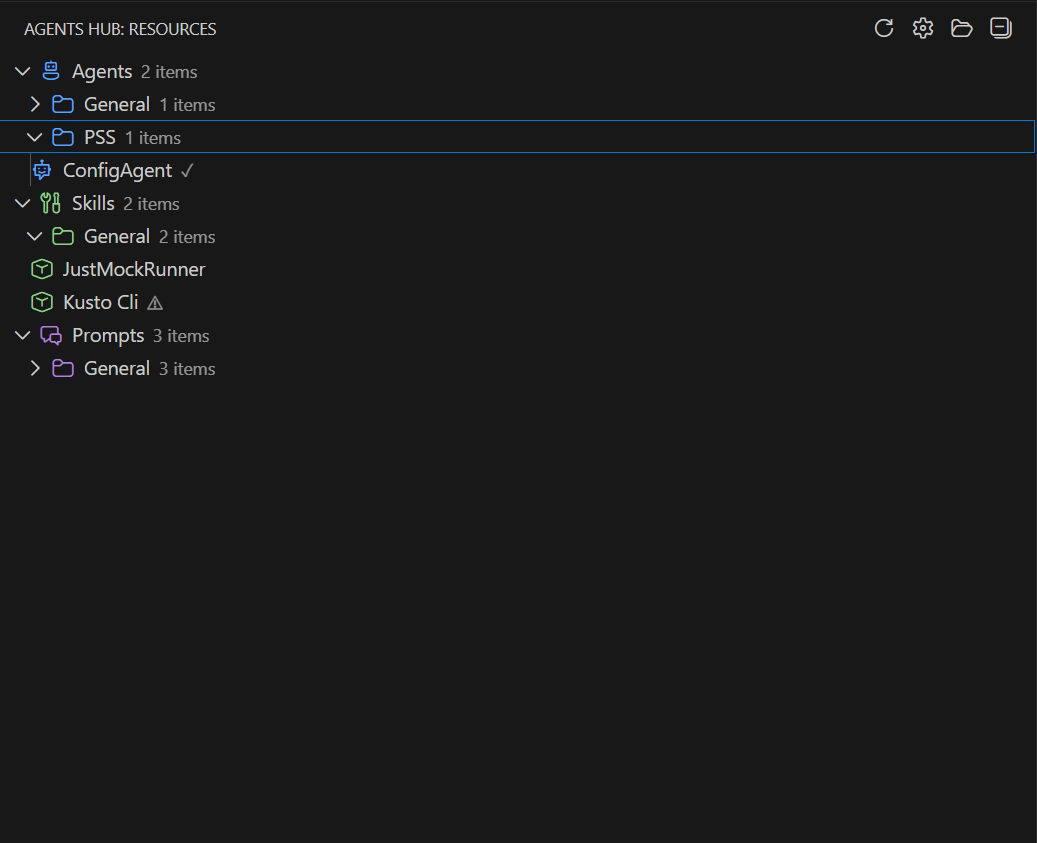
Features
📁 Browse Shared Resources
Access your organization's shared repository of agents, skills, and prompts directly from VS Code's sidebar.
⬇️ Import Resources
- Import to Workspace - Import resources to your project's
.github/ folder for use with GitHub Copilot
- Import to User Data (Global) - Import agents and skills to VS Code's global location for access across all workspaces
🔄 Sync Status Indicators
See at a glance which resources are imported and synced:
✓ - Resource is imported and synced⚠ - Resource is imported but has updates available- (no indicator) - Resource not imported yet
Hover over any resource to see detailed status for both Workspace and User Data locations.
👁️ Preview
Click on any resource to preview its contents before importing.
📂 GitHub Copilot Compatible
Resources are imported to the .github/ folder structure, compatible with GitHub Copilot.
Getting Started
1. Clone the Shared Resources Repository
Clone your organization's shared repository containing agents, skills, and prompts:
git clone <your-shared-resources-repo-url>
Note: This is NOT the extension repository. This is a separate repository where your team stores shared agents, skills, and prompts.
- Click the Agents Hub icon in the Activity Bar
- Click "Setup Repository"
- Select the cloned shared resources folder
3. Browse and Import
- Expand categories to see available resources
- Click on any resource to preview
- Use inline buttons or right-click to import
Import Locations
| Category |
Workspace Location |
User Data (Global) Location |
| Agents |
.github/agents/<name>.agent.md |
%APPDATA%/Code/User/prompts/<name>.agent.md |
| Skills |
.github/skills/<name>/SKILL.md |
~/.copilot/skills/<name>/SKILL.md |
| Prompts |
.github/prompts/<name>.prompt.md |
(Workspace only) |
Note: User Data imports make resources available across all VS Code workspaces.
Commands
| Command |
Description |
Agents Hub: Setup Repository |
Configure the shared repository path |
Agents Hub: Refresh |
Reload resources from the repository |
Agents Hub: Import |
Import selected resource to workspace |
Agents Hub: Import to User Data |
Import to global VS Code location |
Agents Hub: Import All in Category |
Import all resources in a category |
Agents Hub: Open Repository Folder |
Open the repo in file explorer |
Agents Hub: Preview |
Preview the selected resource |
Extension Settings
| Setting |
Description |
Default |
agentResources.repositoryPath |
Path to the shared repository |
(empty) |
agentResources.showNotifications |
Show notifications on import |
true |
agentResources.defaultImportBehavior |
Behavior when file exists |
ask |
Import Behavior Options
ask - Ask what to do when a file existsoverwrite - Always overwrite existing filesskip - Always skip existing fileskeepBoth - Always keep both files
Repository Structure
Source Repository (Shared Resources)
Your shared Agents Hub repository should have this structure:
agents-hub/
├── .agents/
│   ├── General/
│   │   └── code-reviewer.agent.md
│   └── Team-Specific/
│       └── custom.agent.md
├── .skills/
│   ├── General/
│   │   └── kusto-cli/
│   │       ├── SKILL.md
│   │       └── examples/
│   └── Team-Specific/
│       └── custom-skill/
│           └── SKILL.md
└── .prompts/
    ├── code-review.prompt.md
    └── summarize.prompt.md
Target Workspace (GitHub Copilot Compatible)
When you import resources, they are placed in the GitHub Copilot compatible structure:
your-project/
├── .github/
│   ├── agents/
│   │   └── code-reviewer.agent.md
│   ├── skills/
│   │   └── kusto-cli/
│   │       └── SKILL.md
│   └── prompts/
│       └── code-review.prompt.md
└── ... (your project files)
File Naming Conventions
| Category |
Source Pattern |
Target Pattern |
| Agents |
.agents/<name>.agent.md |
.github/agents/<name>.agent.md |
| Skills |
.skills/<name>/SKILL.md |
.github/skills/<name>/SKILL.md |
| Prompts |
.prompts/<name>.prompt.md |
.github/prompts/<name>.prompt.md |
Workflow
- Clone shared repo to your machine
- Configure extension with repo path
- Browse and preview resources you need
- Import to Workspace or User Data
- Check sync status - ✓ means synced, ⚠ means updates available
- When updates are available:
git pull in the shared repo- Click "Refresh" in the extension
- Re-import updated resources (look for ⚠ indicators)
Tips
- Use User Data import for resources you want available in all your projects
- Use Workspace import for project-specific configurations
- Organize your shared repository with subfolders (e.g.,
General/, Team-Name/) for better organization
- The tree view automatically formats folder and file names for readability

