Why
When Claude Code and Codex are both part of your workflow, their sessions live in
different products and expose different metadata. It becomes easy to miss an
approval, forget an idle session, or assume one provider exposes a number that it
does not.
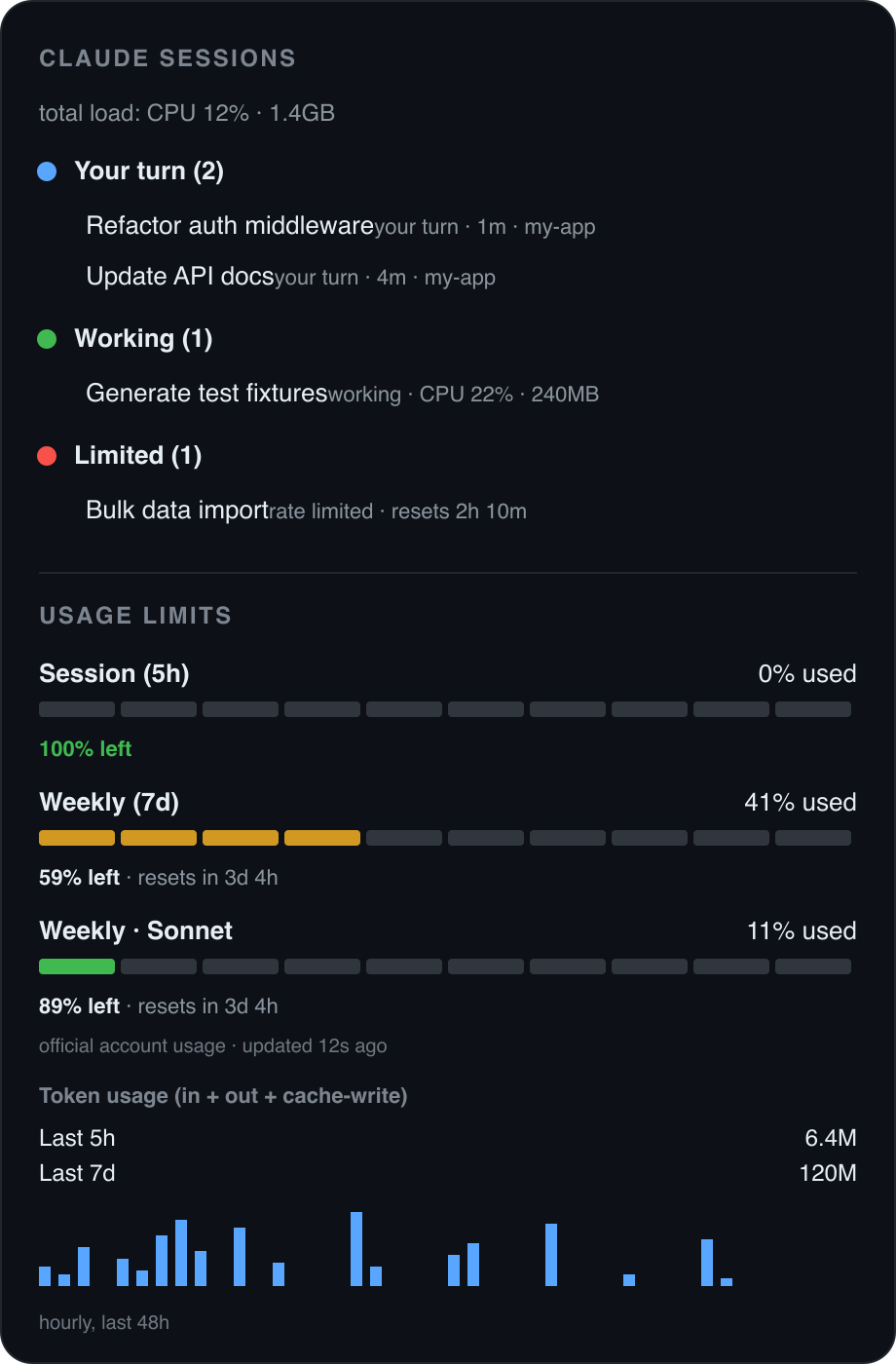
Agent Session Monitor keeps both providers visible while preserving those
differences instead of flattening them into misleading data.
Features
- One provider-aware session list — filter All / Claude / Codex, group sessions
by Limited / Waiting / Your turn / Working / Ended, and keep provider-qualified
session identities distinct.
- Official Codex integration — launches the configured Codex CLI as
codex app-server --stdio and uses its supported thread and account-usage
methods. It does not scrape the Codex state database.
- Precise live state through provider hooks — small lifecycle records add exact
working, waiting, permission-request, and ended signals for each provider.
- Honest provider-specific usage — Claude transcript usage and Anthropic account
gauges stay Claude data; Codex rate-limit/account totals stay Codex data.
- Provider-aware actions — switch provider from the title bar, jump to matching
tabs, open transcripts when available, or resume a selected session in a terminal.
Claude-only bulk model/effort/resume sweeps remain explicitly Claude-only.
- CPU/RAM and attention signals — process-tree resource sampling, Activity Bar
badges, transition notifications, and stuck-session warnings where the provider
exposes enough process metadata.
- Safe degradation — either provider can be disabled, unavailable, or missing
hooks without hiding the other provider.
Install
From the Marketplace
Search "Agent Session Monitor: Claude + Codex" in the Extensions view, or
upgrade/install it with the existing Marketplace identifier:
code --install-extension softween.claude-code-session-monitor
The Marketplace id is intentionally unchanged, so existing Claude Session Monitor
installations upgrade in place.
Provider prerequisites
- Claude: install and sign in to Claude Code if you want Claude sessions.
- Codex: install and sign in to the Codex CLI, then confirm
codex --version
works in the environment VS Code inherits. If it does not, set
claudeSessionMonitor.codexExecutable to the absolute executable path.
Either provider can be disabled independently in Settings.
Install the provider hooks
The official Codex app-server and Claude transcript discovery provide baseline
metadata without hooks. The hooks add the exact lifecycle signals needed for
working, waiting-for-input/permission, and ended state.
From a source checkout:
git clone https://github.com/Softween/claude-session-monitor.git
cd claude-session-monitor
bash scripts/install.sh
The installer is idempotent and:
- copies the shared hook implementation into
~/.claude/session-monitor/;
- merges Claude lifecycle hooks into
~/.claude/settings.json;
- merges Codex lifecycle hooks into
~/.codex/hooks.json;
- writes provider-scoped status files under
~/.claude/session-monitor/ and
~/.codex/session-monitor/;
- backs up a config before changing it and preserves already-installed hook command
strings; bounded timeout updates may still require Codex trust to be reviewed again;
- refuses to modify malformed settings, writes valid changes atomically, and keeps
monitor directories/status records private (
0700 / 0600).
Review Codex hook trust
Codex requires new or changed hooks to be reviewed before they run. Installation
also bounds hook timeouts, which changes the trusted hook definition when migrating
an older entry. After installation, open Codex and run:
/hooks
Inspect every Agent Session Monitor lifecycle hook shown as added or modified and
approve it only if it points to the expected local session-monitor/hook.py. Do
not bypass hook trust globally. An added or modified hook remains inactive until
this review is complete. Then start a new Codex session and reload the VS Code
window.
Claude auto-resume and bulk-input actions need a one-time macOS Accessibility
permission for VS Code. The Codex app-server integration itself does not need that
permission.
How it works
The extension normalizes provider observations into one UI while retaining
provider-qualified ids and capability flags.
Claude provider
- Lifecycle records in
~/.claude/session-monitor/<id>.json provide exact state
and, when available, the dedicated worker PID.
- Bounded tails of
~/.claude/projects/.../<id>.jsonl provide titles, recent
conversational state, limit detection, models, and real transcript usage.
- Anthropic account gauges are fetched with the local Claude credential on macOS.
Multi-account tokens are stored only in VS Code Secret Storage.
Codex provider
- The extension launches the configured executable as
codex app-server --stdio.
- It uses the official local JSON-RPC interface for thread listing, thread state,
rate limits, and account usage. It does not read or reverse-engineer Codex's
SQLite state database.
- Codex hooks write small provider-scoped lifecycle records to
~/.codex/session-monitor/<id>.json, adding exact waiting/permission and
process signals where available.
No invented Codex per-session tokens: the Codex app-server methods used here
can expose account rate-limit gauges and account-level usage, but they do not
currently provide a trustworthy token total for each individual session. Codex
session rows therefore leave that value unavailable. The extension never copies
Claude totals, divides an account total across sessions, or labels an estimate as
measured usage.
Privacy
- No telemetry.
- Codex communication stays on local stdio with the official Codex app-server.
- Claude's account-usage request is a read-only request to Anthropic using the
locally stored Claude credential; the token is never logged.
- Multi-account: with
trackAllAccounts on (default), each login's access token
is kept in VS Code Secret Storage (your OS keychain — same protection as the
original) so the panel can keep refreshing the account you logged out of; account
identity (uuid + email) lives in ~/.claude/session-monitor/accounts.json. Tokens
never touch plain files or logs. Disable the setting to stop this, and run
Agent Sessions: Forget Other Claude Accounts to delete anything already stored.
- Hook files contain bounded status metadata, not full transcripts. Codex prompt
text is not copied into its status file. Provider monitor directories are
0700
and status records are atomically replaced as 0600.
- CPU/RAM come from a local
ps; Claude bulk-input automation uses local
osascript keystrokes.
Compatibility with 1.x
Version 2 changes the product name, not its installed identity:
- package name remains
claude-code-session-monitor;
- publisher remains
softween;
- Marketplace id remains
softween.claude-code-session-monitor;
- command, setting, and view ids retain the
claudeSessionMonitor.* namespace;
- the Activity Bar container id remains
claudeSessionMonitor.
Existing keybindings, workspace settings, Marketplace upgrades, and extension
automation therefore continue to work. New provider-aware commands use the same
legacy namespace: claudeSessionMonitor.toggleProvider and
claudeSessionMonitor.resumeSession.
Configuration
All settings are under claudeSessionMonitor.*:
| Setting |
Default |
Description |
enableClaude |
true |
Enable the Claude provider |
enableCodex |
true |
Enable the Codex provider |
codexExecutable |
"codex" |
Machine-level executable used for the local Codex app-server |
codexPollSeconds |
5 |
Codex app-server refresh cadence (minimum 3 seconds) |
notifyOnWaiting |
true |
Notify when a session starts waiting for you |
notifyOnLimited |
true |
Notify when a session hits a limit |
notifyOnDone |
false |
Notify when a session finishes its turn |
nativeNotifications |
true |
Native macOS notification on limit/waiting |
stuckAlertMinutes |
5 |
Alert when a working session is silent this long (0 = off) |
cpuHogThreshold |
60 |
CPU% above which a session is flagged 🔥 |
resumeAutoType |
true |
Auto-type resume + Enter (needs Accessibility) |
resumePrompt |
"resume" |
Text typed during a resume sweep |
resumeStaggerSeconds |
60 |
Seconds between sessions in a resume sweep |
resourceSampleMs |
3000 |
CPU/RAM sampling interval |
pollIntervalMs |
1500 |
Status refresh interval |
recentScanMaxAgeHours |
6 |
Show sessions active within the last N hours |
hideEndedAfterMinutes |
30 |
Hide ended sessions after this long |
workspaceOnly |
false |
Only show this workspace's sessions |
trackAllAccounts |
true |
Remember each Claude login + refresh non-active accounts in the background |
| Feature |
macOS |
Linux |
Windows |
| Claude + Codex session list |
✅ |
✅ |
✅ |
| Codex official app-server metadata |
✅ |
✅ |
✅ |
| Claude per-session transcript tokens |
✅ |
✅ |
✅ |
| Codex per-session tokens |
Not exposed |
Not exposed |
Not exposed |
| Per-session CPU / RAM |
✅ |
✅ |
⚠️ |
| Claude account usage gauges |
✅ |
➖ |
➖ |
| Native notifications + Claude bulk-input automation |
✅ |
➖ |
➖ |
Cross-platform support for the macOS-only pieces is welcome via PRs.
Development
npm ci
npm run typecheck
npm test
npm run build
npm run package
npm run build bundles src/extension.ts to dist/extension.js.
npm run watch rebuilds during Extension Development Host work. npm run verify
reads real local Claude transcripts and prints diagnostic session metadata; do not
use or share its output when transcript titles are sensitive.
License
MIT © Softween