Claude Projects
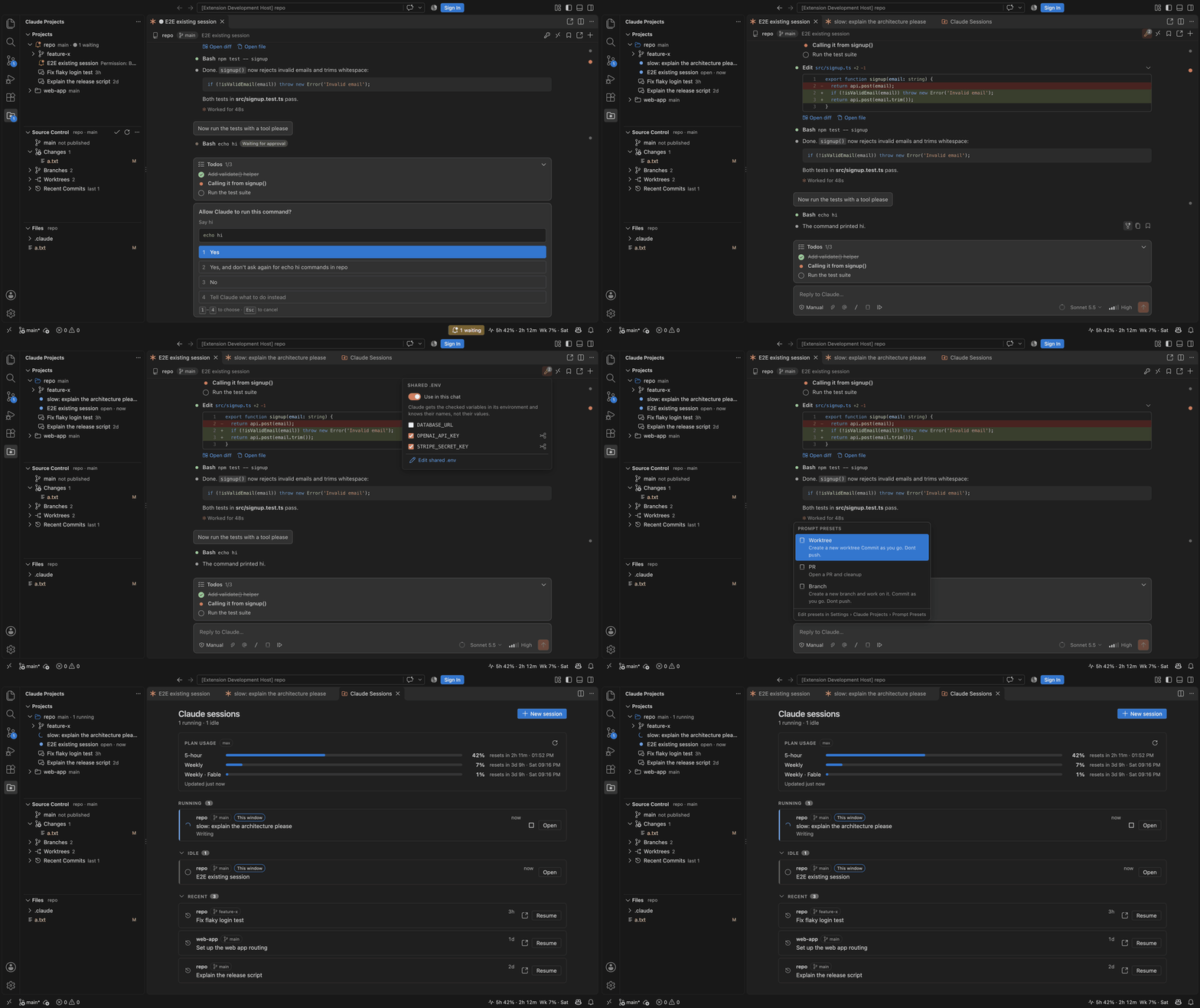
Work on all your projects with Claude Code from one VS Code window: no more one window per project and alt-tabbing to find the session that is waiting for you.
What you get
Sessions dashboard (pulse button in the Projects view, or click the usage item in the status bar): every running Claude session across all projects — the ones here, in terminals, in other VS Code windows and in the Claude app — with the ones waiting for you at the top. Permission prompts can be answered right from the dashboard. Use the × on an idle card (or Close all) to close it: its tab closes and idle Claude processes stop and resume on your next message. Idle sessions in a terminal can be ended too, after a confirm.
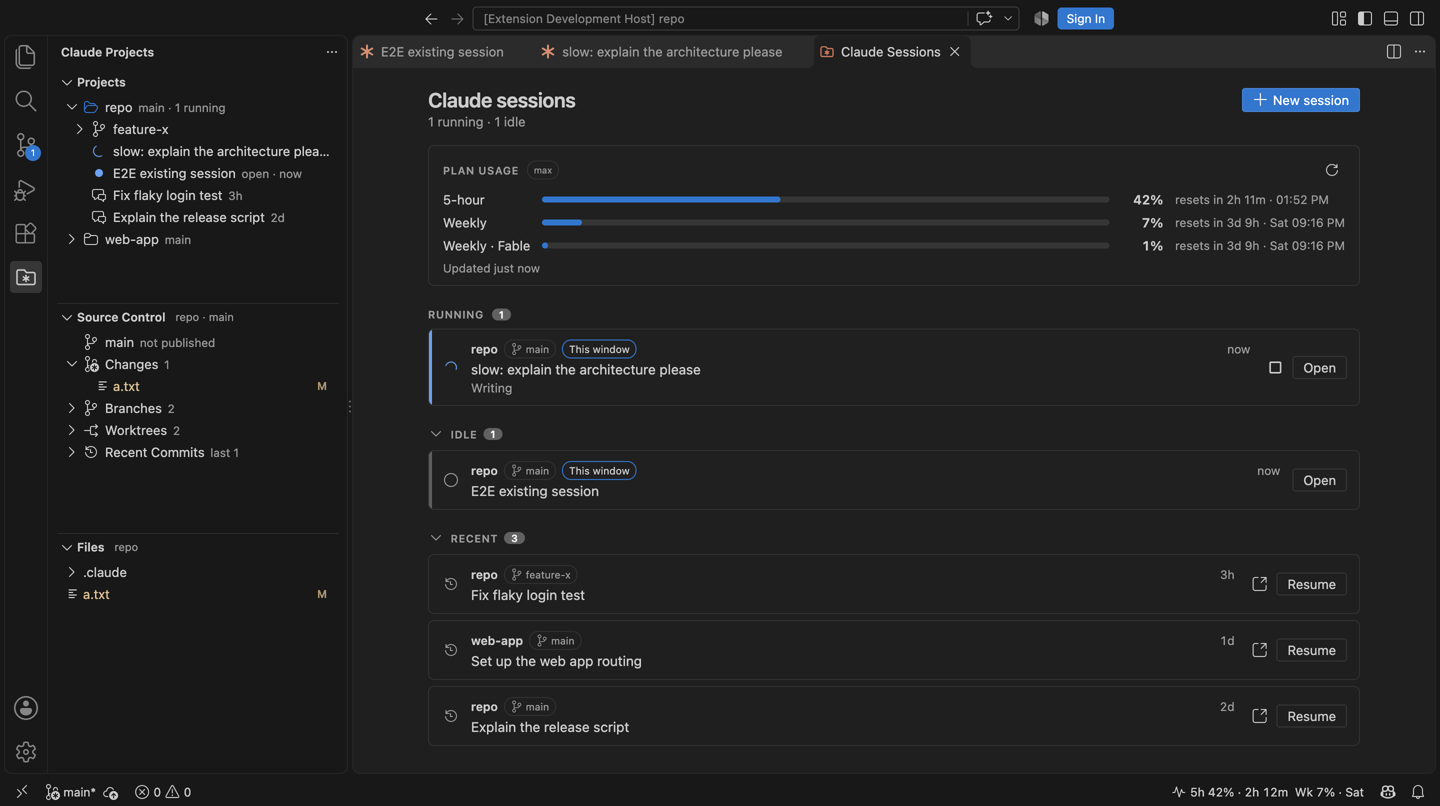
Projects view (the folder-with-asterisk icon in the activity bar)
- Your projects, saved by path only (folders are never moved or copied). Add them with + or import every folder you have used Claude Code in (
… → Import Projects from Claude History; folders inside hidden folders, like an app's scratch folders, are left out). Remove several at once with … → Remove Projects….
- Under each project: its git worktrees and its Claude sessions, newest first. Sessions that need you are pinned to the top with an orange bell, running ones spin, finished-but-unread ones get a green check.
- Clicking a project or worktree switches the Source Control and Files views to it. Clicking a session opens it.
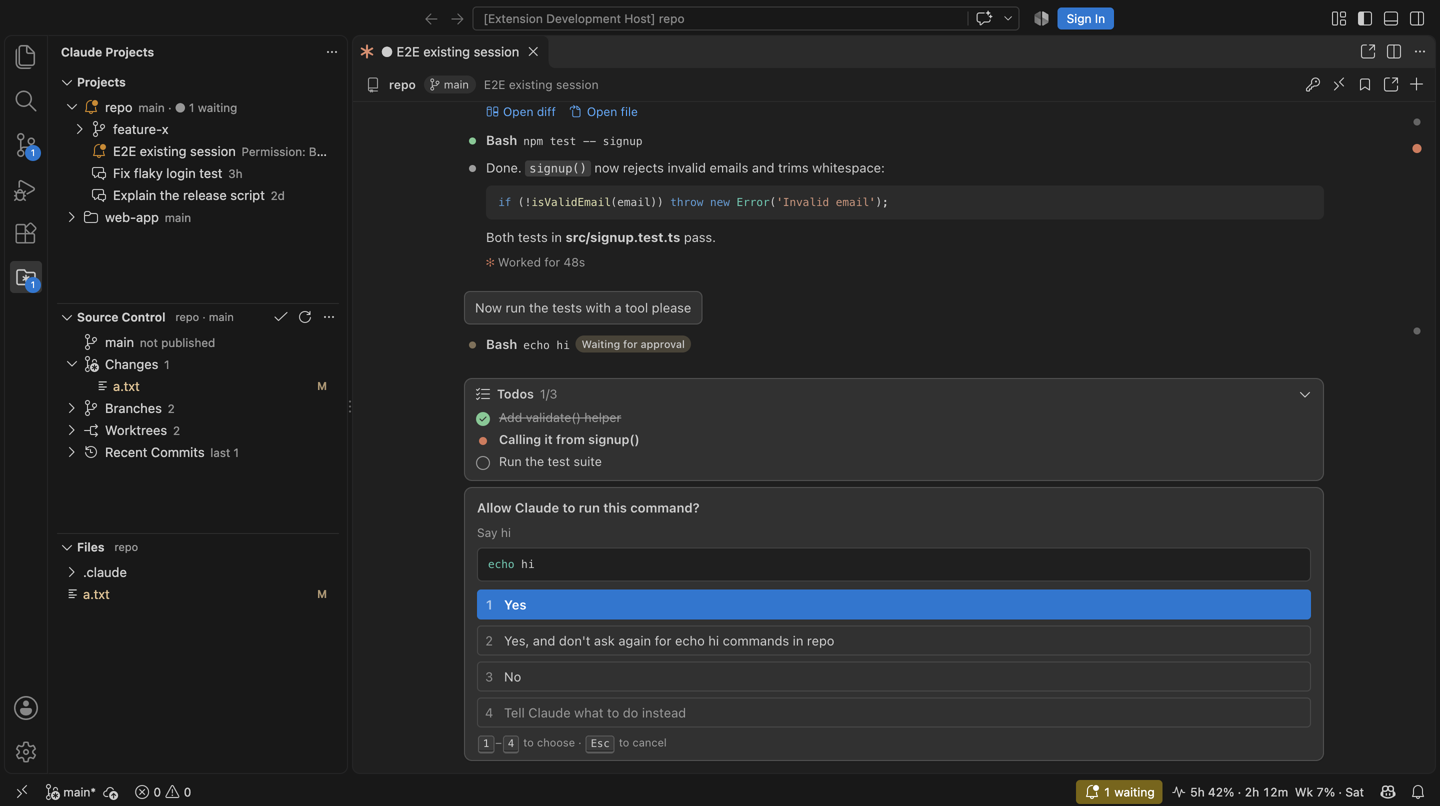
Source Control view: current branch (ahead/behind), staged and unstaged changes, branches, worktrees and recent commits for the selected project only. Clicking a changed file opens VS Code's normal diff. Stage, unstage, discard, commit, checkout, create branches and worktrees, pull, push and fetch from the view and its … menu.
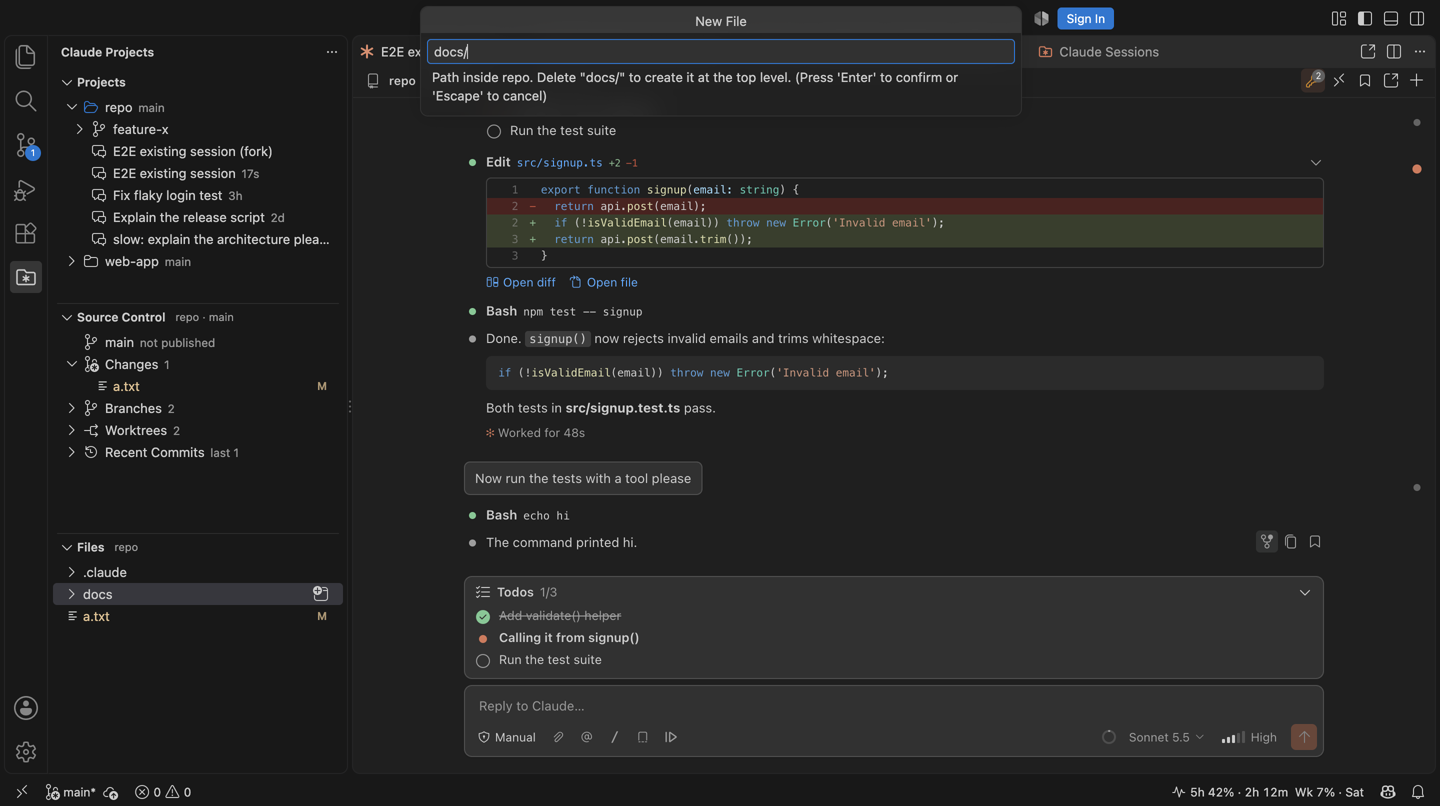
Files view: the selected project's files and folders (respects files.exclude, dims git-ignored files, shows git status). Right-click a folder → Open in New Window.
Sessions
Click a session to open it in a chat tab here (Open Here). It runs through the claude CLI on your machine with your own login and works like the official Claude Code extension. On top of that, it adds:
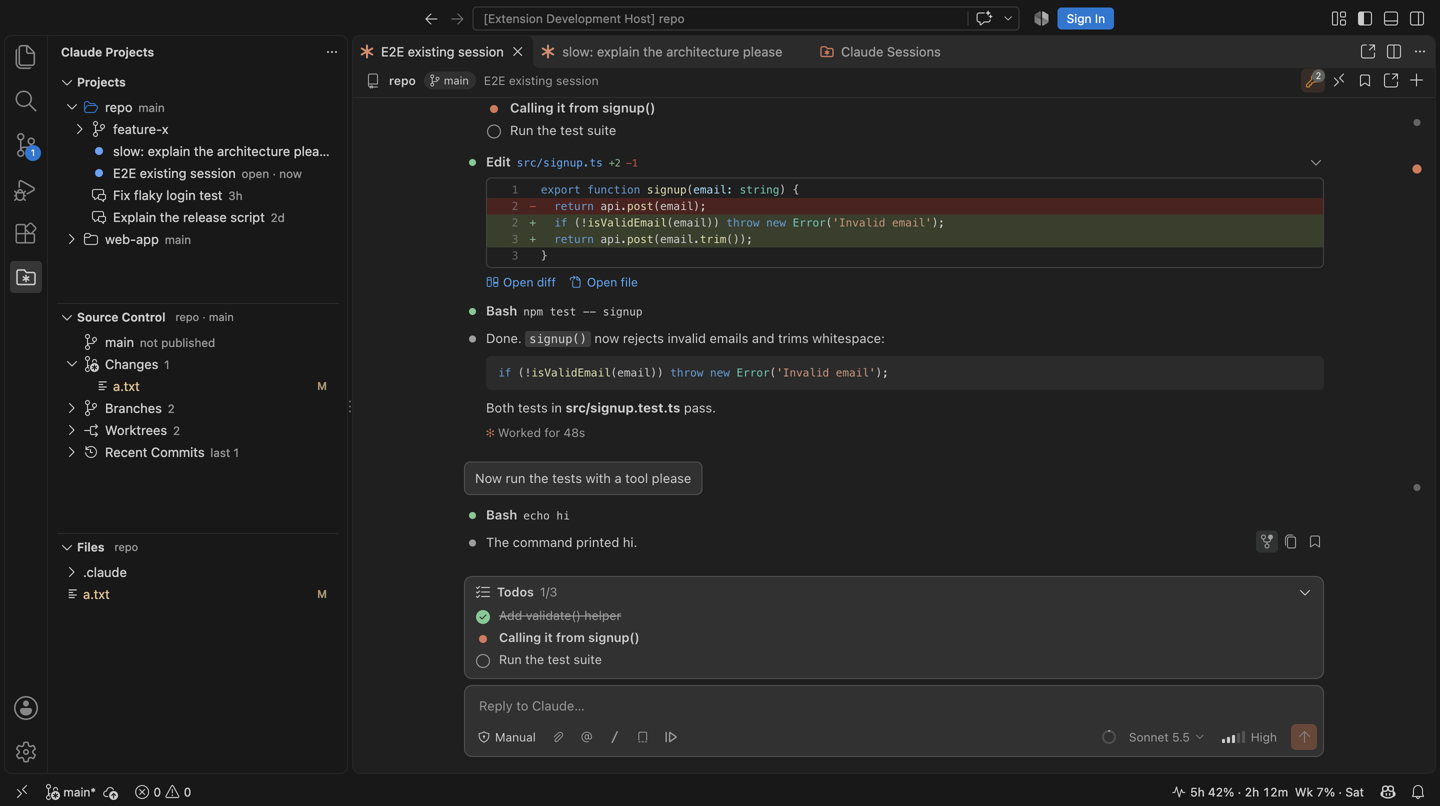
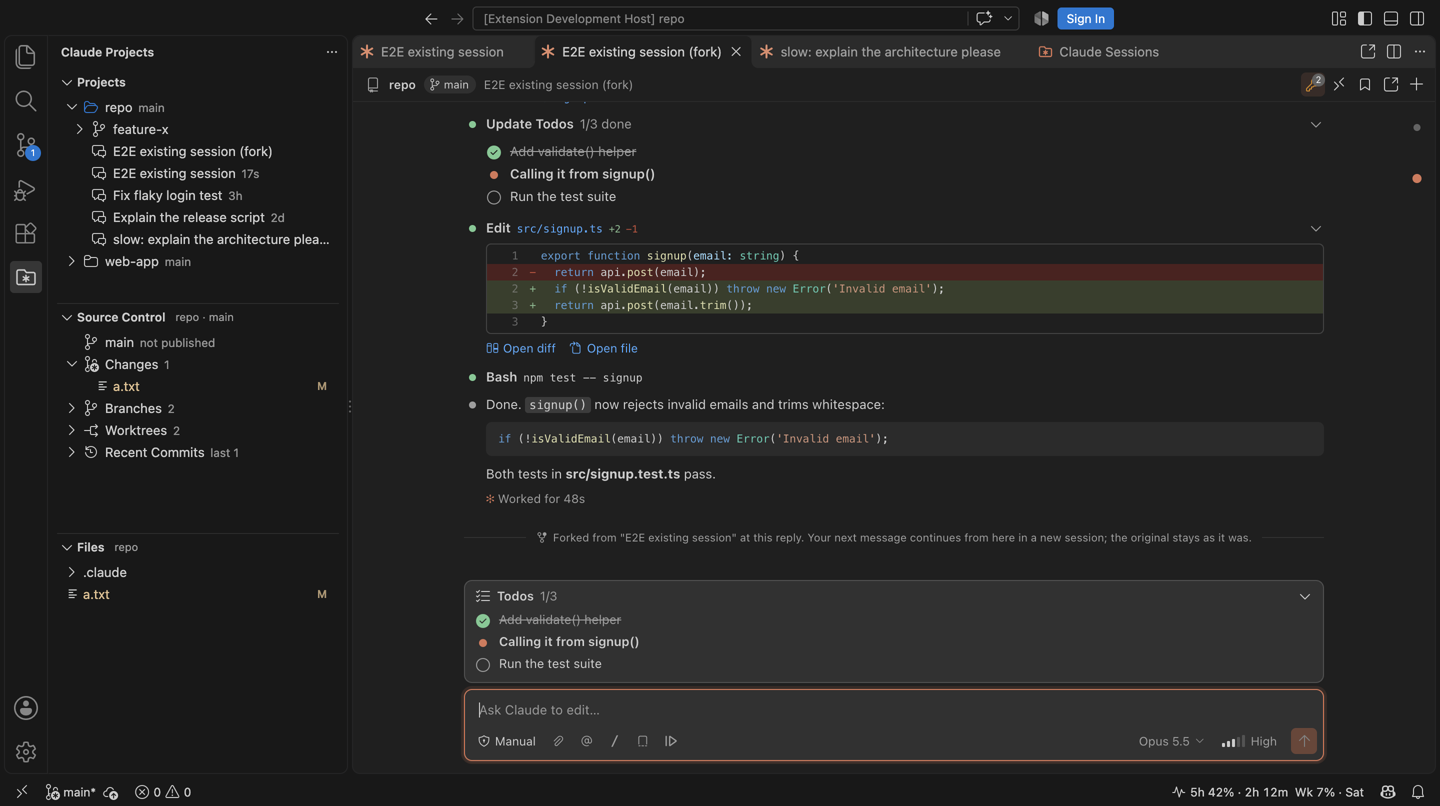
Fork from any reply: hover one of Claude's replies and click the fork icon. You get a new chat with the conversation up to that point, and the original stays as it was. Forks show up in Projects right away and keep their own name.
| The fork, copy and bookmark buttons on a reply |
The fork, cut at that reply |
 |
 |
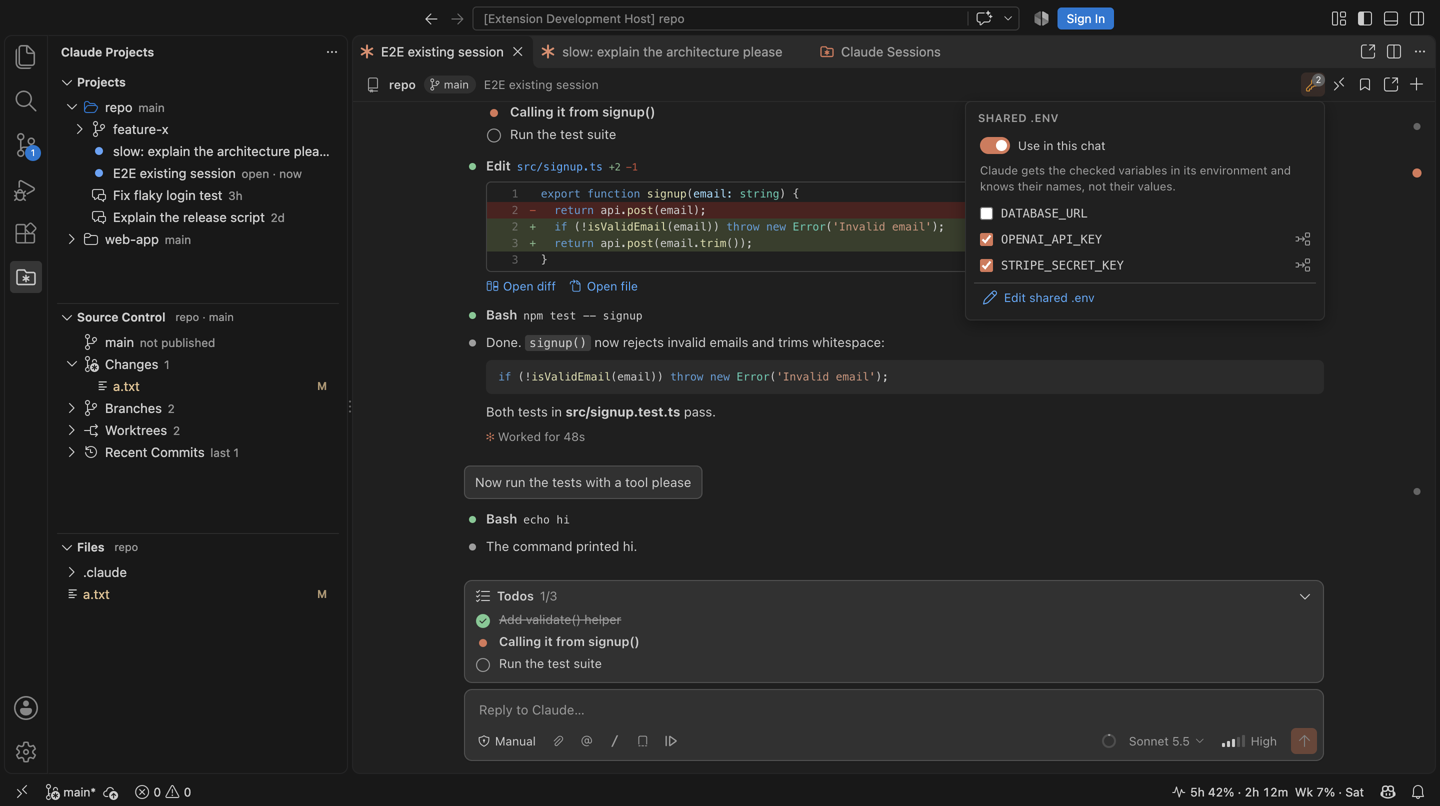
Shared .env: keep API keys in one .env file (claudeProjects.chat.globalEnvFile, edit it with Open Shared .env for Chats). The key button in the chat header chooses which variables each chat gets. Claude can use them in commands ($STRIPE_SECRET_KEY), but it only knows their names, so the values never show in the chat.
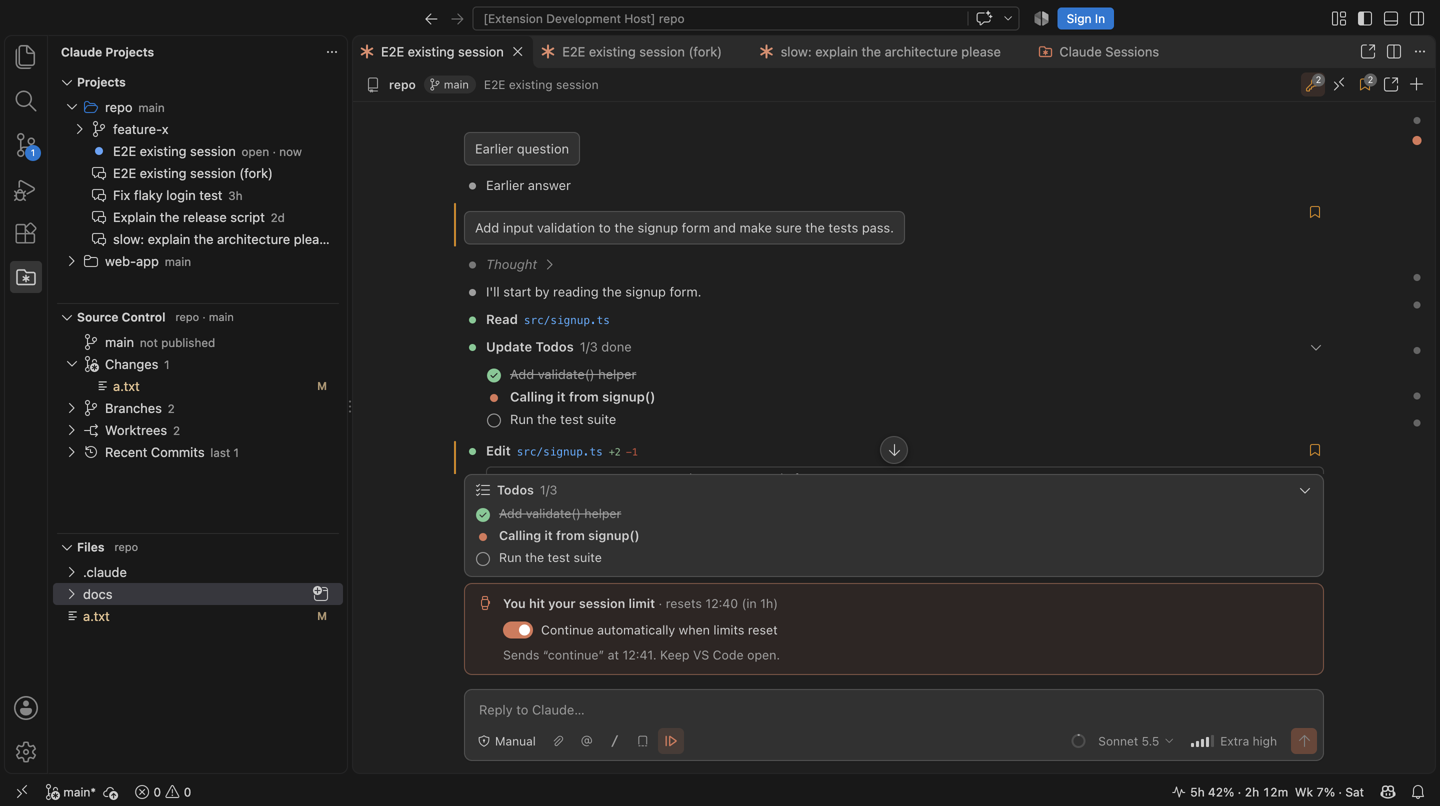
Continue when limits reset: when a chat stops at your plan's usage limit, turn on Continue automatically when limits reset. About a minute after the reset, the chat sends continue for you. To have it on for every new chat, set claudeProjects.chat.autoContinueAfterLimit.
Prompt presets: a button in the message box inserts prompts you use often, like "create a worktree, commit as you go, don't push", in front of what you type. Set your own in claudeProjects.chat.promptPresets.
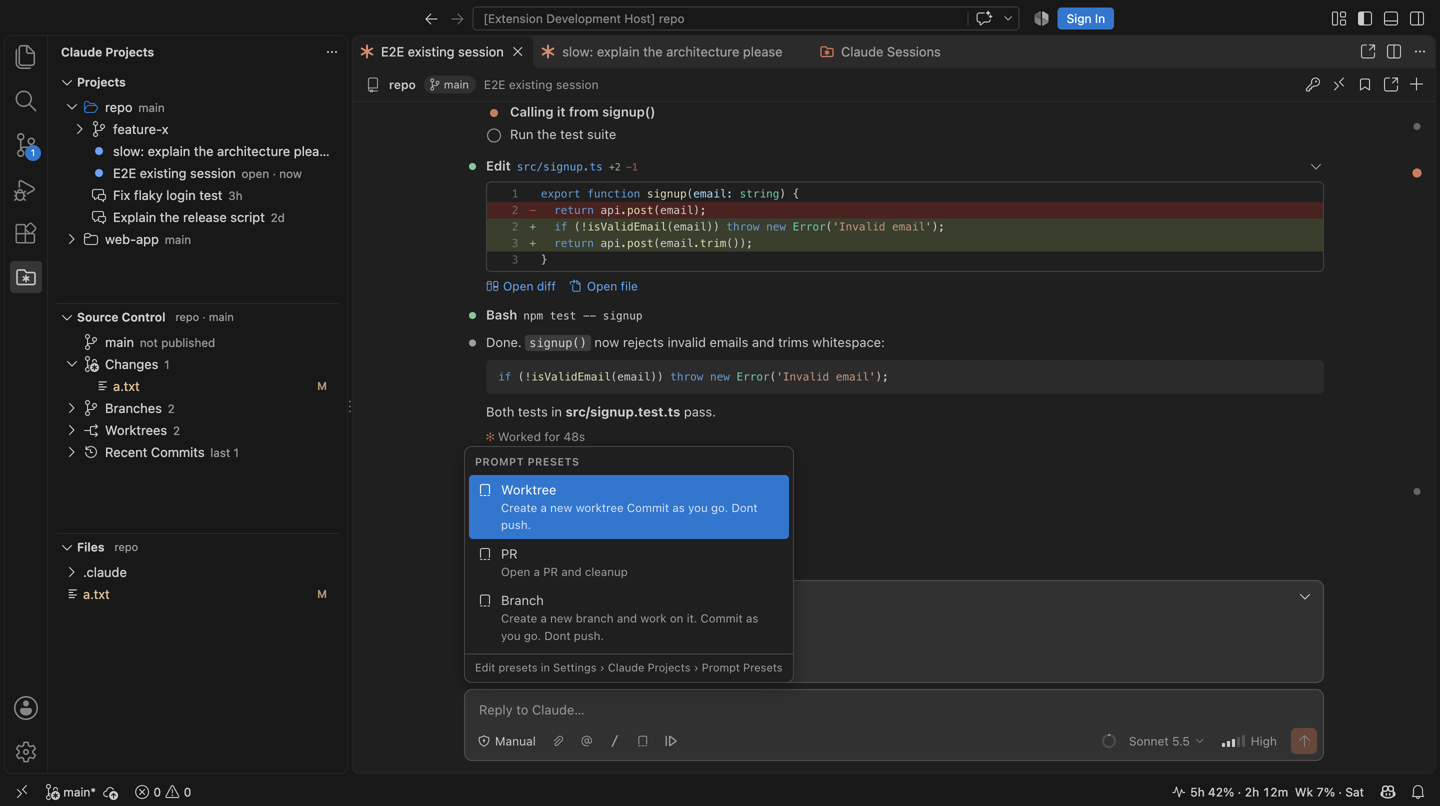
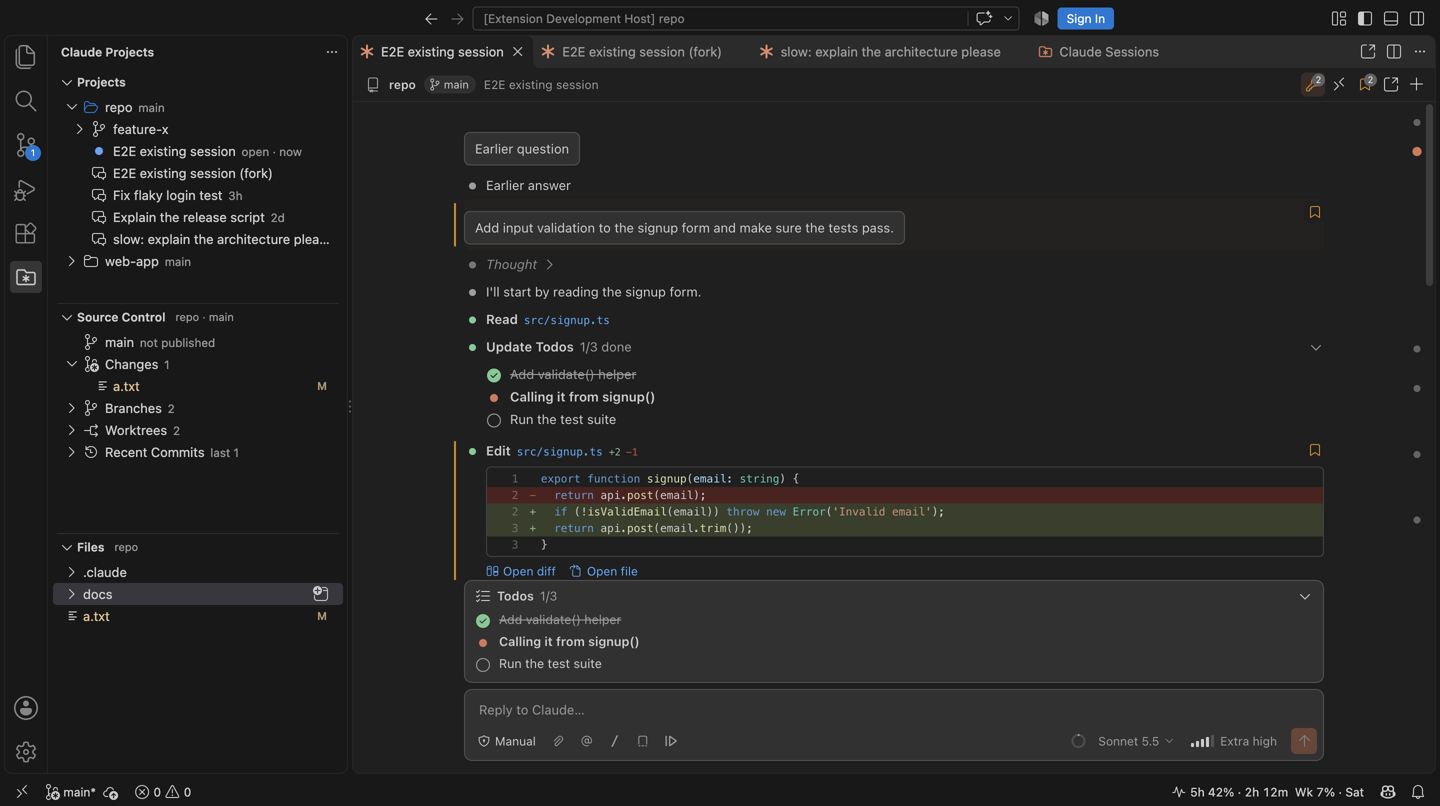
Bookmarks: bookmark any message (yours, Claude's, or a tool call). The bookmark button in the chat header lists them and jumps back. Go to Bookmarked Message… searches bookmarks across all sessions.
Yolo auto mode (band-aid icon in the mode picker): auto mode, and when Claude still asks for permission, the extension answers yes for you. Questions and plan reviews still wait for you, and each approval leaves a line in the chat. Hide it with claudeProjects.chat.showYoloAutoMode.
Header shortcuts: click the project name at the top of a chat to show its project (or worktree) in the Projects view. Click the session name to rename it right there (Enter saves, Esc cancels).
Icon-only tabs: turn on claudeProjects.chat.iconOnlyTabs to show chat tabs as just their icon and a number (0, 1, 2… from left to right), to fit more of them. The Claude Sessions dashboard shows the same numbers. A dot still marks a chat that is waiting for you.
Remote Control: a header button lets you continue the chat from claude.ai or the Claude app.
Finding your way in long chats: dots along the chat's right edge jump to each of your messages. A badge shows how many agents are running, and each reply lists the skills and agents it used.
Copying: a copy button on each reply (as Markdown), plus Cmd+C, Cmd+X and right-click for any part of the chat.
MCP input: when an MCP server asks for something mid-session (a form or a sign-in link), a card shows it and sends your answer to the server, not to Claude.
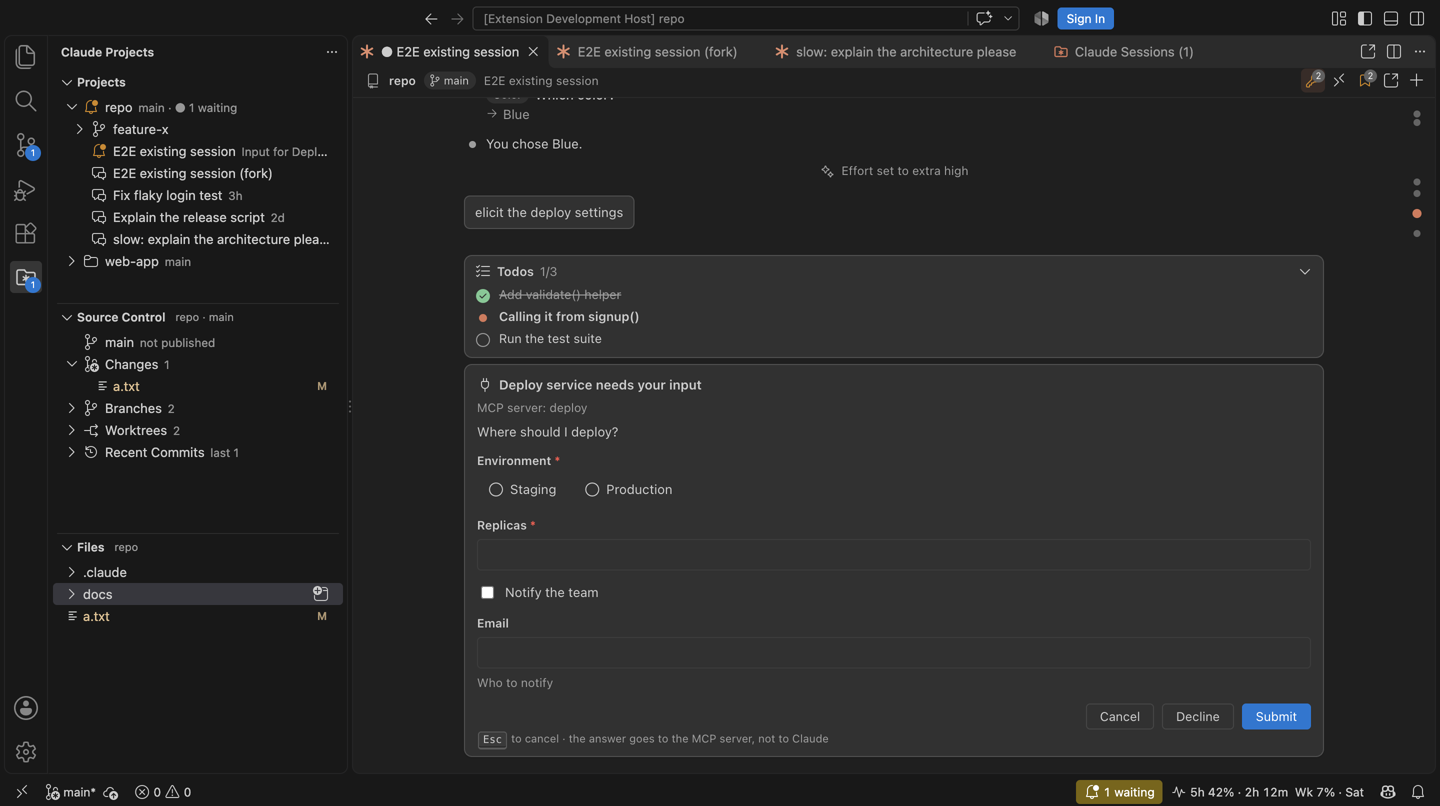
Names that stick: renamed and forked chats keep their names, in the tab and after a restart.
Open in Claude Extension: opens the session in its own window, in the official Claude Code extension. This button is also in the chat tab's title bar. To make it what clicking a session does, set claudeProjects.sessions.defaultOpenMode.
Attention: a badge on the activity bar icon, a "waiting" item in the status bar (click it to jump to the next session that needs you), a dot in the chat tab title, and a system notification when a session needs you while VS Code is in the background. On Windows it is a toast, and clicking it opens the session. On macOS, clicking opens the session if terminal-notifier is installed (brew install terminal-notifier).
Usage bar: your plan's 5-hour and weekly usage with reset times in the status bar (hover for details, including per-model weekly limits). The numbers come from Claude Code itself (the same as /usage); the extension never reads your credentials.
Install
npm install
npm run package
code --install-extension dist-vsix/claude-projects.vsix
Then reload VS Code. The extension finds claude automatically (~/.local/bin/claude, your shell PATH, Homebrew, or the copy bundled with the official extension); set claudeProjects.claudePath if it doesn't.
Windows
Works on macOS and Windows. On Windows the extension finds claude.exe from the native installer (%USERPROFILE%\.local\bin), npm's claude.cmd (%APPDATA%\npm), bun, scoop, winget, or the official extension's copy, plus anything on PATH. Claude Code itself needs Git for Windows there, and so do this extension's Source Control and Files views.
Windows differences:
- Notifications are Windows toasts, shown through Windows PowerShell. If a toast can't be shown, you get VS Code's own notification instead.
- Menus say Reveal in File Explorer instead of Reveal in Finder.
- Stopping a session ends Claude's whole process tree (
taskkill /T), because Windows has no signals.
- The check that drops stale entries from Claude's live-session list (a pid reused by another program) is skipped, because it relies on
ps.
Settings
| Setting |
Default |
|
claudeProjects.sessions.defaultOpenMode |
here |
What clicking a session does (here or claudeExtension). |
claudeProjects.sessions.maxPerProject |
8 |
Sessions listed per project/worktree before "Show more". |
claudeProjects.sessions.idleProcessTimeoutMinutes |
30 |
Stop an idle Claude process whose tab is closed (it resumes on your next message). |
claudeProjects.chat.defaultPermissionMode |
default |
Mode for new sessions here. |
claudeProjects.chat.defaultModel |
— |
Model for new sessions here (empty = your Claude Code default). |
claudeProjects.chat.defaultEffort |
— |
Effort for new sessions here (empty = the model default). |
claudeProjects.chat.promptPresets |
a few |
Prompts in the presets menu of the message box. |
claudeProjects.chat.autoContinueAfterLimit |
false |
Start new chats with Continue automatically when limits reset on. |
claudeProjects.chat.globalEnvFile |
~/.claude-projects/.env |
The shared .env file for chats. |
claudeProjects.chat.allowBypassPermissions |
false |
Offer "Bypass permissions" in the mode picker. |
claudeProjects.chat.iconOnlyTabs |
false |
Show chat tabs as just their icon and a number, without the session name. |
claudeProjects.chat.showYoloAutoMode |
true |
Offer "Yolo auto" in the mode picker (turn off to hide it). |
claudeProjects.chat.showThinking |
true |
Show Claude's thinking summaries. |
claudeProjects.followActiveSession |
true |
Switching chat tabs switches Source Control and Files to that session's project. |
claudeProjects.notifications.* |
on |
System notifications on macOS and Windows (only while VS Code is in the background, sound, turn-complete, sessions outside this window, in-app toasts). |
claudeProjects.dashboard.showAllProjects |
true |
Also show sessions from folders that are not in your project list. |
claudeProjects.usage.refreshIntervalMinutes |
5 |
How often usage refreshes (running sessions also update it live). |
Tip: bind Claude Projects: Go to Next Session Needing Input to a key for a one-keystroke "what needs me?".
How it works
- Session lists come from Claude Code's transcripts in
~/.claude/projects/ (titles match Claude Code's own: your /rename, then the AI title, then the last prompt).
- Sessions running anywhere on the machine are read from Claude Code's live registry (
~/.claude/sessions/<pid>.json), which says whether each one is busy, idle or waiting for a permission/answer.
- "Open Here" drives
claude -p --input-format stream-json --output-format stream-json --permission-prompt-tool=stdio, the same protocol the official extension and the Agent SDK use, so sessions stay fully compatible: you can continue any of them in the terminal or the official extension later.
Development
npm run build        # bundle extension + webviews into dist/
npm run watch
npm run typecheck
npm test             # unit tests (uses a fake claude CLI)
node test/e2e/run.mjs                    # end-to-end in a throwaway VS Code profile
node test/e2e/run.mjs --with-official    # … plus the hand-off to the official extension
CLAUDE_INTEGRATION=1 npx vitest run --config vitest.integration.mts   # a few cheap Haiku turns with the real CLI
On Windows, node test/e2e/run.mjs downloads a copy of VS Code for the test unless VSCODE_PATH points at one.
The chat UI can be developed in a browser: serve the repo (python3 -m http.server 47391) and open http://127.0.0.1:47391/test/webview/chat-harness.html?fixture=conversation&theme=dark.
License
MIT. See LICENSE.md.

