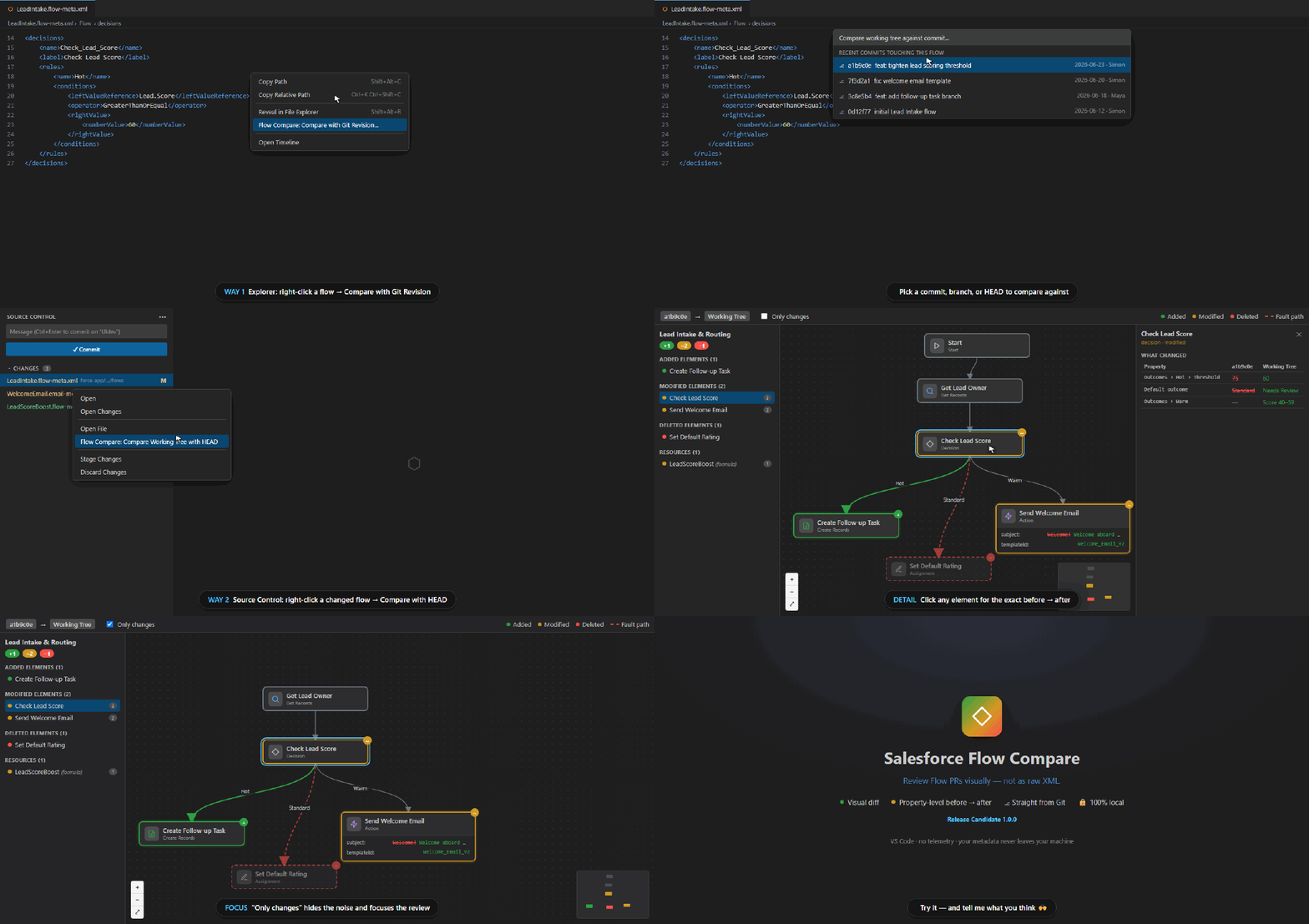
Stop reading raw XML diffs in pull requests. See exactly what changed in a Salesforce Flow, rendered as an interactive diagram — just like Flow Builder.
Right-click a flow → compare against any Git revision → review the change visually. (Demo uses an illustrative flow.)
Quick Start
The extension works directly from Source Control or the Explorer — no setup needed.
From Source Control (most common):
Open the Source Control panel (Ctrl+Shift+G)
Right-click any .flow-meta.xml file in the changed files list
Select Flow Compare: Compare Working Tree with HEAD
From Explorer:
Right-click any .flow-meta.xml file
Select Flow Compare: Compare with Git Revision…
A visual diff panel will open showing added elements in green, modified in orange, and deleted in red.
Features
Visual diff — see the flow as a diagram, not XML. Added elements are green, modified are orange, deleted are red (dashed outline).
Property-level diff — click any element to see a side-by-side table of exactly which fields changed. Coordinate noise (locationX/locationY) is filtered out automatically.
Git integration — compare against any commit, branch, or HEAD without leaving VS Code.
Change list sidebar — every changed element, variable, formula, and constant listed in one panel. Click (or press Enter) to jump to it on the diagram.
"Only changes" filter — hides unchanged elements (keeping the immediate neighbors of changes for context) and re-lays out the diagram.
Compare multiple flows at once — opening a second flow opens a second panel side by side instead of replacing the first.
Right-to-left text — Hebrew/Arabic labels and values render correctly.
100% local — no network calls, no telemetry, no Salesforce org credentials required. Your metadata never leaves your machine.
All Commands
Command
How to use
Compare Working Tree with HEAD
Right-click a flow in Source Control
Compare with Git Revision…
Right-click a flow in Explorer → pick a commit
Compare with Branch…
Right-click a flow in Explorer → pick a branch
Compare Two Flow Files…
Command Palette → pick any two .flow-meta.xml files
Compare Selected Files
Select exactly two flow files in Explorer → right-click
Requirements
VS Code 1.90 or later
A Git repository containing Salesforce Flow metadata files (*.flow-meta.xml)
How It Works
The extension reads both versions of the flow XML from Git, parses them into element graphs, and diffs them by element API name. The result is rendered in a webview using React Flow. Layout uses the coordinates Salesforce stores in the metadata, so the diagram matches what you see in Flow Builder.
Privacy & Security
No network access — the webview runs with a strict Content Security Policy (default-src 'none').
Reads only the files you open, plus git show for historical versions.