md-hinagata
md-hinagata is a VS Code extension for turning Markdown into theme-controlled HTML fragments.
It is for writers and teams who want to keep authoring in Markdown while controlling the final HTML structure with theme templates. A Markdown document selects its theme through frontmatter, md-hinagata renders the themed preview in VS Code, and the generated HTML can be copied for use in a CMS, design system, internal wiki, knowledge base, or other publishing workflow.
Demo
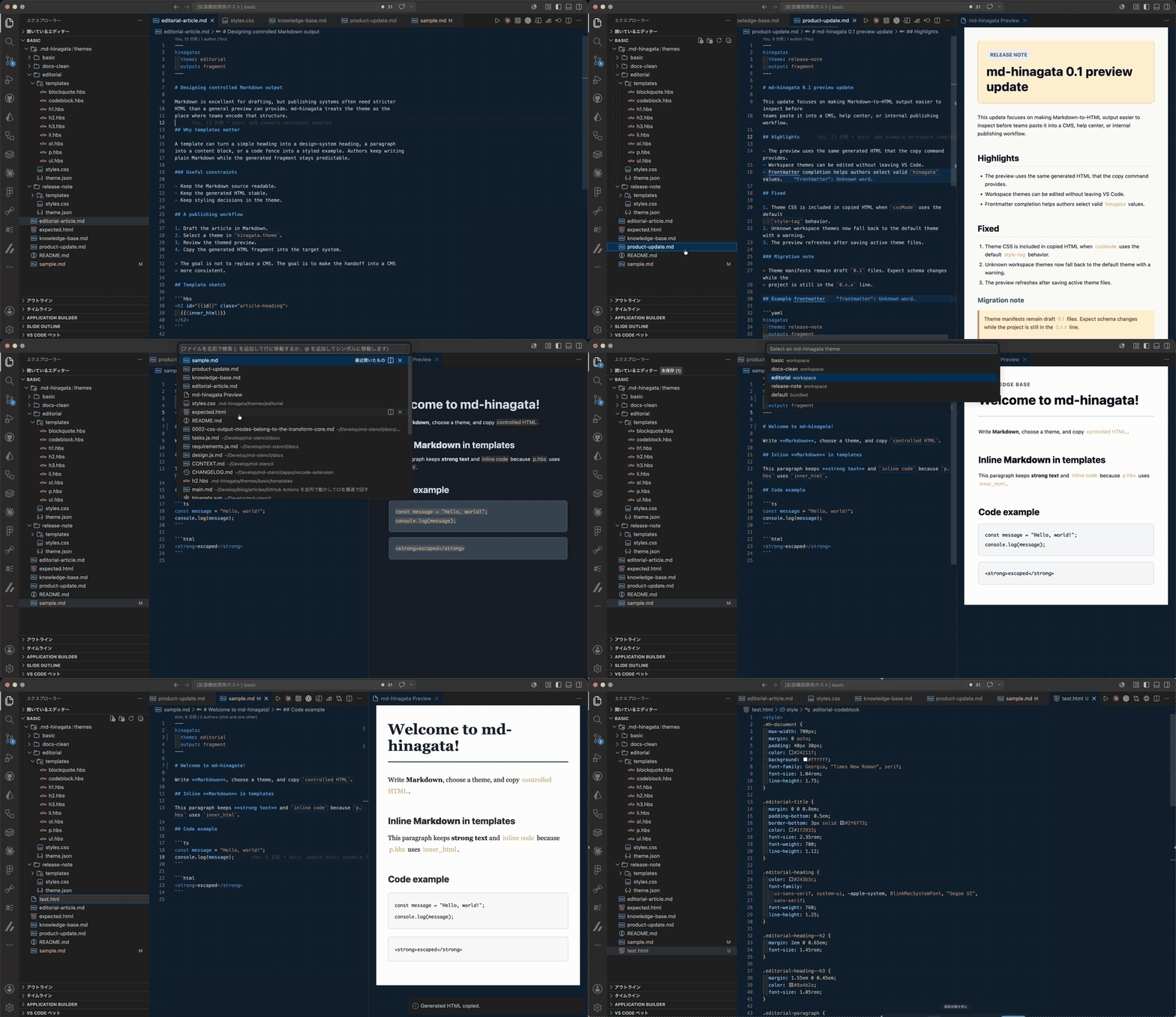
Features
- Edit Markdown with the standard VS Code editor.
- Select a document theme through
hinagata.theme frontmatter.
- Complete
hinagata frontmatter keys and supported values in Markdown files.
- Preview the generated themed HTML in a side panel.
- Copy the generated HTML fragment to the clipboard.
- Inspect the current theme files from the md-hinagata sidebar.
- Use workspace themes from
.md-hinagata/themes/{themeId}.
- Refresh the preview when Markdown or active theme files are saved.
Getting Started
Open a Markdown file and add md-hinagata frontmatter:
---
hinagata:
  theme: default
  output: fragment
---

# Title

Body text.
Then run one of the md-hinagata commands from the Command Palette.
In Markdown frontmatter, VS Code completion suggests the hinagata block, supported child keys, fixed output / cssMode values, and selectable theme IDs.
Examples
Open the repository's examples/basic folder as a VS Code workspace, trust the workspace, then open one of these Markdown files and run md-hinagata: Open Preview.
| Sample |
Theme |
What it shows |
sample.md |
basic |
Minimal fixture used by automated HTML snapshot tests. |
knowledge-base.md |
docs-clean |
Runbook-style knowledge base content with steps, lists, quotes, and code. |
product-update.md |
release-note |
Release note formatting for highlights, fixes, and migration notes. |
editorial-article.md |
editorial |
Article-style output with long-form typography. |
The sample workspace themes are under examples/basic/.md-hinagata/themes.
CSS Output Mode
Set hinagata.cssMode in document frontmatter to choose how theme CSS is represented. The document frontmatter is the source of truth; the extension does not add separate copy commands for each mode.
| Mode |
What Copy Generated HTML copies |
style-tag |
Generated HTML with a <style> tag. This is the default. |
inline |
Generated HTML with supported CSS expanded into style attributes. |
separate |
Generated document HTML without an embedded <style> tag. |
none |
Generated document HTML without theme CSS. |
Commands
| Command |
What it does |
md-hinagata: Open Preview |
Opens the themed HTML preview beside the current Markdown editor. |
md-hinagata: Copy Generated HTML |
Copies the generated HTML fragment for the current Markdown document. |
md-hinagata: Select Theme |
Updates the current Markdown document's hinagata.theme frontmatter. |
md-hinagata: Create Theme from Default |
Copies the bundled default theme into the current workspace and opens the new theme.json. |
Workspace Themes
Workspace themes live under .md-hinagata/themes/{themeId}:
Use md-hinagata: Create Theme from Default to create an editable workspace
theme with the expected file set. In trusted workspaces, the command also
updates the active Markdown document to use the new theme when a Markdown editor
is active.
.md-hinagata/
  themes/
    company-blog/
      theme.json
      styles.css
      templates/
        h1.hbs
        h2.hbs
        h3.hbs
        p.hbs
        codeblock.hbs
        blockquote.hbs
        ul.hbs
        ol.hbs
        li.hbs
A theme manifest looks like this:
{
  "$schema": "https://raw.githubusercontent.com/shm11C3/md-hinagata/main/schemas/theme.schema.json",
  "schemaVersion": "0.1",
  "id": "company-blog",
  "name": "Company Blog",
  "version": "1.0.0",
  "entryCss": "styles.css",
  "templates": {
    "h1": "templates/h1.hbs",
    "h2": "templates/h2.hbs",
    "h3": "templates/h3.hbs",
    "p": "templates/p.hbs",
    "codeblock": "templates/codeblock.hbs",
    "blockquote": "templates/blockquote.hbs",
    "ul": "templates/ul.hbs",
    "ol": "templates/ol.hbs",
    "li": "templates/li.hbs"
  }
}
Templates keep the .hbs file extension for theme compatibility, but they use
md-hinagata Template Interpolation rather than full Handlebars:
<h2 id="{{id}}" class="article-heading article-heading--level2">
  {{{inner_html}}}
</h2>
{{name}} inserts escaped known values. Allowlisted {{{name}}} inserts
generated HTML such as inner_html. Helpers, partials, conditionals, loops,
unknown variables, and non-allowlisted raw insertions fall back with a template
render diagnostic. See the detailed specification in
docs/template-interpolation.md.
Existing custom .hbs themes that relied on Handlebars leniency should be
updated because those unsupported constructs now fall back for the whole
element.
Workspace Trust
Workspace themes are loaded only in trusted workspaces. In untrusted workspaces, md-hinagata limits workspace theme loading while keeping the extension available.
Current Scope
md-hinagata is in early 0.x.x development. The current pre-release line
focuses on Markdown headings, paragraphs, code blocks, blockquotes, lists,
themed preview, CSS output modes, workspace themes, and copying HTML fragments.
The next release target is 0.2.0, the first stable Marketplace release.
The current extension is not a CMS publisher, static site generator, WYSIWYG editor, or full Markdown preview replacement.
Links

