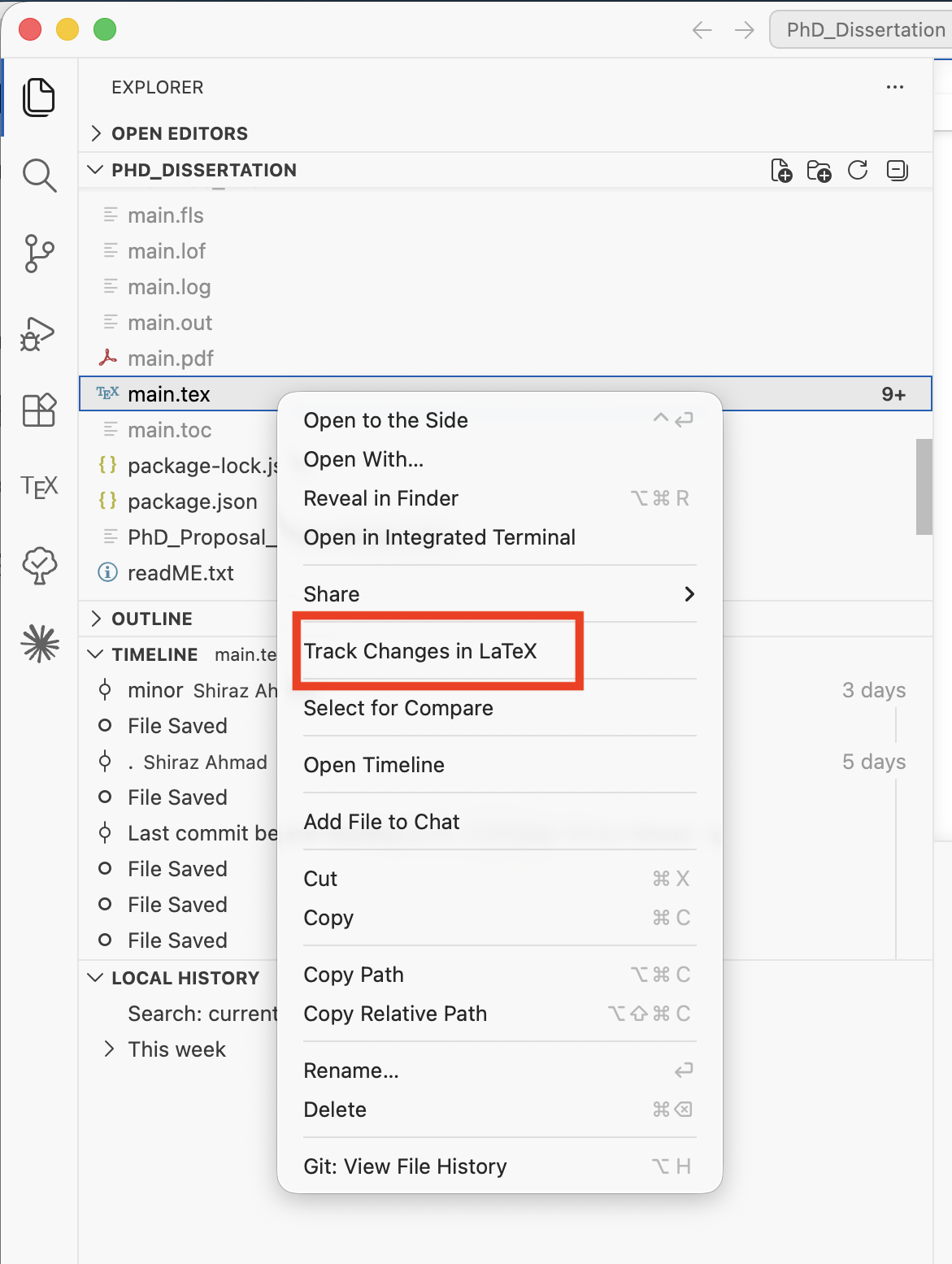
Track Changes in LaTeX — VS Code ExtensionVS Code extension: create LaTeX-compilable diffs (.tex) from Git Timeline/Explorer and compile to see highlighted changes. Installation Launch VS Code Quick Open ( Ctrl+P), paste the following command, and press enter.Copied to clipboard |

Track Changes in LaTeX — VS Code ExtensionThe publication workflow for a research paper usually follows a familiar path. First, you submit your manuscript to a journal. After editorial screening and peer review, you receive referee comments. You then revise the manuscript, address the reviewers’ questions, and prepare the revised submission package. In many cases, journals require two manuscript files at the revision stage:
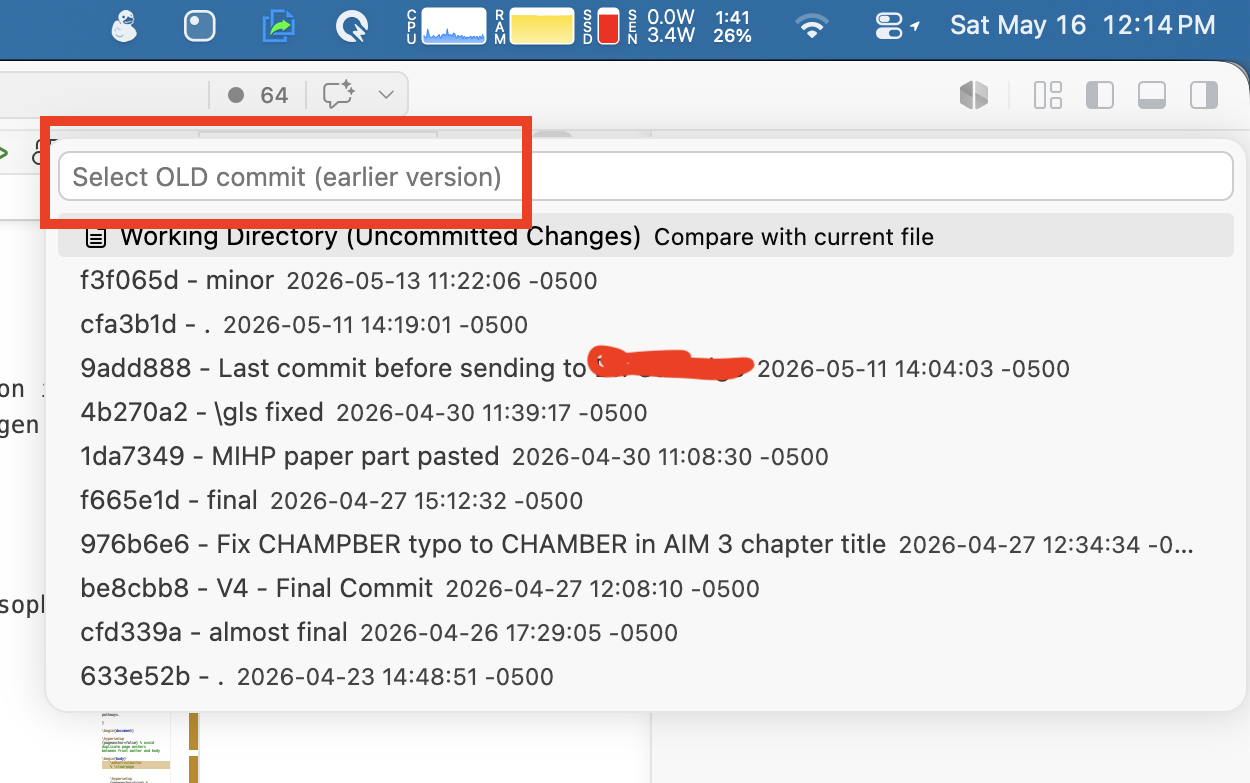
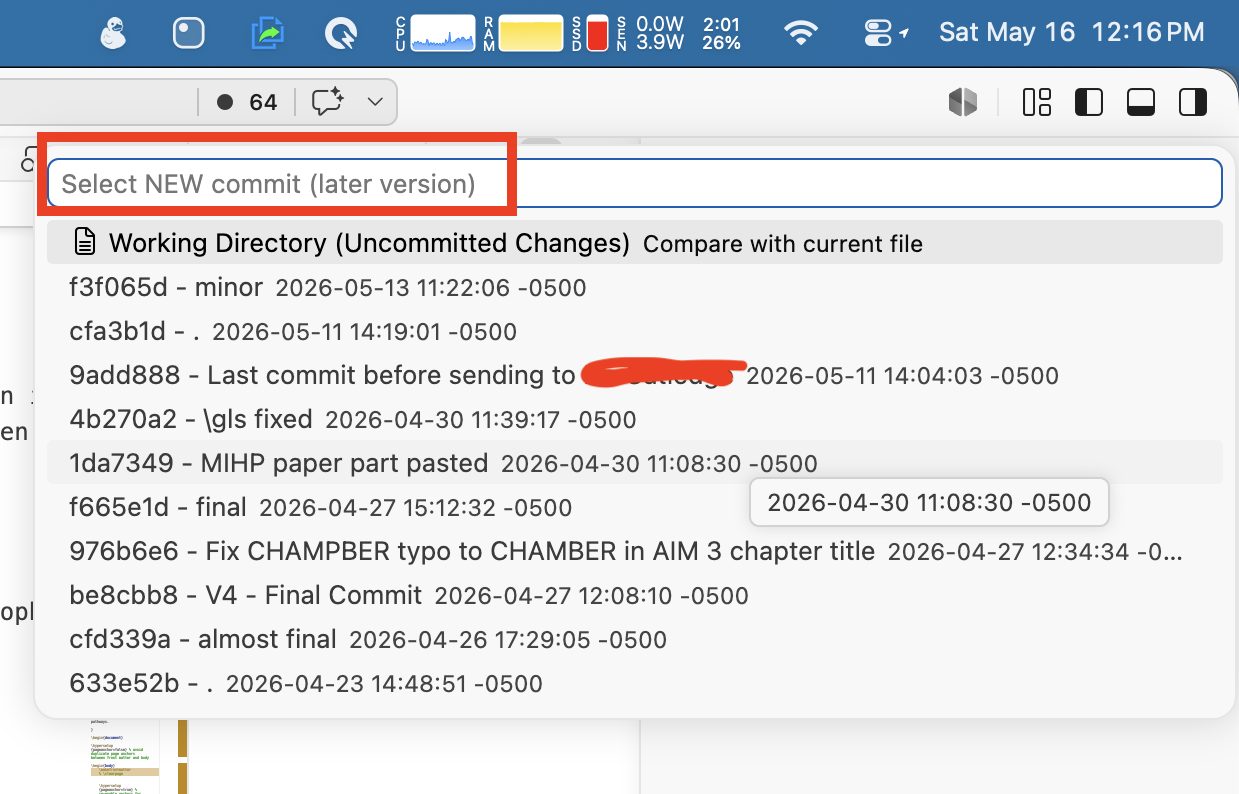
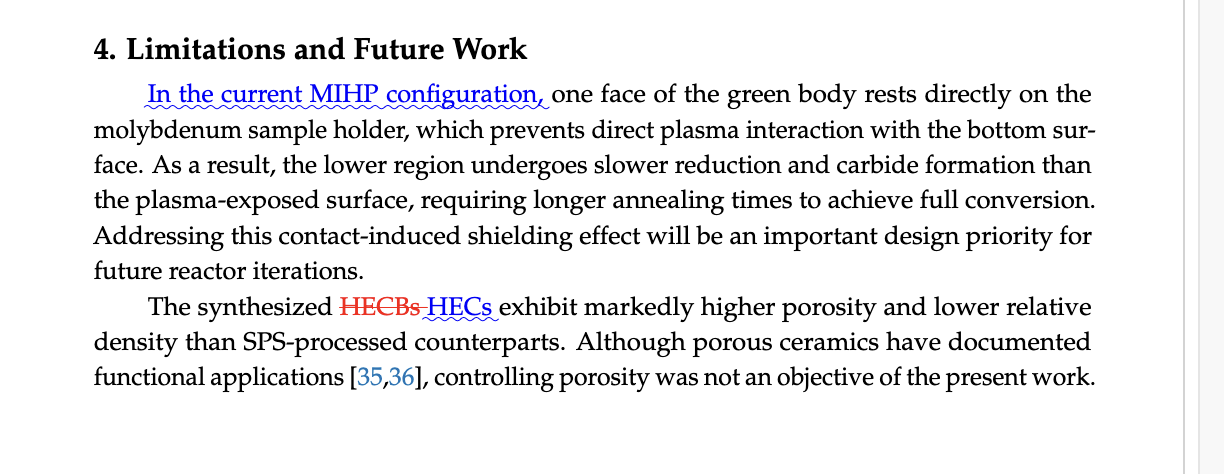
This second file is especially important because it allows editors and reviewers to see exactly what has changed since the original submission. For researchers using LaTeX, preparing a tracked-changes version can become inconvenient, especially when the project has grown large with multiple sections, figures, tables, bibliography files, and supplementary material. Online LaTeX compilers are useful, but they can become expensive as project size and collaboration needs increase. Recently, I moved my LaTeX writing workflow to Visual Studio Code. With LaTeX compilation extensions and built-in Git support, VS Code provides a powerful local environment. The project files remain on my own machine, compilation happens locally, and Git makes it easy to track every important version of the manuscript. This experience led me to build a VS Code extension for generating tracked-changes PDFs from Git history. The workflow is simple: Before submitting the manuscript to a journal, commit the LaTeX project and label that commit clearly, for example: “Submitted for Publication” After receiving reviewer comments, revise the manuscript as usual. Once the revision is complete, commit the revised version and label it, for example: “Revision 1” The extension then allows you to select these two Git commits and automatically generate a LaTeX diff. This produces a PDF showing the tracked changes between the submitted version and the revised version. This makes the revision process much smoother. Instead of manually tracking edits or struggling to prepare a marked-up manuscript, you can use the Git history that already exists in your project. The goal is straightforward: help researchers prepare clean, revised files and tracked-changes files with less hassle, while keeping the full LaTeX workflow local, transparent, and reproducible. For anyone writing papers in LaTeX and handling journal revisions, this can make the submission and resubmission process more organized and less stressful. Usage GuidelinesFollow these visual steps to generate tracked-changes for a
Guidance:
LicenseMIT — see LICENSE for details. |