Rich Notes
A Notion-style rich-text editor for your markdown notes in VS Code — with optional two-way Notion sync.
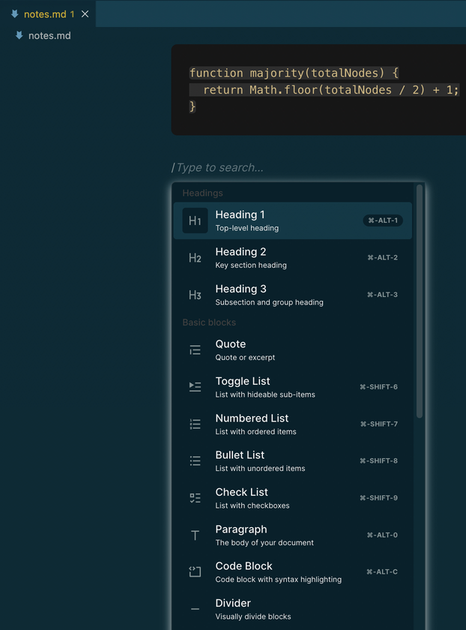
Write notes in a clean WYSIWYG editor (slash menu, drag handles, formatting toolbar, quotes, code blocks, nested lists) while the file stays plain, portable markdown. Opt any note into Notion sync and edit it from anywhere.

Opening a note in Rich Notes
Rich Notes is opt-in — double-clicking a .md still opens plain markdown, so it never touches your other files. To open a note as rich text, right-click any .md file in the Explorer and choose Rich Notes: Open as rich text:

You can also run Rich Notes: Open as rich text from the Command Palette on an open file, or create a fresh one with Rich Notes: New note. The same right-click menu has Rich Notes: Sync to Notion to link a note (see Notion sync setup).
Features
✍️ Notion-style editing, plain markdown on disk
Type and see it rendered — no memorizing markdown syntax. Slash (/) menu for blocks, a floating formatting toolbar, drag-to-reorder, checklists, quotes, and code blocks. Familiar markdown shortcuts also work inline — -+space for a bullet, #+space for a heading, and ``` for a code block. The underlying file is always clean .md, so it stays git-friendly and portable.
🔄 Two-way Notion sync (opt-in, per note)
Link a note to a Notion page and it stays in sync — local edits push, Notion edits pull, automatically (on save, on open, and when you return to VS Code).

🧭 Conflict resolution with a diff
When a note changes on both sides, Rich Notes opens a clean diff (Notion ↔ Local) with one-click actions: keep local, keep remote, or merge & push.

Getting started
- Open a note as rich text: right-click any
.md file → Rich Notes: Open as rich text (or use the command palette). Or run Rich Notes: New note.
- Start typing. Use
/ for blocks, select text for the formatting toolbar, and hover a block for the drag handle.
- Double-clicking a
.md still opens plain markdown by default — Rich Notes is opt-in, so it never touches your other markdown files.
Notion sync setup
- Create an internal integration at notion.so/my-integrations and copy its secret.
- In Notion, create a parent page for your notes, open its •••→ Connections, and add your integration.
- Copy that page's 32-character id from its URL into Settings → Rich Notes › Notion: Parent Page Id.
- Run Rich Notes: Set Notion token and paste the secret (stored in VS Code SecretStorage).
- Right-click a note → Rich Notes: Sync to Notion. It's now linked and kept in sync.
Settings
| Setting |
Default |
Description |
richNotes.notion.parentPageId |
"" |
Notion page under which new synced notes are created. |
richNotes.notion.autoSync |
true |
Push a linked note to Notion when it's saved. |
richNotes.autoSave |
true |
Auto-save notes shortly after you stop typing. |
richNotes.autoSaveDelay |
1000 |
Delay (ms) before auto-saving. |
Commands
Open as rich text · Open markdown source · New note · Sync to Notion · Unlink from Notion · Sync now · Pull from Notion (replace local) · Push to Notion (replace remote) · Sync status · Set / Clear Notion token
Notes on fidelity
Markdown can't express everything a block editor can, so a full-fidelity copy of each note's blocks is kept in a sidecar (<note>.md.blocks.json) next to it. Markdown stays the readable source of truth; the sidecar preserves structure across reloads and feeds richer data to Notion. Notion-only features (colors, callouts) and some structures don't fully survive the markdown round-trip.
License
MIT

