LogFocus README
Highlight your logs with colorful filters, and manipulate what to display for better log file reading.
This extension is inspired by textAnalysisTool.NET.
Note: This extension is forked from SoySauceFor3/log-analysis and includes significant enhancements and new features while maintaining compatibility with the original functionality.
Features
- Filter Creation: Create filters based on user input regular expressions
- Syntax Highlighting: Highlight lines that match the filters with customizable colors
- Focus Mode: Hide lines that don't match your filters for better readability
- Project Management: Organize filters into projects for better workspace management
- Group Management: Organize filters into groups within projects
- Enhanced Filter Controls: Toggle visibility, highlighting, and exclude modes
- Improved Focus Mode: Enhanced virtual document with better tab titles
- Performance Optimizations: Intelligent caching for filter processing and debounced text change events
Usage
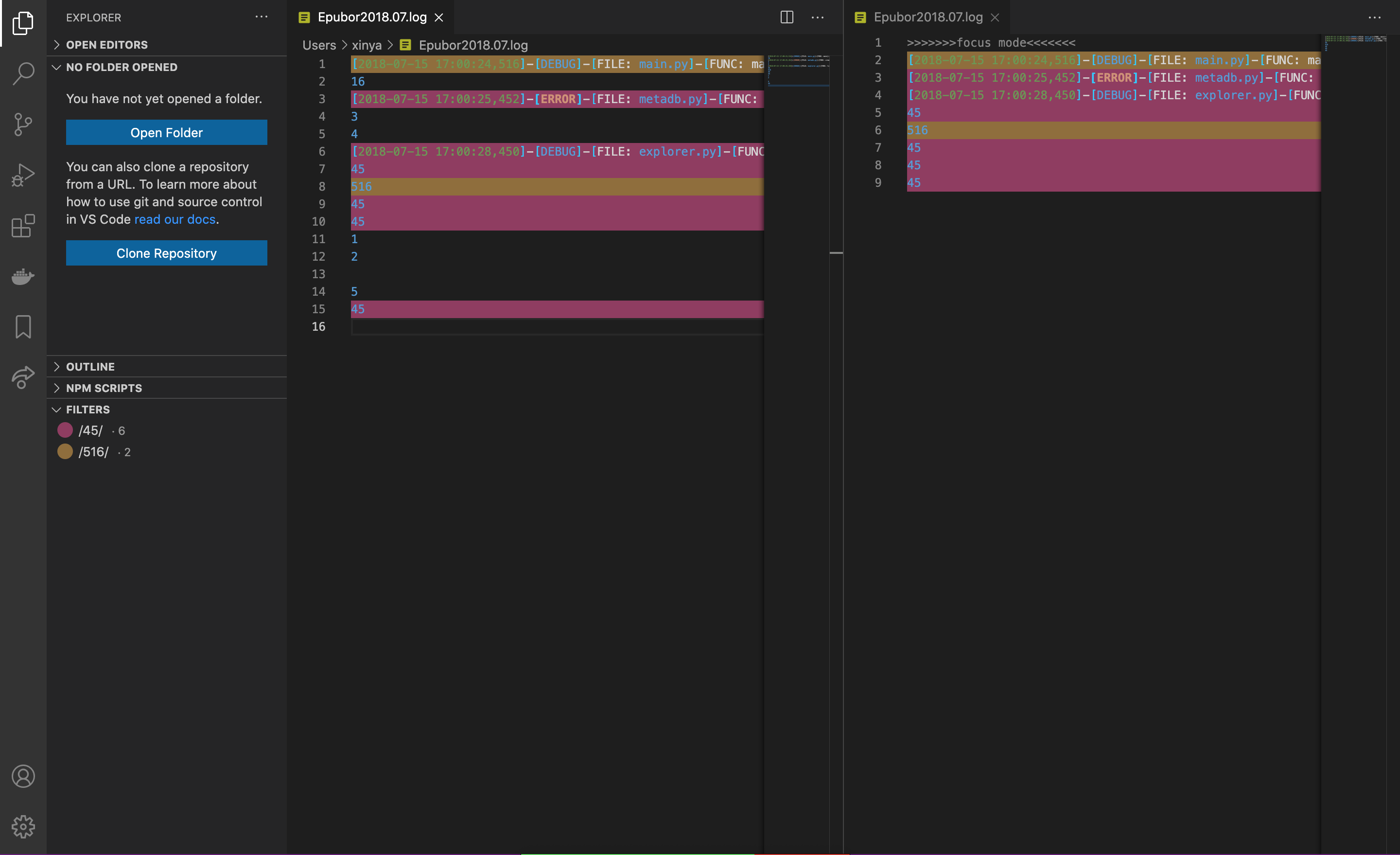
In this picture, there are two filters with default settings located in the "FILTERS" tab. The left editor holds the original document, and all the lines that match any of the filters have been highlighted. The right editor holds the focus mode of the left document, and notice that the lines which don't match any of the filters' regex are gone.
The focus mode is implemented as a virtual document (read-only), and the original document is not modified.
Customization for Filters
This extension creates a "FILTERS" tab in the explorer sidebar. This tab holds all the filters created and allows for filter management.
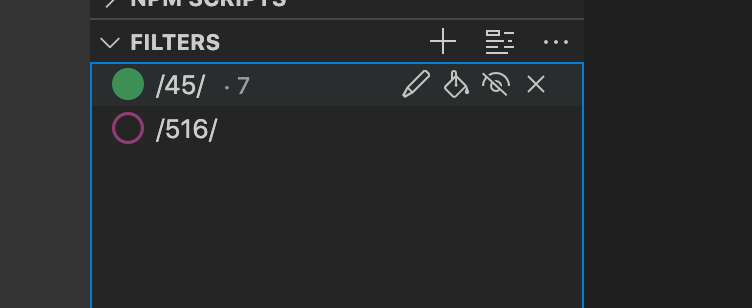
Each line in the tab contains one filter. The filled/unfilled circle represents the color of the filter and whether the highlight is applied to documents. The text represents the regex of the filter. The number in smaller font, if present, represents the number of lines that match the regex in the active editor.
For each filter, there are five attributes:
- Color: The color is generated randomly, but if you don't like it, you can generate a new filter
- Regex: You can change the regex by clicking the pencil icon
- isHighlighted: If true, lines that match the regex will be highlighted with the filter's color. If false, this filter will be ignored for color highlighting. Toggle this by clicking the paint bucket icon
- isShown: Used in focus mode. If true, lines that match the regex will be kept; if false, the lines will be removed (unless other filters keep the line). Toggle this by clicking the eye icon
- isExclude: If true, lines that match the regex will be excluded from focus mode instead of included. Toggle this by clicking the exclude/include icon
If one line matches multiple regex, because the highlight will overwrite themselves, the final color is not deterministic. However, the line is still counted in all the filters.
Focus Mode
You can use the logfocus.turnOnFocusMode command to activate focus mode for the active editor. The command has a default shortcut: Ctrl+H (Cmd+H on Mac), or you can click the second icon located on the top of the tab to achieve the same goal. As the focus mode is just another tab, you can close focus mode the same way you close any VS Code tab.
New in this release: Focus mode now displays enhanced tab titles that show the original filename and full path, similar to VS Code's Git extension format (e.g., "filename.log (Focus Mode) (C:\path\to\file.log)").
Available Commands
The extension provides numerous commands for managing filters, groups, and projects:
- Filter Operations: Add, edit, delete filters; toggle highlight, visibility, and exclude modes
- Group Operations: Add, edit, delete groups; group-level visibility and highlight controls
- Project Operations: Add, edit, delete, select projects; refresh settings
- Focus Mode: Turn on focus mode with keyboard shortcut
Ctrl+H (Cmd+H on Mac)
All commands are accessible through the context menu in the FILTERS sidebar, or through the VS Code Command Palette (Ctrl+Shift+P).
Project Management
This extension now supports project-based organization for better workspace management:
- Multiple Projects: Create and manage multiple filter projects
- Project Switching: Easily switch between different filter configurations
- Project Persistence: All projects are automatically saved and restored
- Project Operations: Add, edit, delete, and select projects through the explorer sidebar
Group Management
Within each project, filters can be organized into groups:
- Filter Groups: Create logical groupings for related filters
- Group Operations: Add, edit, and delete groups
- Group-level Controls: Apply visibility and highlighting settings to entire groups
- Hierarchical Organization: Better visual organization in the explorer sidebar
This release includes significant performance improvements:
Intelligent Caching System
- Editor Cache: Smart caching of filter processing results per document
- Content Hash Validation: Automatic cache invalidation when document content changes
- Memory Management: Configurable cache size limits and TTL (Time To Live)
- Version Tracking: Cache invalidation when filter regex patterns change
Optimized Event Handling
- Debounced Text Changes: Reduced unnecessary processing during rapid typing
- Rate Limiting: Minimum interval enforcement for editor refresh operations
- Background Processing: Non-blocking filter operations for better responsiveness
- Focus Document Filtering: Optimized handling of virtual documents in focus mode
Enhanced Error Handling
- Comprehensive Logging: Detailed error tracking for debugging
- AbortError Detection: Improved handling of extension interaction conflicts
- Graceful Degradation: Better fallback behavior when operations fail
Requirements
- VS Code version 1.49.0 or higher
- No additional dependencies required
What's New in This Fork
This enhanced version builds upon the original log-analysis extension with significant improvements:
- Project Management System: Complete project-based organization
- Group Management: Hierarchical filter organization within projects
- Performance Optimizations: Intelligent caching, debounced events, and optimized processing
- Enhanced Filter Controls: Exclude mode, improved visibility controls
- Better Focus Mode: Enhanced tab titles and virtual document handling
- Comprehensive Testing: Full test suite with 12+ test cases
- Modern Architecture: Updated to latest VS Code extension patterns
- Error Handling: Robust error detection and graceful degradation
Development and Testing
Development Guide
If you want to contribute to this project or build it from source, please follow these steps:
1. Environment Setup
Ensure you have Node.js and Git installed.
git clone https://github.com/sean10776/log-analysis.git
cd log-analysis
npm install
2. Compilation
The project is written in TypeScript and needs to be compiled before use or testing:
- Build: Run
npm run compile to build the project.
- Watch Mode: Run
npm run watch to automatically recompile on file changes.
3. Linting
We use ESLint to maintain code quality and consistent style:
- Run Lint: Run
npm run lint to check for code issues.
- VS Code Integration: We recommend installing the ESLint extension to see errors in real-time.
4. Testing
This project includes a comprehensive automated test suite powered by @vscode/test-cli:
- Run Tests: Run
npm test. This will automatically trigger compilation via pretest.
Test Coverage and Quality
The project currently features 23 test cases covering core functionalities:
- Core Engine: Validation of the highly optimized $O(m)$ combined regex matching algorithm and priority resolution.
- Focus Mode Logic: Verification of content generation accuracy under various Inclusive/Exclusive filter combinations.
- Project Management: Validation of project, group, and filter operations, including decentralized workspace storage.
- Command Behavior: Testing of VS Code API interactions and command persistence.
Handling Huge Files
In VS Code, when opening files larger than 50MB, the use of extensions is restricted to ensure performance and memory efficiency. This limitation helps maintain a responsive and stable environment when handling large files. More details can be found in [VS Code Issue #31078](https://github.com/microsoft/vscode/issues/31078).
This extension works well with  to handle large log files.

