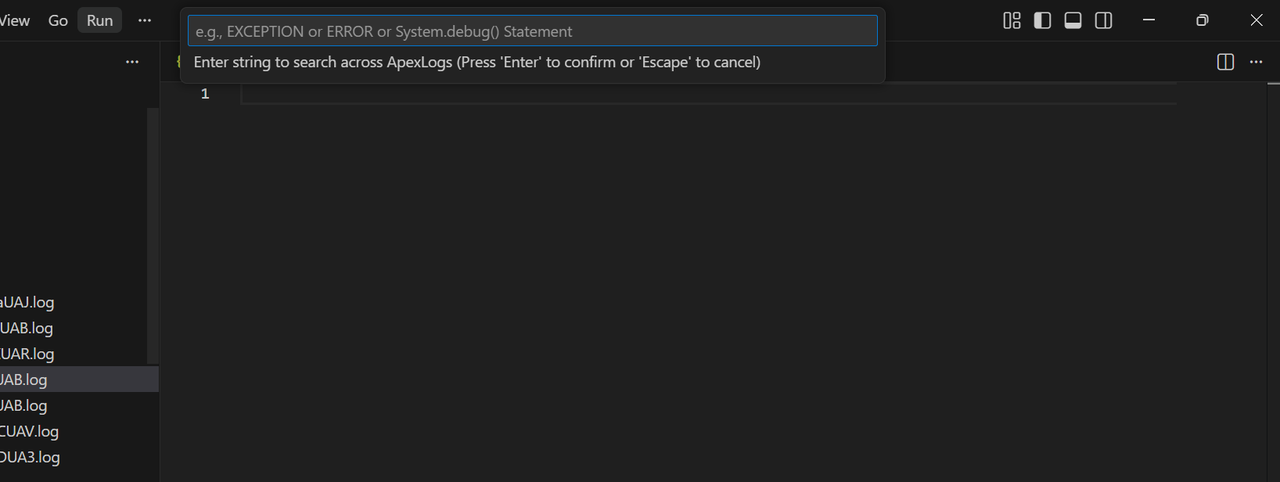
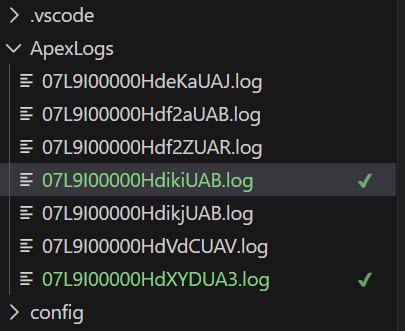
Fetch latest N number of Apex logs(upto 100) via sf CLI, search any String and highlight the exact matches in green tick in Folder level.Also Bulk delete from Org level is supported
Installation
Launch VS Code Quick Open (Ctrl+P), paste the following command, and press enter.
Apex Log Finder is a Visual Studio Code extension that integrates with the Salesforce CLI (sf) to help developers and QA engineers quickly fetch and analyze Apex debug logs.
It provides four main commands:
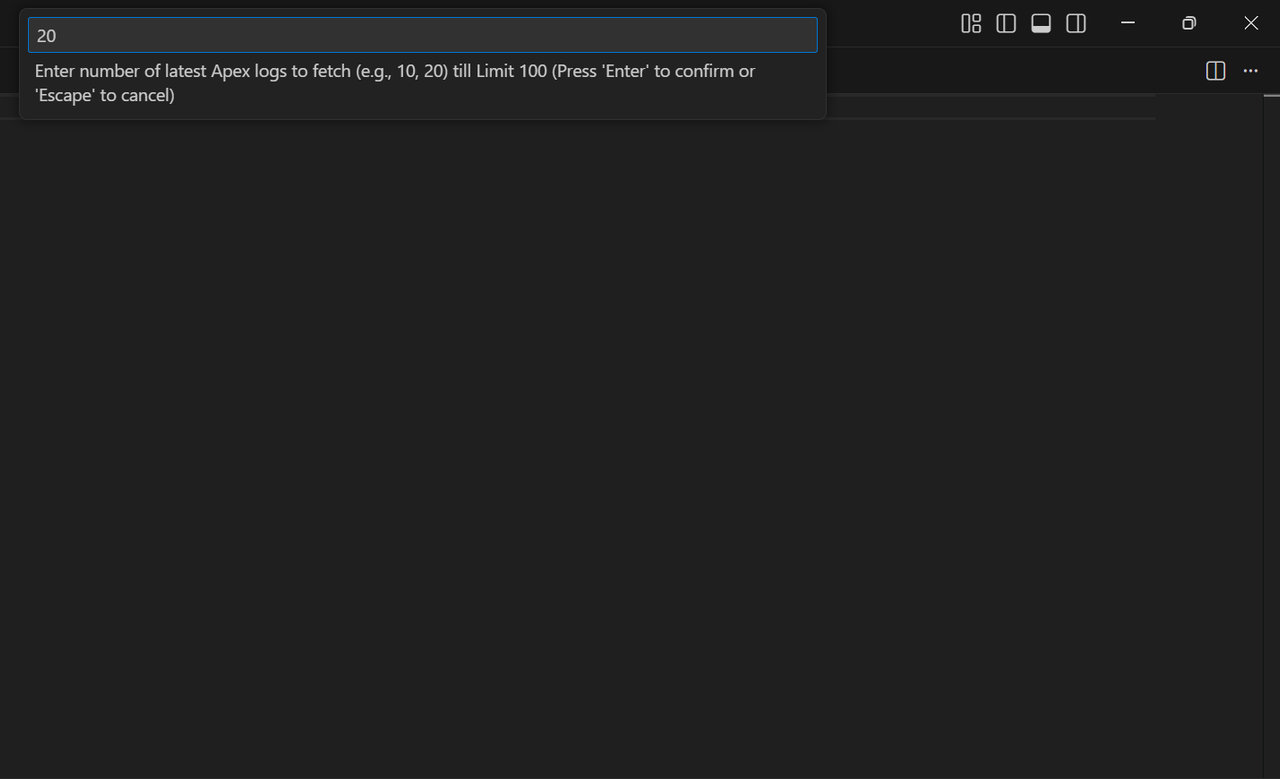
Apex Logs: Fetch Latest Debug Logs: Download the most recent Apex logs from your default Salesforce org.
Apex Logs: Search & Highlight: Search for a specific string across all downloaded logs and highlight matches in green.
Apex Logs: Clear Local Logs: Clear Downloaded Apex log locally from folder.
Apex Logs: Delete All Logs From Org: Delete Apex log from Org Level using Bulk API.
This extension is designed to streamline log inspection, error tracking, and debugging workflows directly inside VS Code.
Features
✅ Fetch the latest N number of Apex logs (user input, up to 100).
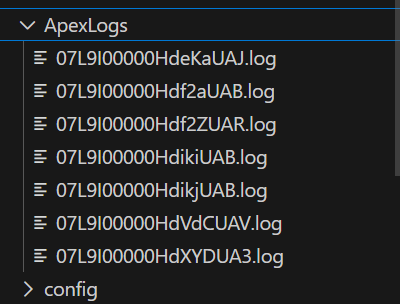
✅ Automatically saves logs into a workspace folder named ApexLogs.
✅ Uses the current default org (no need to specify aliases).
✅ Search across all downloaded logs for a given string.
✅ Highlights all matches in green for easy visibility. [Best View Suitable for VS Code Dark Theme]
✅ Displays progress and error messages in VS Code notifications.
✅ Fetch logs with a progress bar that updates incrementally.
✅ Concurrency control (up to 5 logs at a time) for faster downloads.
✅ Search logs without opening them, marking matched files in the Explorer with a green ✔ badge.
✅ Delete the Logs from Org level using Bulk API.
✅ Clear the Downloaded Apex log From Local folder.
Screenshots for All Steps
Available Commands
Fetching Logs
Folder Structure
[]
Search & Highlight Steps
Error Handling
Below are common error messages, their causes, and solutions:
Error Message
Cause
Solution
"No default Salesforce org connected"
Extension checks sf org display --json and finds no default org.
Run sf org login web and set a default org with sf org set default.
"Open a workspace folder to create ApexLogs"
No workspace folder is open in VS Code.
Open a folder in VS Code before running commands.
"No Apex logs found in the default org"
The org has no recent debug logs.
Execute Apex code or enable debug logging in Salesforce, then retry.
"No .log files found in ApexLogs"
Search command run before fetching logs.
Run Apex Logs: Fetch Latest Debug Logs first.
"Failed to parse JSON output from sf CLI"
CLI output not valid JSON (e.g., CLI error).
Ensure sf CLI is installed and working. Test with sf apex log list --json in terminal.



 ]
]