Git JetPreviewThe most faithful 1:1 recreation of JetBrains Git (WebStorm, IntelliJ IDEA, PyCharm…) for VS Code, ported from the IDE's own Git plugin: Commit tool window with changelists, Log with graph, branches popup, interactive rebase, shelve, Push dialog, 3-way merge and GitHub pull requests. Not affiliated Installation Launch VS Code Quick Open ( Ctrl+P), paste the following command, and press enter.Copied to clipboard |

Git JetJetBrains Git, 1:1, inside VS Code. Git Jet is the most faithful recreation of the Git workflow of WebStorm, IntelliJ IDEA, PyCharm and the other JetBrains IDEs. It is not "inspired by" them: its logic is ported from the IDE's own open-source Git plugin, so the Commit tool window with changelists, the Log with its graph, the branches popup, interactive rebase, shelve, the Push dialog and the three-way merge window behave the way you know — same actions, same dialogs, same shortcuts, with the look of the New UI.
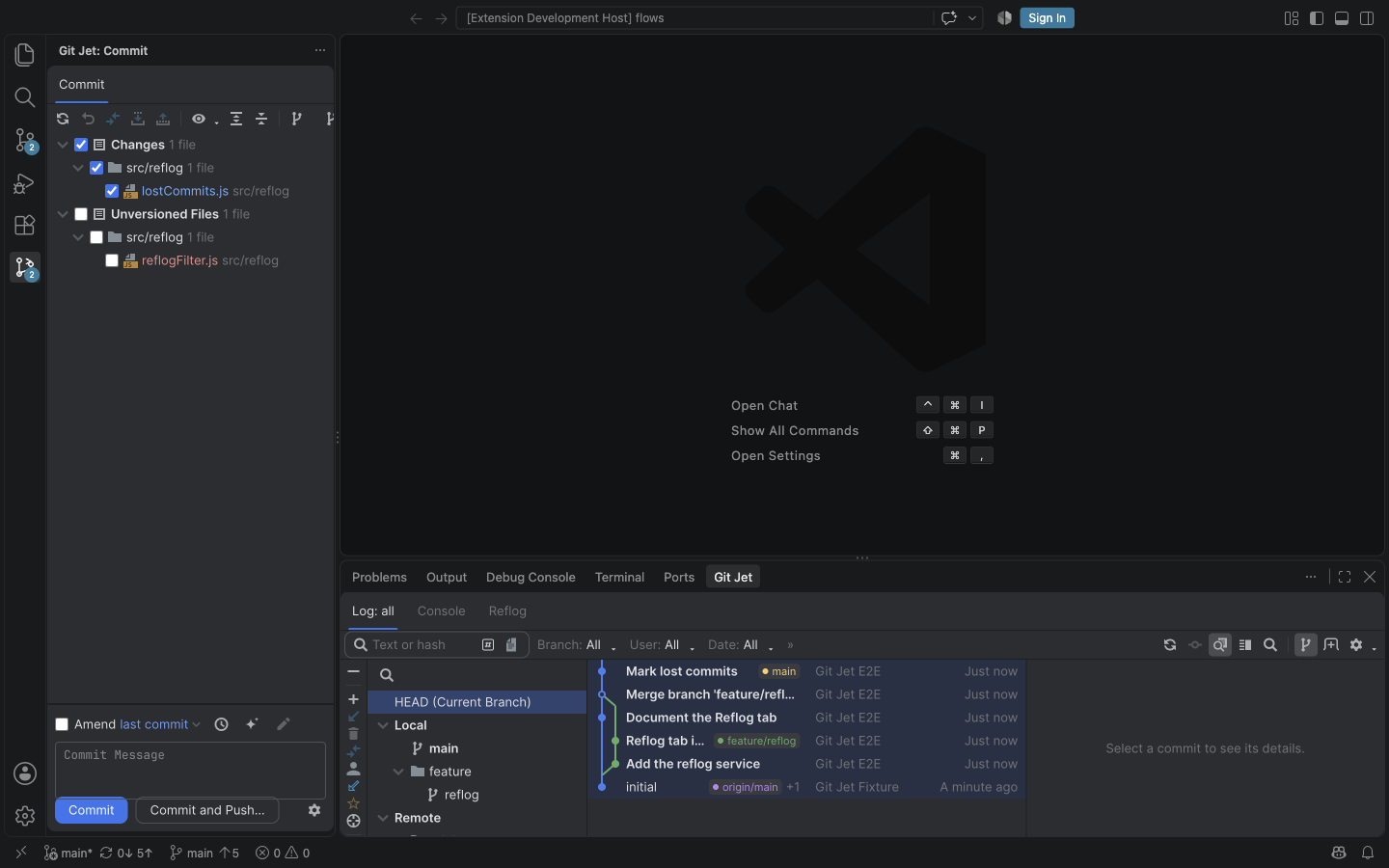
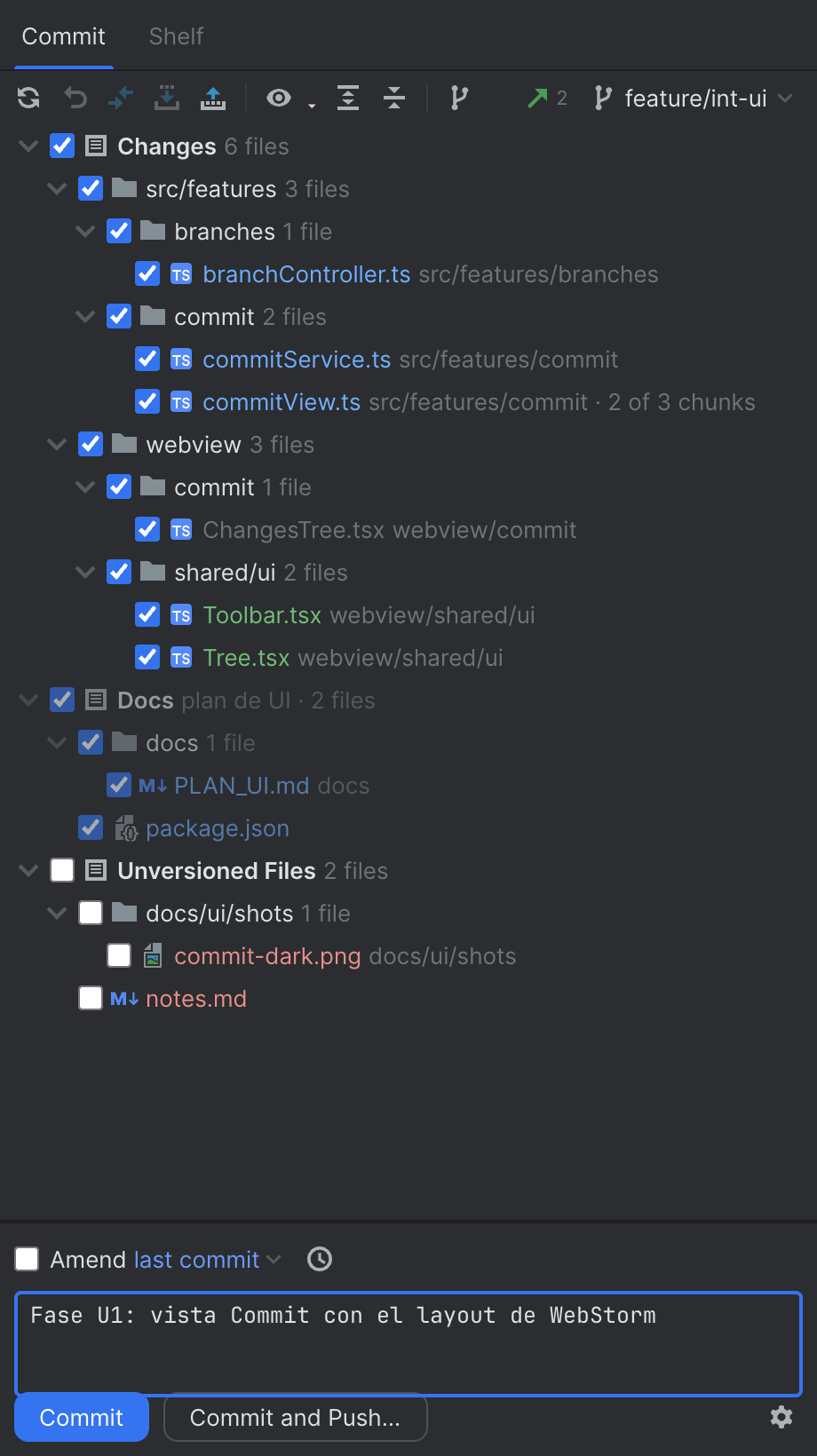
Feature tourCommit tool windowChanges grouped by changelist, per-file and per-hunk inclusion checkboxes, amend, sign-off, commit message history and inspections (subject length, blank line, spelling), before-commit checks and Commit and Push — all in a side tool window instead of the Source Control view.
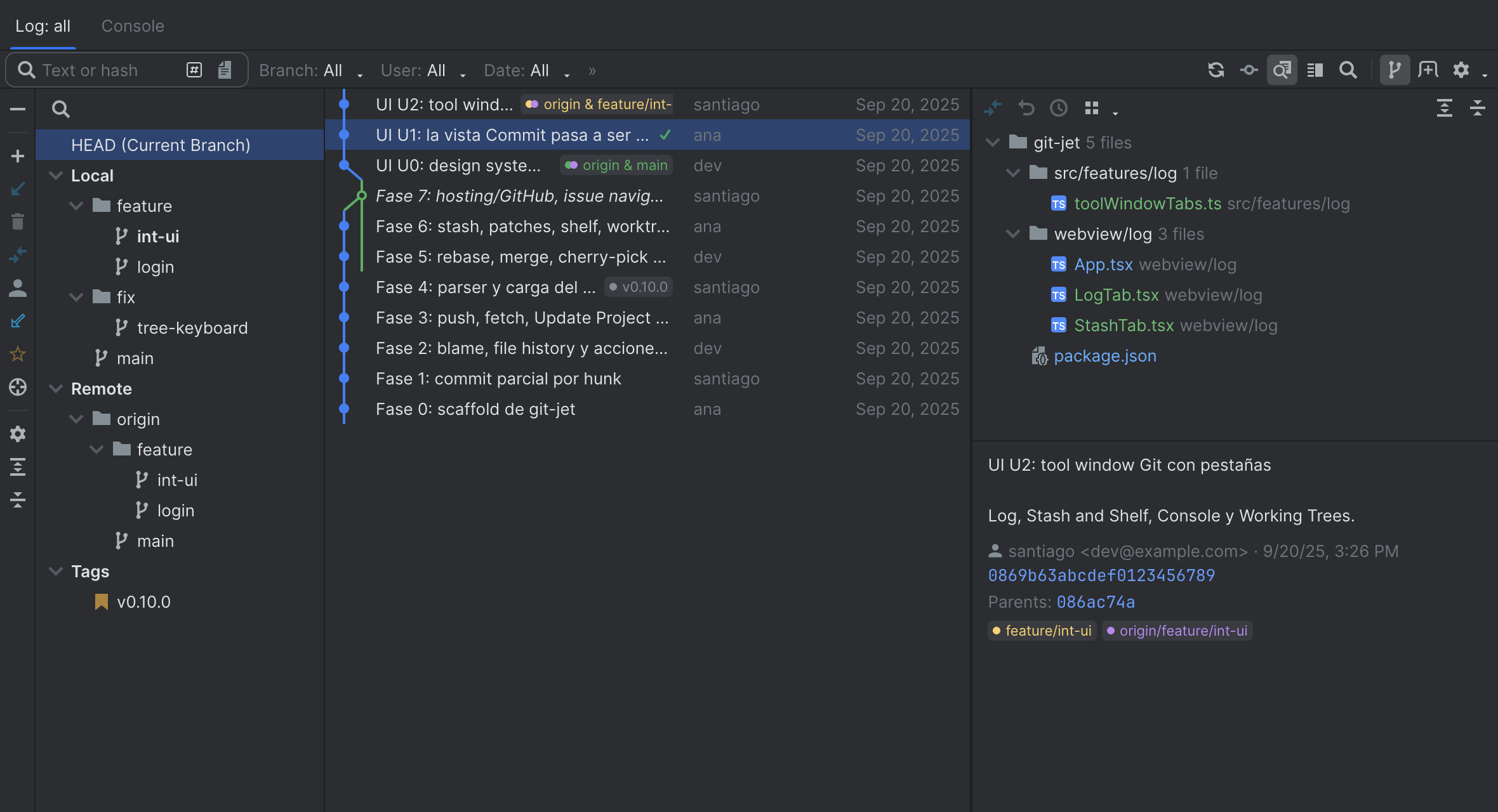
Git tool window: Log with graphThe Log tab with the commit graph, branch/user/date/path filters, text and hash search, commit details and the changed files, plus context menus for checkout, cherry-pick, revert, reset, rebase, tags and more. Console, Stash and Working Trees tabs live next to it.
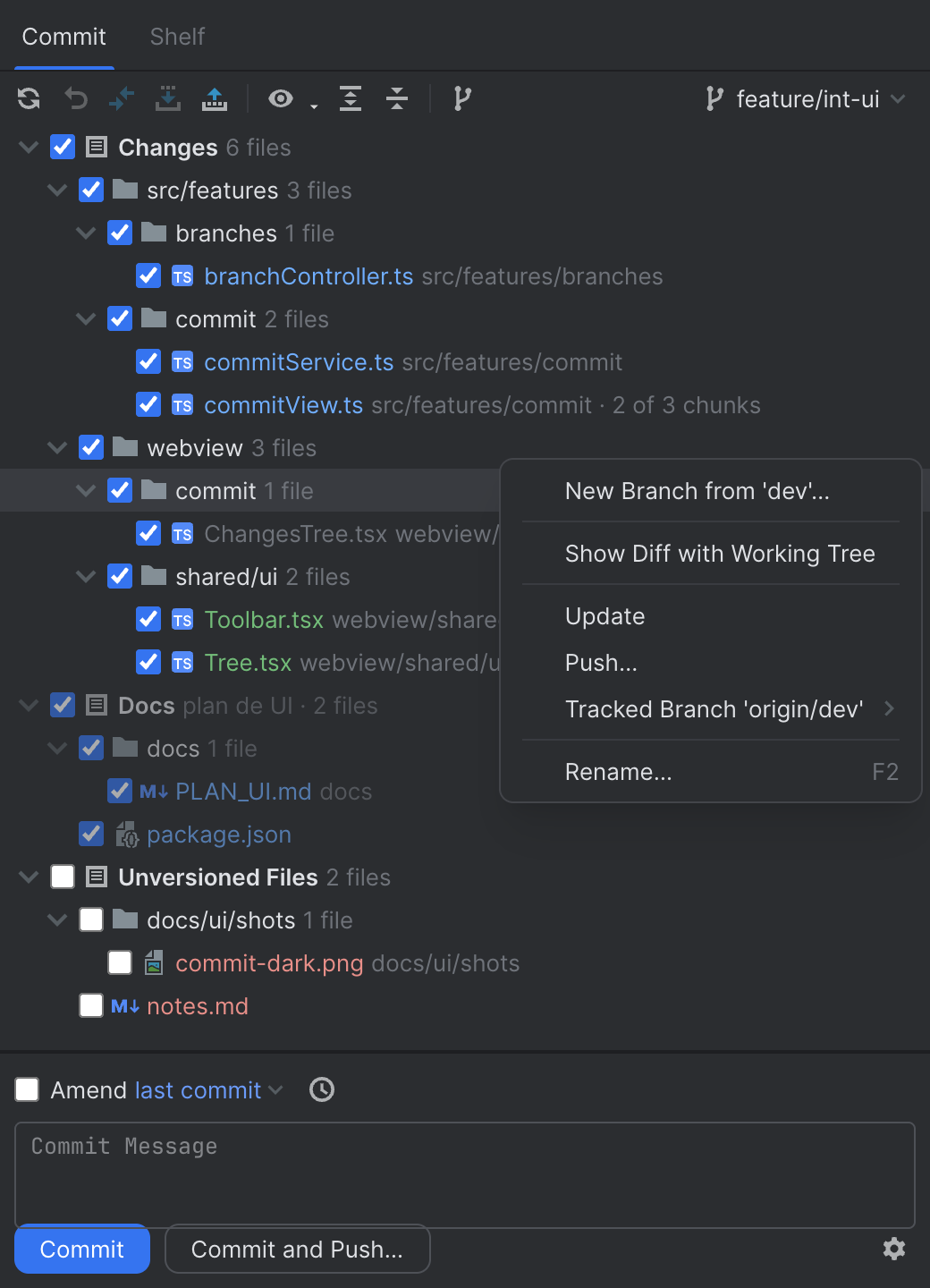
Branches popup
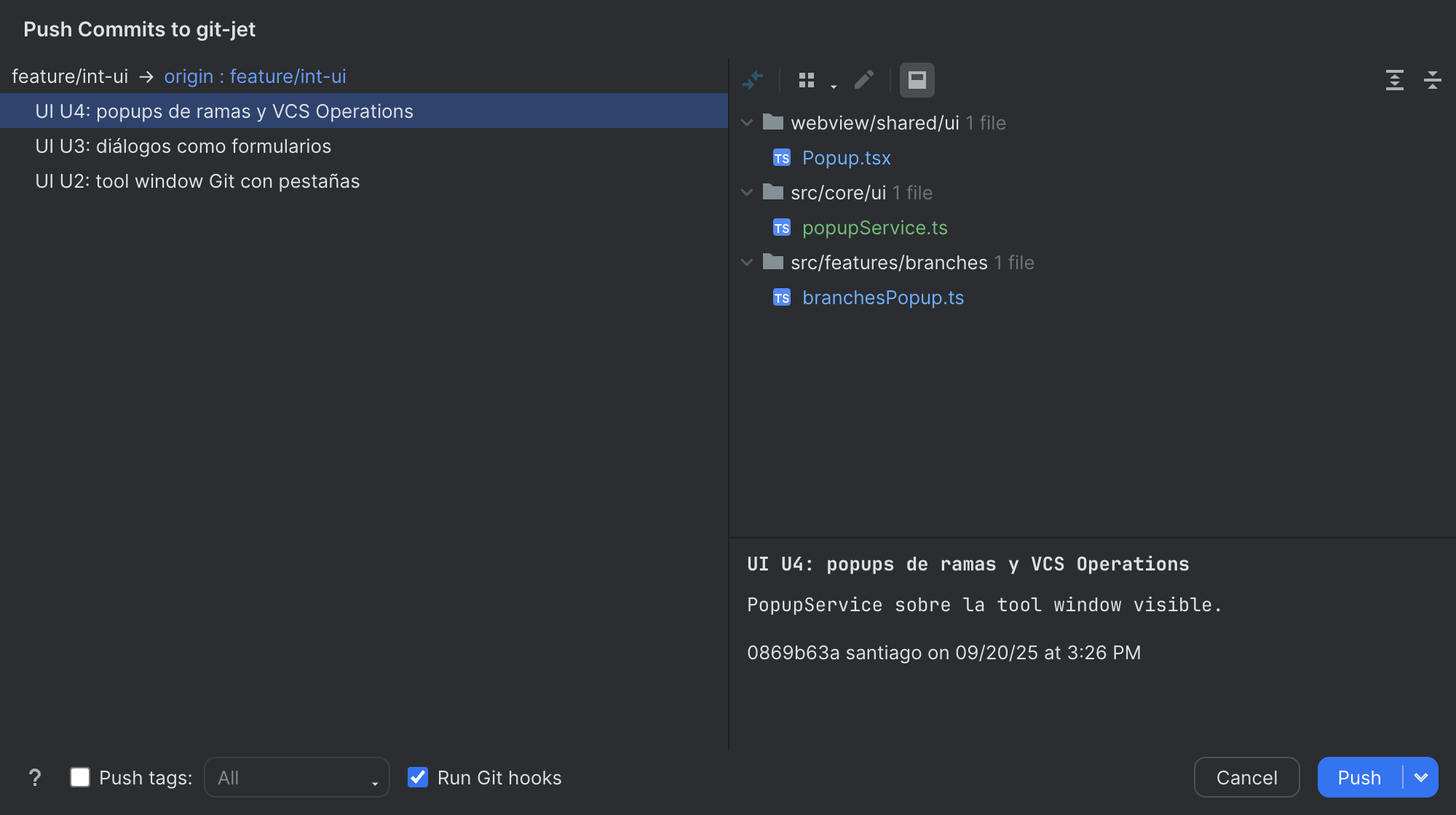
Push dialogReview the outgoing commits and files per repository before pushing, set the upstream, push tags and force
push (always
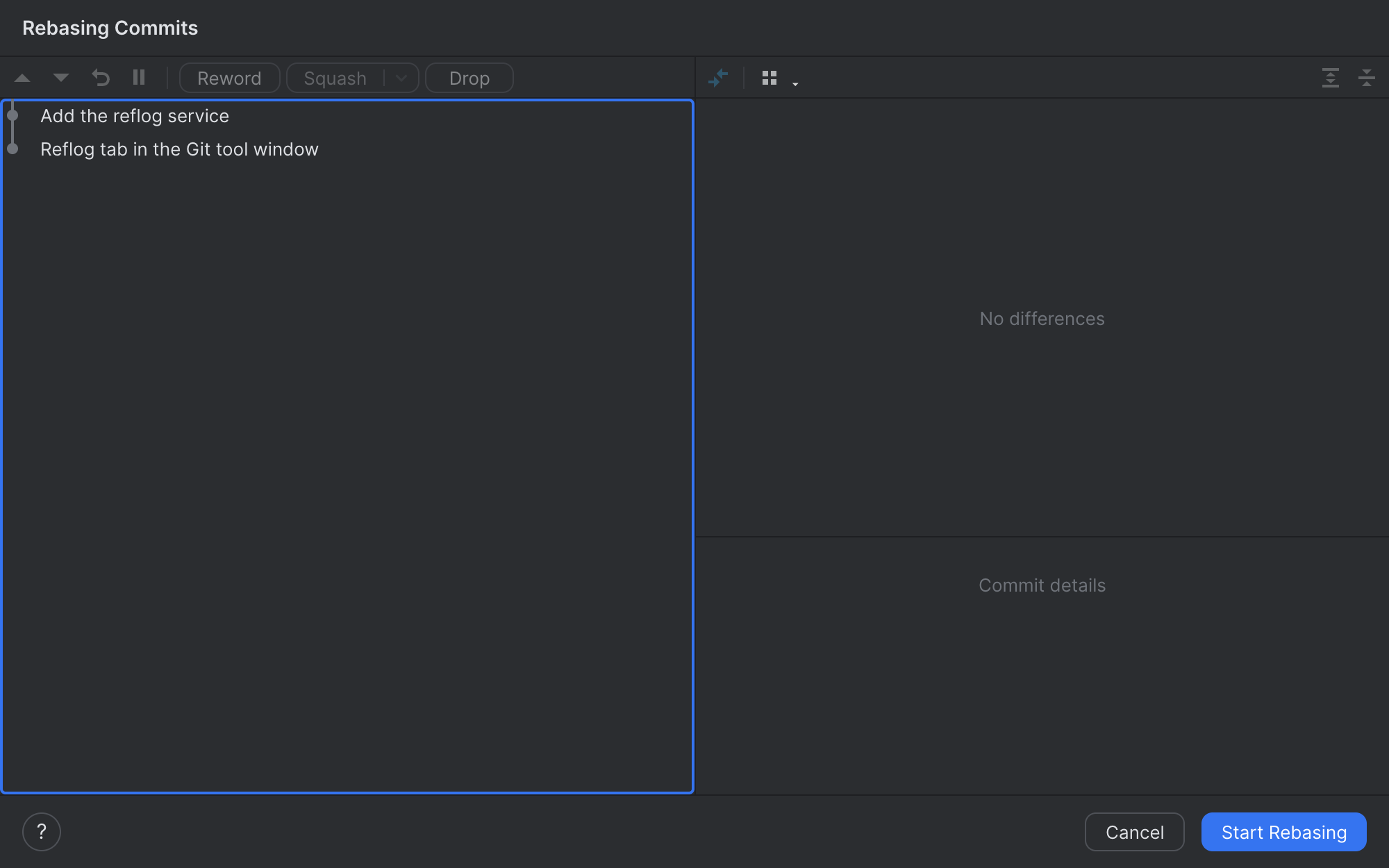
Interactive rebaseReorder, reword, squash, fixup, drop and edit commits in the Rebasing Commits dialog, then continue, skip or abort from the Commit window while the rebase is in progress.
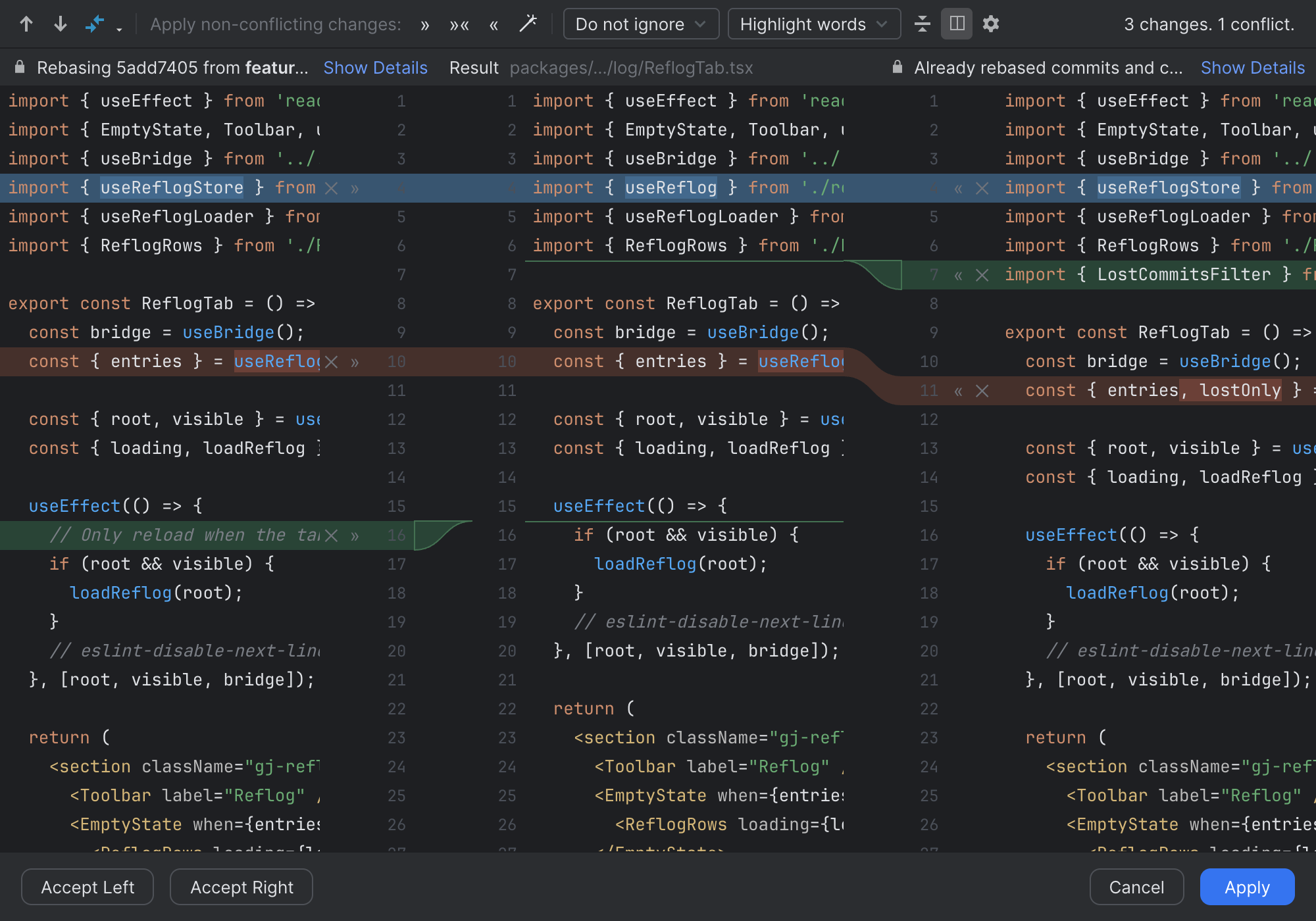
Merge conflictsThe Conflicts dialog lists every conflicted file (Accept Yours / Accept Theirs / Merge…), and the three-pane Merge Revisions window applies non-conflicting changes automatically, with per-chunk accept arrows and annotations.
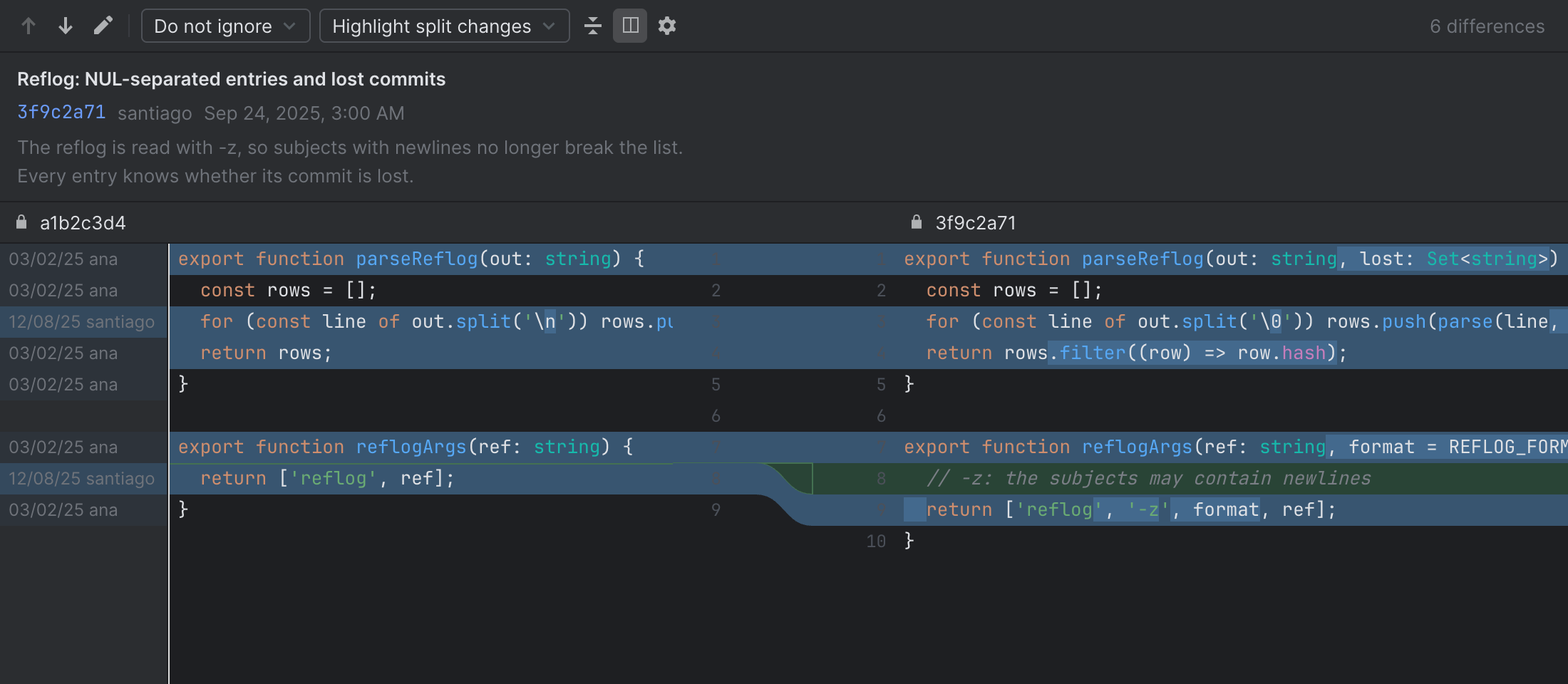
Diff viewerSide-by-side diff with inclusion checkboxes for partial commits, three-way comparison for merge commits and directory comparisons.
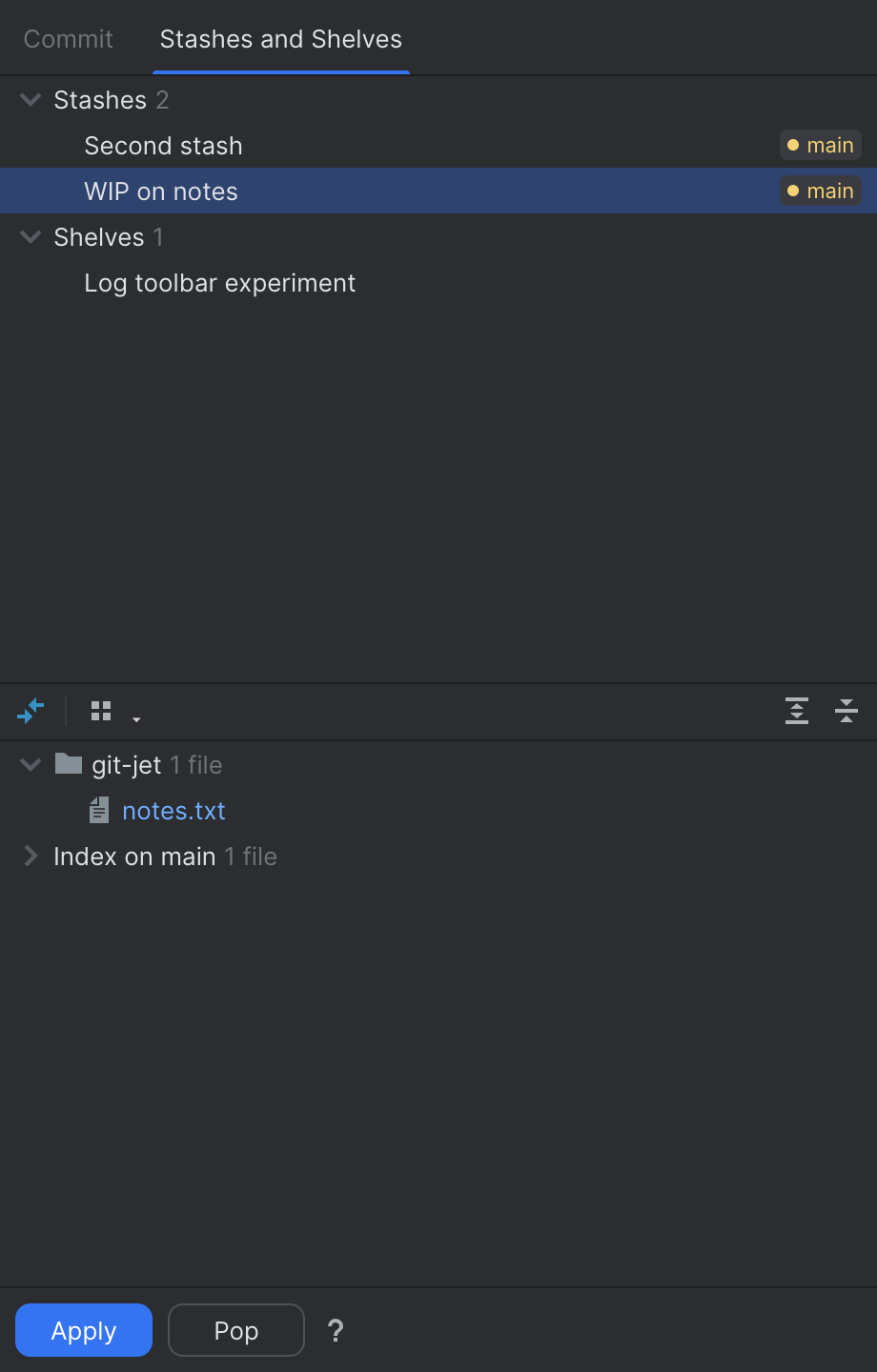
Shelf and stashShelve changes (IDE-style patches that survive branch switches) or stash them; unshelve / unstash with a preview, optionally shown together in one tab.
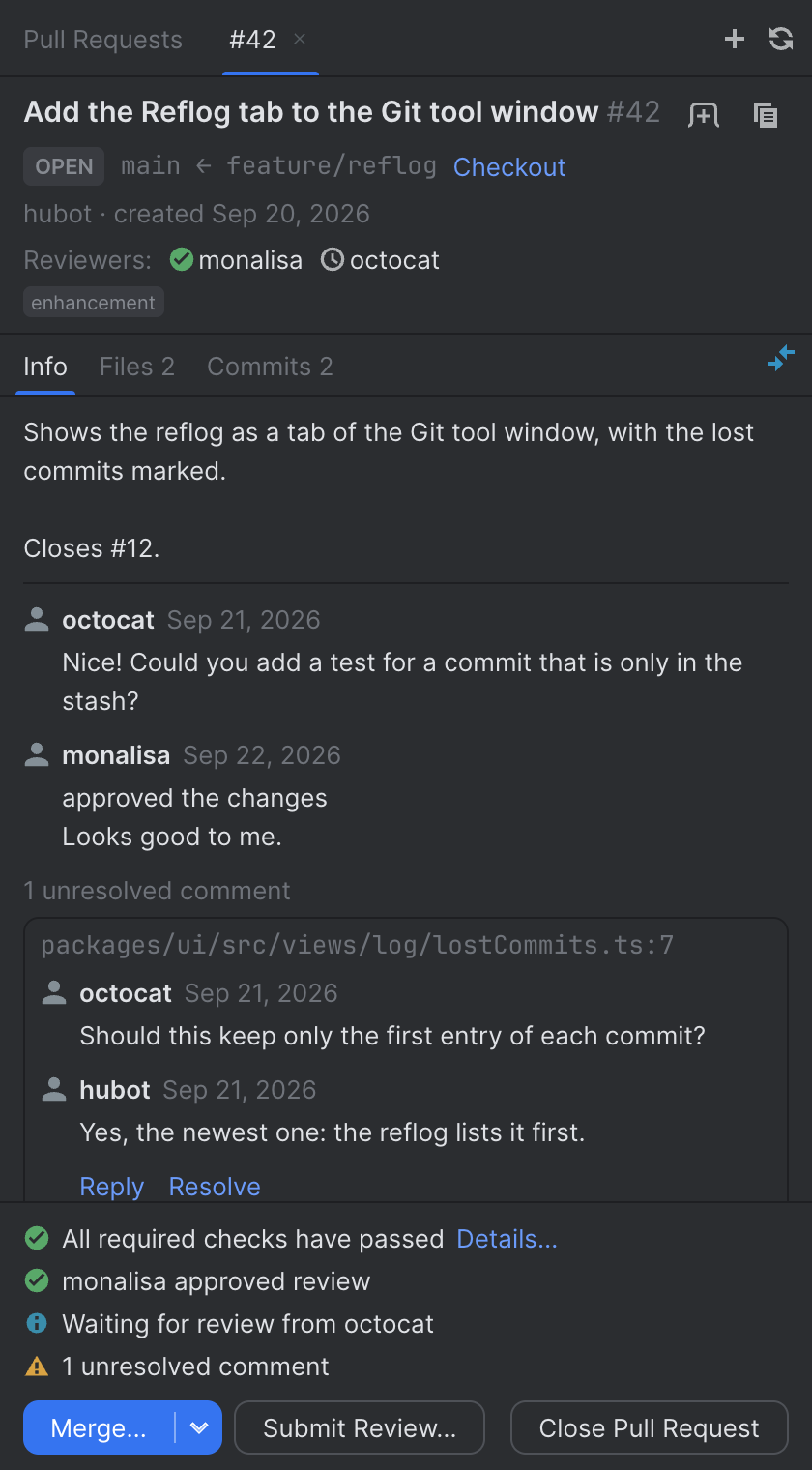
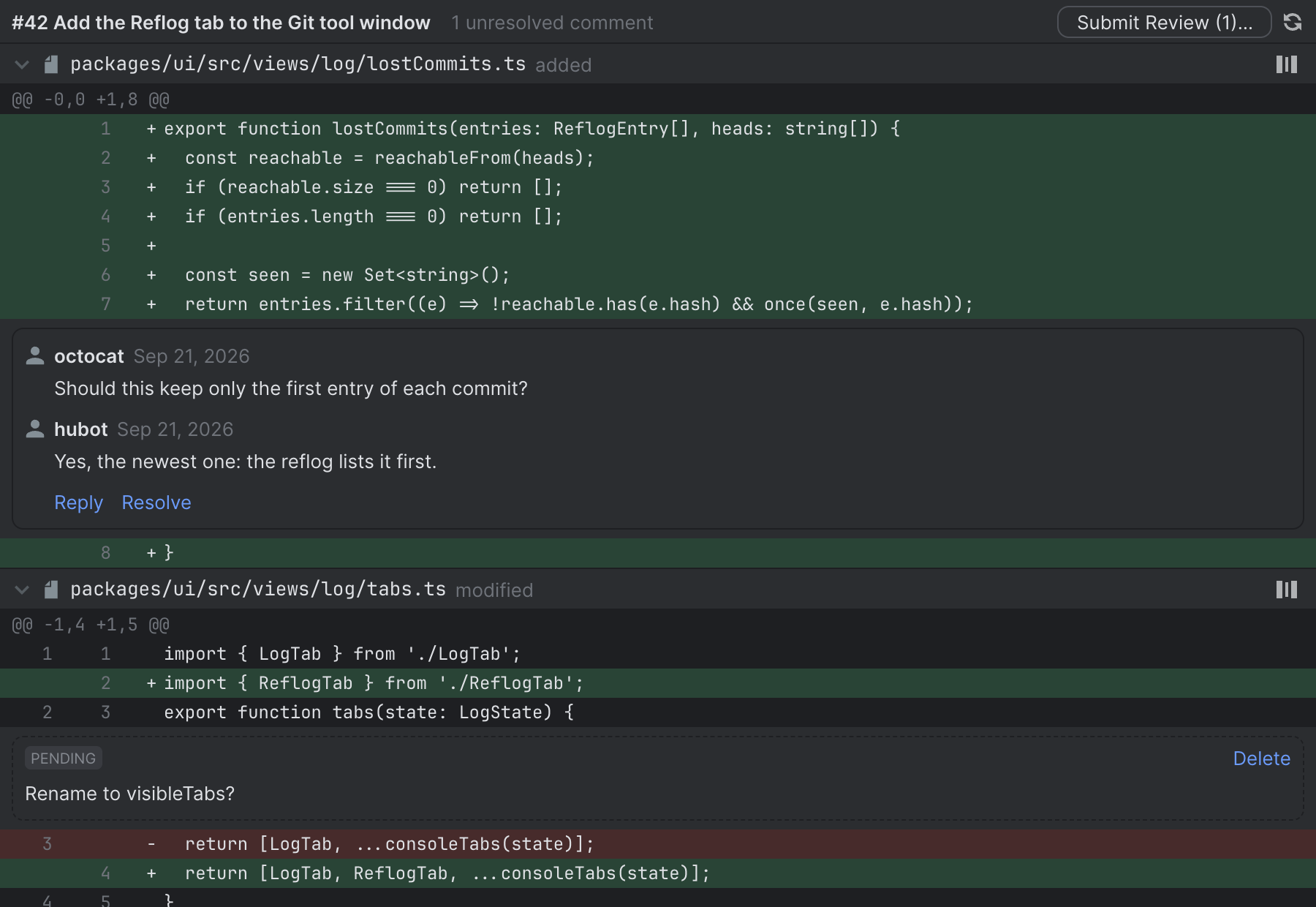
Pull Requests (GitHub)The Pull Requests tool window of WebStorm's GitHub plugin: the repository's pull requests with search and filters
(state, author, label, assignee, review), Create Pull Request… from the current branch (pushed first when
needed), the details with commits, changed files, CI checks and timeline, and a review diff where you comment on
lines, reply, resolve threads and submit a review. Merge, Squash and Merge or Rebase, Close / Reopen and Checkout
of the pull request's branch are one click away. GitHub Enterprise works through
AI actionsOver VS Code's Language Model API (GitHub Copilot Chat or any other model provider you have installed):
Generate Commit Message with AI writes the message from the included changes, Improve Commit Message
rewrites the one you typed (optionally as Conventional Commits), Explain Commit in the Log explains a commit,
and Merge with AI in the Merge Revisions window proposes a resolution for the open conflicts that you review
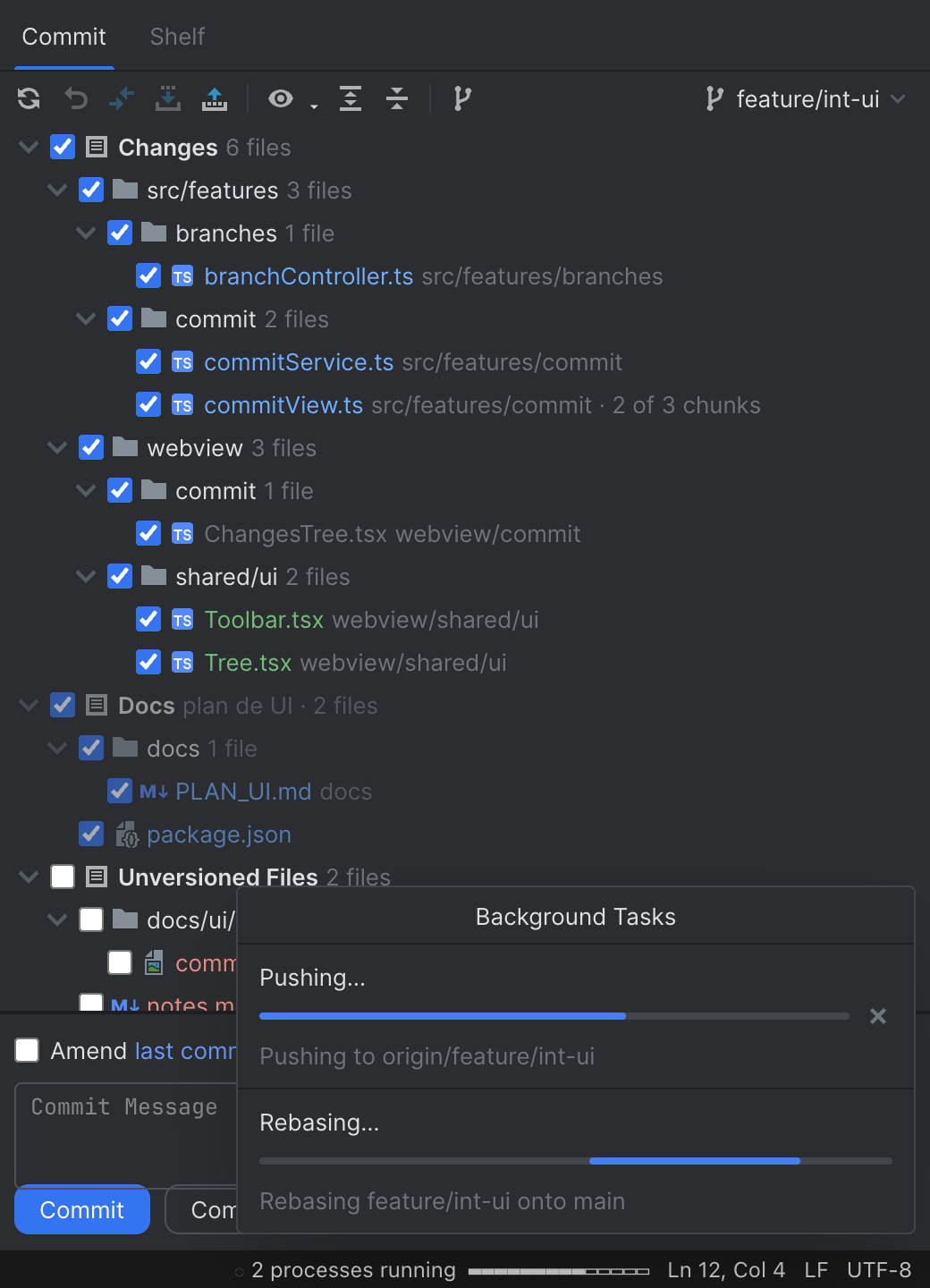
before applying. Background tasksLong operations (fetch, pull, push, clone, rebase) run in the background with a status bar indicator and a list where each task can be cancelled.
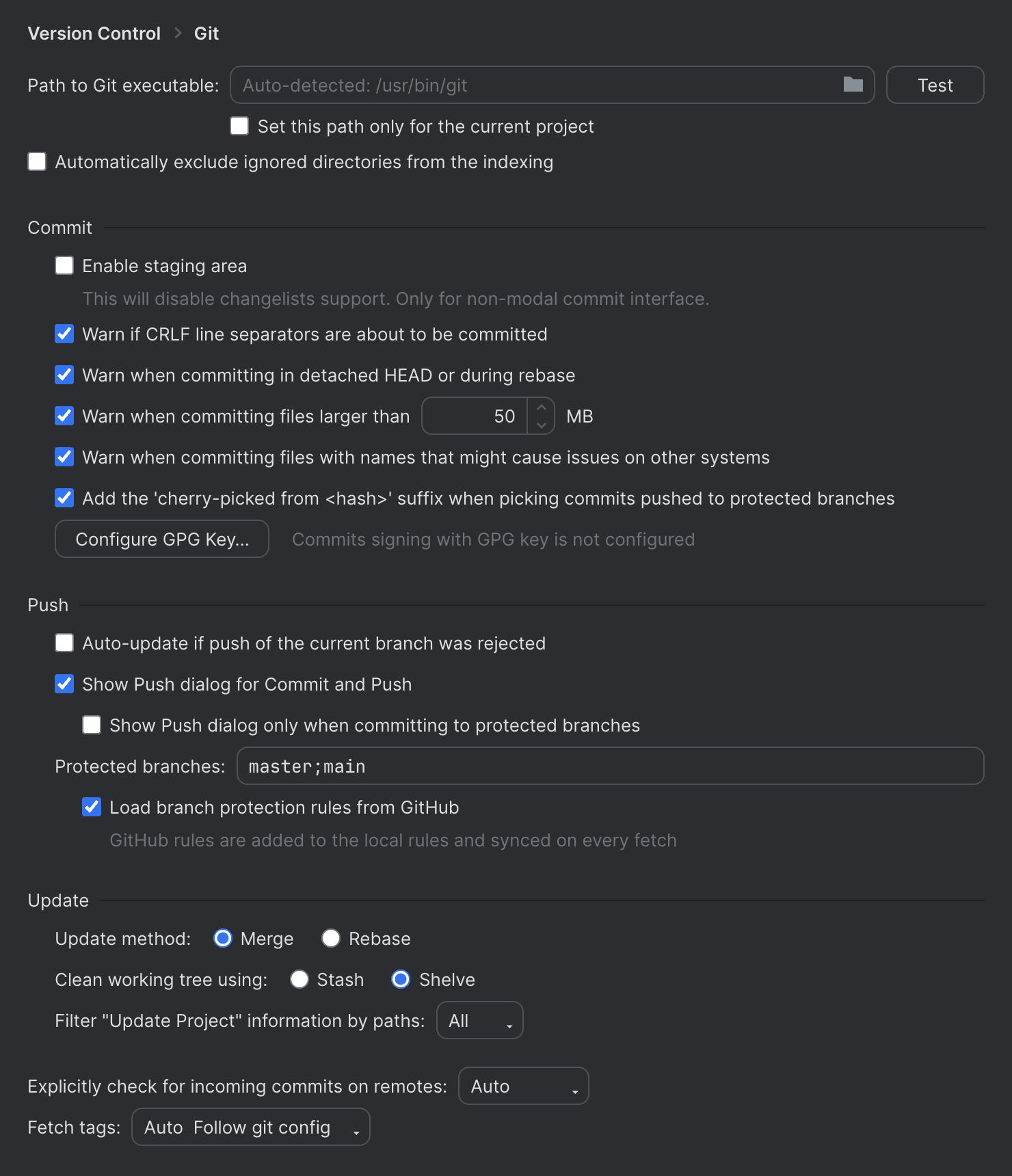
Git Settings pageThe Version Control › Git settings of the IDE as a page: Git executable with Test, commit and push options, update method, protected branches, credential helper and more. Everything is also a regular VS Code setting.
Also included: editor gutter change markers with Rollback / Show Diff, Annotate with Git Blame, file and selection history, compare with branch or revision, patches (create / apply), worktrees, submodules, GitHub clone / share / login, Update Project (merge or rebase), a Git console that logs every command, Git bisect from the Log (Start / Mark Good / Mark Bad / Skip / Reset, with a banner while bisecting), Git LFS (content diffs, Track / Untrack Files, Fetch / Pull LFS Objects), git-flow (Init, Start / Finish Feature, Release and Hotfix, with plain git), Local History › Show History / Put Label over VS Code's Timeline, and a Reflog tab in the Git tool window (not in WebStorm) that marks the commits a reset or rebase lost and brings them back with New Branch… or Reset Current Branch to Here…. For AI agents (MCP)Git Jet includes a read-only MCP server that gives AI agents the
repository the way Git Jet sees it, through typed tools instead of raw
Getting started
Keyboard shortcutsWith
All actions are also in the Command Palette under Git Jet, and can be rebound in Keyboard Shortcuts. Key settings
Everything else is under Settings › Extensions › Git Jet, or in the Git Settings page (Git Jet: Git
Settings). Git Jet: Appearance… (also in the Git Jet activates in workspaces that contain a Known limitationsVS Code does not allow every JetBrains surface; where it doesn't, Git Jet rebuilds it inside its own webviews. The differences you will notice:
PrivacyGit Jet collects no telemetry and sends no data anywhere of its own accord. It only talks to the Git remotes you use, and to the GitHub / GitLab APIs when you sign in or use the hosting features (Clone, Share, Pull Requests). The AI actions run only when you invoke them, and send the changes, commit or conflict they work on to the language model you picked through VS Code (for example GitHub Copilot), under that provider's terms. The MCP server answers only the agents you run, locally and read-only, with secrets redacted. Credentials you choose to remember are kept in VS Code's SecretStorage (the system keychain). LicenseApache License 2.0. Git Jet ports logic from the Git Jet is not affiliated with or endorsed by JetBrains s.r.o. WebStorm, IntelliJ IDEA and JetBrains are trademarks of JetBrains s.r.o.; the extension does not use JetBrains product logos. Contributing: see CONTRIBUTING.md. Security issues: see SECURITY.md. |