Skip to content
| Marketplace
Sign in
Visual Studio Code>Other>Focus Timer — Pomodoro & StopwatchNew to Visual Studio Code? Get it now.
Focus Timer — Pomodoro & Stopwatch

Focus Timer — Pomodoro & Stopwatch

Saketh Sreeram

|
3 installs
| (0) | Free
Pomodoro-style focus sessions with named timers, sidebar history, a status bar timer, and a floating always-on-top window
Installation
Launch VS Code Quick Open (Ctrl+P), paste the following command, and press enter.
Copied to clipboard
More Info

Focus Timer

Pomodoro-style focus sessions inside VS Code — named timers with work/break cycles, a quick-start stopwatch, a live status bar countdown, and a floating always-on-top mini window so the timer is never out of sight.

Walkthrough

1. Everything lives in the sidebar

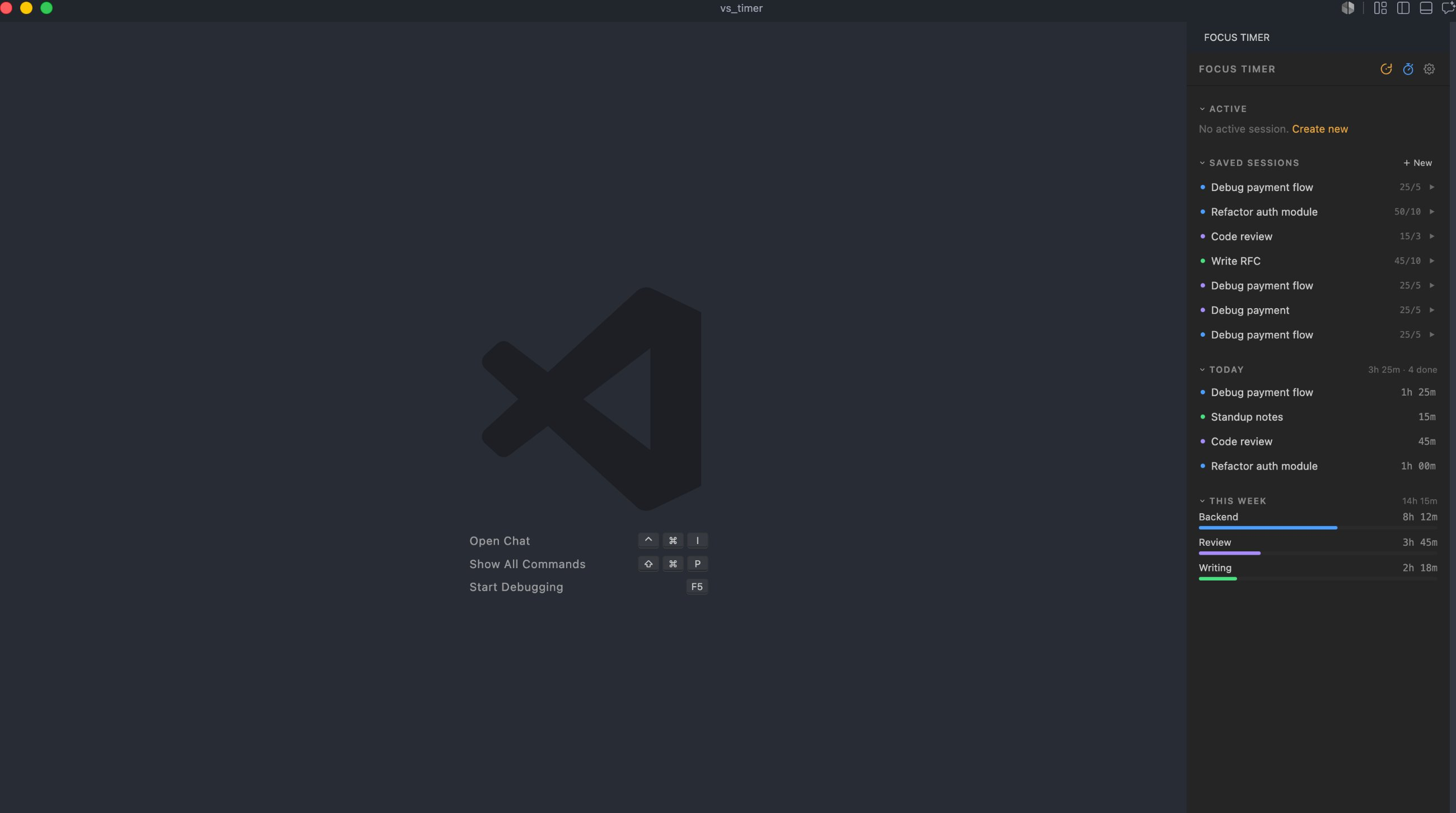
Click the timer icon in the activity bar to open Focus Timer. The panel shows your active session, saved sessions you can rerun with one click, what you've done today, and a weekly breakdown by tag — so you always know where your focus time went.

Focus Timer sidebar with saved sessions, today's log, and weekly breakdown

2. Start in one click

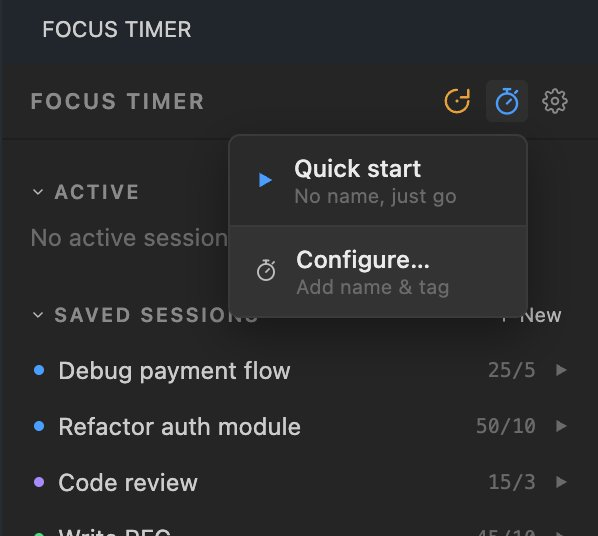
Hit the stopwatch icon for an instant Quick start (no name, just go), or Configure… to set a name, tag, work/break lengths, and number of cycles. Saved sessions can be restarted anytime with the ▶ next to them.

Quick start or configure a new session

3. Run your focus session

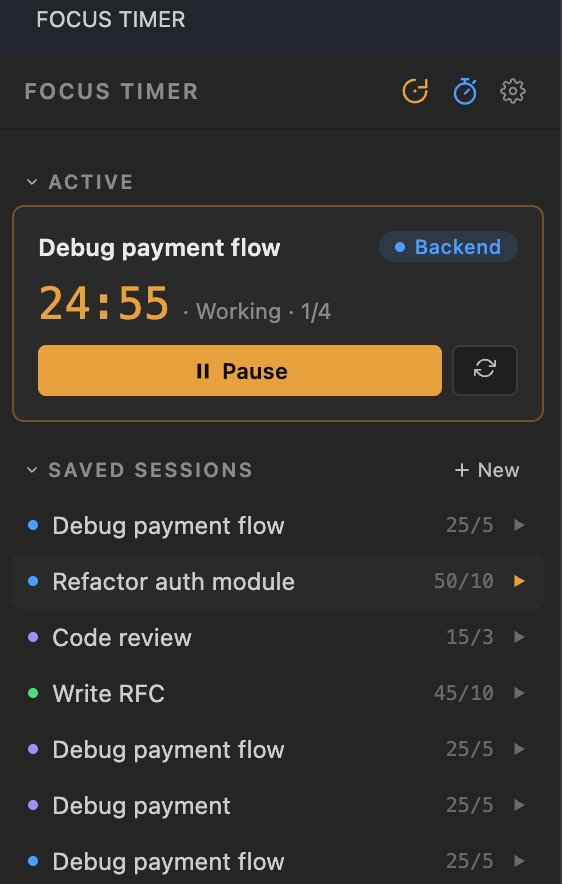
The active session card shows the countdown, current phase, and cycle progress with pause/resume and restart controls. The live timer also sits in the status bar, and you can pop it out into a floating always-on-top window (Focus Timer: Open Floating Window) so it stays visible over everything.

Active session running with countdown and pause control

4. Get notified when time's up

When a work phase ends you get a chime plus a notification to start or skip the break; when the break ends, you're nudged back to work — even if the timer panel is hidden.

Commands

Command Description
Focus Timer: Open Panel Focus the sidebar timer panel
Focus Timer: Open Floating Window (Always on Top) Pop the timer out into a floating window
Focus Timer: New Session Create a new named session
Focus Timer: Quick Start Stopwatch Start a stopwatch instantly
Focus Timer: Pause / Resume Toggle the running timer
Focus Timer: End Session End the current session

Settings

Setting Default Description
focusTimer.idleThresholdSeconds 10 Seconds of inactivity before the auto-pause warning
focusTimer.notifyOnComplete true Show a notification when a work or break phase ends
focusTimer.playSound true Play a sound when a work or break phase ends

Requirements

VS Code 1.89+ (needed for the always-on-top floating window). The extension works on macOS, Windows, and Linux.

Development

npm install        # install dependencies
npm run build      # bundle extension + webview (production)
npm run watch      # rebuild on change
npm run type-check # typescript checks for both bundles
npm run package    # produce the .vsix
npm run deploy     # build, package, and install locally

Project layout:

src/
├── extension.ts        # extension host: status bar, floating window, sounds, notifications
├── FocusTimerPanel.ts  # webview HTML scaffolding
├── storage.ts          # persisted session state
├── core/               # timer engine + shared React components
│   ├── hooks/useFocusEngine.ts
│   └── components/     # SidebarPanel, FloatingOverlay, modals, toasts
└── webview/index.tsx   # sidebar webview entry (React)

License

MIT © Saketh Sreeram

  • Contact us
  • Jobs
  • Privacy
  • Manage cookies
  • Terms of use
  • Trademarks
© 2026 Microsoft