MirthSync for VS Code
Mirth Connect and Open Integration Engine development in VS Code — channel sync, IntelliSense for Mirth scripting APIs, multi-server connection management, and a one-command local Mirth Docker stack for offline testing.
By Saga IT, LLC — full details on the MirthSync for VS Code product page.
Note: This is a community extension developed by Saga IT, LLC. It is not affiliated with or endorsed by NextGen Healthcare. Mirth and Mirth Connect are trademarks of NextGen Healthcare.
Features
Channel & Template Sync - Pull/push individual channels, channel groups, code template libraries, or sync all at once
Connection Management - Multi-server connection profiles with secure credential storage (VS Code Secrets API)
IntelliSense - Autocomplete and hover documentation for Mirth JavaScript APIs
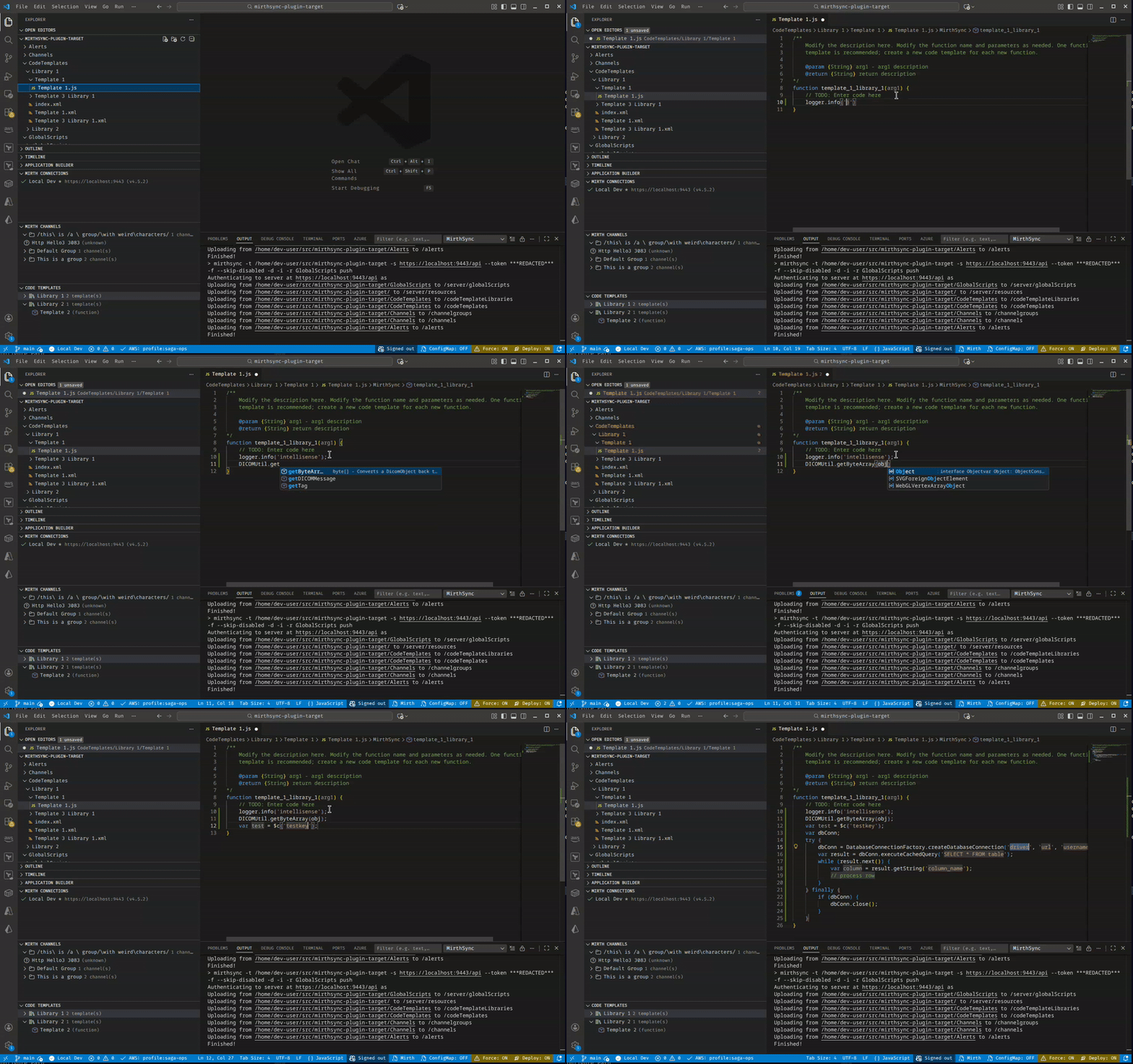
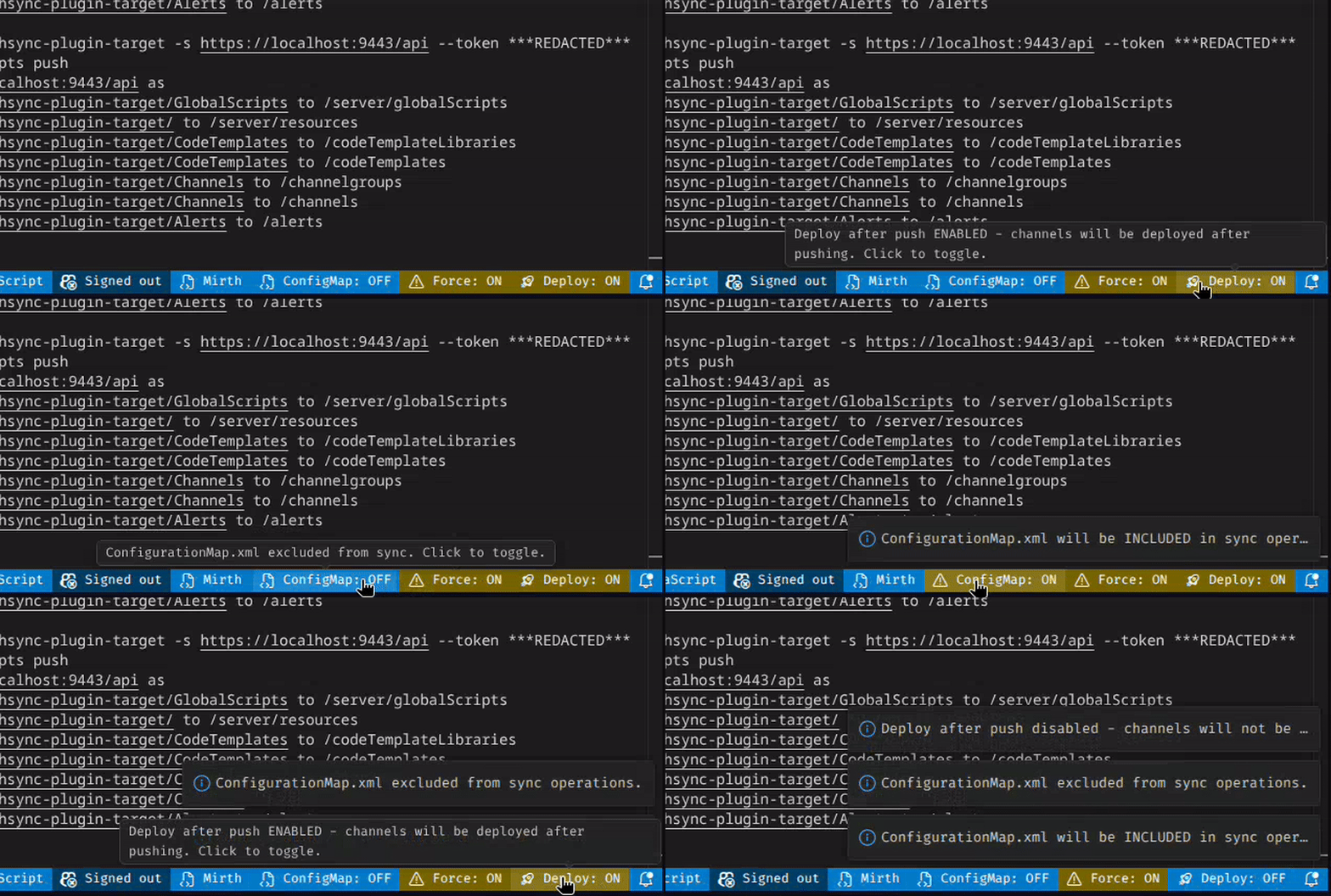
Status Bar Controls - Quick toggles for ConfigMap inclusion, Force sync, and Deploy after push
File Explorer Integration - Right-click on Channels/CodeTemplates folders to pull/push directly
Tree Views - Browse channels and code templates hierarchically with context menu actions
Local Mirth - One-command Docker Compose stack with Open Integration Engine + Postgres, for testing this workspace against a throwaway local Mirth
OpenShare - Easy access to your engine, wherever it lives: push and pull channels to a Mirth server behind a firewall or NAT, with no VPN and no inbound ports. Entirely optional, and free for your own server.
Quick Start
- Install the extension from the VS Code marketplace (or from VSIX)
- Open Command Palette (
Ctrl+Shift+P / Cmd+Shift+P)
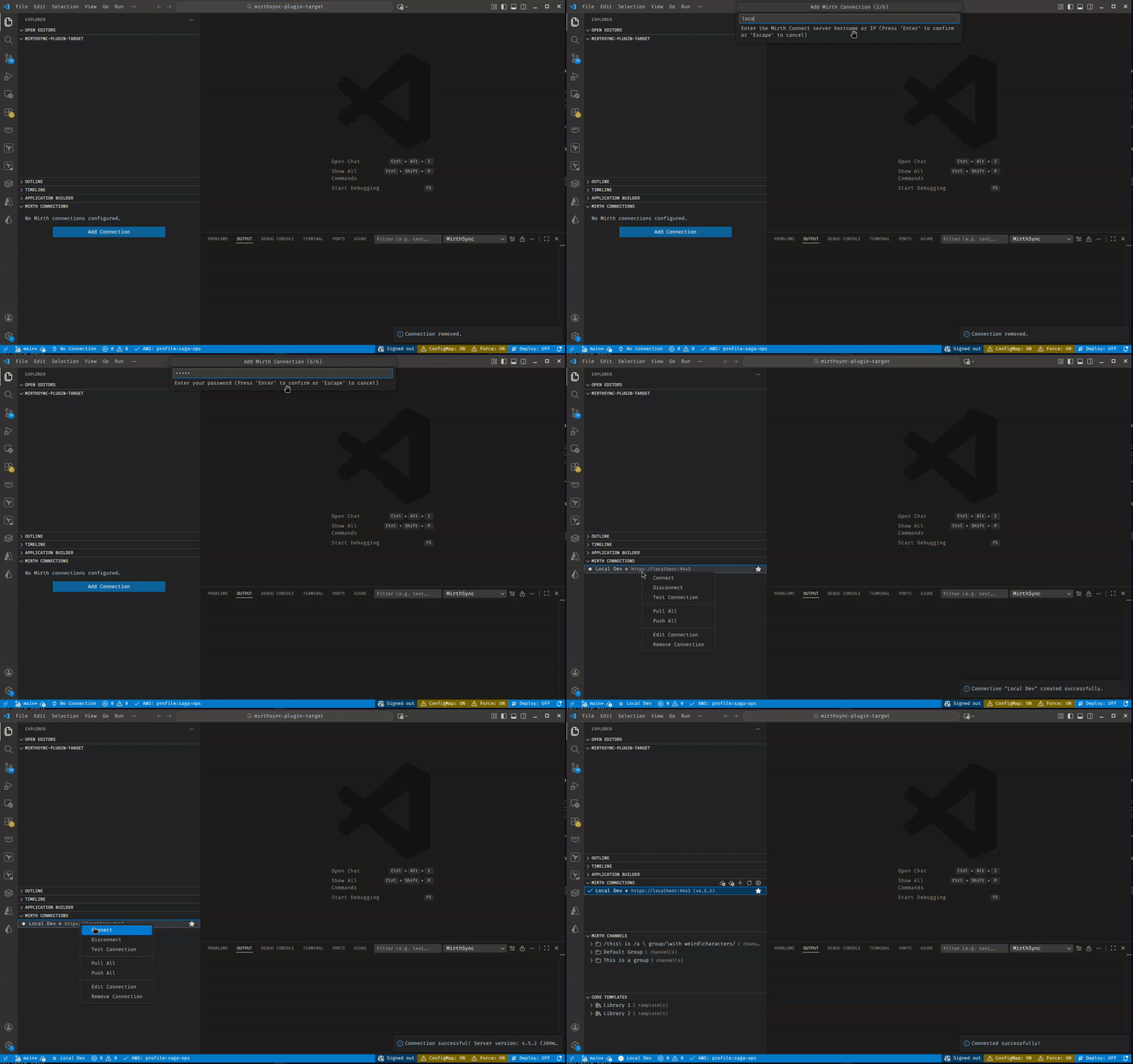
- Run MirthSync: Add Connection and enter your Mirth server details
- Set the connection as active and connect
- Use tree views or commands to pull/push channels
Commands
Connection Management
| Command |
Description |
MirthSync: Add Connection |
Add a new Mirth server connection |
MirthSync: Test Connection |
Test the selected connection |
MirthSync: Refresh Connections |
Refresh the connections tree view |
MirthSync Operations
| Command |
Description |
MirthSync: Pull All |
Pull all channels and templates from server |
MirthSync: Push All |
Push all local changes to server |
MirthSync: Git Status |
Show git status of mirthsync workspace |
MirthSync: Git Diff |
Show git diff of changes |
MirthSync: Toggle ConfigurationMap Inclusion |
Toggle whether to include ConfigurationMap.xml |
MirthSync: Toggle Force Sync |
Toggle force overwrite on conflicts |
MirthSync: Toggle Deploy After Push |
Toggle automatic deployment after push |
MirthSync: Select Deploy Strategy |
Choose how channels are deployed after a push: all, changed only, or changed and new (the last two need mirthsync 3.7.0+) |
Tree View Context Menu Commands
| Command |
Description |
Pull Channel |
Pull a specific channel from server |
Push Channel |
Push a specific channel to server |
Pull Channel Group |
Pull all channels in a group |
Push Channel Group |
Push all channels in a group |
Pull Code Template Library |
Pull a template library from server |
Push Code Template Library |
Push a template library to server |
Pull Global Scripts |
Pull global scripts from server |
Push Global Scripts |
Push global scripts to server |
Mirth CLI Operations
| Command |
Description |
MirthSync: Deploy Channel |
Deploy a channel on the server |
MirthSync: Undeploy Channel |
Undeploy a channel on the server |
MirthSync: Import Channel |
Import a channel from file |
MirthSync: Export Channel |
Export a channel to file |
MirthSync: Server Status |
Show Mirth server status |
Local Mirth
| Command |
Description |
MirthSync: Initialize Local Mirth |
Scaffold .mirthsync/local/ (compose stack + tools container) into the workspace and pull the engine image for the configured tag |
MirthSync: Start Local Mirth |
Build the tools image and start Mirth + Postgres + tools containers (auto-falls back to an alternate host port if 8443 is busy) |
MirthSync: Stop Local Mirth |
Stop the containers without deleting state |
MirthSync: Reset Local Mirth (Delete State) |
Stop the stack and wipe its Postgres + appdata volumes |
MirthSync: Remove Local Mirth (Delete All) |
Stop the stack, delete its volumes and locally-built tools image, remove .mirthsync/local/, and delete the auto-created Local Mirth connection — pristine "as if it was never initialized" state |
MirthSync: Show Local Mirth Status |
Per-service running/health summary |
MirthSync: Show Local Mirth Logs |
Tail Mirth container logs into the MirthSync output channel |
MirthSync: Show Local Mirth Info |
URL, credentials, files location, launcher links — with copy actions |
OpenShare
| Command |
Description |
MirthSync: Get Started |
Open the Get Started page. It also opens itself once after a fresh install or an update. |
MirthSync: Sign In to OpenShare |
Sign in with an existing OpenShare account |
MirthSync: Create an OpenShare Account |
Register a new account without leaving VS Code |
MirthSync: List OpenShare Servers |
Pick a server, bring up the tunnel, and create its connection profile |
MirthSync: Register a Server in the OpenShare Console |
Open the console page where servers are registered |
MirthSync: Open in OpenShare Console |
Open the selected connection's engine in the console |
MirthSync: Disconnect OpenShare Tunnel |
Tear down an active tunnel |
MirthSync: Sign Out of OpenShare |
Remove the stored OpenShare session from this machine |
Settings
| Setting |
Type |
Default |
Description |
mirthsync.mirthsyncPath |
string |
"" |
Path to mirthsync executable. Leave empty to auto-detect. |
mirthsync.mirthcliPath |
string |
"" |
Path to Mirth CLI executable. Leave empty to auto-detect. |
mirthsync.defaultTimeout |
number |
30000 |
Default timeout for operations in milliseconds. |
mirthsync.outputVerbosity |
number |
1 |
Verbosity level for mirthsync output (0-5). |
mirthsync.autoSavePresets |
boolean |
true |
Automatically save preset after successful operations. |
mirthsync.ignoreCertificateWarnings |
boolean |
false |
Ignore SSL certificate warnings (development only). |
mirthsync.javadocsUrl |
string |
"" |
URL to Mirth javadocs for API generation. |
mirthsync.forceSync |
boolean |
false |
Force overwrite when syncing channels/templates. |
mirthsync.promptForForce |
boolean |
true |
Prompt to use force option when sync fails due to conflicts. |
mirthsync.deleteOrphaned |
boolean |
false |
When pulling, delete local files that no longer exist on the server. Destructive — opt-in. Only applies to Pull All; scoped pulls (single channel/group/library) are unaffected. |
mirthsync.promptForDeleteOrphaned |
boolean |
true |
When deleteOrphaned is enabled, show a confirmation prompt at the start of each Pull All. Disable for unattended automation. |
mirthsync.includeConfigurationMap |
boolean |
false |
Include the Configuration Map when pulling or pushing. |
mirthsync.deployAfterPush |
boolean |
false |
Deploy channels immediately after pushing. |
mirthsync.deployStrategy |
string |
"all" |
How channels are deployed after a push when deployAfterPush is on: all (--deploy), changed (--deploy-changed), or changed-and-new (--deploy-changed --deploy-new). The selective strategies need mirthsync 3.7.0+ and fall back to all on an older CLI. |
mirthsync.skipDisabled |
boolean |
false |
Skip disabled channels when pushing. |
mirthsync.localMirth.mirthImageTag |
string |
"4.6.0-ubuntu-jre" |
Image tag for the Local Mirth server (sagait/engine — Saga-packaged Open Integration Engine). |
mirthsync.localMirth.mirthsyncVersion |
string |
"3.7.0" |
mirthsync release version baked into the Local Mirth tools image. |
mirthsync.localMirth.additionalPorts |
array |
[] |
Additional ports to forward from the Mirth container to localhost (e.g., MLLP/HTTP listener ports). The extension writes these to an auto-managed docker-compose.override.yml on Start. |
mirthsync.openshare.promotions |
boolean |
true |
Let MirthSync tell you about OpenShare. At most one notification for the life of the install, plus a block in the empty Mirth Connections view. Turning it off hides both; the OpenShare commands stay available. |
mirthsync.openshare.apiUrl |
string |
"" |
Override the OpenShare API base URL (e.g. https://api.openshare.dev). Leave empty to use production. Requires a trusted workspace. |
mirthsync.openshare.consoleUrl |
string |
"" |
Override the OpenShare Console address used by Open in OpenShare Console. An origin only, e.g. https://console.openshare.health. Leave empty to use the address your deployment publishes. |
Tree Views
The extension adds three tree views to the Explorer sidebar:
Mirth Connections
Manage your Mirth server connections. Right-click for options:
- Connect/Disconnect
- Test Connection
- Set as Active
- Edit/Remove
Mirth Channels
Browse channels organized by channel groups (visible when connected). Right-click to:
- Pull/Push individual channels
- Pull/Push entire channel groups
Code Templates
Browse code template libraries (visible when connected). Right-click to:
- Pull/Push individual templates
- Pull/Push entire libraries
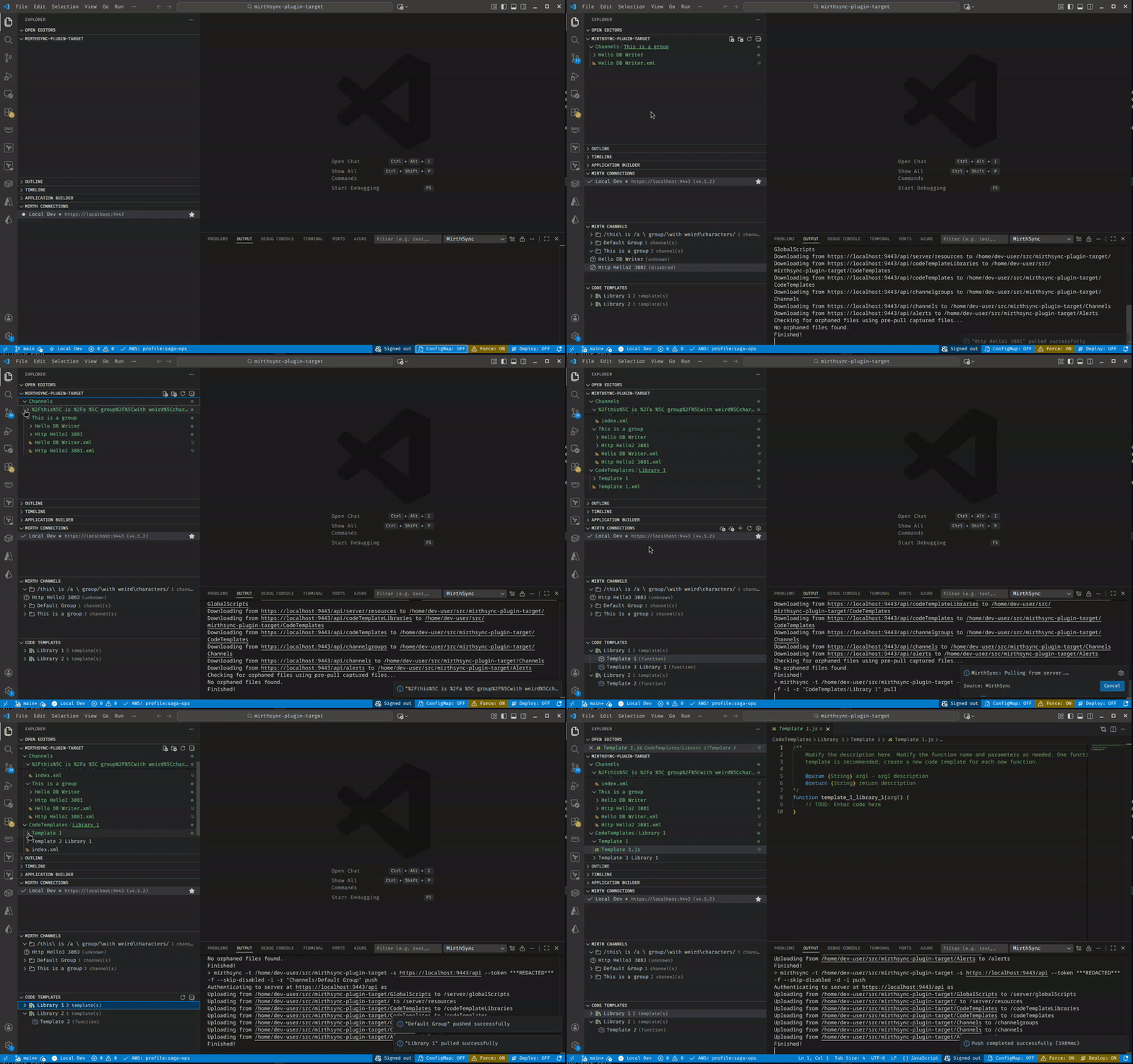
File Explorer Integration
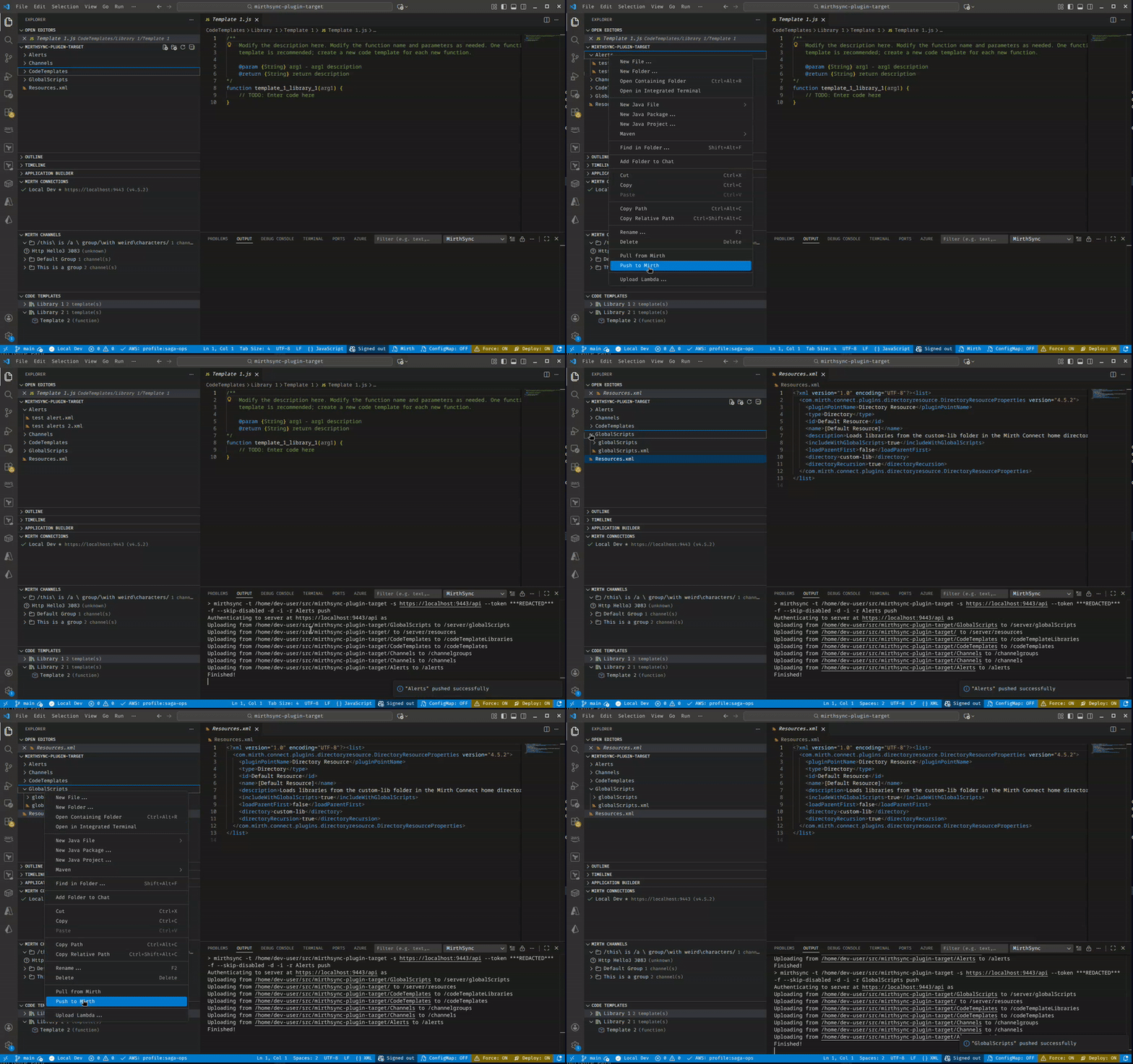
When connected, right-click on folders in the file explorer to sync:
Channels/ - Pull or push channel configurationsCodeTemplates/ - Pull or push code template librariesGlobalScripts/ - Pull or push global scriptsConfigurationMap.xml - Pull or push configuration mapResources.xml - Pull or push resources
Status Bar
The status bar shows:
- Connection status - Current active connection and state
- ConfigMap - Whether Configuration Map is included (click to toggle)
- Force - Whether force sync is enabled (click to toggle)
- Deploy - Whether deploy after push is enabled (click to toggle)
Local Mirth
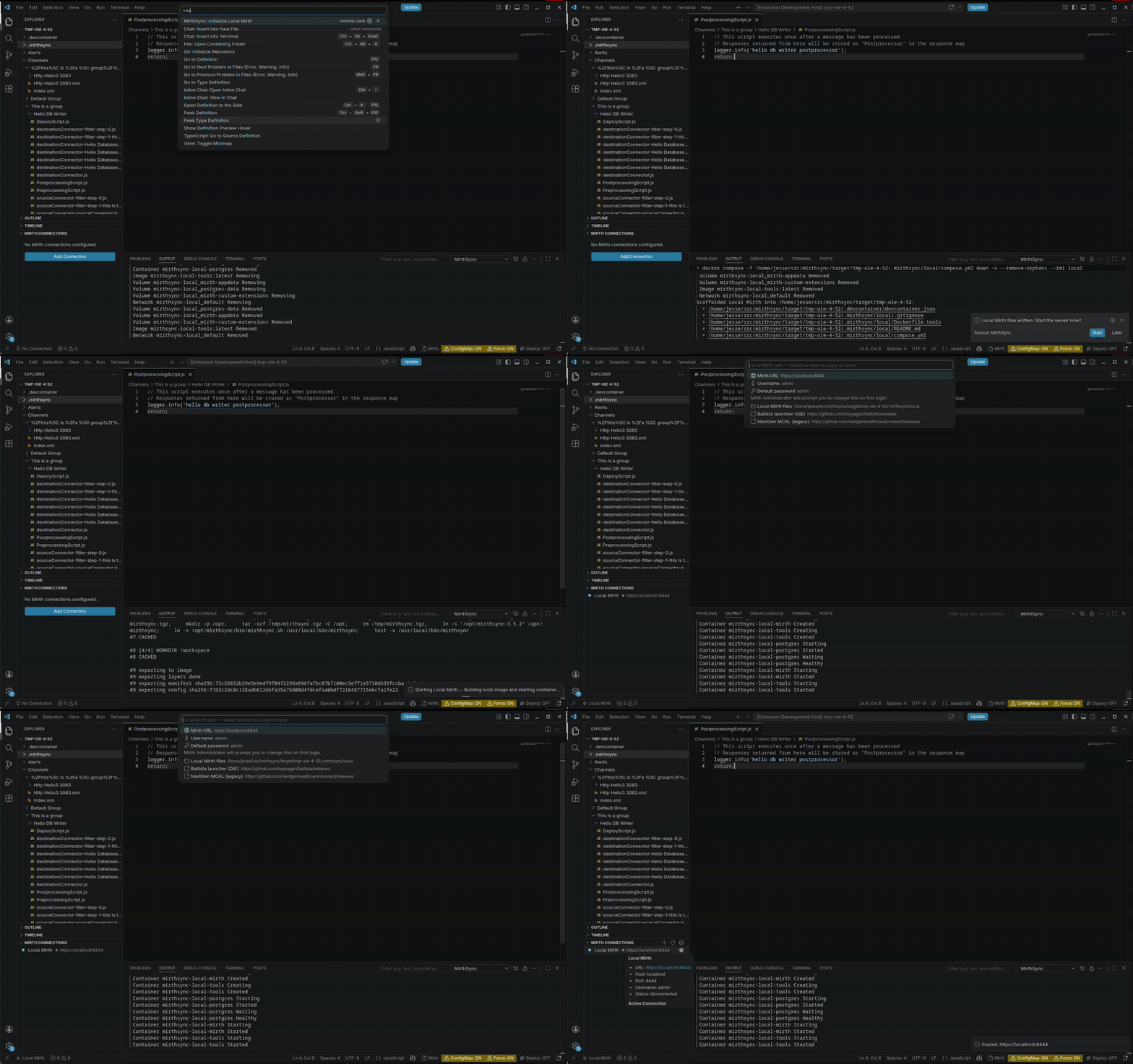
For testing this workspace against a throwaway local Mirth without installing anything on the host beyond Docker, run MirthSync: Initialize Local Mirth. It scaffolds .mirthsync/local/ with a compose stack and pulls the engine image (Docker only re-downloads a tag it does not already have, so this is what picks up a rebuilt tag):
mirth — Saga-packaged Open Integration Engine (sagait/engine, OIE with Saga plugins preinstalled), exposed on 127.0.0.1:8443 (or an auto-chosen fallback if 8443 is busy)postgres — Mirth's backing database, on a named volumetools — Alpine + JRE + mirthsync (and curl/git/jq) for running CLI operations inside the stack
Set mirthsync.localMirth.mirthImageTag to switch to a different sagait/engine tag, or edit compose.yml to point at openintegrationengine/engine for vanilla OIE.
Then run MirthSync: Start Local Mirth. The extension auto-creates a Local Mirth connection and routes its mirthsync calls into the tools container, so you don't need mirthsync on your host for this workflow. If 8443 is already in use on your machine, the extension will detect the conflict, suggest an alternate port, and remember the choice in .mirthsync/local/.env for next time.
To open the Mirth Administrator against the local server, install a launcher on your host and point it at the URL shown in Show Local Mirth Info:
- Ballista — community launcher used with Open Integration Engine. Requires a host JRE 8+.
- NextGen MCAL — legacy NextGen Mirth Connect Administrator Launcher. Bundles its own JRE.
Default credentials are admin / admin; the Administrator will prompt you to change the password on first login.
Prefer a standalone engine outside VS Code? Saga's five-minute Docker quickstart walks through running Mirth/OIE locally.
Easy access to your engine, wherever it lives
Not every Mirth engine is reachable from your laptop. Plenty of them sit
behind a firewall, on a customer's network, or on the far side of a NAT, and
the usual answer is a VPN, a jump box, or an inbound port nobody wants to
open.
OpenShare carries Mirth Connect's administration
API over an end-to-end encrypted tunnel, so you can push and pull channels to
an engine behind a firewall or NAT. No VPN, no inbound ports. It is entirely
optional, and nothing else in this extension depends on it.
From VS Code it looks like any other connection. Pick a server and MirthSync
brings up the tunnel, asks once for that engine's Mirth credentials, and
creates an ordinary connection profile. Push, pull, the channel tree, and the
code template tree then behave exactly as they do against a server on your own
network.
Getting set up
- Run MirthSync: Get Started, or click the cloud icon in
the Mirth Connections view title bar.
- Sign in, or create an account, without leaving VS Code.
- Register your engine in the OpenShare Console and install the Gateway
plugin. The installer dialog defaults to "Plugin only", so switch it to
"Engine installer" if you do not have an engine running yet. An existing
engine needs a restart afterwards, because the plugin is read at start.
Wait for the server to read Registered.
- Run MirthSync: List OpenShare Servers and pick it.
Console, monitoring, and gateway access to your own server are free forever,
and read and write access is selectable on every tier. Only the cross
organization network is paid.
What the extension does not do
It never creates or configures OpenShare connections. Provisioning, access
levels, and who is allowed to reach which server are decided in the OpenShare
Console; the extension only uses what is already there.
Requirements
- VS Code 1.85.0 or higher
- mirthsync CLI tool (for sync operations against non-local Mirth servers)
- Open-source Mirth Connect (4.5.2, the last open-source release), Open Integration Engine (OIE), or BridgeLink
- Docker (only required for the Local Mirth feature)
- An OpenShare account and the Gateway plugin on the engine, only if you want to reach a server without setting up a VPN or an inbound port
Compatibility
MirthSync talks to the standard Mirth Connect REST API, so it works with the open-source lineage of the engine — not the closed-source commercial product:
- Mirth® Connect (open source) — the open-source releases through 4.5.2, the last open-source version
- Open Integration Engine (OIE) — the community fork of that last open-source release
- BridgeLink — a community distribution built on the same lineage
It does not target the closed-source commercial version (NextGen Connect 4.6 and later). Not sure which engine is right for you? See OIE vs BridgeLink vs Mirth Connect.
Installing mirthsync
The preferred method is via npm:
npm install -g @saga-it/mirthsync
Alternatively, download from GitHub releases. New to the CLI? Start with getting started with mirthsync.
Telemetry
This extension sends a small amount of anonymous usage data — command
IDs and durations, success/failure outcomes, numeric error codes,
non-default-setting booleans, the distribution channel and editor the
build runs in (e.g. marketplace/openvsx, vscode/cursor), and VS
Code's standard environment identifiers. If you use OpenShare, it also
records whether the one offer was shown and which button you pressed,
whether a sign-in or account creation completed, a bucketed count of how
many servers your account can reach, and whether a tunnel came up. We
never send channel/template/script content, server URLs, usernames,
credentials, file paths, subprocess output, or anything identifying your
OpenShare account, organization, or servers.
Opt out with either:
telemetry.telemetryLevel = off (VS Code-wide), ormirthsync.telemetry.enabled = false (this extension only).
Data lands in Azure Application Insights (Saga IT, LLC), 90-day
retention. See TELEMETRY.md for the full collected /
never-collected lists and how to audit events live via the MirthSync
Telemetry output channel.
Resources from Saga IT
Saga IT builds and maintains MirthSync, and provides Mirth Connect & OIE integration consulting:
License
Copyright (c) 2024-2026 Saga IT, LLC. All Rights Reserved.
This is proprietary software. Use is governed by the license shipped
inside the extension package; contact saga-it.com
for licensing inquiries.

