Overview Version History Q & A Rating & Review
Regex Replacer
A VSCode extension for advanced regex search and programmable replacement in files or folders. It provides a dedicated sidebar panel for managing search scopes, viewing matches with previews, and selectively replacing content. Supports multiline searches, JS-eval in replacements, and more.
中文描述:
Features (功能)
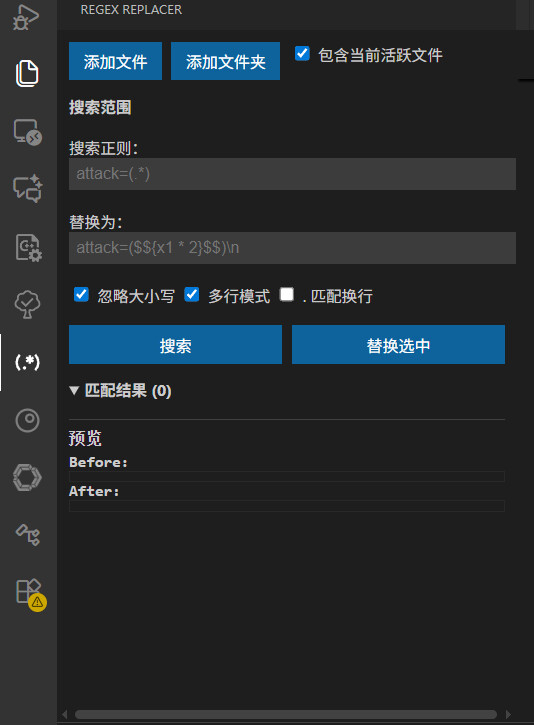
Intuitive Sidebar Panel : All operations in a clean, native VSCode-style interface.
Add files/folders to search scope.
Include active file dynamically.
Regex input with flags (ignore case, multiline, dotall).
Replacement template with programmable JS (e.g., $${x1 * 2}$$ where x1 is the first capture group).
Match List : Scrollable list of matches with checkboxes for selection, previews (original → replaced), and click-to-jump to file location.Preview Window : Detailed before/after multiline previews for selected matches.Multiline Support : Use \n in regex/replace; multiline mode translates \n to actual newlines.Relative Paths : Displays paths relative to workspace for better readability.Right-Click Integration : Add files/folders from Explorer context menu.
示例:
Search: attack=(.*)
Replace: attack=($${x1 * 2}$$)\\n (multiplies value by 2 and adds a newline if multiline mode is on).
Flags: Global, ignore case, multiline enabled by default.
Installation (安装)
Open VSCode.
Go to Extensions view (Ctrl+Shift+X).
Search for "Regex Replacer".
Install and reload VSCode.
Alternatively, download the .vsix from releases and install via "Install from VSIX...".
Usage (使用指南)
Open the sidebar: Click the "Regex Replacer" icon in the activity bar.
Set Search Scope :
Click "Add File" or "Add Folder" to include targets.
Check "Include Current Active File" (default: on) to always search the open editor.
Toggle checkboxes to enable/disable scopes.
Enter Regex and Replace :
Search Regex: e.g., attack=(.*) (supports \n for multiline).
Replace: e.g., attack=($${x1 * 2}$$)\\n (JS eval inside $${...}$$).
Flags: Ignore Case (default), Multiline (default), Dot Matches Newline.
Search and Replace :
Click "Search" to list matches.
Select matches via checkboxes.
Preview selected match in the bottom panel.
Click "Replace Selected" to apply changes.
Jump to Match : Click a match in the list to open the file at the exact location.
Screenshot (截图):
Developed by [Your Name]. Feedback: [your-email@example.com].