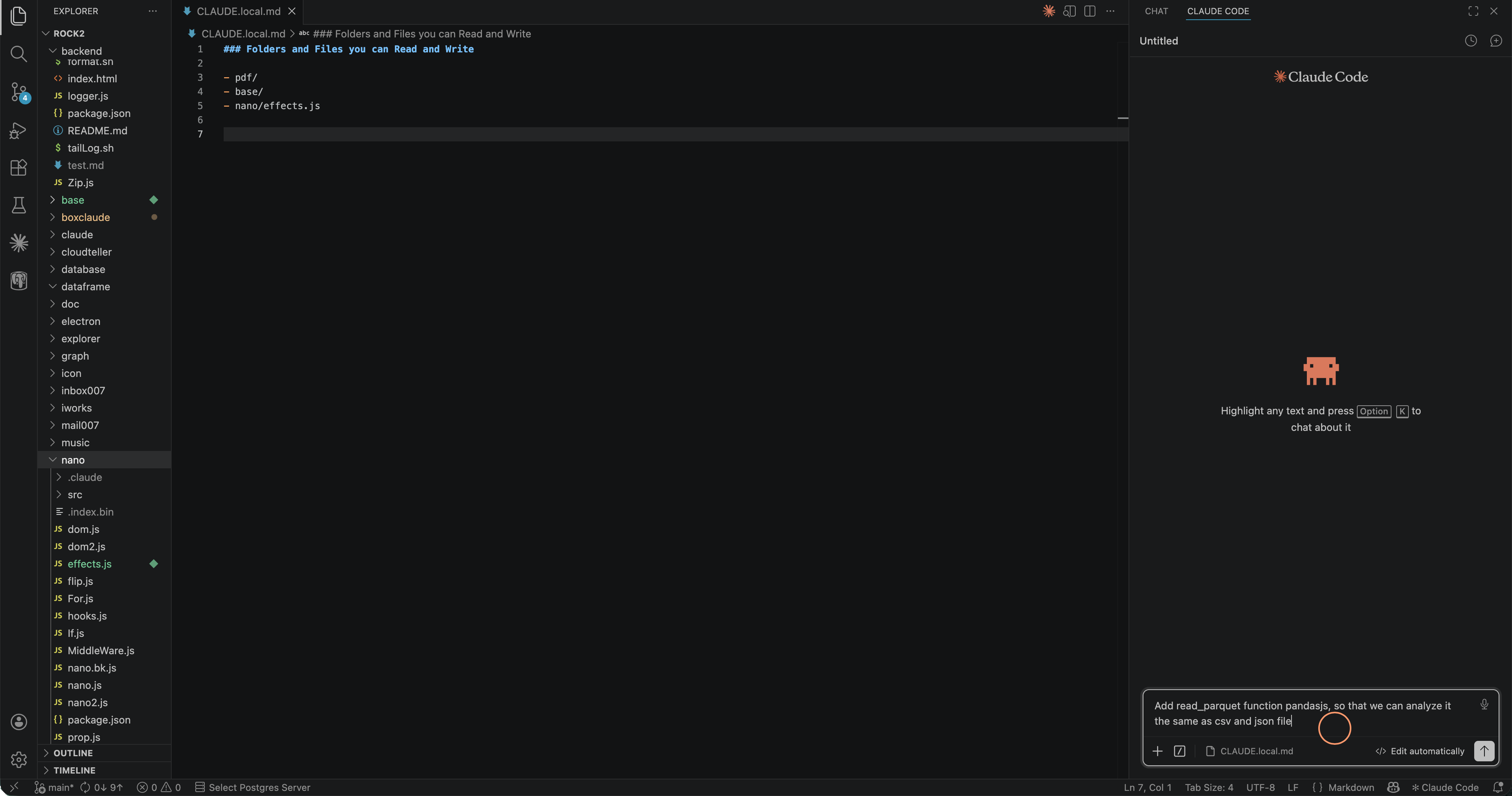
BoxClaudeBox your Claude Code, avoid it read and write in random place in your project. Just pick file and folder in your explorer tree, or in your dependency graph — Claude will then only sees what you allow. Scope is saved to CLAUDE.local.md and persisted between sessions. Keep the architecture of you prod Installation Launch VS Code Quick Open ( Ctrl+P), paste the following command, and press enter.Copied to clipboard |

BoxClaudeBox your Claude Code. Pick exactly which files and folders your AI coding agent can see — nothing more. Scope is saved to your chosen agent file and remembered between sessions. InstallFrom the VSCode Marketplace Search From a VSIX file
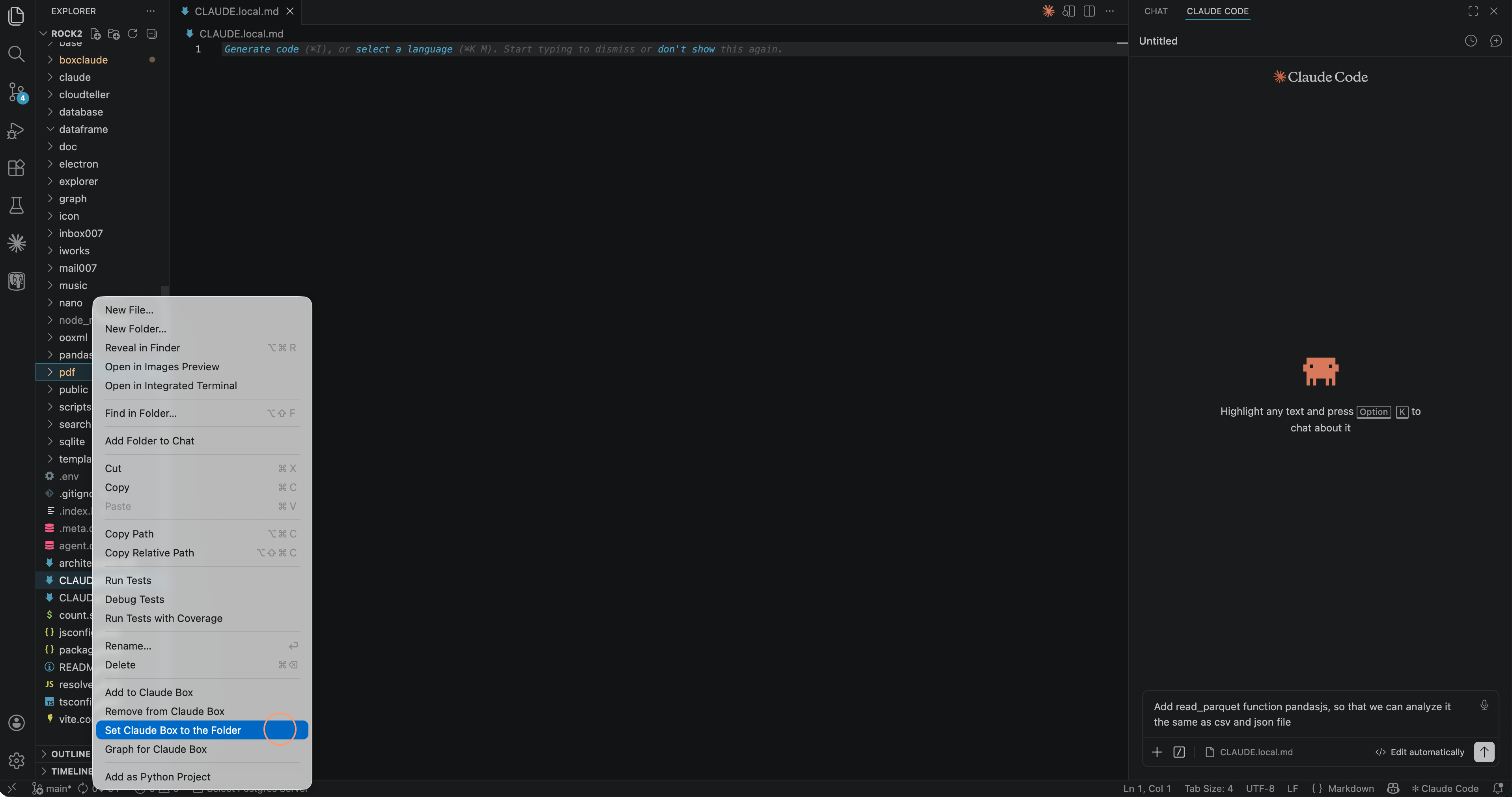
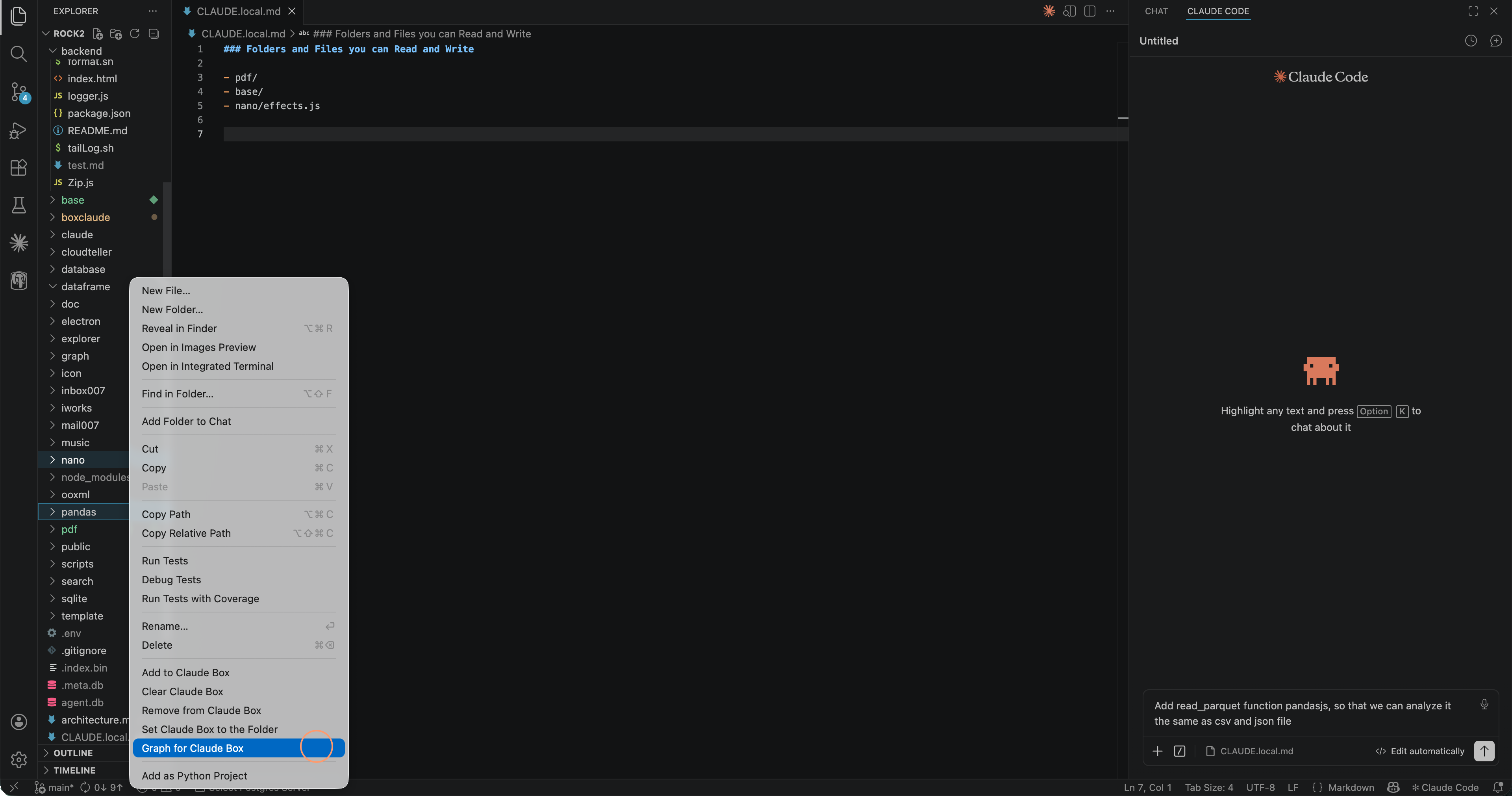
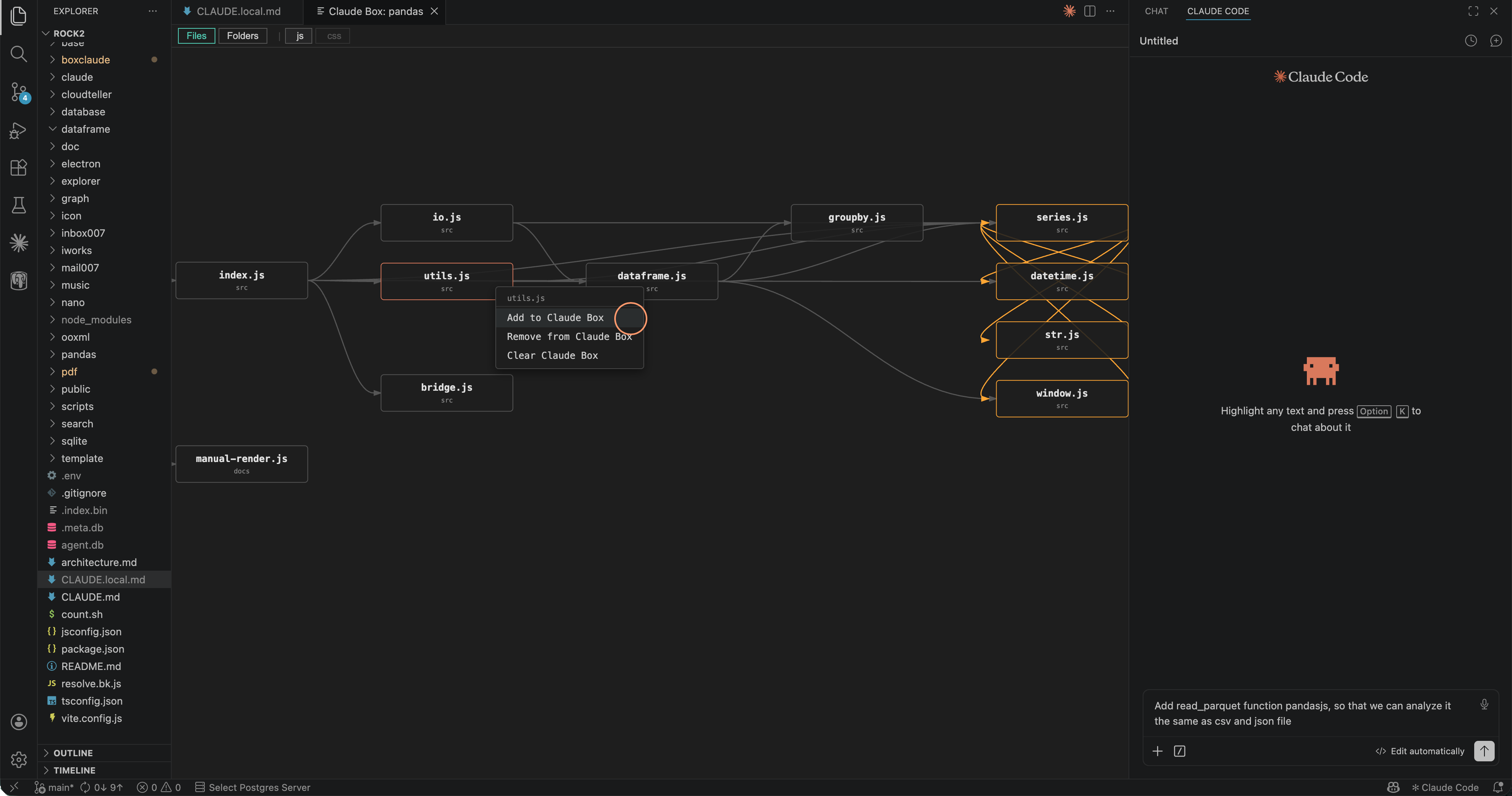
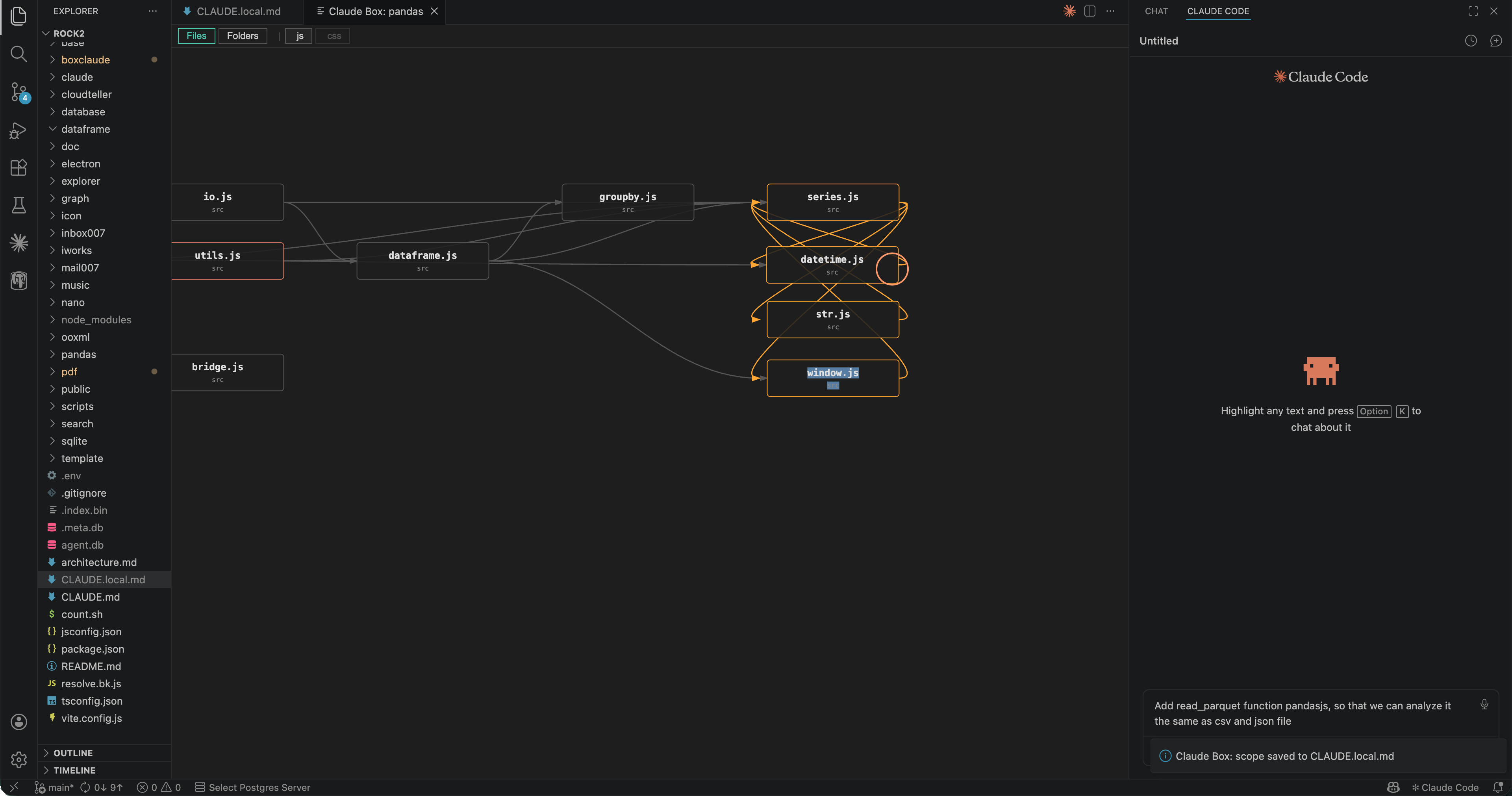
Or via the terminal: The ProblemClaude Code roams your entire project by default. It touches files far outside your intent, introduces scope creep, silently alters unrelated code, and runs out of context mid-feature. BoxClaude puts you back in control. FeaturesBox by folder or file — Set your scope at any granularity: an entire module, a handful of files, or one single source file. Multi-agent support — Write scope to any agent file: Folder dependency graph — Visualize folder-level import relationships as an interactive graph. See the big picture before scoping Claude. File dependency graph — Drill into individual file dependencies for fine-grained exploration. Pan, zoom, and explore before you decide what Claude sees. Call hierarchy — Inspect function-level call chains within your codebase. Understand who calls what before Claude starts editing. Cyclic dependency detection — Cycles are highlighted in red using DFS coloring. Understand your architecture before Claude starts editing. Locate in Graph — Right-click any file in the Explorer and jump straight to its node in the open graph panel. The viewport pans and the node is selected. Smart folder exclusion — Common system and package directories ( Context menu integration — Right-click any file or folder in the VSCode Explorer. Add, remove, or reset your Box in one click. Visual Box badges — Files in your Box are marked with a Clickable scope notifications — After saving scope, a notification appears with an Open button that opens the scope file directly. How It Works1. Right-click in the Explorer Select a file or folder → Set as Claude Box. Claude is now scoped to exactly there.
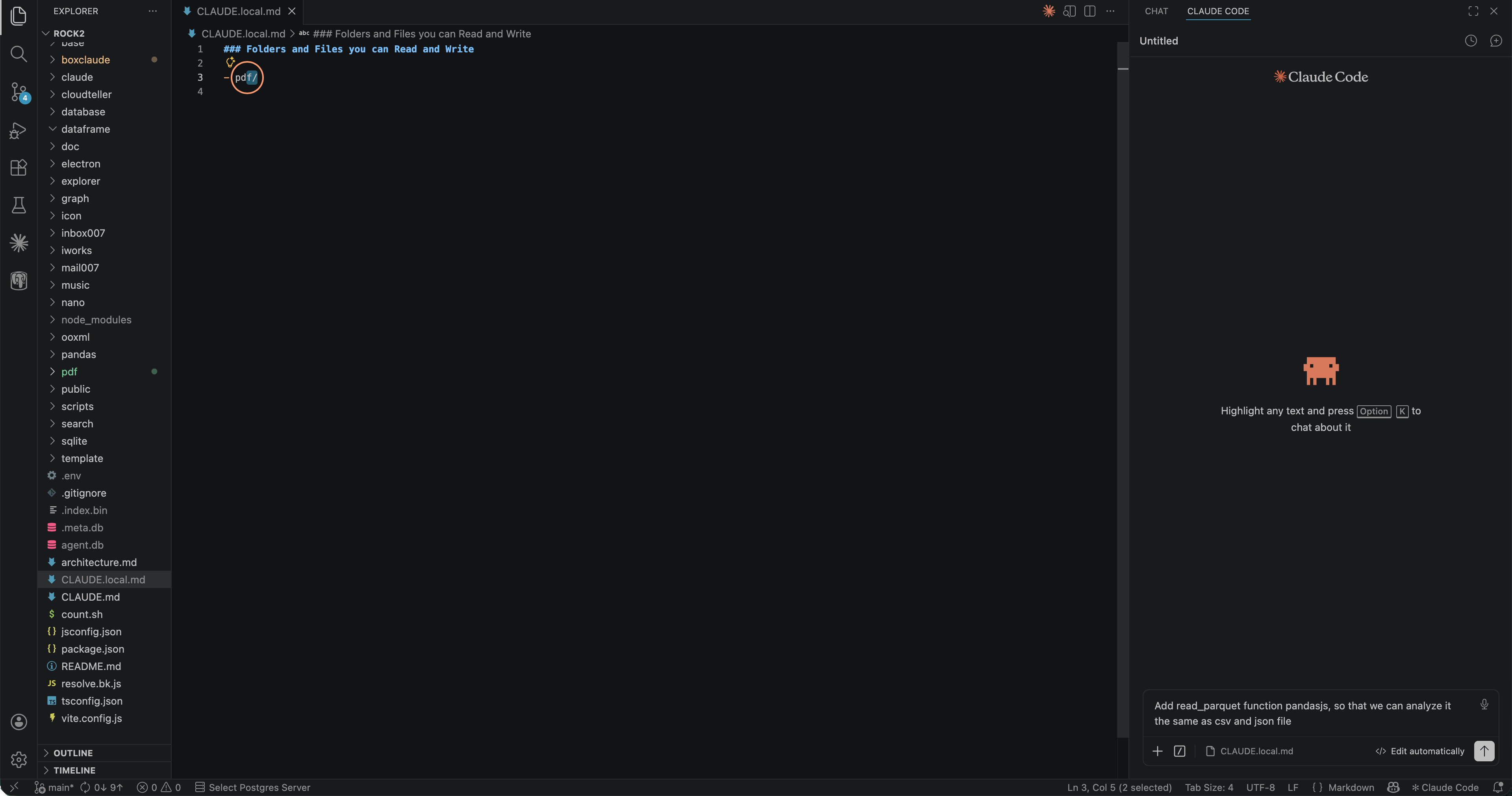
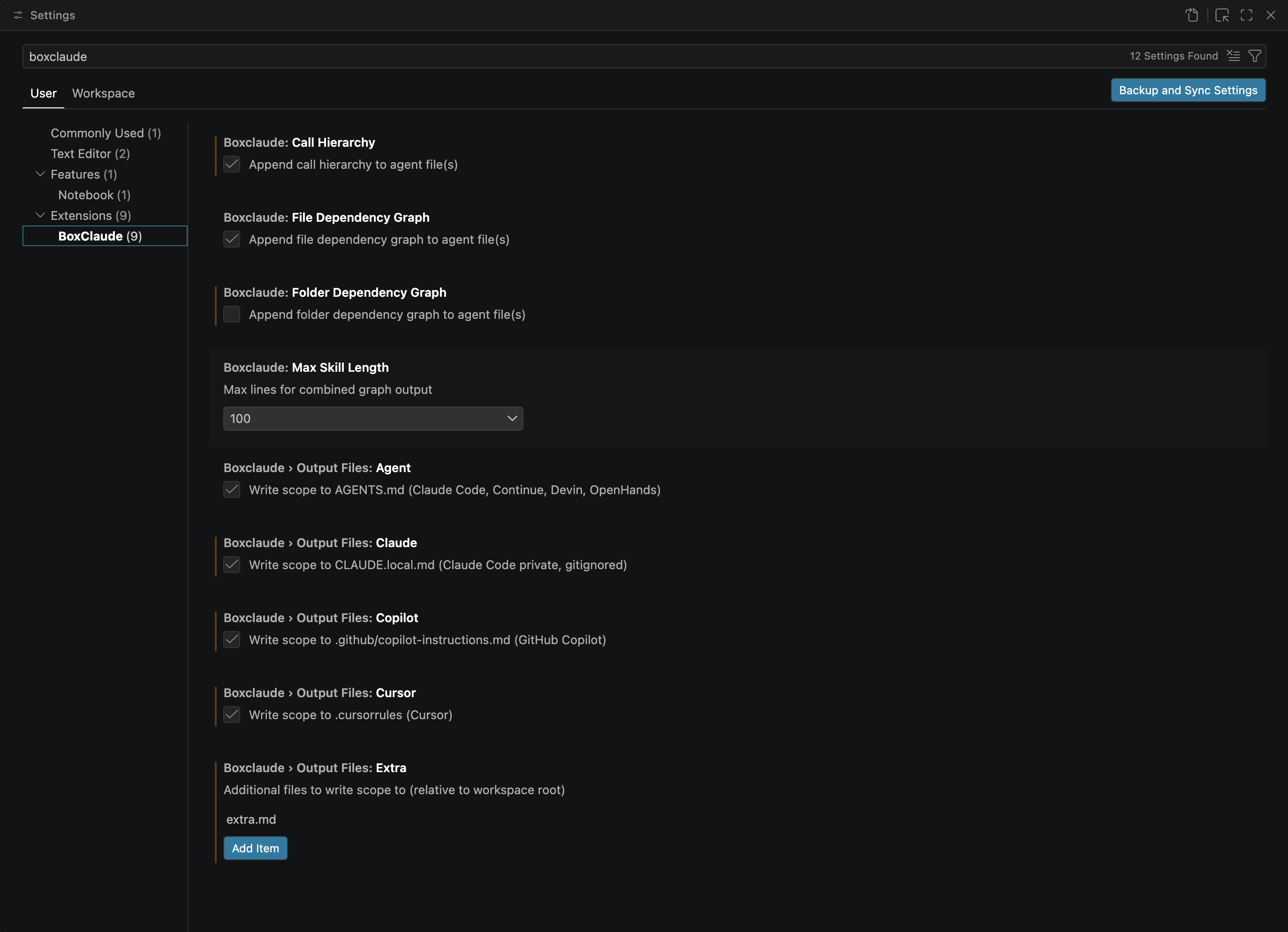
2. Scope is saved to your agent file BoxClaude writes your selection to the configured agent file(s). Default is
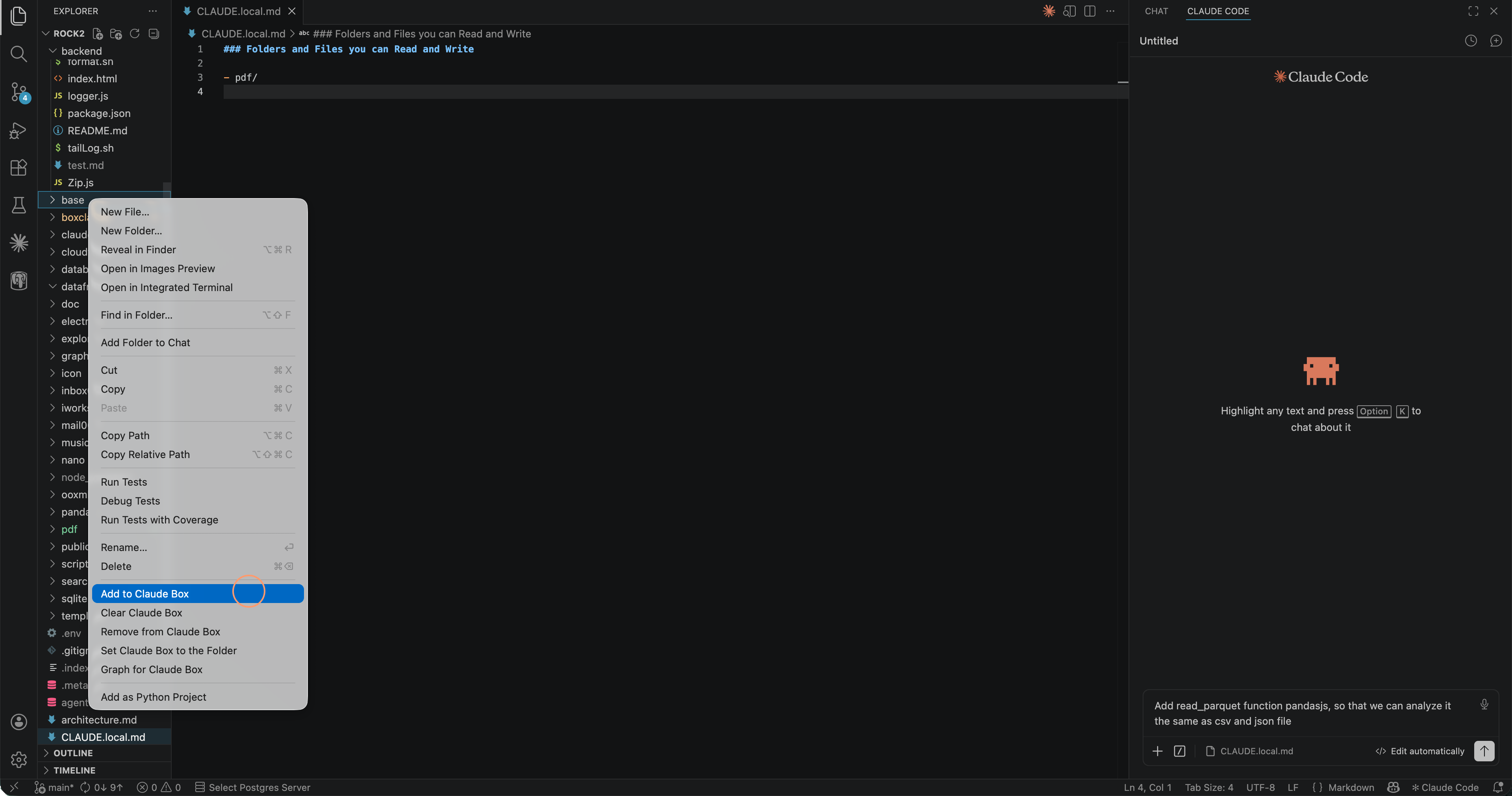
3. Add more folders as needed One folder too narrow? Add more to your Box as the feature grows.
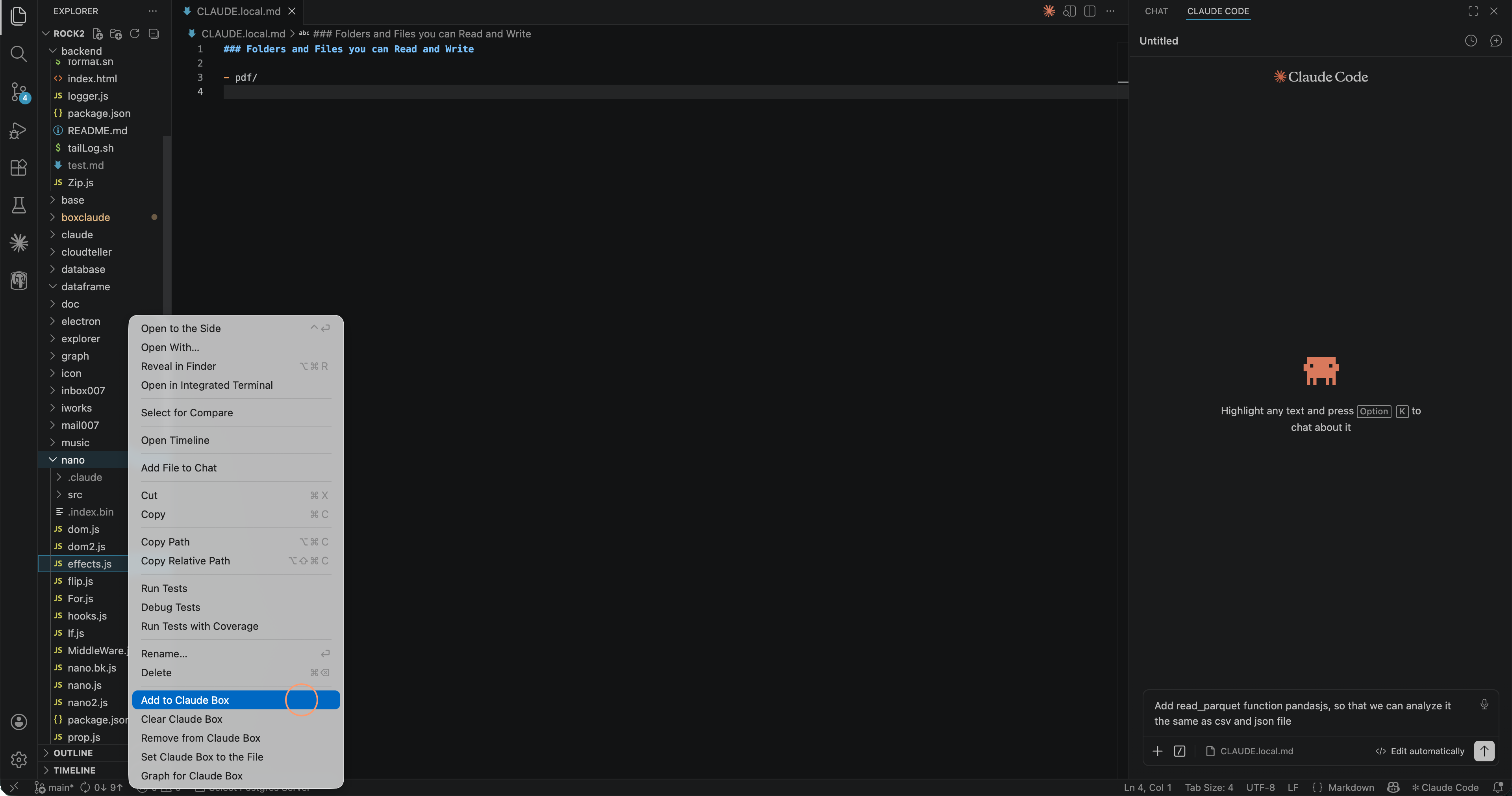
4. Surgical precision — one file at a time Add individual files to your Box. Claude sees only what you have explicitly allowed.
5. Claude becomes oriented to your work With your Box defined, Claude's context is sharp and focused. It knows exactly where it is and where it can work.
6. Open the dependency graph Visualize your codebase, then set your Box from there with full context.
7. Click to scope from the graph Click any node in the dependency graph to add it to your Box.
8. Catch cycles before Claude does BoxClaude detects and highlights cyclic dependencies in red. Fix your architecture first — then let Claude in.
9. Configure BoxClaude Tune BoxClaude settings to match your workflow.
Target AgentsOpen the welcome panel (
All checked files receive the same scope content on every save. Supported LanguagesC, C++, C#, CSS, Go, Java, JavaScript, Python, Rust, Swift Commands
|