RobbyDev
Three carefully crafted dark color themes for VS Code, Cursor, and compatible editors.
Variants
| Theme |
Background |
Vibe |
| RobbyDev |
#020008 |
Deep navy-black, neon magenta accents |
| RobbyDev Black |
#000000 |
Pure black, neon magenta accents |
| RobbyDev Mirage |
#000000 |
Pure black, vivid Ayu-inspired palette |
Preview — RobbyDev Mirage
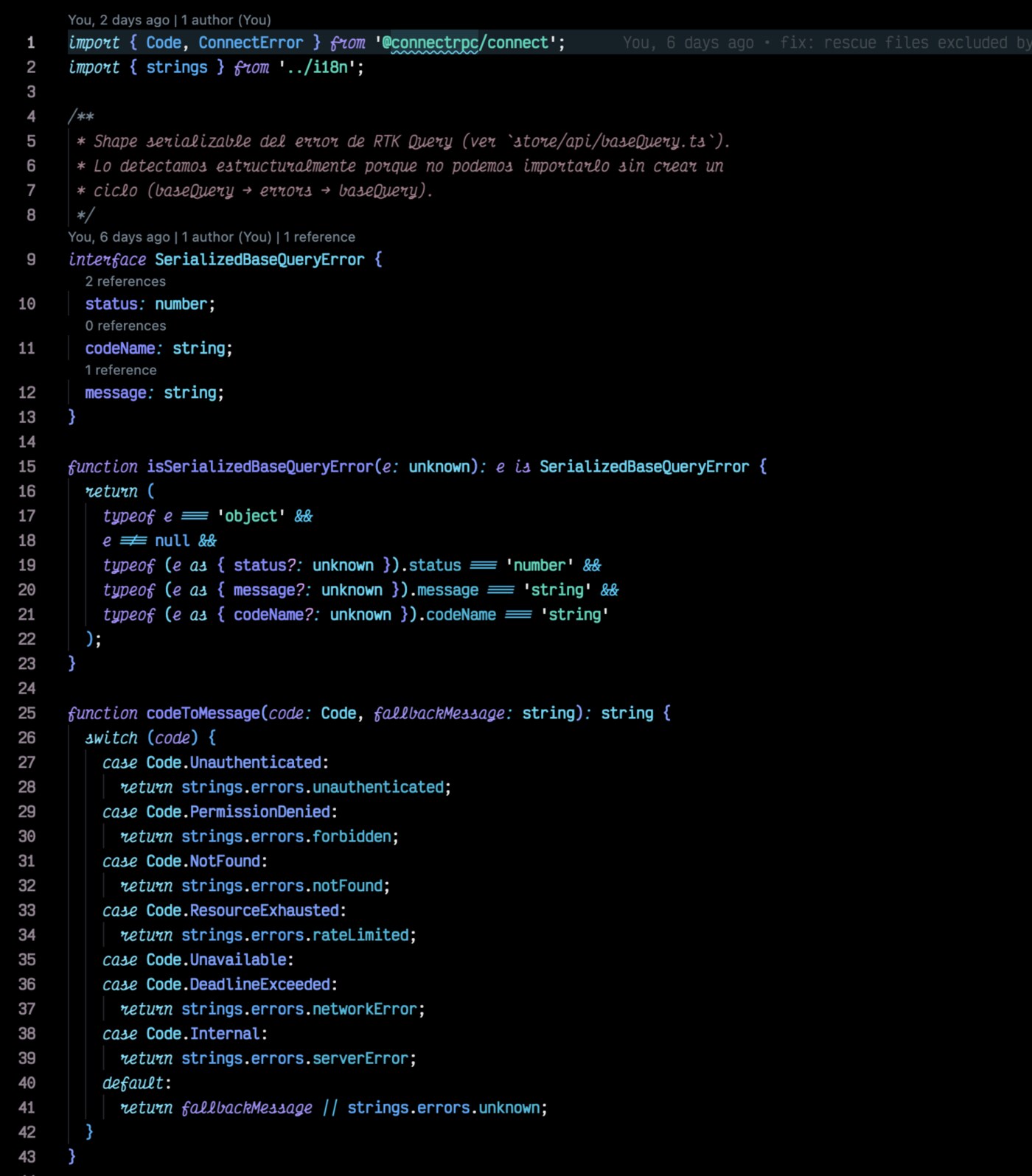
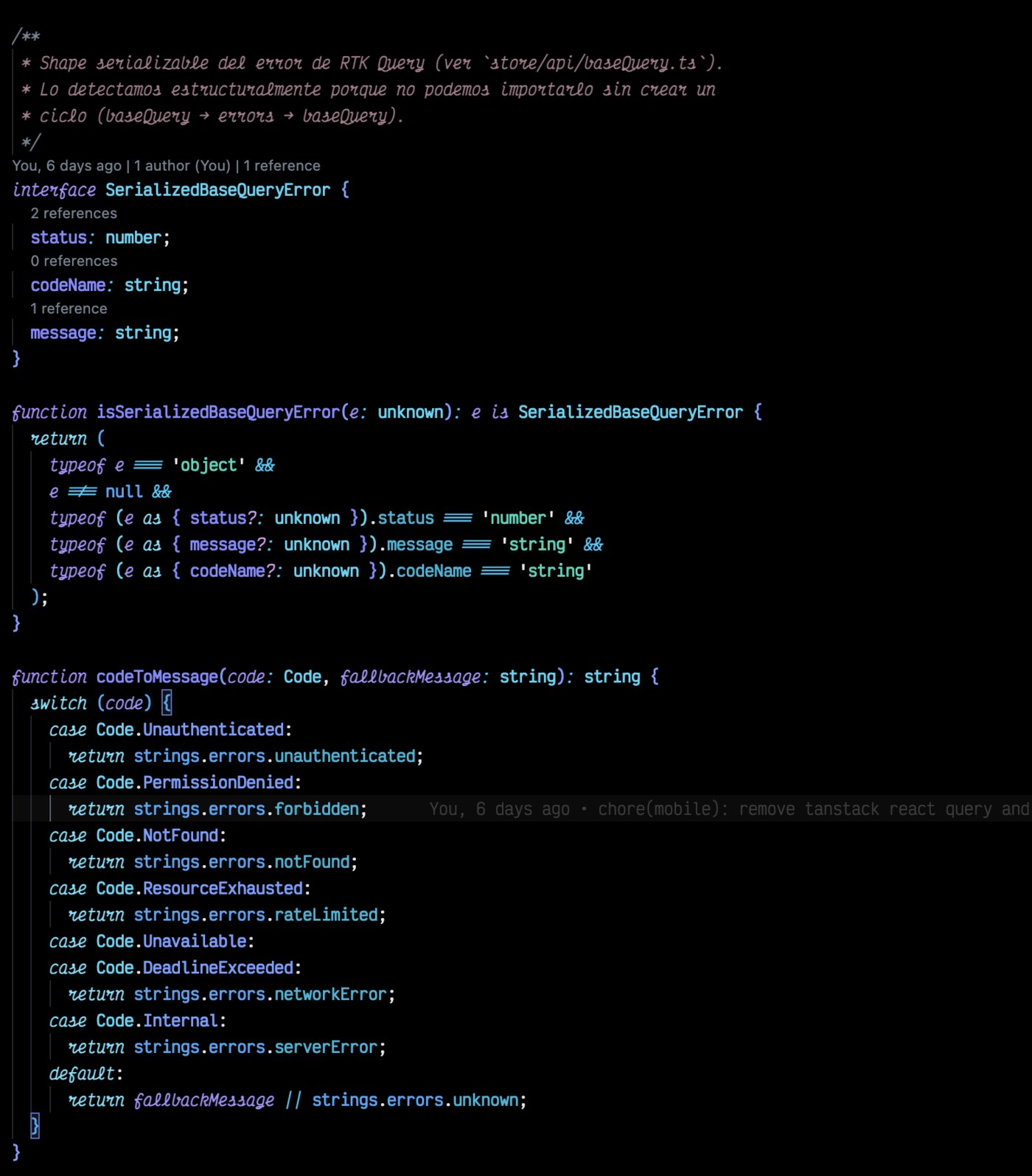
Mirage + Neon Dreams glow
Per-token neon halo using each token's own color — purple keywords glow purple, lime strings glow green, cyan types glow cyan. Text body stays crisp.
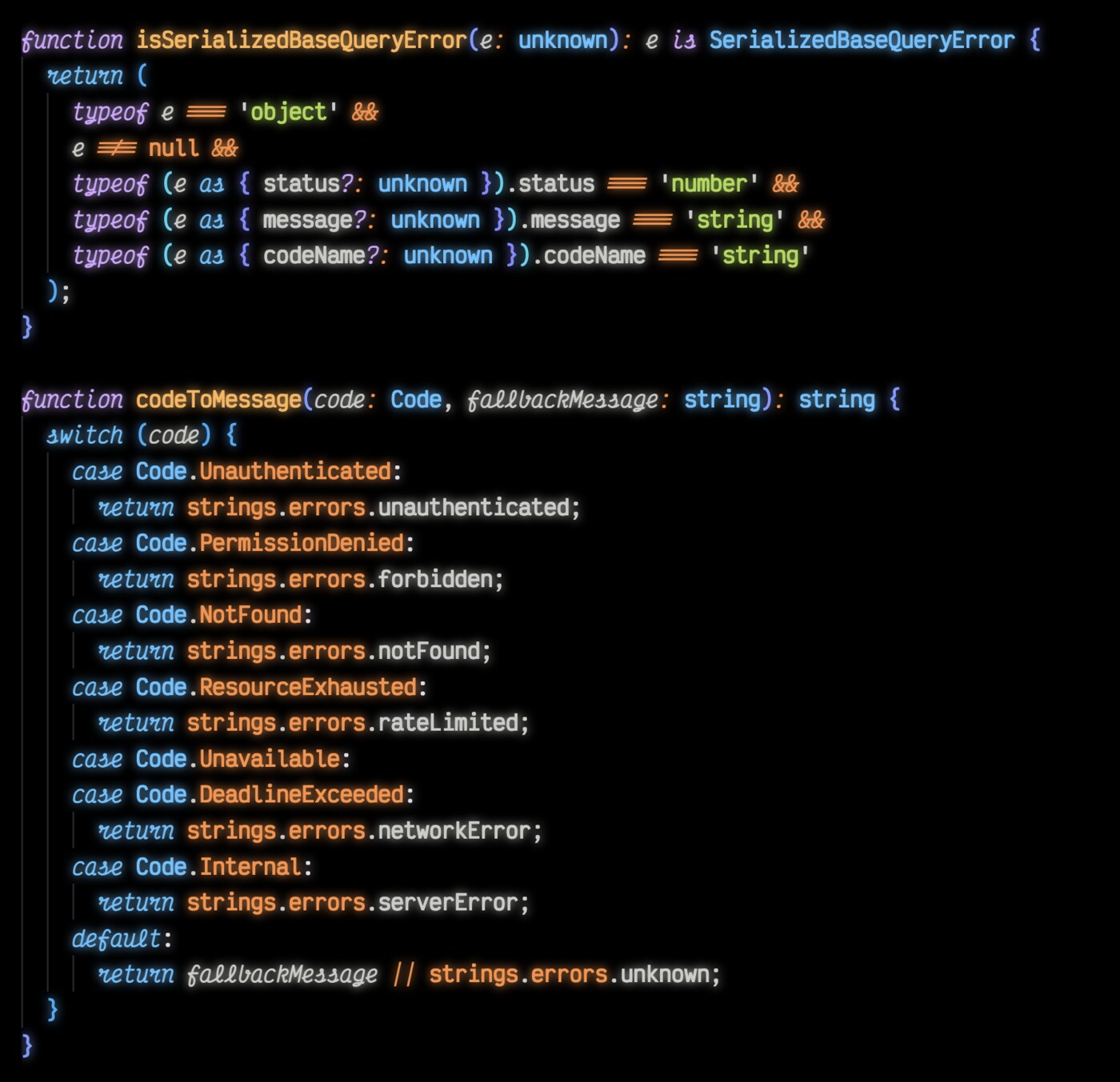
Mirage Color Reference
Syntax
| Color |
Hex |
Usage |
| 🟣 Purple |
#d2a6ff |
Keywords, modifiers, numbers |
| 🟡 Yellow |
#ffb454 |
Functions, methods, decorators |
| 🟠 Orange |
#ff8f40 |
Operators, constants, enum members |
| 🟢 Lime |
#aad94c |
Strings, regex, additions |
| 🔵 Cyan |
#59c2ff |
Types, classes, namespaces, tags |
| ⚪ Foreground |
#cbccc6 |
Variables, properties, text |
| 🔴 Red |
#f26d78 |
Errors, deletions |
| ⚫ Muted |
#5c6773 |
Comments |
Designed For
Optimized syntax highlighting across:
- TypeScript / JavaScript / JSX / TSX
- Python
- Rust
- Go
- Java / C / C++
- Shell / Bash
- CSS / SCSS / Less
- HTML / XML
- Markdown
- YAML / TOML / JSON
- GraphQL
Installation
From VS Code Marketplace
ext install robbyfuu.robbydev-theme
From Open VSX (Cursor, VSCodium, Theia)
ext install Robbyfuu.robbydev-theme
Or open the Extensions panel, search RobbyDev, click Install.
Activate
Cmd+K Cmd+T (macOS) or Ctrl+K Ctrl+T (Windows/Linux), then pick:
- RobbyDev
- RobbyDev Black
- RobbyDev Mirage
Neon Dreams (optional glow effect)
Each token in the editor emits a soft halo in its own color — purple keywords glow purple, lime strings glow green, cyan types glow cyan. The cursor and active borders pulse in RobbyDev magenta.
⚠️ Disclaimer. Editors like VS Code and Cursor don't natively support runtime CSS injection. The glow works by patching the editor's workbench.html in your install directory. The editor will mark itself as "corrupted" on next launch — this is normal and dismissible. Each editor update reverts the patch; just re-run the enable command. Use at your own risk.
Enable
- Set your active theme to any RobbyDev variant.
- Open the command palette (
Cmd+Shift+P / Ctrl+Shift+P).
- Run RobbyDev: Enable Neon Dreams.
- Restart the editor when prompted.
On Windows, run the editor as administrator the first time. On macOS/Linux, your editor must be installed in a location you have write access to.
Disable
Command palette → RobbyDev: Disable Neon Dreams → restart.
Add to your settings.json:
{
  "robbydev.neonBrightness": 0.45,
  "robbydev.disableGlow": false
}
| Setting |
Type |
Default |
Effect |
robbydev.neonBrightness |
0–1 |
0.45 |
Glow intensity |
robbydev.disableGlow |
boolean |
false |
Keep chrome polish but turn off the heavy text-shadow |
Re-run Enable Neon Dreams after changing settings.
Corruption warning
Since v2.0.2 the extension recalculates the workbench checksum and updates product.json automatically when you enable or disable Neon Dreams, so no warning should appear. If your editor still complains:
- Make sure you ran Enable Neon Dreams through the command palette (CLI / sudo edits won't update the checksum).
- After an editor update, the original
product.json is restored. Run Enable Neon Dreams again.
Recommended Pairing
Pair with a font that has italic ligatures for the best look:
License
MIT — see LICENSE.
Author
Roberto Arce — @robbyfuu

