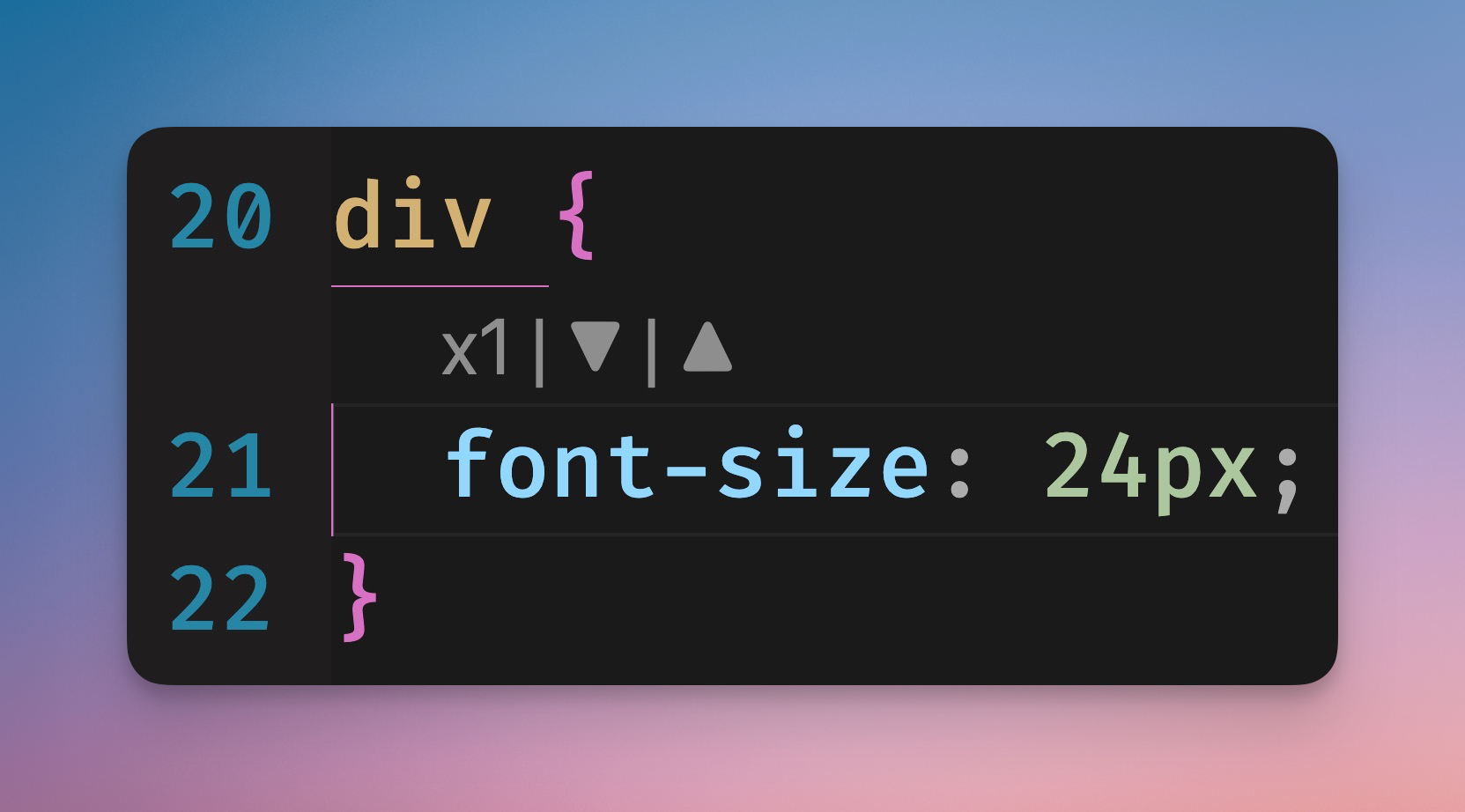
CSS ControlsControls for quick CSS/Tailwind tuning. Installation Launch VS Code Quick Open ( Ctrl+P), paste the following command, and press enter.Copied to clipboard |

CSS ControlsSpeed up your CSS workflow with buttons & shortcuts for speedy CSS/Tailwind adjustments.
Buttons
Keyboard ShortcutsThe buttons are just a marketing ploy... the shortcuts are where the real magic happens ♡
Supported Value TypesCSS Controls focuses on supported values near your cursor and adjusts whichever one is closest on the current line. Today, the extension supports:
Cycling uses the same inline ▲▼ buttons and the More value types are planned. As support is expanded, new value kinds will automatically plug into the same buttons and shortcuts. Note about conflicts: You can always reassign the shortcuts to your liking or disable them altogether. The shortcuts only activate when the extension activates. i.e. you are editing a CSS, SCSS, Less, HTML, JSX, or TSX file and your cursor is positioned on a line that contains at least one supported value. This way they minimize conflicts with existing shortcuts. ConfigurationTo quickly toggle the extension on/off, you can either:
If you just want the keyboard shortcuts and not the inline buttons:
Supported File Types
RequirementsVS Code or Cursor. FeedbackFeel free to reach out with any questions, feedback, or suggestions. AuthorsMade with ❤️ by Rio Edwards |