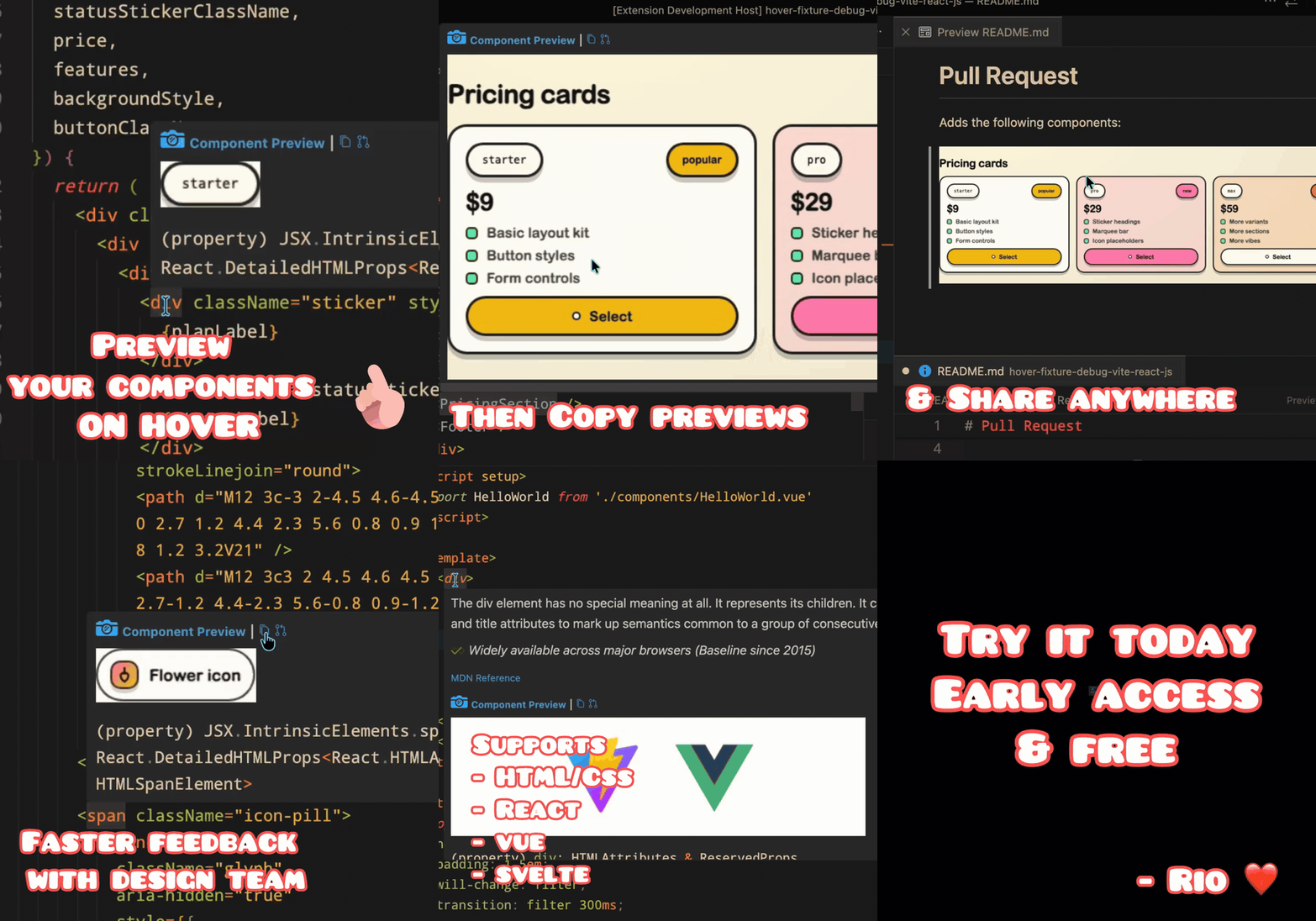
Component PreviewInstant component previews on hover for HTML/React/Vue/Svelte in local dev. Installation Launch VS Code Quick Open ( Ctrl+P), paste the following command, and press enter.Copied to clipboard |

Component PreviewShow rendered UI previews on hover inside VS Code and Cursor.
OverviewComponent Preview lets you hover UI code and instantly see what that component looks like. It is built for fast feedback while you code, especially when you are scanning unfamiliar files or trying to understand a UI quickly. In addition, it allows you to easily export previews for sharing (e.g. in pull requests) Demo
Language support
Setup1) Install the extensionInstall Component Preview from the VS Code Marketplace (or Open VSX). 2) Start your dev serverFor 3) (Vue/Svelte required) Install the Vite pluginVue and Svelte previews require the Vite plugin. It is also recommended for React projects for more accurate matching. Add it to your Vite config: 4) If detection misses your dev serverSet How to set it:
Or add it directly in PR-ready exportsFrom the hover preview, you can now:
The PR action saves the current preview image into your repo and copies a ready-to-paste Markdown snippet like: File names include a useful label (hovered component/file), element details (like tag + source line/column), plus a timestamp. You can customize the save folder with:
TroubleshootingPreview does not appear
Vue or Svelte preview does not appear
Preview looks wrong
Note: This app is still in early beta and being actively developed, so expect some rough edges. These will be smoothed out over time. You can submit an issue or feature request here: GitHub Issues FAQDo I need to configure anything for React?Usually no. React ( If preview is inconsistent, set Does this work with Vue and Svelte?Yes, with the Vite plugin enabled. Install: Then add it to your Vite config and restart your dev server. Which editor is supported?Component Preview is built for VS Code-compatible editors.
Is this stable for production use?It is usable, but still in early beta. Expect occasional rough edges while coverage and reliability improve. RequirementsVS Code or Cursor. Privacy & local storageComponent Preview renders and stores preview images locally on your machine.
If you are not comfortable with local preview-image storage, do not use this extension in sensitive projects. For highly sensitive or NDA-protected code/UI, review your local storage policy before enabling this workflow. FeedbackFeel free to reach out with any questions, feedback, or suggestions. AuthorsMade with ❤️ by Rio Edwards |