Pipelines Explorer
Browse Azure DevOps pipelines, drill into referenced YAML templates and scripts (PowerShell, Bash, Cmd, Python, Azure CLI), and jump to the local files in your workspace.
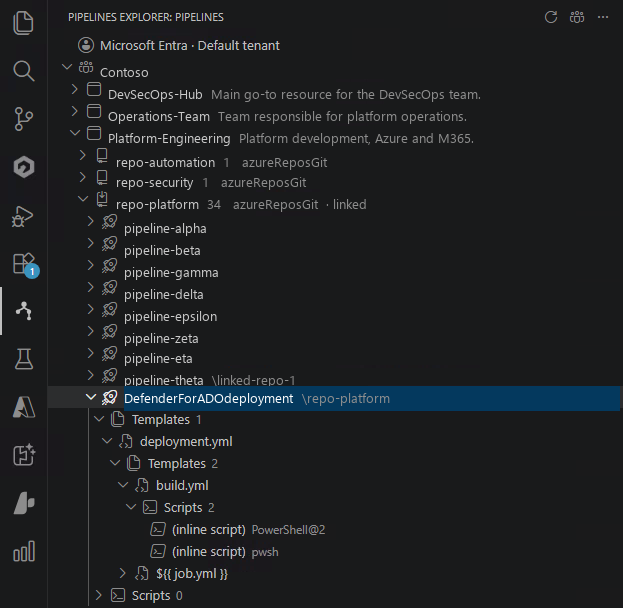
Pipelines Explorer brings your Azure DevOps pipelines into the VS Code activity bar.
Navigate organizations → projects → repositories → pipelines, then expand each pipeline
to inspect every YAML template and script task it references — recursively. Link
your local repository clone to the matching tree node and a single click opens the
actual file in your editor.
Stop hopping between browser tabs to read your pipelines.
Features
- 🔐 Two sign-in modes — Microsoft Entra ID single sign-on or a classic Azure DevOps Personal Access Token. When signed in with Microsoft, a top-of-tree row shows the active account and tenant, and a button in the view title bar opens a tenant picker populated with the tenants your account can access. Expired or revoked tokens are detected automatically: the extension clears the stored credential and prompts you to sign in again.
- 🌳 Org → Project → Repository → Pipeline tree, with friendly empty states (
No pipelines in this project, missing-permission warnings, etc.).
- 🔍 Recursive YAML analysis — every
template: reference and every script-running task is surfaced under each pipeline. Recognised tasks include PowerShell@2, AzurePowerShell@5, PowerShellOnTargetMachines@3, Bash@3, ShellScript@2, CmdLine@2, BatchScript@1, AzureCLI@2, PythonScript@0, plus the shorthand step keys script:, bash:, pwsh:, powershell:. Same-repo templates can be expanded to reveal their templates and scripts. Empty groups are hidden.
- 🔗 Link a workspace folder to a repository and click any pipeline / template / script to open the local file. Pipeline variables like
$(System.DefaultWorkingDirectory) and $(Build.SourcesDirectory), repo-absolute paths and relative ../ segments are all resolved automatically.
- � Filter by name — press the funnel icon (or run Pipelines Explorer: Filter) to shrink the tree to pipelines, templates and scripts whose name contains a substring. The scan is debounced (~200 ms), covers every organization / project / repository the signed-in identity can see, recurses into same-repo templates, and reveals matching pipelines automatically.
- �📋 Filename-first labels with full repo paths in the tooltip, so the tree stays readable on long deployment templates.
Tree at a glance
Pipelines
└── My Organization
    └── My Project
        └── Project-Repo · 32 · azureReposGit · linked
            ├── Build & Deploy
            │   ├── Templates (3)
            │   │   ├── deployment.yml          (tooltip: solutions/foo/.ci/deployment.yml)
            │   │   │   ├── Templates (2)
            │   │   │   │   ├── prepare-parameters.yml
            │   │   │   │   └── deploy-infrastructure.yml
            │   │   │   └── Scripts (1)
            │   │   │       └── Get-WorkloadPath.ps1     PowerShell@2
            │   │   ├── build.yml
            │   │   └── lint.yml
            │   └── Scripts (4)
            │       ├── New-EntraIdWorkload.ps1   AzurePowerShell@5
            │       ├── deploy.sh                 Bash@3
            │       ├── (inline script)           bash
            │       └── (inline script)           PowerShell@2
            └── …
Screenshot
Filter

Getting started
- Install the
.vsix:
code --install-extension vscode-pipelinesexplorer-0.3.0.vsix
(Or, once published, install from the Marketplace.)
- Open the Pipelines Explorer view in the activity bar.
- Choose a sign-in method:
- Sign in with Microsoft — uses VS Code's built-in Microsoft account. Recommended for organizations connected to Microsoft Entra ID.
- Sign in with Personal Access Token — paste a PAT with at least
Code (Read), Build (Read) and Project and Team (Read) scopes, and All accessible organizations as Organizations scope so the tree can enumerate every org your account can reach. See PAT scope and the 1 Dec 2026 deprecation below before you generate one.
- Browse organizations → projects → repositories → pipelines.
A header row at the top of the tree shows the active connection (account name and, for Microsoft sign-in, the current tenant). Clicking the row — or the organization icon next to Refresh in the view title bar — opens a quick-pick listing the Entra ID tenants your account belongs to, so you can switch tenant without signing out. The choice is persisted across restarts; Reset clears it.
Linking a local clone
If you already have a local clone of one of your repositories open in VS Code:
- Right-click the repository node and choose Link Workspace Folder… (or use the inline link icon).
- Pick the workspace folder that contains the clone.
- Single-click any pipeline / template /
*.ps1 underneath that repo to open the file in the editor.
If a referenced file isn't found in the linked folder (e.g. it's on a different branch), the extension shows a warning with Re-link Workspace and Open in Browser options. The warning also tells you which branch the YAML was read from on Azure DevOps.
To remove a link: right-click the repository → Unlink Workspace Folder.
Choosing a branch (per repository)
By default Pipelines Explorer reads pipeline YAML, templates and scripts from each repository's default branch on Azure DevOps. You can override the branch on a per-repository basis:
- Right-click a repository node → Select Branch….
- Pick a branch from the list, or choose Use default branch to clear the override.
- The tree refreshes and reads YAML from the chosen branch. The repository node shows
· branch: <name> while an override is active.
When you link a workspace folder that is a Git working copy, the extension auto-detects its current branch (from .git/HEAD) and offers to use it as the override — keeping what you see in the tree aligned with what you have checked out locally.
Commands
| Command |
Description |
Pipelines Explorer: Sign in with Microsoft |
Sign in with the Microsoft authentication provider. |
Pipelines Explorer: Sign in with Personal Access Token |
Sign in with a stored PAT (asked on first use). |
Pipelines Explorer: Select Microsoft Entra Tenant… |
Pick an Entra ID tenant (from the list of tenants your account can access) to scope the Azure DevOps sign-in. Available only with Microsoft sign-in. |
Pipelines Explorer: Sign out |
Clear the active session. |
Pipelines Explorer: Reset (clear stored credentials) |
Wipe the stored PAT and forget the chosen sign-in method. |
Pipelines Explorer: Refresh |
Re-fetch the tree and re-analyse pipelines. |
Pipelines Explorer: Show Logs |
Open the extension output channel. |
| Link / Unlink Workspace Folder |
Available from the repository node context menu. |
| Select Branch… |
Available from the repository node context menu. Overrides the branch from which YAML is read. |
Languages
The brand prefix Pipelines Explorer is preserved in every locale (untranslated).
| Locale |
Status |
English (en) |
Stable, source language. |
Italian (it) |
Stable, author quality. |
French (fr) |
Preview — machine-translated, awaiting native review. |
German (de) |
Preview — machine-translated, awaiting native review. |
Spanish (es) |
Preview — machine-translated, awaiting native review. |
Swedish (sv) |
Preview — machine-translated, awaiting native review. |
Manifest strings live in package.nls.<lang>.json and runtime
strings in l10n/bundle.l10n.<lang>.json. To improve a translation,
open a PR editing the relevant files — preview locales include a _comment
field in the manifest flagging their status.
Accessibility
Pipelines Explorer follows the
VS Code accessibility guidelines:
- Keyboard navigation — every action is reachable via the command palette
(
Pipelines Explorer: …), the tree's built-in keyboard support, and context
menu commands. No mouse-only interactions.
- Screen reader support — every tree item provides
accessibilityInformation
with a localized label that summarises the node type and key metadata
(e.g. "Repository foo, 12 pipelines, linked to local folder, branch override main").
Tested with the VS Code built-in screen reader optimised mode.
- No color-only signals — node states (linked, branch override, warnings)
are conveyed through icons (
ThemeIcon) and text labels, never color alone.
- High contrast & themes — all icons use VS Code
ThemeIcon ids so they
follow the user's theme, including high contrast and high contrast light.
- Localized announcements — accessibility labels and warning messages
(e.g. "YAML file not found in the repository.") are translated through the
same
vscode.l10n bundles used for the UI.
PAT scope and the 1 Dec 2026 deprecation
Pipelines Explorer supports two shapes of Azure DevOps Personal Access
Token and picks the right flow automatically:
- All accessible organizations (also called a global PAT) — the historical
path. On sign-in the extension calls
https://app.vssps.visualstudio.com/_apis/accounts to enumerate every
organization your account can reach and shows them as roots in the tree.
- Organization-scoped PAT — a PAT whose Organizations dropdown was
narrowed to a single organization at creation time.
_apis/accounts returns
an empty list for these tokens by design, so on sign-in the extension asks
you for the organization name once. Type the exact organization
identifier as it appears in your Azure DevOps URL — the segment right
after dev.azure.com/ (e.g. contoso in https://dev.azure.com/contoso/),
or the subdomain before .visualstudio.com on legacy URLs. It is
case-insensitive but must otherwise match exactly; typos, project names
or friendly display names will not resolve. The extension validates the
pair against dev.azure.com/{org}/_apis/projects?$top=1 and, if the token
is not authorized for that org (or the org does not exist), surfaces an
actionable error (Try another / Cancel) instead of storing a broken
slot. On success the <org, pat> pair is saved in
SecretStorage
under a per-org slot. Layer more per-organization PATs on top later via
the Pipelines Explorer: Add Azure DevOps organization… command
(title-bar + icon or Command Palette).
Why the extension has to ask you for the organization name
Azure DevOps PATs are opaque strings, not JWTs, and Microsoft does not expose
any client-facing endpoint that returns the owning organization from a
scoped token. This was verified empirically on 2026-07-07 against every
candidate path: _apis/accounts?memberId= returns count: 0,
_apis/ConnectionData (SPS-level) responds 401 Unauthorized,
_apis/tokens/pats requires the organization already in the URL, and
_apis/profile/profiles/me only carries the identity. There is no client-
side reverse lookup; the name has to come from you the first time. After
that it is remembered for the duration of the sign-in.
Global PAT retirement
Microsoft has announced the retirement of global PATs for Azure DevOps
Services on 1 December 2026 (aka.ms/GlobalPATDeprecation).
On that date every existing global PAT stops working and new ones can no
longer be created. Azure DevOps Server is not affected.
What this means for Pipelines Explorer:
- Until 1 Dec 2026 — both PAT shapes work; keep using All accessible
organizations if you want the single-token enumeration path and are aware
that the underlying endpoint is already best-effort (plan 002 §1.1).
- Recommended today — use Sign in with Microsoft. Entra-backed
sign-in is the durable path and is unaffected by the retirement.
- After 1 Dec 2026 — PAT sign-in continues to work in per-organization
mode only. The extension already routes every request to the right
per-org token so no UX regression is expected — you will just add one
organization at a time.
Requirements
- VS Code 1.99.0 or newer.
- An Azure DevOps account with read access to the organizations / projects / pipelines you want to browse.
- (Optional) Local clones of the repositories whose files you want to open.
Known limitations
- YAML is read from a single branch per repository on Azure DevOps — the default branch, or the branch chosen via Select Branch… on the repository node. The tree (templates, scripts, line numbers) reflects that branch. If your local clone is on a different branch, opening a script may fail with "File not found in linked workspace"; either change the override (right-click the repo → Select Branch…) or align the local clone (
git switch / git pull).
- Cross-repo template references (
template: file.yml@otherRepo) are shown as leaves in the tree (no recursion). They can still be opened locally if a workspace folder has been linked to a repo with the same alias.
- Only
azureReposGit repositories are inspected for YAML content. GitHub-hosted pipeline definitions are listed but not expanded.
- Pipeline variables other than
System.DefaultWorkingDirectory, Build.SourcesDirectory, Pipeline.Workspace and Agent.BuildDirectory are not interpolated when resolving local file paths.
Telemetry
This extension does not collect telemetry.
License
MIT © Riccardo Cappello

