Skip to content
| Marketplace
Sign in
Visual Studio Code>Other>RaiviewNew to Visual Studio Code? Get it now.
Raiview

Raiview

Rhea Pradhan

|
3 installs
| (0) | Free
AI-powered code reviews with Ollama, OpenAI, and Claude
Installation
Launch VS Code Quick Open (Ctrl+P), paste the following command, and press enter.
Copied to clipboard
More Info

Raiview

Code reviews powered by AI, without leaving your editor.

VS Code Version License: MIT

Raiview panel showing a completed code review with structured findings
Structured, actionable findings — right in your sidebar

Raiview is a VS Code extension that brings AI-powered code review into your sidebar. Point it at your git changes or the file you're working on, and get structured findings grouped by category — Critical issues, Warnings, and Suggestions — with a summary verdict. Ask follow-up questions, switch models mid-conversation, and revisit past reviews at any time.

Works with Ollama (local or remote), OpenAI, and Anthropic Claude.


✨ Highlights

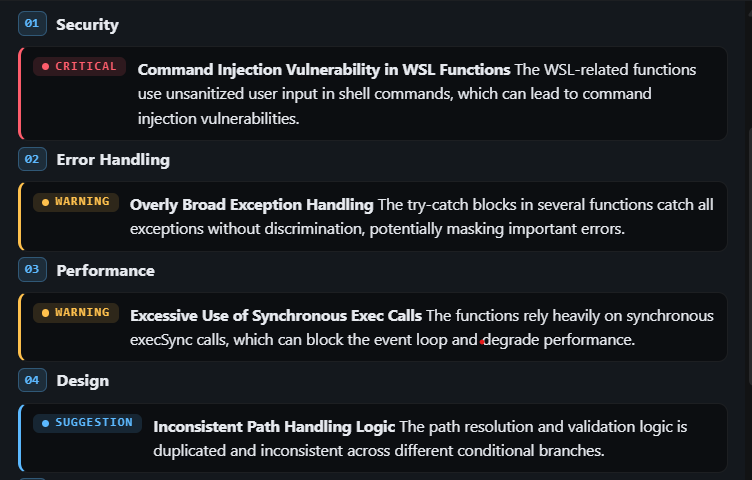
Structured, categorized findings

Findings are grouped by category — Correctness, Performance, Design, and more — with color-coded severity chips and a summary verdict. No more walls of text to parse.

Structured findings with Critical, Warning, and Suggestion severity chips


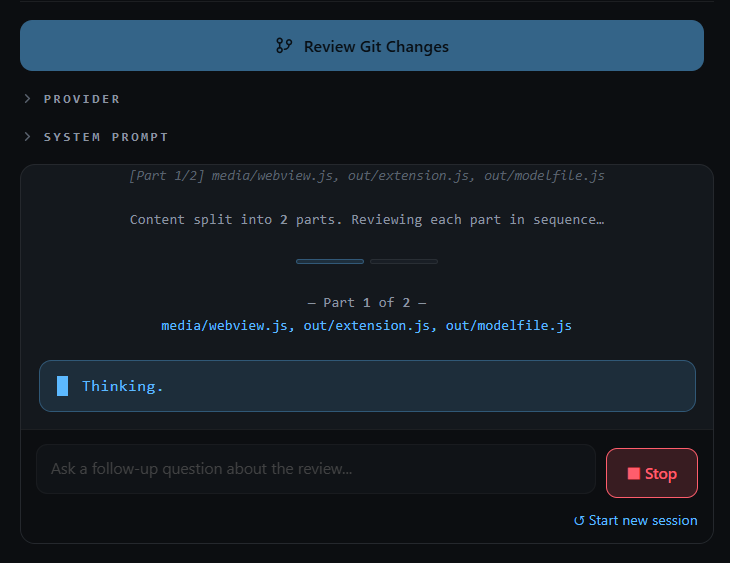
One-click git diff review

Click Review Git Changes to review everything staged and unstaged. Large diffs are split by file and reviewed in sequence — a progress bar tracks each part.

Git diff review with multi-part streaming progress indicator


Multi-turn conversation

After any review, ask follow-up questions directly in the panel. An exchange counter keeps track of your session budget (up to 20 exchanges).

Follow-up conversation with exchange counter


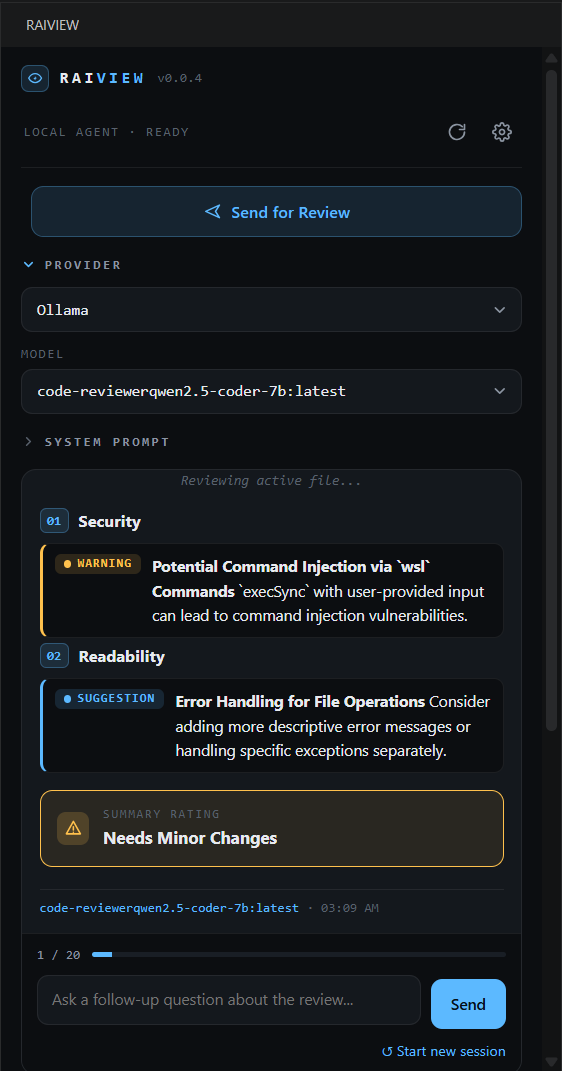
Active file review

Review the file open in your editor. Large files are split at function and method boundaries so each chunk gets proper attention, then findings are merged into a combined summary.

File review showing structured output for an active editor file


Persistent session history

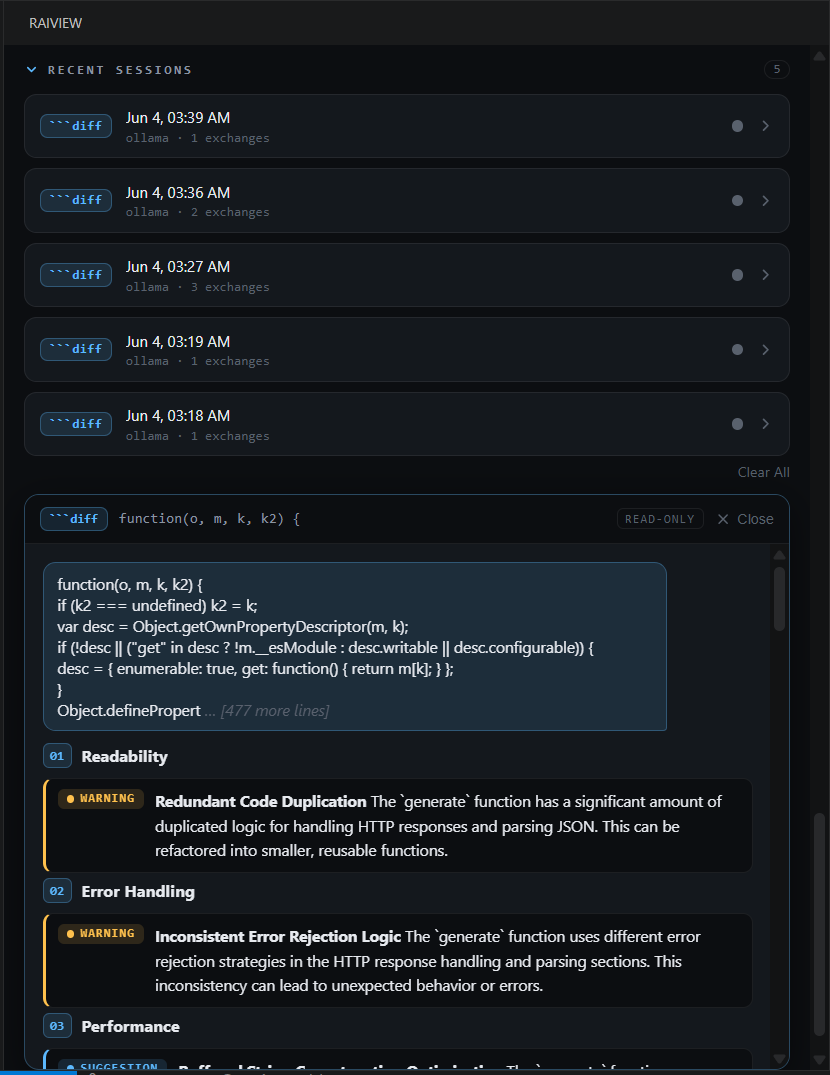
Your last 5 review sessions are saved automatically. Click any session card to open a read-only transcript and revisit the findings.

Session history list with read-only transcript viewer open


Enhanced Reviewer (Ollama)

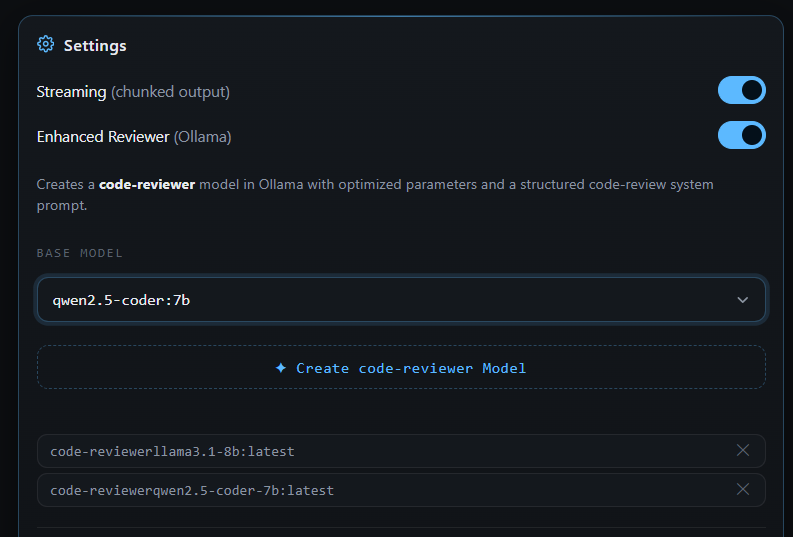
Create a purpose-built code-reviewer model from any base model — optimized with a structured system prompt and tuned generation parameters for code review specifically.

Settings panel showing Enhanced Reviewer section with model creation


🔌 Provider Support

Raiview works with three LLM backends. You can switch provider or model at any point in a session without losing your conversation history.

Ollama OpenAI Anthropic Claude
API key Optional Required Required
Runs locally ✅ Yes ❌ ❌
Remote/cloud ✅ Supported ✅ ✅
Any model ✅ Any Ollama model GPT-4o and family Claude 3.x / 4.x
Enhanced Reviewer ✅ — —

📦 Installation

From the VS Code Marketplace (coming soon)

Search for "Raiview" in the Extensions panel, or install from Marketplace.

Manual install (.vsix)

  1. Download the latest .vsix from Releases
  2. Open VS Code → Extensions (Ctrl+Shift+X) → ··· menu → Install from VSIX…
  3. Select the downloaded file and reload when prompted

🚀 Quick Start

Step 1 — Open the panel

Click the Raiview icon in the Activity Bar (left sidebar). The Raiview panel opens on the side.

Step 2 — Choose a provider and model

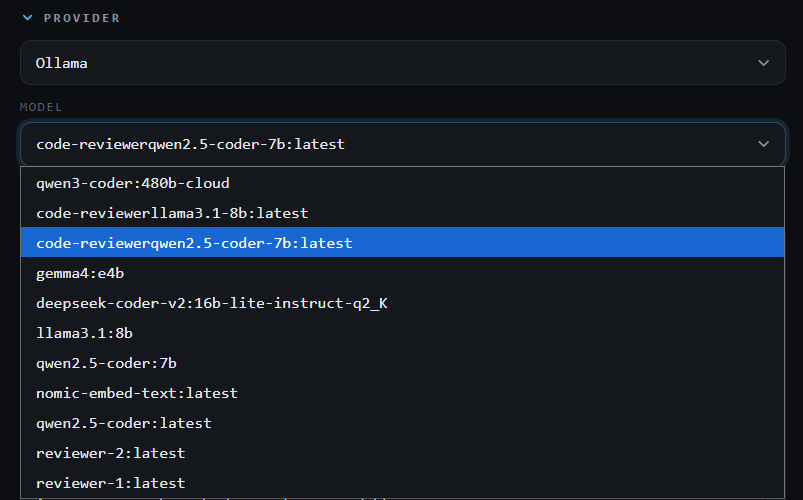
Expand the Provider section and select your LLM provider. The model list populates automatically. Pick a model from the dropdown.

Provider and model dropdowns in the Raiview panel
Select your provider and model before starting a review

Step 3 — Add your API key (if required)

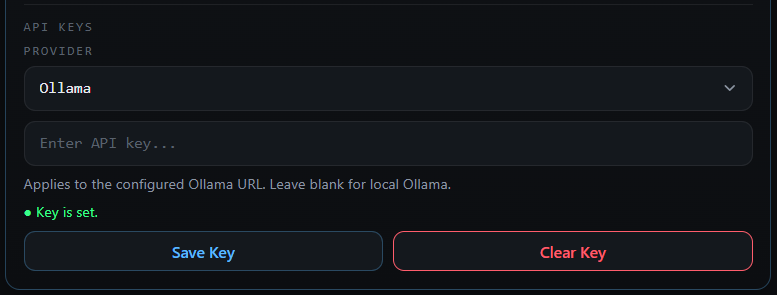
Click the gear icon (⚙) in the topbar to open Settings. Under API Keys, select your provider, paste your key, and click Save Key. Required for OpenAI and Claude; optional for remote Ollama instances. The key is stored in VS Code's encrypted secrets store — never on disk in plain text.

API Keys section in the Settings panel
Keys are stored securely — you only need to enter them once

Step 4 — Run your first review

Make some changes in your repo (or open a file), then click:

  • Review Git Changes — reviews all staged and unstaged changes in your current repository
  • Send for Review — reviews the file open in the active editor

Review Git Changes and Send for Review action buttons

Findings appear as the model generates. When the review completes, the full structured output is shown:

Completed review showing structured findings with severity ratings
Findings are grouped by category with color-coded severity

Step 5 — Ask follow-up questions

When the review finishes, a text input appears at the bottom of the panel. Type any question about the findings and press Send or Enter.


📖 Feature Guide

Git Diff Review

Click Review Git Changes to review all staged and unstaged changes in your repository at once.

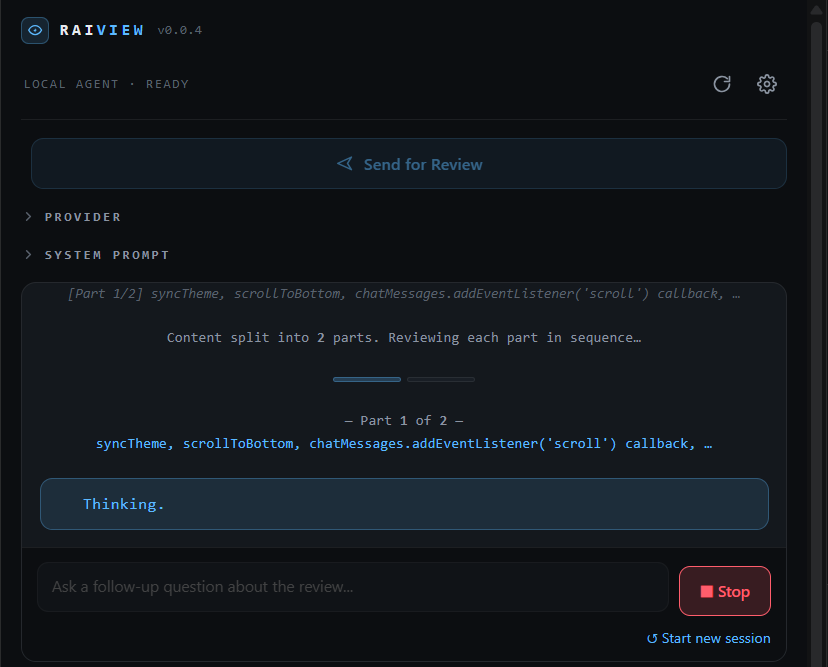
If the diff is large, Raiview splits it by file and reviews each part in sequence. A progress bar shows which part is currently being reviewed and which are complete.

Multi-part review progress with parts indicator and current file name
Large diffs are split by file — each part reviewed individually, then merged into a combined summary

You can stop a review at any time using the Stop button that appears during generation.


File Review

Click Send for Review to review the file currently open in your editor. Raiview tries to split the file at function and method boundaries using VS Code's symbol provider. If that's not available, it falls back to line-based chunking.

Each chunk produces up to 5 findings. After all chunks are reviewed, findings are de-duplicated and merged into a combined summary.

File review showing structured findings for an open editor file
Function-level splitting means the model focuses on a manageable chunk of code at a time


Understanding Findings

Every review produces findings organized by category. Each finding has:

  • A severity chip — Critical, Warning, or Suggestion — color-coded for quick scanning
  • The category (e.g. Correctness, Performance, Security, Readability)
  • A description of the specific issue

At the bottom, a Summary Rating gives an overall verdict:

  • ✅ Looks Good — no significant issues found
  • ⚠ Needs Minor Changes — some improvements recommended
  • 🔴 Needs Major Revision — critical issues that should be addressed before merging

Close-up of finding cards showing Critical, Warning, and Suggestion chips with descriptions
Findings are grouped by category — scroll down to see the summary rating


Conversations & Follow-ups

After a review completes, a text input appears at the bottom of the panel. You can ask anything — request a code fix, ask why something is flagged, or explore a specific finding in depth.

The exchange counter (e.g. 3 / 20) shows how many turns remain in your session. At 16 exchanges you'll see a warning; at 20 the session ends and you can start a new one.

Follow-up conversation with the exchange counter showing 3 of 20
Keep the conversation going — ask for fixes, explanations, or deeper analysis

Click ↺ Start new session at any time to clear the conversation and begin fresh.


Switching Provider or Model Mid-Session

You can change your provider or model at any point — even while a session is active. Open the Provider section, make your selection, and the next message will use the new provider and model. Your conversation history is preserved.

Provider dropdown open during an active review session
Switching provider or model mid-session doesn't reset the conversation


Session History

Raiview saves your last 5 review sessions automatically. The Recent Sessions section at the bottom of the panel lists them by date, provider, and number of exchanges. A colored dot indicates the overall rating from that session.

Click any session card to open a read-only transcript of the full review.

Session history list with a session transcript viewer open below
Past sessions are always accessible — click any card to view the full transcript


Enhanced Reviewer (Ollama only)

The Enhanced Reviewer creates a dedicated Ollama model tuned specifically for code review — not a general-purpose chat model. It uses a structured system prompt that directs the model to find issues across 8 categories, be concise, and respond in a parseable format.

To set it up:

  1. Open Settings (gear icon) and enable Enhanced Reviewer
  2. Select a base model from the dropdown (e.g. qwen2.5-coder:7b)
  3. Click ✦ Create code-reviewer Model

Raiview streams the build progress. Once complete, the new model (code-reviewer-<base>:latest) appears in your model list.

Settings panel with Enhanced Reviewer enabled and the create model button
Build a code-review-optimized model from any base Ollama model


GPU Memory Management (Ollama)

When you finish a session, the Ollama model stays loaded in GPU/RAM by default — ready for the next review without a reload delay. If you want to free that memory immediately:

  • Click the trash icon in the topbar (visible before a session starts) to unload manually
  • Or enable Auto-unload model in Settings to have Raiview unload automatically whenever you start a new session

Topbar showing the Free Memory trash icon button
The Free Memory button appears in the topbar when no session is active


⚙️ Configuration

All settings are available in VS Code Settings under raiview.*, or through the Settings panel inside Raiview itself.

Setting Type Default When to change
defaultProvider string "ollama" Set your preferred provider so it's selected on startup
ollamaUrl string "http://localhost:11434" Change if Ollama is running on a different host or port
defaultSystemPrompt string "" Add a standing instruction to every review (e.g. "Focus on security")
streamingMode string "chunked" Switch to complete if you prefer to see the full response at once
enhancedReviewer boolean false Enable to use the optimized code-reviewer Modelfile with Ollama
autoUnloadModel boolean false Enable to free GPU/RAM automatically when starting a new session
maxContentChars number 10000 Increase for larger diffs/files if your model supports a bigger context window
ollamaContextWindow number 8192 Set before creating the Enhanced Reviewer model — delete and recreate the model after changing
ollamaNumPredict number 2000 Increase for more detailed reviews; decrease to speed up responses
excludeExtensions string[] [] Add extensions like ".lock", ".map", ".vsix" to skip them in git diff reviews
ollamaModels string[] [] Pin specific model names when using Ollama cloud (prevents fetching the full public catalog)

🔧 Provider Setup

Ollama

  1. Install Ollama and start it
  2. Pull a model: ollama pull qwen2.5-coder:7b
  3. Open Raiview → Provider → select Ollama — models are fetched automatically
  4. For a remote Ollama instance, update raiview.ollamaUrl in settings (or Settings panel → Ollama → URL)

Using Ollama with an API key? Enter it under Settings → API Keys → Provider: Ollama.

OpenAI

  1. Get an API key from platform.openai.com
  2. Open Raiview → ⚙ Settings → API Keys → Provider: OpenAI
  3. Enter your key and click Save Key
  4. Select OpenAI in the Provider dropdown — GPT-4o and related models appear automatically

Anthropic Claude

  1. Get an API key from console.anthropic.com
  2. Open Raiview → ⚙ Settings → API Keys → Provider: Claude
  3. Enter your key and click Save Key
  4. Select Anthropic Claude in the Provider dropdown — available Claude models appear automatically

🛠 Development

npm run compile   # TypeScript → CommonJS (./out/)
npm run watch     # Continuous compilation
npm run package   # Build .vsix package (requires vsce)

Press F5 in VS Code to launch an Extension Development Host with the extension loaded.

See docs/workflows.md for state machine diagrams and message flow references, and CLAUDE.md for codebase architecture notes.


License

MIT — see LICENSE for details.

  • Contact us
  • Jobs
  • Privacy
  • Manage cookies
  • Terms of use
  • Trademarks
© 2026 Microsoft