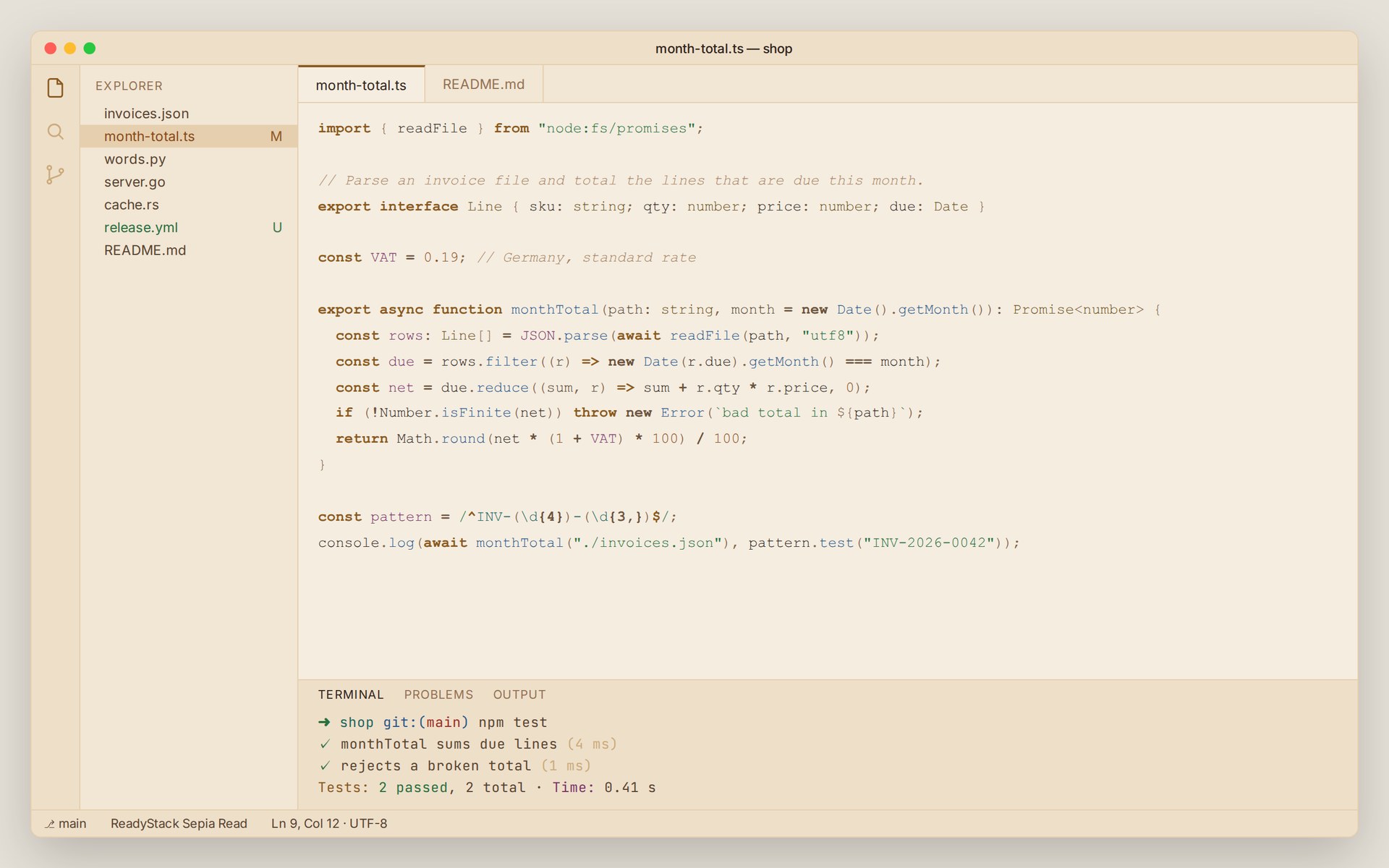
ReadyStack Sepia ReadSepia, tuned like a book page. Lowest glare of the light set. Body text measured at 12.7:1 - WCAG AAA. Installation Launch VS Code Quick Open ( Ctrl+P), paste the following command, and press enter.Copied to clipboard |

ReadyStack Sepia Read
Sepia, tuned like a book page. Lowest glare of the light set. Install
Measured contrast
Every ratio above was measured, not estimated. What is tuned
Your terminal is still the wrong colorThis theme colors the editor. The moment you open a terminal outside VS Code - iTerm2, Windows Terminal, Alacritty, kitty - it is still on its old palette, and so is every other window you work in. ReadyStack Sepia Read - Full Environment ships the same measured palette as ready-to-import profiles for all four terminals, plus the source palette as JSON so you can carry it into anything else. One palette, every window. https://getreadystack.com/api/buy/cl/polar_cl_XLCKUkI8aRMShyOFKFccELfmuQBHQ8Dwuy6rH2WiR0e Free toolsCalculators, templates and spreadsheets: https://getreadystack.com LicenseMIT |