SQL Buddy
Productivity tools for T-SQL in VS Code: schema-aware completion, snippets, formatting, code analysis, refactoring, and query execution with a results grid. For SQL Server 2016 and later, and Azure SQL. MySQL and PostgreSQL servers can be connected, browsed and queried too; the T-SQL tools do not cover them yet.
Use with care. SQL Buddy suggests and writes SQL, but you decide what runs. Read every statement before you run it, especially against production, and see the Disclaimer.
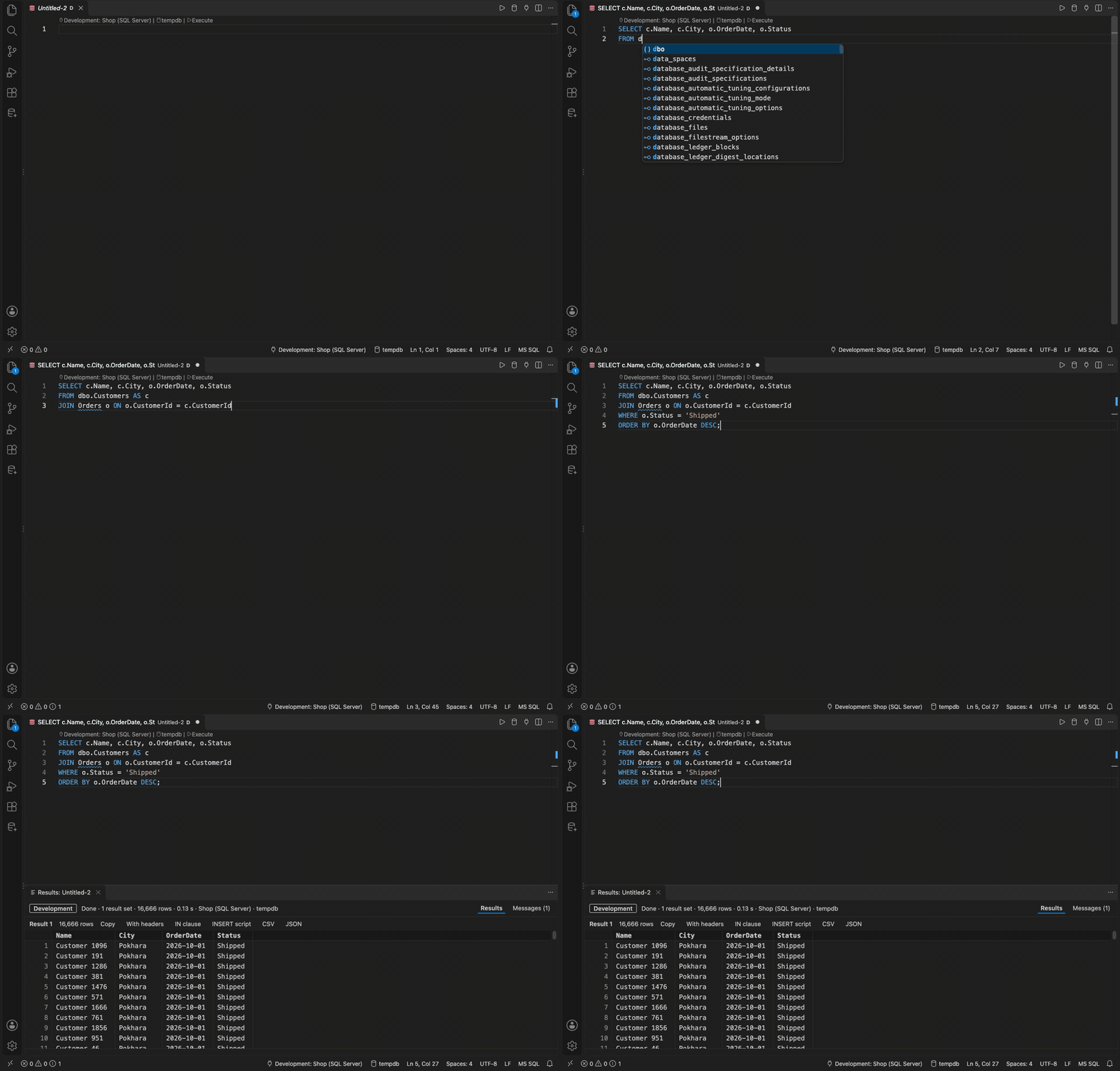
Getting started
- Open a
.sql file.
- Click the SQL Buddy icon in the Activity Bar, then + in the Connections view, and fill in the form. For a local or container server with a self-signed certificate, choose Encrypt, trust the server certificate. Test Connection checks it before you save.
- Type
SELECT * FROM and pick a table.
- Press
Ctrl+Shift+E (Cmd+Shift+E on macOS) to run the query.
Help > Get Started > Get started with SQL Buddy walks through the main features.
Features
Connections
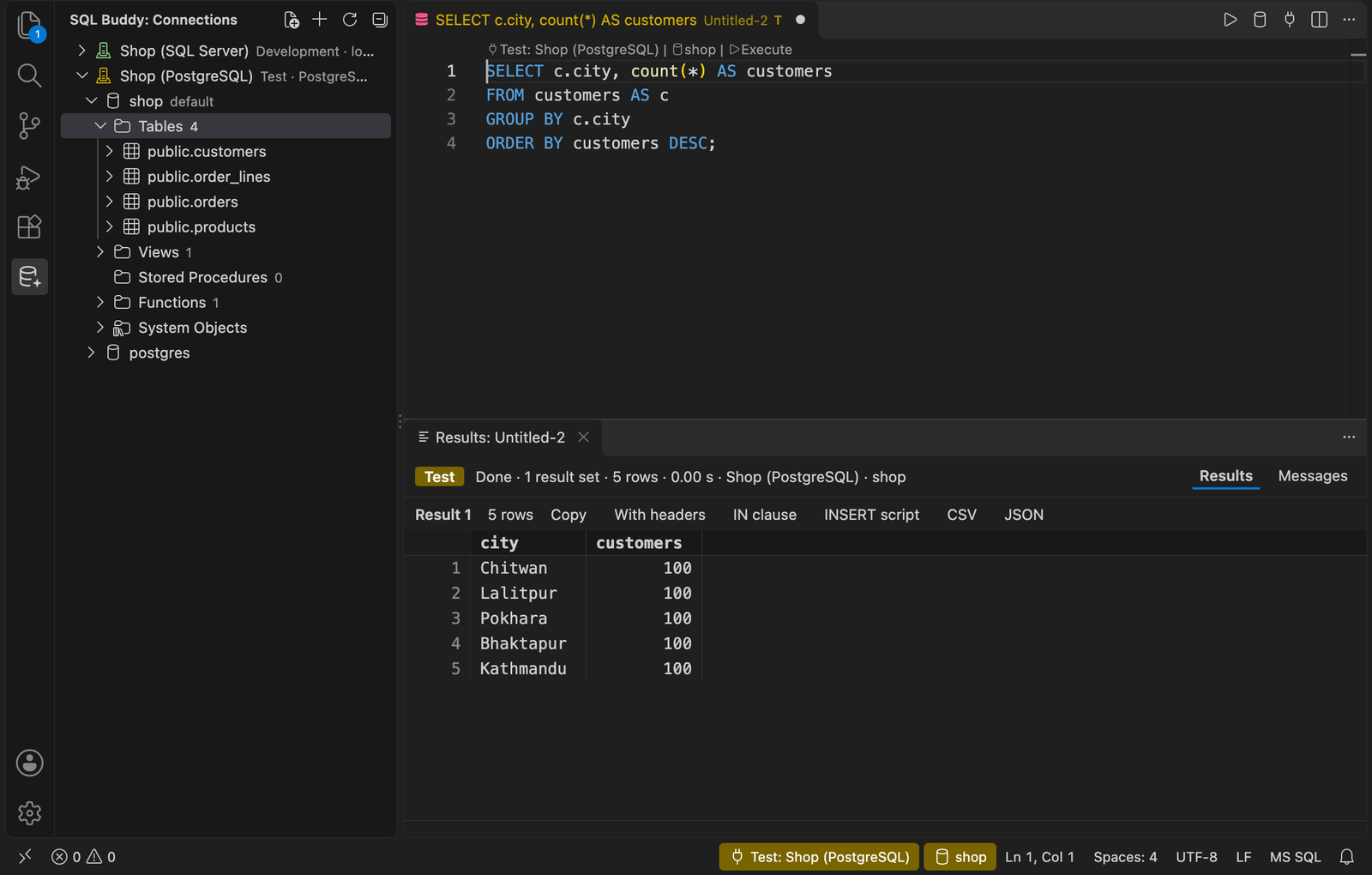
- Connections view in the side bar: your saved connections, and under each the server's databases, tables, views, stored procedures and functions, down to columns and parameters. A System Objects folder in each database holds what came with the server: system tables and views, system procedures, and built-in functions.
- Right-click a connection or database for New Query or Connect Current File; a table or view for Select Top 1000 Rows; any object for Script as CREATE, Script as ALTER, Script as EXECUTE or Copy Name.
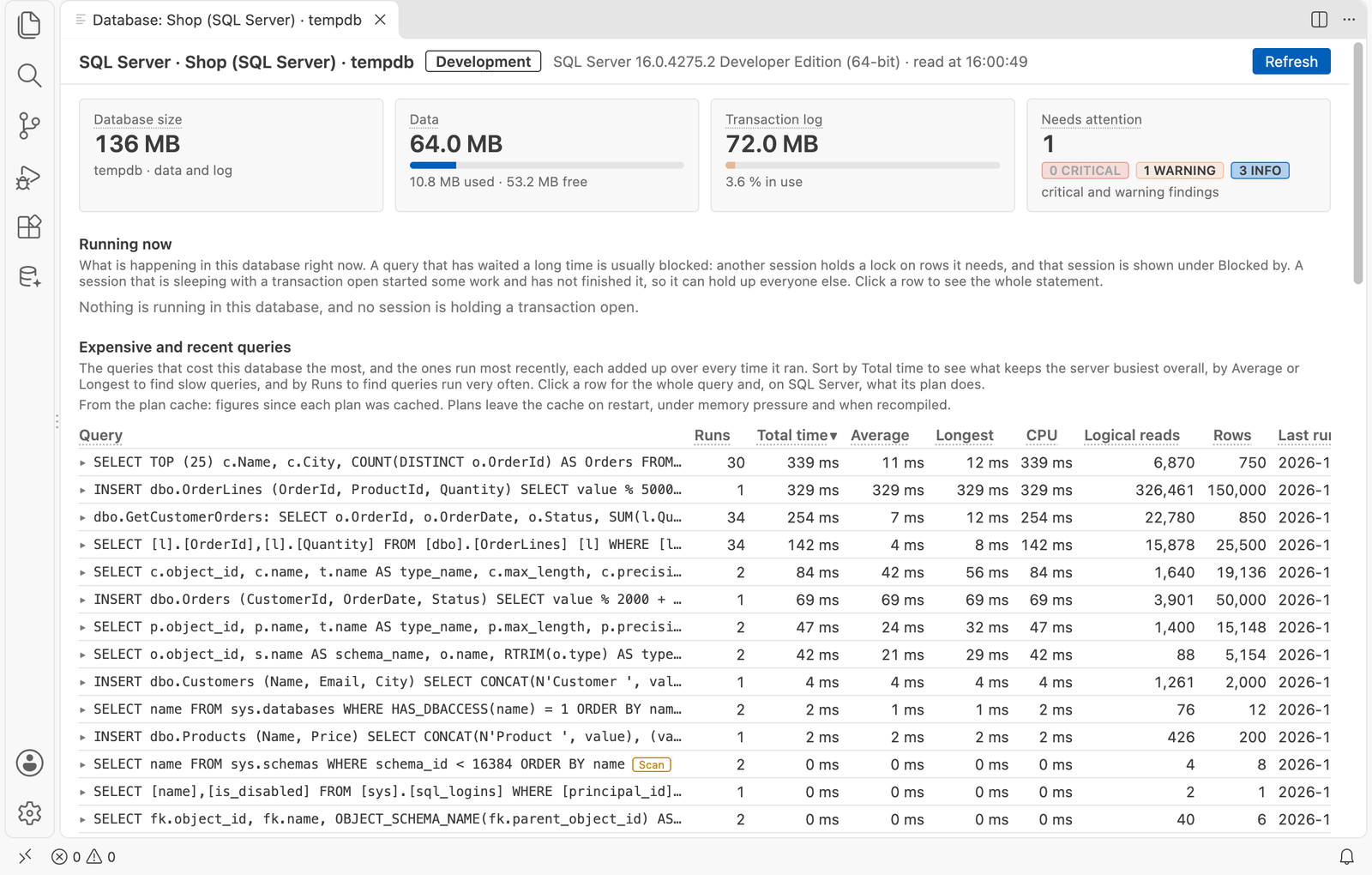
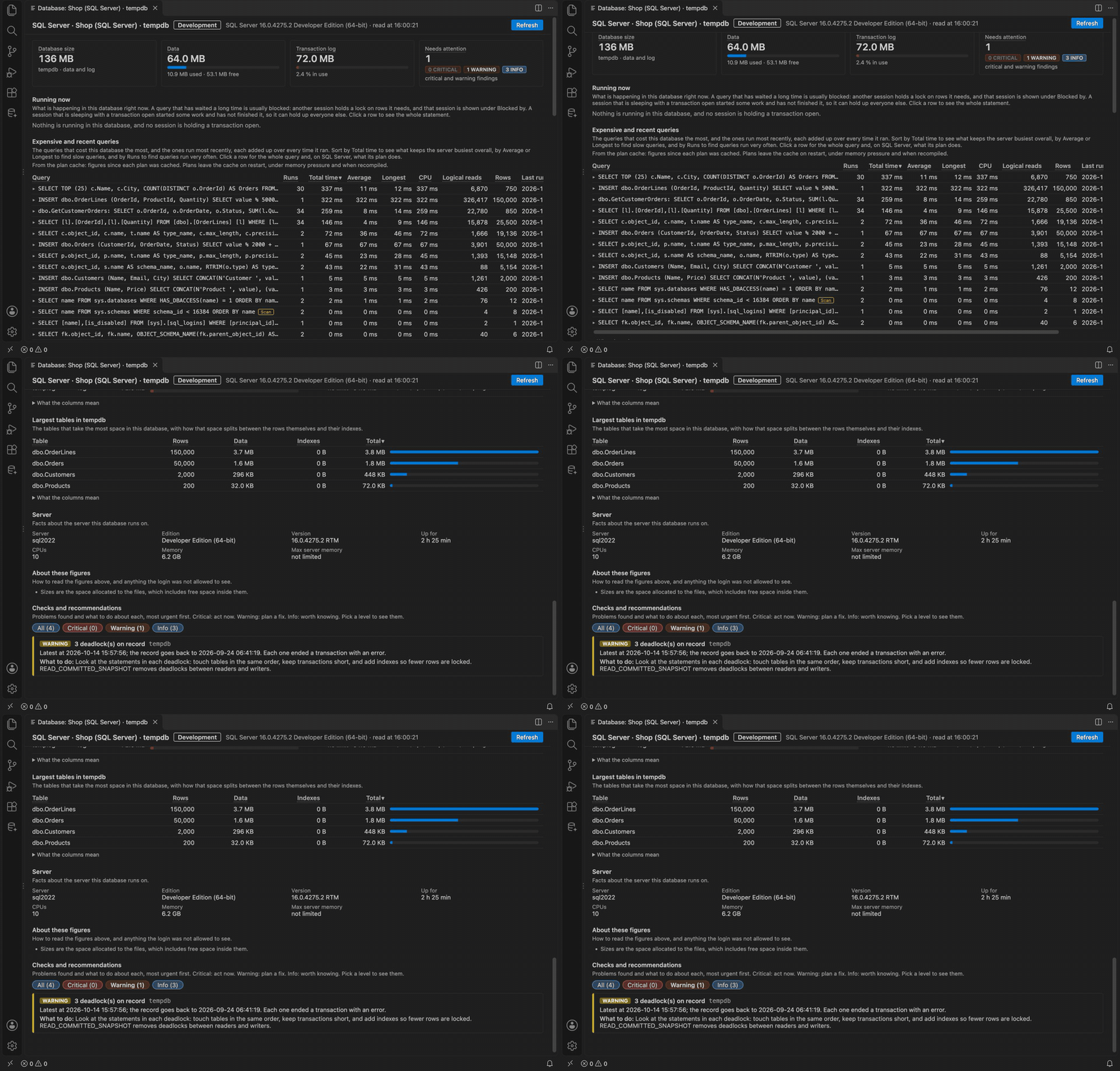
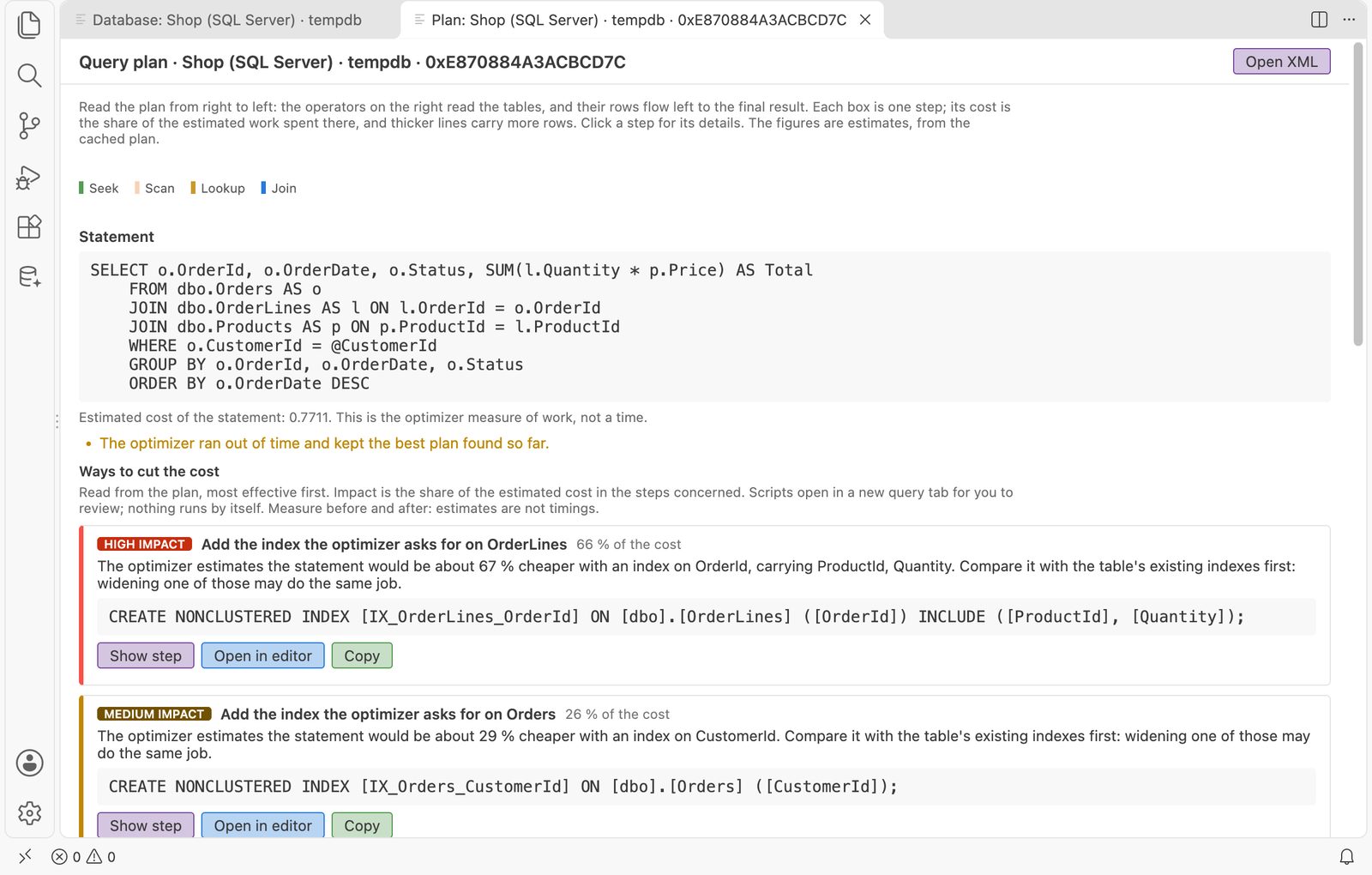
- Database dashboard. Right-click a connection or database and choose Show Dashboard (or run SQL Buddy: Show Database Dashboard) for the size of the database, its data and its log, every database on the server, files and largest tables, and checks with recommendations: backups, log growth, disk space, risky settings and accounts, and more. On a single database it goes deeper: running and expensive queries, query plans (SQL Server), deadlocks, index suggestions and indexes to drop, and stale statistics, each with a script to review. Works on SQL Server, MySQL and PostgreSQL.
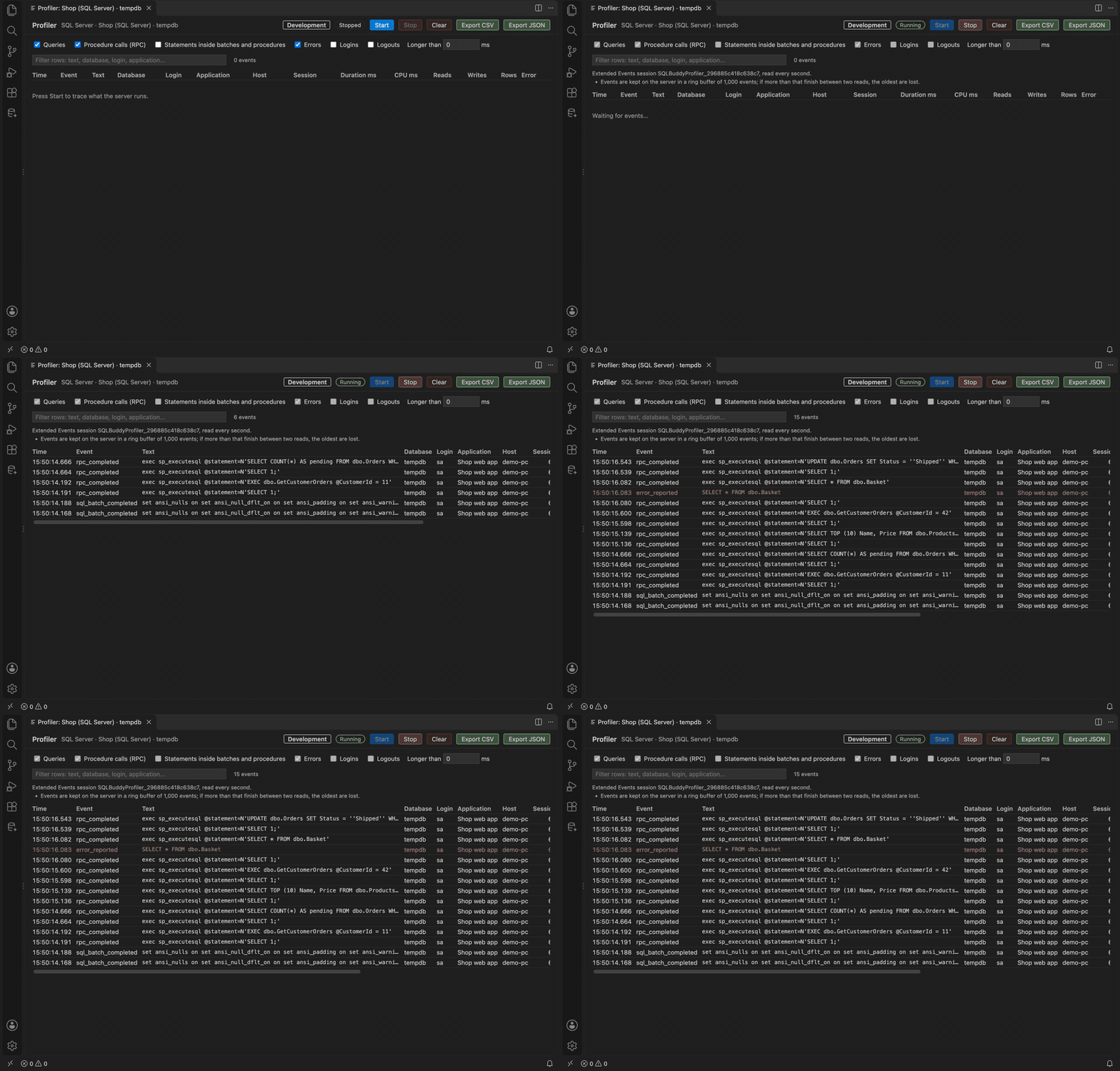
- Profiler. Right-click a connection (all databases) or a database and choose Show Profiler (or run SQL Buddy: Show Profiler), pick what to capture, and press Start to watch queries as the server finishes them: text, database, login, application, duration and, where the server records them, CPU, reads, writes, rows and errors. Filter, sort, open a query in an editor, or export the trace to CSV or JSON. On SQL Server it traces with Extended Events; on MySQL it reads performance_schema; on PostgreSQL it samples the server's activity twice a second.
- Manage Connections form to add, edit, test and delete connections, with environment labels (production shows red, test amber).
- Passwords are kept in the operating system's secret storage.
- MySQL. Choose MySQL as the database type to connect to a MySQL server: browse it in the Connections view, complete table and column names, and run scripts, including ones that use
DELIMITER. A run stops at the first statement that fails.
- PostgreSQL. Choose PostgreSQL as the database type: browse schemas, tables, views, procedures and functions in the Connections view, complete table and column names, and run scripts, including ones with dollar-quoted function bodies. A run stops at the first statement that fails.
- Tab colours. Each connected tab's title takes the colour of its connection, with a badge for the environment: red for production, yellow for test, or a colour you choose per connection.
- The database stays with you. A new query tab uses the connection and database you used last, so there is no reconnecting. The current database is shown above the first line of each file, in the status bar, and behind the database button in the editor title bar; click any of them to switch. Switching keeps your session's temp tables and transactions, and a
USE statement in a script is followed.
Completion and navigation
- Tables, views, columns, procedures, functions, schemas, databases, variables, CTEs and temp tables, with keywords limited to what fits at the cursor.
- A table picked after
FROM or JOIN arrives with an alias. After JOIN, whole joins built from foreign keys come first; after ON, the join conditions.
INSERT column lists with a matching VALUES skeleton, EXEC parameter lists, and SELECT * expansion.- Objects in other databases on the same server (
OtherDb.dbo.), loaded when first mentioned.
- Hover a table for its
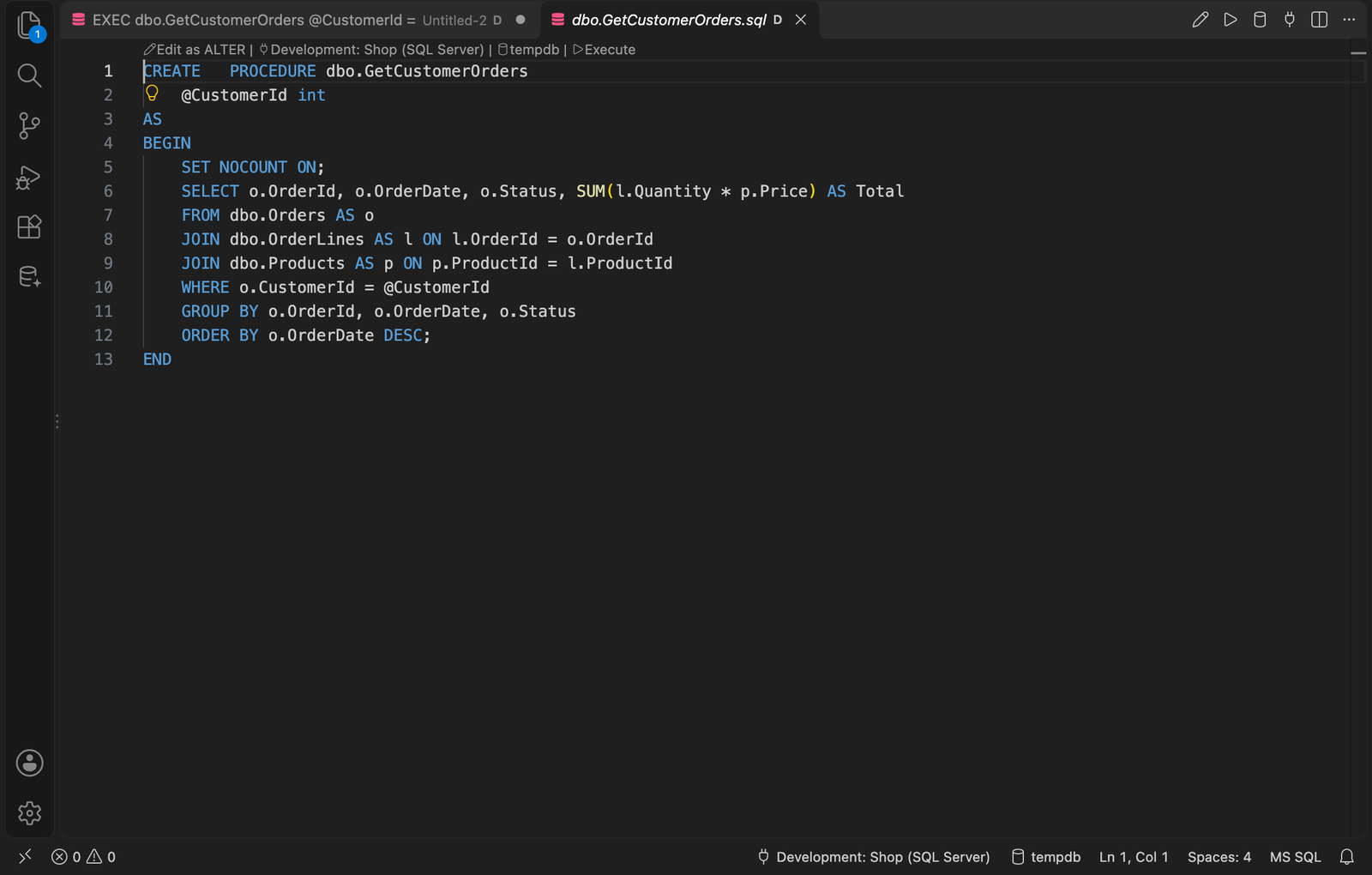
CREATE TABLE script, a view, procedure or function for its source, a column for its type. Signature help for functions. Go to Definition (F12) opens the definition, read-only, in a tab connected to the same database; Edit as ALTER above it opens an editable copy that changes the object when run (DROP and CREATE for a MySQL routine, CREATE OR REPLACE on PostgreSQL).
- Rename, Find References and highlighting for variables, table aliases and CTEs.
- Column picker:
Ctrl+Alt+K (Cmd+Alt+K).
Snippets
52 built in (ssf, st100, ij, cte, tc, ...). Type the shortcut and press Tab; they are also offered in the completion list. Manage Snippets edits them and adds your own, with placeholders such as $CURSOR$, $SELECTEDTEXT$, $DATE$ and $USER$. A shared folder (sqlBuddy.snippets.sharedFolder) lets a team use the same set.
Format Document and Format Selection, with four built-in styles and your own under sqlBuddy.format.styles. Separate commands apply casing, remove unnecessary brackets, insert semicolons and qualify object names without changing layout. Code between -- sqlbuddy:disable and -- sqlbuddy:enable is left as written.
Code analysis
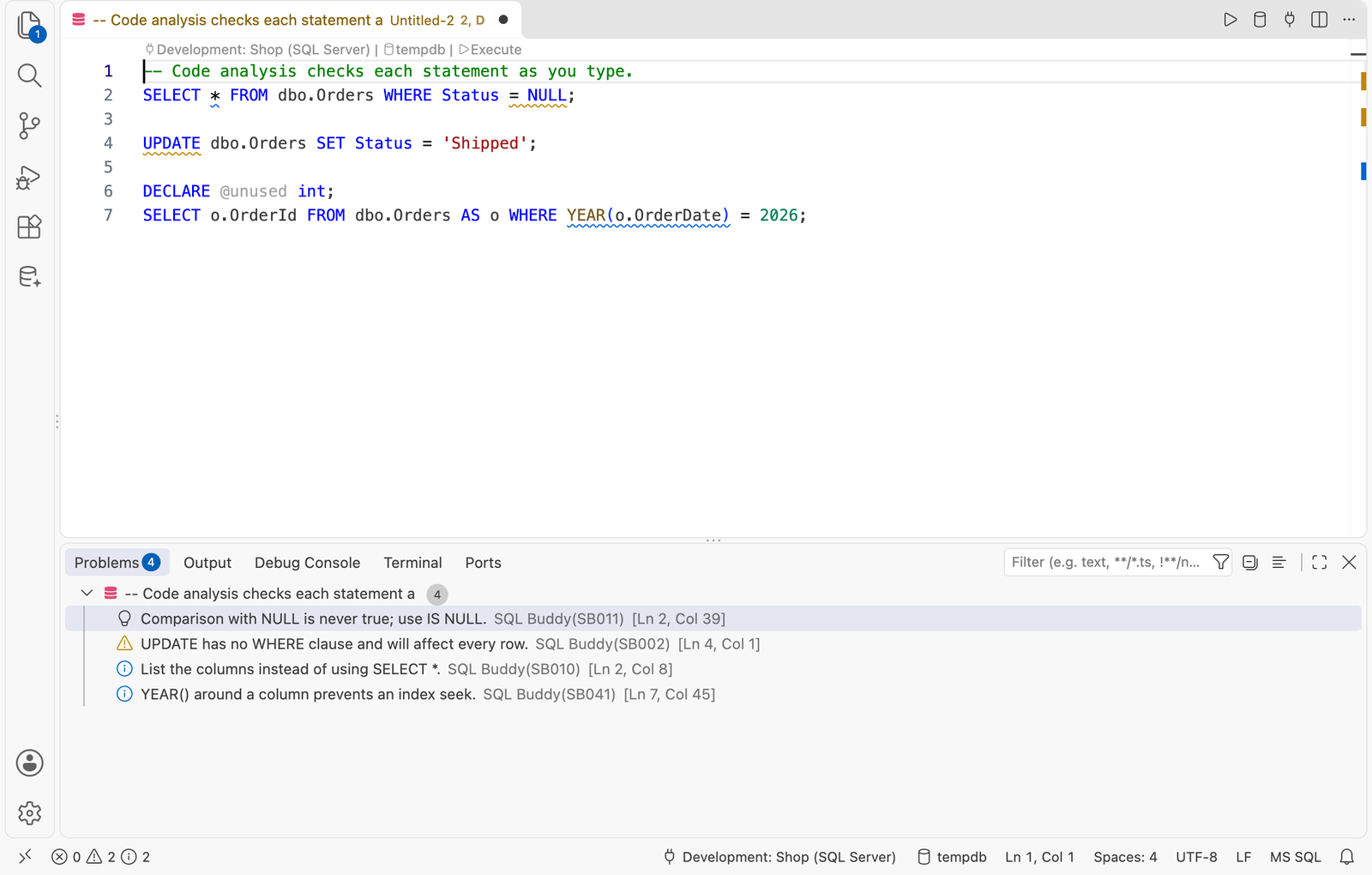
40 rules checked as you type: SELECT *, comparisons with NULL, UPDATE or DELETE without WHERE, deprecated syntax, non-sargable predicates, undeclared and unused variables, and, when connected, unknown tables and columns. Many have a quick fix. Set severities under sqlBuddy.analysis.rules; silence one place with -- sqlbuddy:ignore SB010. The full list is in docs/RULES.md inside the extension.
Refactoring
From the lightbulb: Encapsulate as stored procedure, Inline procedure, Script as ALTER / CREATE / CREATE OR ALTER, Expand wildcard. From the Command Palette: Summarize Script, Find Invalid Objects, Smart Rename, Split Table.
Query execution
- Run the file, the selection or the current statement; cancel a running query.
GO and GO n are understood, and errors link back to the line that caused them.- Confirmation before
UPDATE or DELETE without WHERE, DROP and TRUNCATE.
- Results for several result sets with a Messages tab. Copy cells, copy a column as an
IN (...) list, script rows as INSERT, export CSV or JSON.
- Results open to the side of the query, below it, or in a SQL Results view in the panel beside the terminal (
sqlBuddy.results.location). The view can be dragged to the bottom, either side bar or anywhere else, and VS Code remembers where; it shows the results of the query tab in use. A results tab dragged to another editor group is followed by the next results.
- Each file has its own session, so temp tables and transactions persist between runs. The status bar warns while a transaction is open.
- Query history, and reopening of closed unsaved queries.
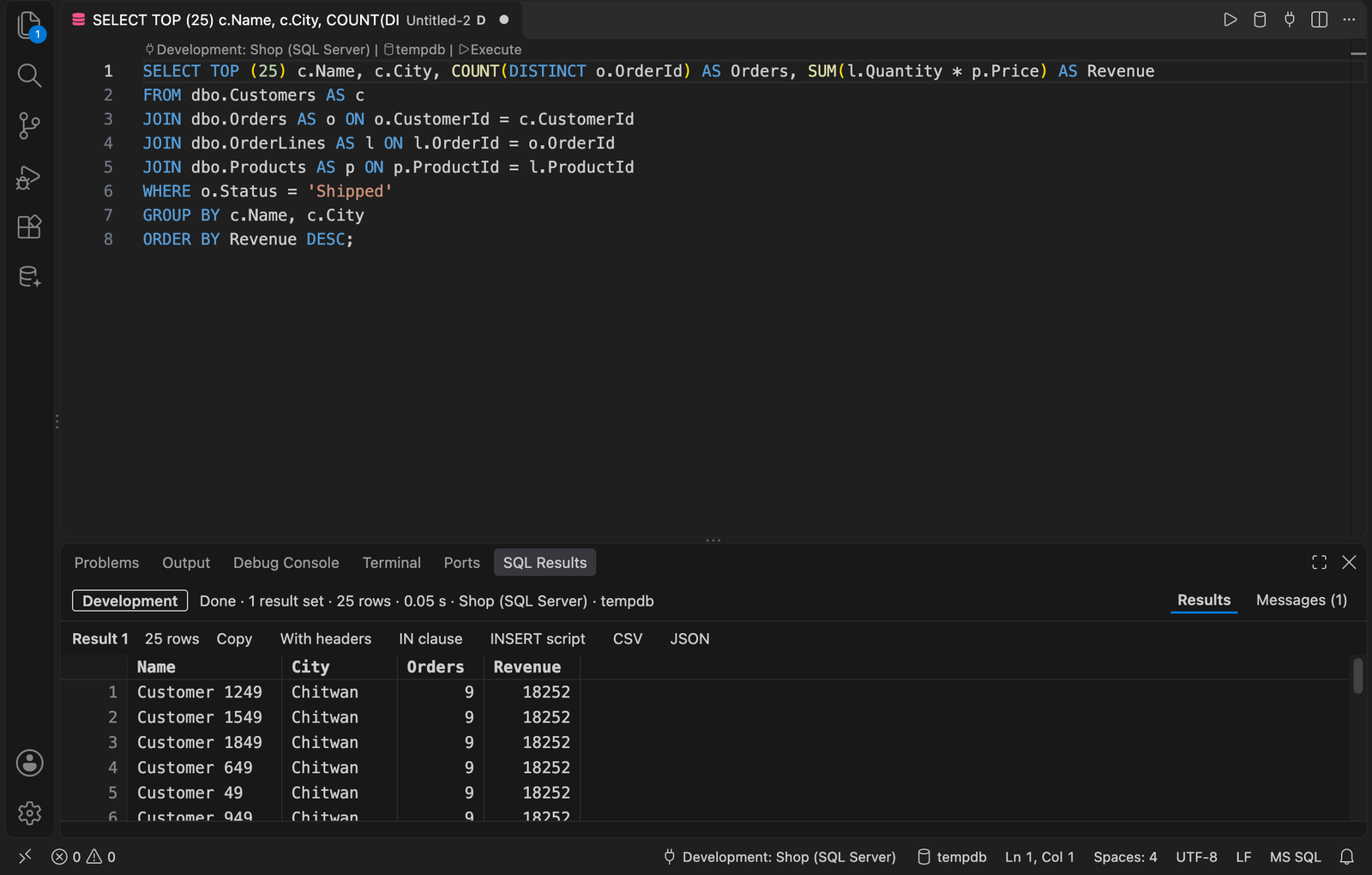 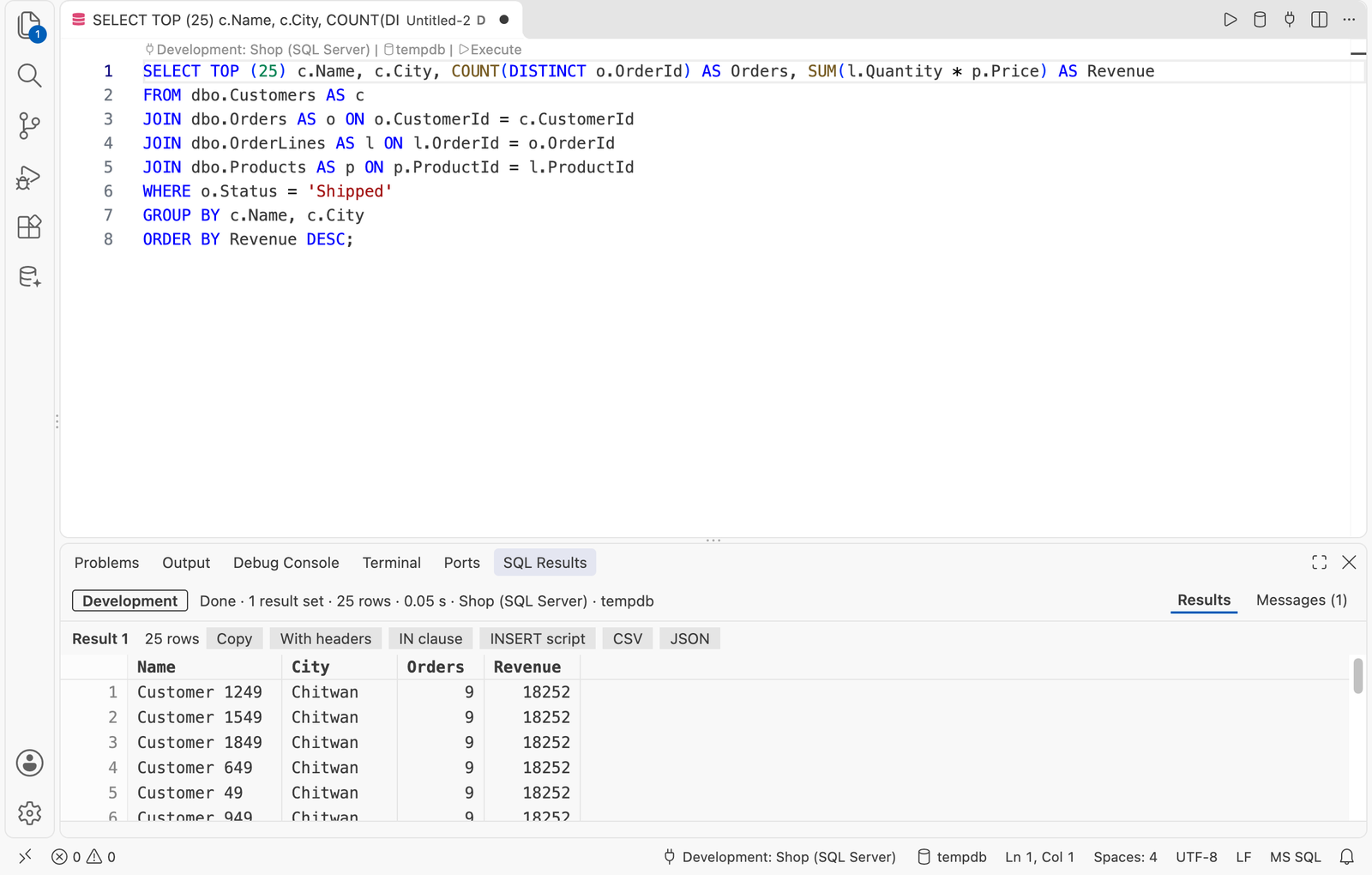
Works in light and dark themes: every page follows the colour theme you use.
Keyboard shortcuts
| Command |
Windows / Linux |
macOS |
| Execute Query |
F5 or Ctrl+Shift+E |
F5 or Cmd+Shift+E |
| Execute Current Statement |
Ctrl+Shift+Enter |
Cmd+Shift+Enter |
| Cancel Query |
Alt+Pause |
Cmd+Alt+. |
| Pick Columns |
Ctrl+Alt+K |
Cmd+Alt+K |
F5 runs the query only in a SQL editor, and not while a debug session is running, where it keeps meaning Continue. On a Mac keyboard where the top row controls brightness and sound, press Fn+F5.
Settings
| Setting |
Purpose |
sqlBuddy.connections |
Saved connections. Passwords are held in the operating system's secret storage, not here. |
sqlBuddy.connections.autoConnect |
Connect new SQL files to the connection and database used last. |
sqlBuddy.connections.showCodeLens |
Show the connection and database above the first line. |
sqlBuddy.completion.autoAlias |
Add an alias when a table is picked. |
sqlBuddy.completion.qualifyObjectNames |
Always insert schema.object. |
sqlBuddy.keywordCase |
Case of keywords inserted by completion. |
sqlBuddy.format.style, sqlBuddy.format.styles |
Active formatting style, and your own styles. |
sqlBuddy.analysis.enabled, sqlBuddy.analysis.rules |
Switch analysis on or off, and set severity per rule. |
sqlBuddy.execution.warnOnMissingWhere, sqlBuddy.execution.warnOnDestructive |
Confirmations before risky statements. |
sqlBuddy.results.location |
Where results open: beside the query, below it, or in the panel beside the terminal, from where the view can be dragged anywhere. |
sqlBuddy.execution.maxRows, sqlBuddy.execution.timeoutSeconds |
Row limit per result set, and query timeout. |
sqlBuddy.history.enabled, sqlBuddy.history.maxEntries |
Query history, kept on this machine only. |
sqlBuddy.snippets.sharedFolder |
Folder of snippet files shared with a team. |
sqlBuddy.snippets.expandOnTab |
Tab expands a snippet shortcut at once. |
sqlBuddy.tabColor.enabled, sqlBuddy.tabColor.activeTabBorder |
Colour tab titles by connection; optionally a coloured line on the active tab. |
sqlBuddy.dashboard.tooltips |
Tooltips on the dashboard's column headings and summary boxes, saying what each means. |
sqlBuddy.dashboard.explanations |
Plain-language explanations on the dashboard and query plan: under each section, the "What the columns mean" and "What the labels mean" fold-outs, and what each plan step does. |
The dashboard tooltips and explanations are off by default; switch them on in Settings.
Privacy
SQL Buddy talks only to the database servers you connect it to. It sends no telemetry. Query history and snippets are stored on your machine.
Known limitations
- Formatting, code analysis, snippets and refactoring are written for T-SQL. On a MySQL or PostgreSQL connection, code analysis is off, the database-wide refactorings are unavailable, and the formatter does not know syntax of their own such as backtick names or dollar-quoted strings.
- MySQL sign-in is by user name and password. Tested against MySQL 8.0; MariaDB and other versions are untested.
- PostgreSQL sign-in is by user name and password. Needs PostgreSQL 12 or later; tested against 18 without TLS. Changing database opens a new session, so temp tables and an open transaction do not carry over.
- The dashboard shows what the login may read. Server-wide figures need
VIEW SERVER STATE on SQL Server, REPLICATION CLIENT and read access to mysql.user on MySQL, and pg_monitor on PostgreSQL; backup history on SQL Server needs access to msdb. MySQL and PostgreSQL keep no backup history, so the dashboard cannot check backups there. Query figures need performance_schema on MySQL and the pg_stat_statements extension on PostgreSQL.
- The profiler on SQL Server needs
ALTER ANY EVENT SESSION. Its event session is removed when the trace stops, the tab closes or VS Code shuts down; if VS Code is closed abruptly, a session named SQLBuddyProfiler_... stays on the server until dropped with DROP EVENT SESSION. On MySQL it needs read access to performance_schema, and catches every statement only when the events_statements_history_long consumer is on. On PostgreSQL it samples, so a statement that starts and ends between two samples, other than a connection's last, is not seen.
- Other database servers are not supported.
- Sign-in with a SQL login is tested. Windows (NTLM) and Entra ID sign-in are implemented but have not been tested.
- The results grid has no sorting, filtering or column resizing. Fractional seconds beyond milliseconds and very large decimal values lose precision.
- Statements other than
SELECT, INSERT, UPDATE, DELETE and MERGE are formatted on one line.
- Smart Rename covers tables, views, procedures and functions, not columns, and cannot see references inside dynamic SQL.
- Inline suggestions (ghost text) are switched off in SQL files by default; set
"[sql]": { "editor.inlineSuggest.enabled": true } to have them back.
- If another SQL extension that offers completion is installed, both lists appear together. Switch completion off in one of them to avoid duplicates.
Disclaimer
SQL Buddy is provided "as is", without warranty of any kind, as set out in its MIT License.
SQL Buddy suggests and writes SQL: completions, snippets, quick fixes, formatting, refactorings, ALTER and DROP-and-CREATE scripts, and the scripts offered by the dashboard and the query plan view, such as CREATE INDEX, DROP INDEX and UPDATE STATISTICS. Its checks and recommendations are general guidance drawn from what the server reports, not a review of your system. Nothing it writes runs until you run it, and anything it suggests may be wrong for your data, your workload or your server.
- Read and understand every statement before you run it, above all on a production server.
- Try changes on a copy that is not in production first, and keep a backup you have tested restoring.
- Confirmations before risky statements are a safety net, not a guarantee.
You are solely responsible for the statements you run and for their results. The author and contributors of SQL Buddy accept no liability for loss of data, downtime, or any other damage arising from its use.
License
MIT
| |

