Muscat Plugin Kit for VS Code
Build Muscat plugins without leaving VS Code. This extension drives the muscat-pk CLI, gives you a form for manifest.json, and connects the Muscat MCP server to your AI coding tools.
한국어 안내는 아래에 있습니다.
Getting started
- Install the extension.
- Open an empty folder in VS Code.
- Open the Muscat Plugin Kit view in the activity bar. Fill in Set up project (plugin name, ID, backend language, author, email, description, package manager) and click Create project.
- The extension runs
muscat-pk new . in a terminal. If muscat-pk is not installed, it installs it first and tries again.
- When the project is created, the sidebar switches to Commands and Project.
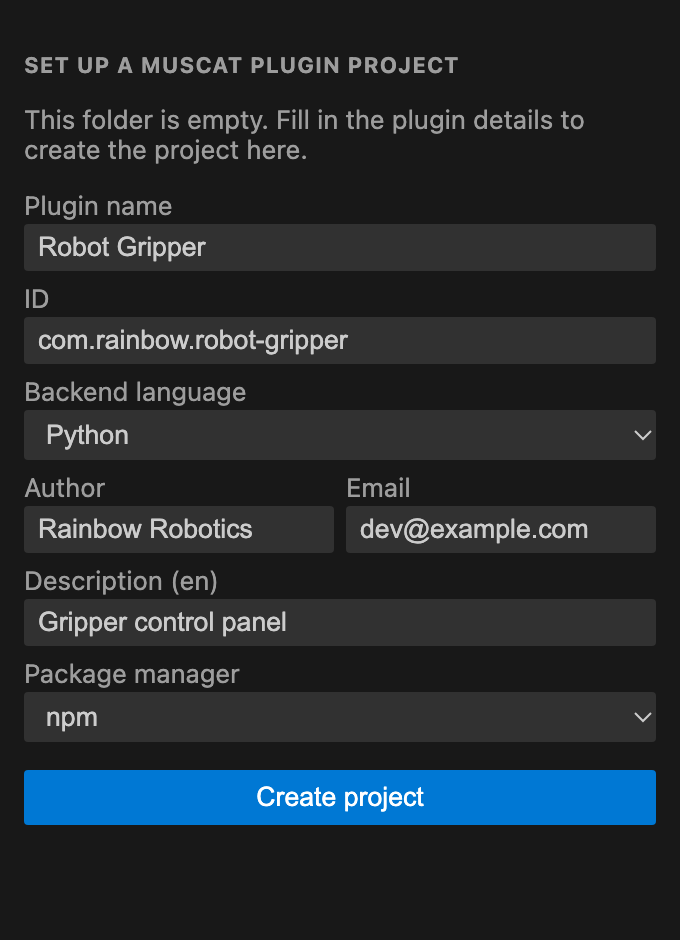
Commands and Project appear in a project created by muscat-pk new (a manifest.json next to a package.json that depends on @rainbow-robotics/muscat-plugin-kit). Any other folder shows a short note telling you to open an empty folder or such a project.
Commands
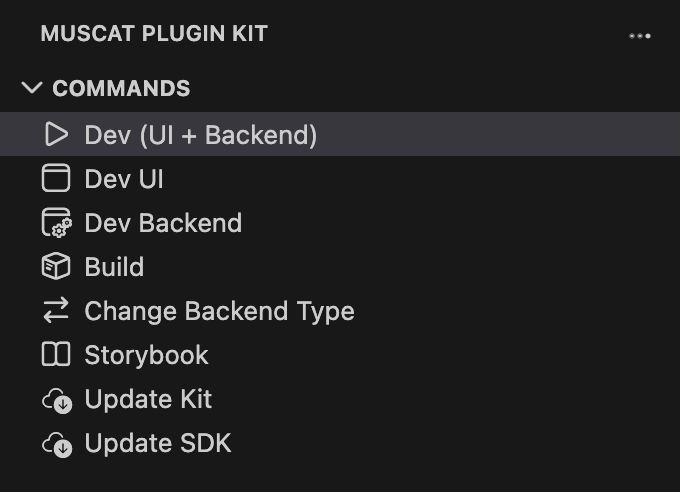
Hover a command in the Commands view to see what it does. Each runs in its own terminal named muscat-pk: <command>; running it again restarts it.
| Command |
Runs |
What it does |
| Dev (UI + Backend) |
muscat-pk dev |
UI preview and backend together, with hot reload |
| Dev UI |
muscat-pk dev:ui |
UI only, in the Mini-Muscat preview server |
| Dev Backend |
muscat-pk dev:back |
Backend only, in Docker |
| Build |
muscat-pk build |
Build ui/*.tsx into dist/ and create the distributable ZIP |
| Change Backend Type |
muscat-pk type change |
Switch python / cpp / ros2 / ros2-cpp |
| Storybook |
muscat-pk storybook |
Browse the bundled rb-components Storybook |
| Update Kit |
muscat-pk update <version> |
Pick a version, then update this project's muscat-pk / plugin-ui (the global CLI is not touched) |
| Update SDK |
muscat-pk sdk update <version> |
Pick a rainbow-rb-sdk version. Python backends pin it in requirements.txt (PyPI versions), C++ backends in CMakeLists.txt as find_package(rb_sdk <version> EXACT REQUIRED) (rb-sdk apt versions) |
While a dev server runs, muscat-pk dev shows in the status bar. Click it to jump to the terminal.
Project view
- Versions: the muscat-pk version that runs in the project (
muscat-pk version: the project's kit, else the global CLI) and the installed plugin-ui.
- Validation: the same
manifest.json checks muscat-pk build runs, using the project's own kit.
- Edit
manifest.json with a form: info, description (en/ko), target categories and models, runtime entry, screen areas (contributes) and variables. Add or remove screen areas and variables with the buttons. For variables you enter the information Muscat users see; declaring one does not create it.
- Save writes
manifest.json (undo works in the editor) and creates any missing ui/<name>.tsx for new screen areas. Revert drops unsaved edits.
- The runtime type is changed with Change…, which runs
muscat-pk type change so the project files follow.
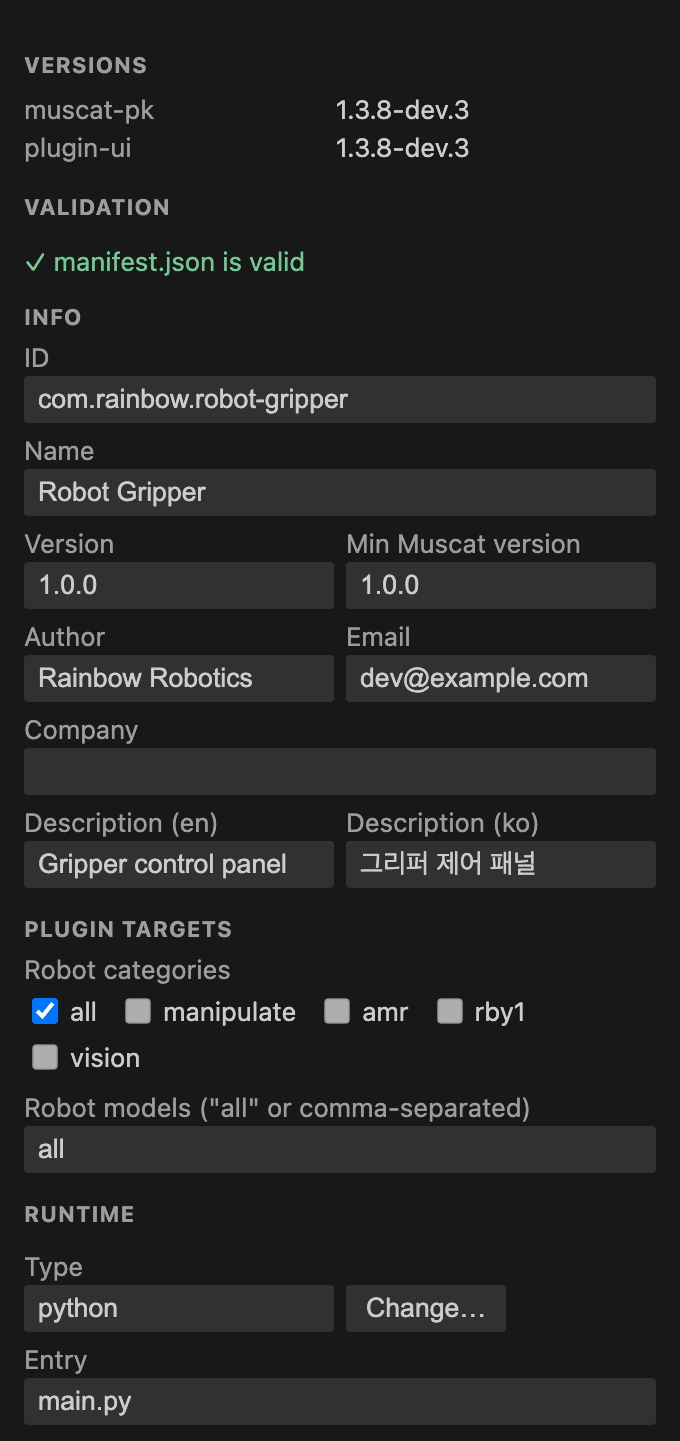 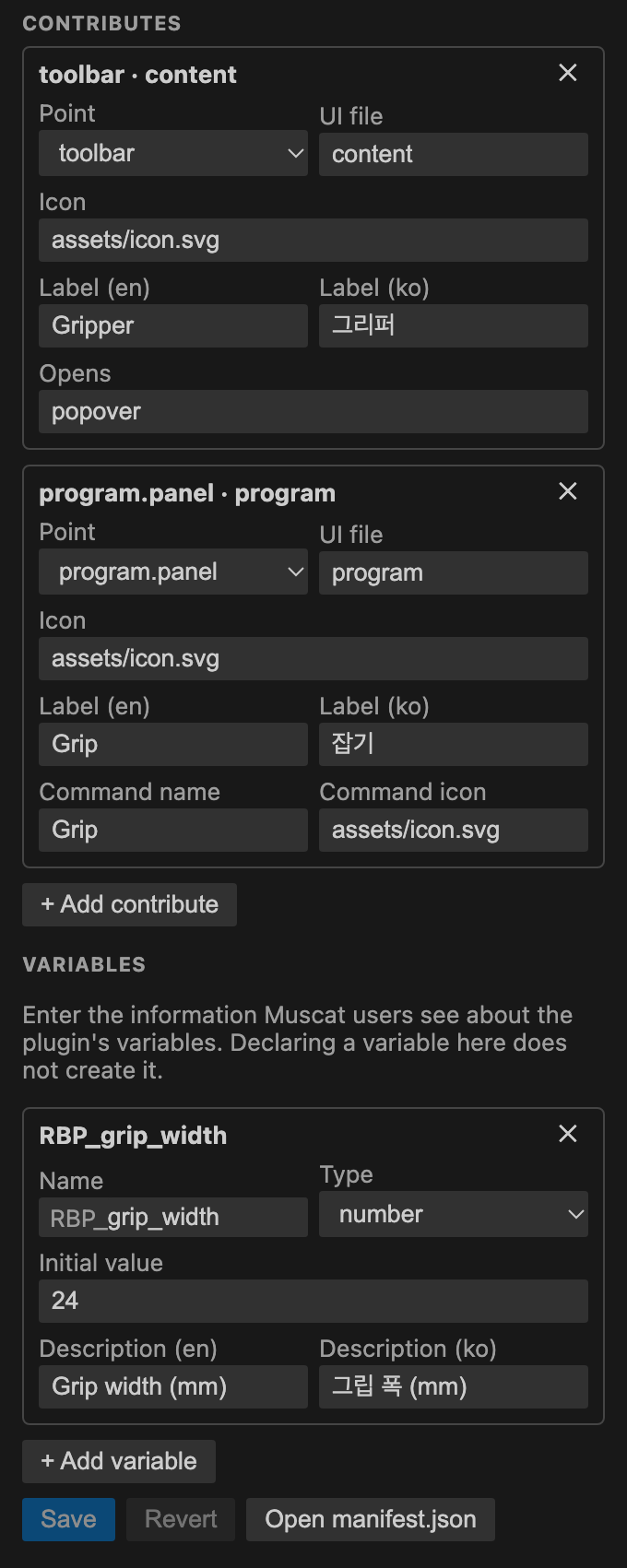
manifest.json also gets completion and hover hints in the JSON editor.
muscat-pk mcp gives AI coding agents the plugin-ui components, design tokens and SDK docs.
- VS Code chat (GitHub Copilot): registered automatically as the Muscat Plugin Kit MCP server.
- Claude Code, Codex / ChatGPT, Cursor, Gemini CLI: when you open a plugin project, the server is added to each installed tool's user config (
~/.claude.json, ~/.codex/config.toml, ~/.cursor/mcp.json, ~/.gemini/settings.json). An existing muscat entry is left untouched.
- If Claude Code for VS Code is not installed, the extension suggests installing it.
Node.js
Dev, Dev UI, Build and installing the project's dependencies need Node.js 20+ (the UI side runs on vite). Dev Backend runs in Docker and works without it. When Node.js is missing, Dev and Dev UI are disabled and the extension offers Install Node.js (Homebrew on macOS, winget on Windows, otherwise nvm — no sudo needed). VS Code extensions named "Node.js" only add editor features; they do not install Node.js.
Settings
| Setting |
Default |
Description |
muscat.cliPath |
muscat-pk |
Path or command name of the CLI |
muscat.autoRegisterMcp |
true |
Add the MCP server to installed AI tools on startup |
Troubleshooting
- "muscat-pk CLI not found": install it with the Install button, or set
muscat.cliPath to the full path (which muscat-pk). VS Code started from the Dock may not see paths that only your shell adds (fnm, nvm).
- "Not a Muscat plugin project": open the folder that contains
manifest.json and package.json, or an empty folder.
- Python virtual environments: the backend runs in Docker, so the local
.venv is only for your editor. The extension waits for the Python extension's terminal activation to finish before it runs a command.
Requirements
- VS Code 1.101 or later
- Docker, for the backend (
dev, dev:back, and build of python / cpp / ros2 plugins)
한국어
VS Code 안에서 Muscat 플러그인을 개발하는 확장입니다. muscat-pk CLI 실행, manifest.json 편집 화면, AI 도구 MCP 연결을 제공합니다.
시작하기
- 확장을 설치합니다.
- VS Code에서 빈 폴더를 엽니다.
- 액티비티바의 Muscat Plugin Kit을 열고 프로젝트 세팅에서 플러그인 이름, ID, 백엔드 언어, 작성자, 이메일, 설명, 패키지 매니저를 입력한 뒤 프로젝트 만들기를 누릅니다.
- 터미널에서
muscat-pk new .가 실행됩니다. muscat-pk가 없으면 먼저 설치하고 다시 실행합니다.
- 프로젝트가 만들어지면 사이드바가 명령과 프로젝트 화면으로 바뀝니다.
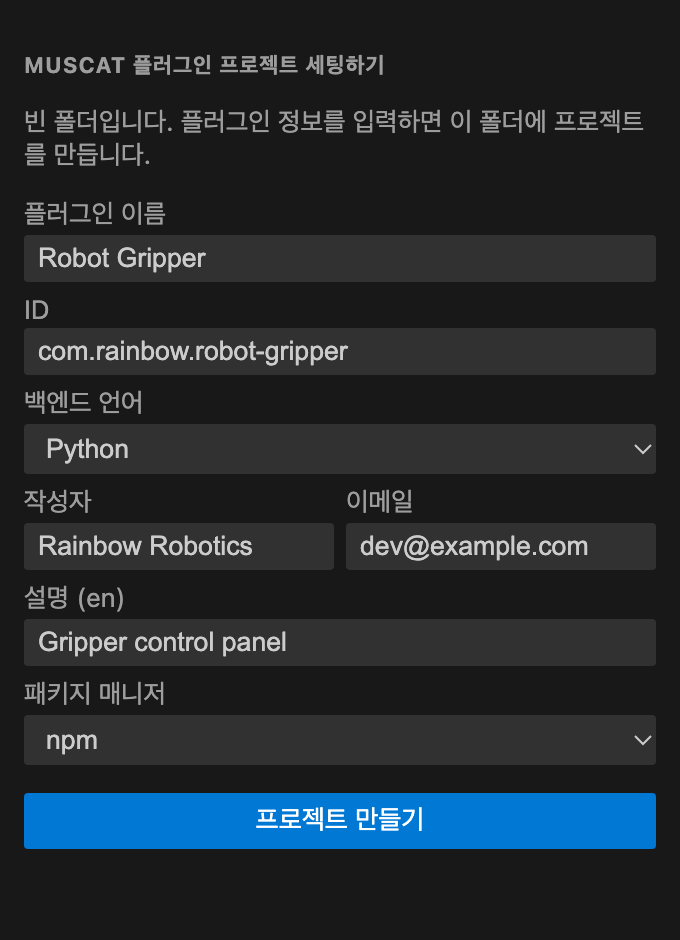
명령과 프로젝트 화면은 muscat-pk new로 만든 프로젝트(@rainbow-robotics/muscat-plugin-kit에 의존하는 package.json 옆에 manifest.json이 있는 폴더)에서 나타납니다. 그 밖의 폴더에서는 빈 폴더나 그런 프로젝트를 열라는 안내만 보입니다.
명령
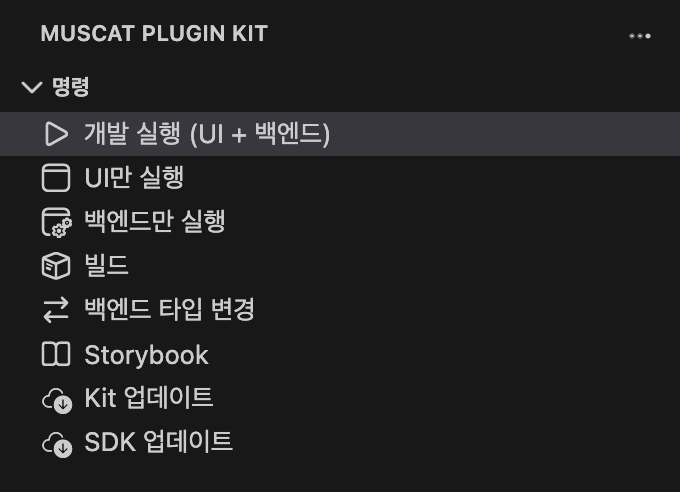
명령에 마우스를 올리면 설명이 나옵니다. 각 명령은 muscat-pk: <명령> 터미널에서 실행되고, 다시 누르면 재시작합니다. 개발 서버가 도는 동안 상태바에 muscat-pk dev가 보이고, 누르면 해당 터미널로 이동합니다.
| 명령 |
실행 |
설명 |
| 개발 실행 (UI + 백엔드) |
muscat-pk dev |
UI 미리보기와 백엔드를 함께 실행 |
| UI만 실행 |
muscat-pk dev:ui |
Mini-Muscat 미리보기 서버에서 UI만 실행 |
| 백엔드만 실행 |
muscat-pk dev:back |
Docker에서 백엔드만 실행 |
| 빌드 |
muscat-pk build |
ui/*.tsx를 dist/로 빌드하고 배포용 ZIP 생성 |
| 백엔드 타입 변경 |
muscat-pk type change |
python / cpp / ros2 / ros2-cpp 전환 |
| Storybook |
muscat-pk storybook |
rb-components Storybook 열기 |
| Kit 업데이트 |
muscat-pk update <버전> |
버전을 고른 뒤 이 프로젝트의 muscat-pk·plugin-ui만 업데이트 (글로벌 CLI는 그대로) |
| SDK 업데이트 |
muscat-pk sdk update <버전> |
rainbow-rb-sdk 버전 선택. Python 백엔드는 requirements.txt(PyPI 버전), C++ 백엔드는 CMakeLists.txt의 find_package(rb_sdk <버전> EXACT REQUIRED)(rb-sdk apt 버전)에 고정 |
프로젝트 화면
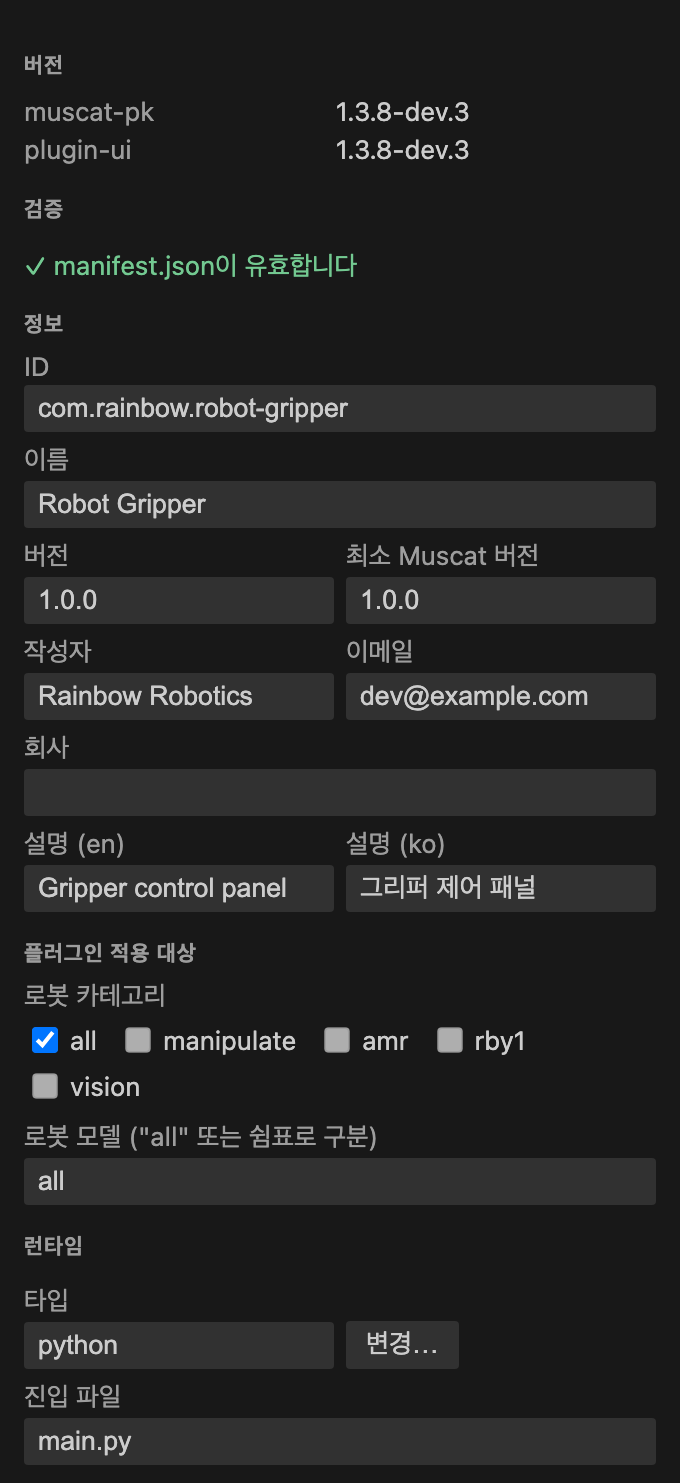
- 버전: 프로젝트에서 실제로 실행되는 muscat-pk 버전(
muscat-pk version 결과: 프로젝트 kit, 없으면 전역 CLI)과 설치된 plugin-ui 버전
- 검증:
muscat-pk build와 같은 기준으로 manifest.json 검사
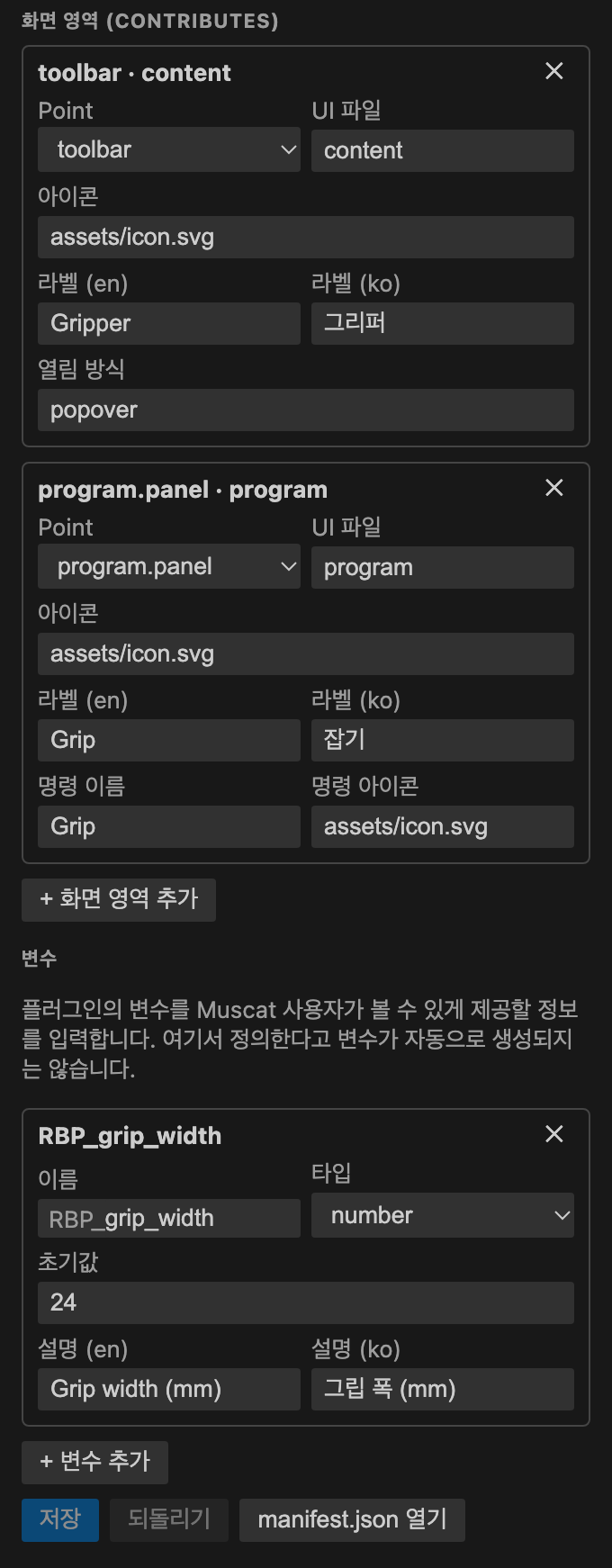
- 편집: 정보, 설명(en/ko), 대상 카테고리·모델, 런타임, 화면 영역(
contributes), 변수를 폼으로 수정하고 추가·삭제. 변수는 Muscat 사용자가 볼 수 있게 제공할 정보를 입력하는 것이라, 정의한다고 변수가 자동으로 생성되지는 않습니다
- 저장:
manifest.json을 저장하고, 새 화면 영역에 필요한 ui/<이름>.tsx가 없으면 만들어 줍니다. 되돌리기는 저장하지 않은 수정을 버리고 원래대로 돌립니다.
- 런타임 타입은 변경… 버튼으로
muscat-pk type change를 실행해서 바꿉니다.
Node.js
개발 실행, UI만 실행, 빌드, 프로젝트 의존성 설치에는 Node.js 20 이상이 필요합니다(UI 쪽이 vite로 돌아갑니다). 백엔드만 실행은 Docker에서 돌아가서 Node.js 없이도 됩니다. Node.js가 없으면 개발 실행·UI만 실행이 비활성화되고 Node.js 설치를 안내합니다(macOS는 Homebrew, Windows는 winget, 그 밖에는 nvm — sudo 불필요). VS Code 확장 중 "Node.js" 이름이 붙은 것은 편집 기능만 주고 Node.js를 설치하지 않습니다.
AI 도구 연결 (MCP)
- VS Code 채팅(Copilot): 자동 연결됩니다.
- Claude Code, Codex/ChatGPT, Cursor, Gemini CLI: 플러그인 프로젝트를 열면 설치된 도구의 사용자 설정에 MCP 서버를 추가합니다. 이미
muscat 항목이 있으면 건드리지 않습니다. 끄려면 muscat.autoRegisterMcp를 false로 설정합니다.
- Claude Code 확장이 없으면 설치를 추천합니다.
문제 해결
- "muscat-pk CLI를 찾을 수 없습니다": 설치 버튼을 누르거나
muscat.cliPath에 전체 경로(which muscat-pk 결과)를 넣으세요.
- "Muscat 플러그인 프로젝트가 아닙니다" 안내가 뜸:
manifest.json과 package.json이 있는 폴더 또는 빈 폴더를 여세요.
- Python venv: 백엔드는 Docker에서 실행되므로 로컬
.venv는 에디터용입니다. Python 확장이 터미널에서 venv를 활성화하는 동안에는 명령 실행을 기다립니다.
| |

