React Component Tree Cleaner
Explore the component tree of any React file, see where every component is used, and safely remove a component or unlink a child from its parent. Every change is previewed as a diff before anything is written.
Works with .tsx and .jsx files (React, Next.js, Vite, and similar projects).
Why use it
Deleting a React component by hand means finding every import, every JSX usage and every re-export, then cleaning up what is left. This extension does that for you with real code parsing (Babel AST), not text search, and shows you exactly what will change first.
- See the tree. Open any component and view the components it renders, how many times each is used (
×3), and which file each one lives in.
- Remove a component everywhere. Delete the file and strip its imports, JSX usages and re-exports across the workspace, or keep the file and remove only its usages.
- Unlink a child. Remove a child component from one parent only. The child's file stays.
- Review before you apply. Open a side-by-side diff for every file that will change.
- Stay in control. One undo step, files go to the Trash, and nothing is written if a file changed after the preview.
How to use
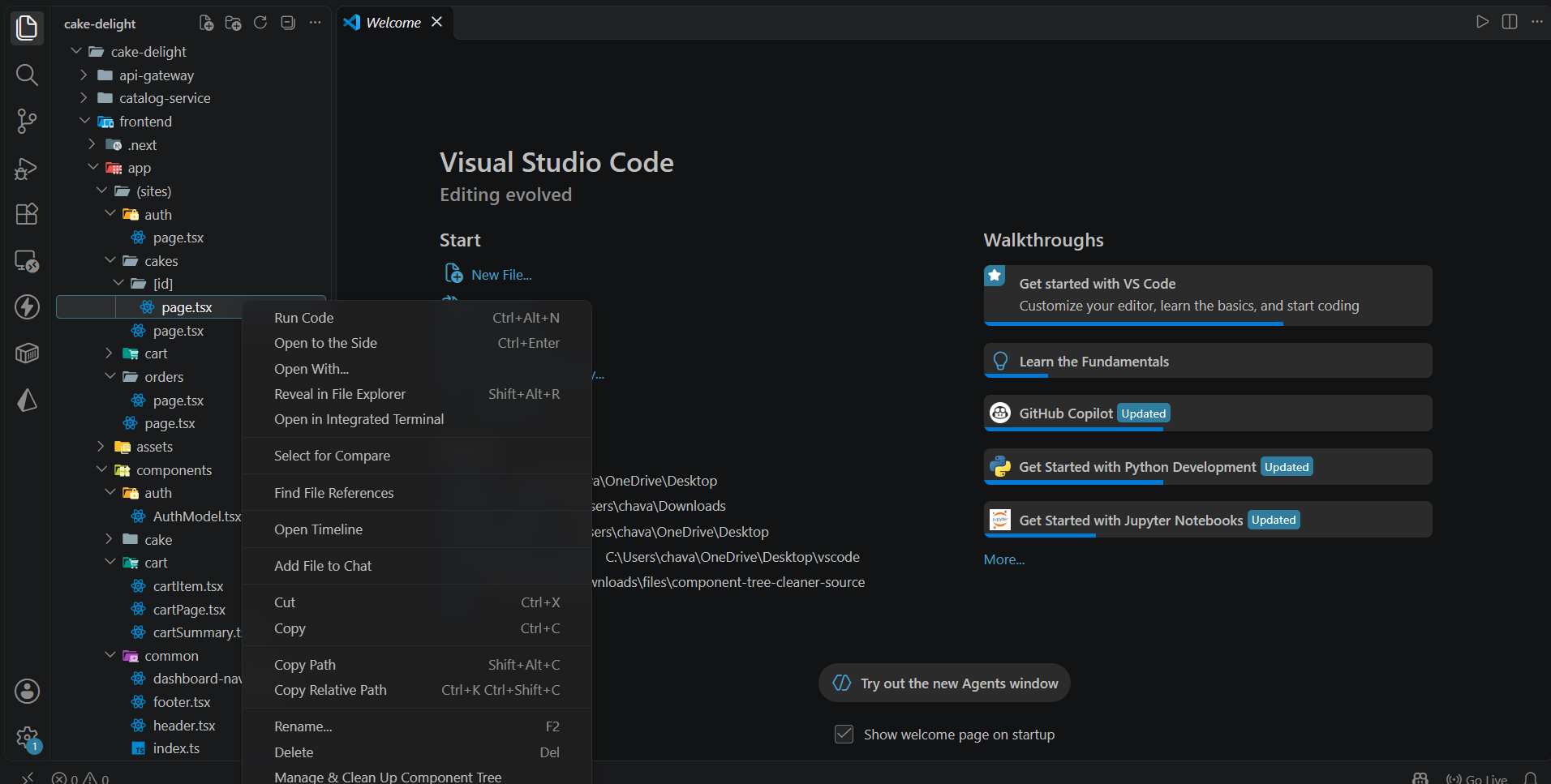
1. Open the tree
Right-click a .tsx or .jsx file in the Explorer (or in the editor, or on its tab) and choose Manage & Clean Up Component Tree. You can also run React: Manage & Clean Up Component Tree from the Command Palette.
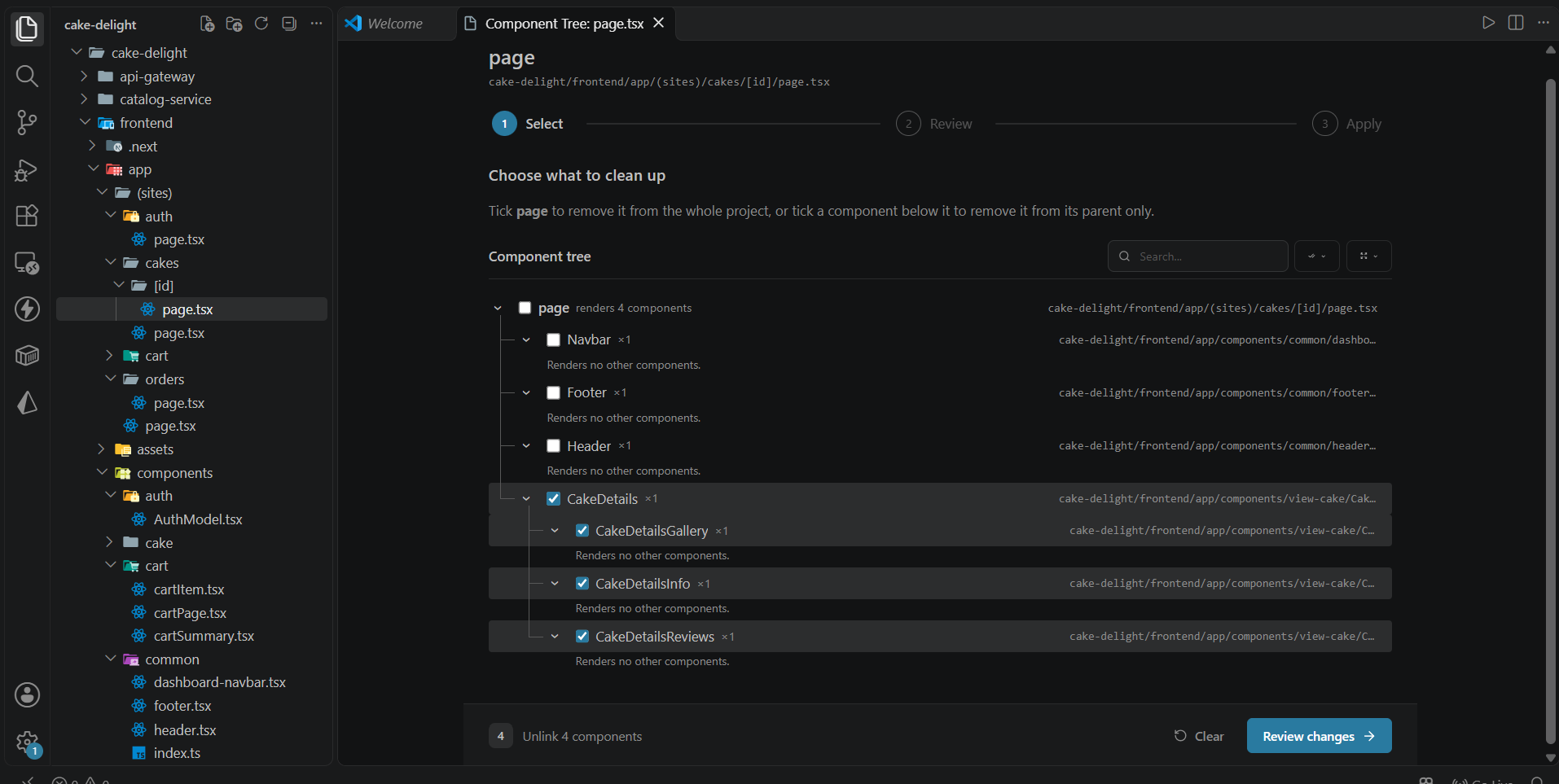
2. Select
Tick the components you want to clean up. Use the search box to find a component or file, Expand all to open every level, and Collapse all to fold the tree back up.
- Tick the root component to delete it (or keep the file and remove its usages) across the workspace.
- Tick a child to remove it from the component above it only. Its file stays.
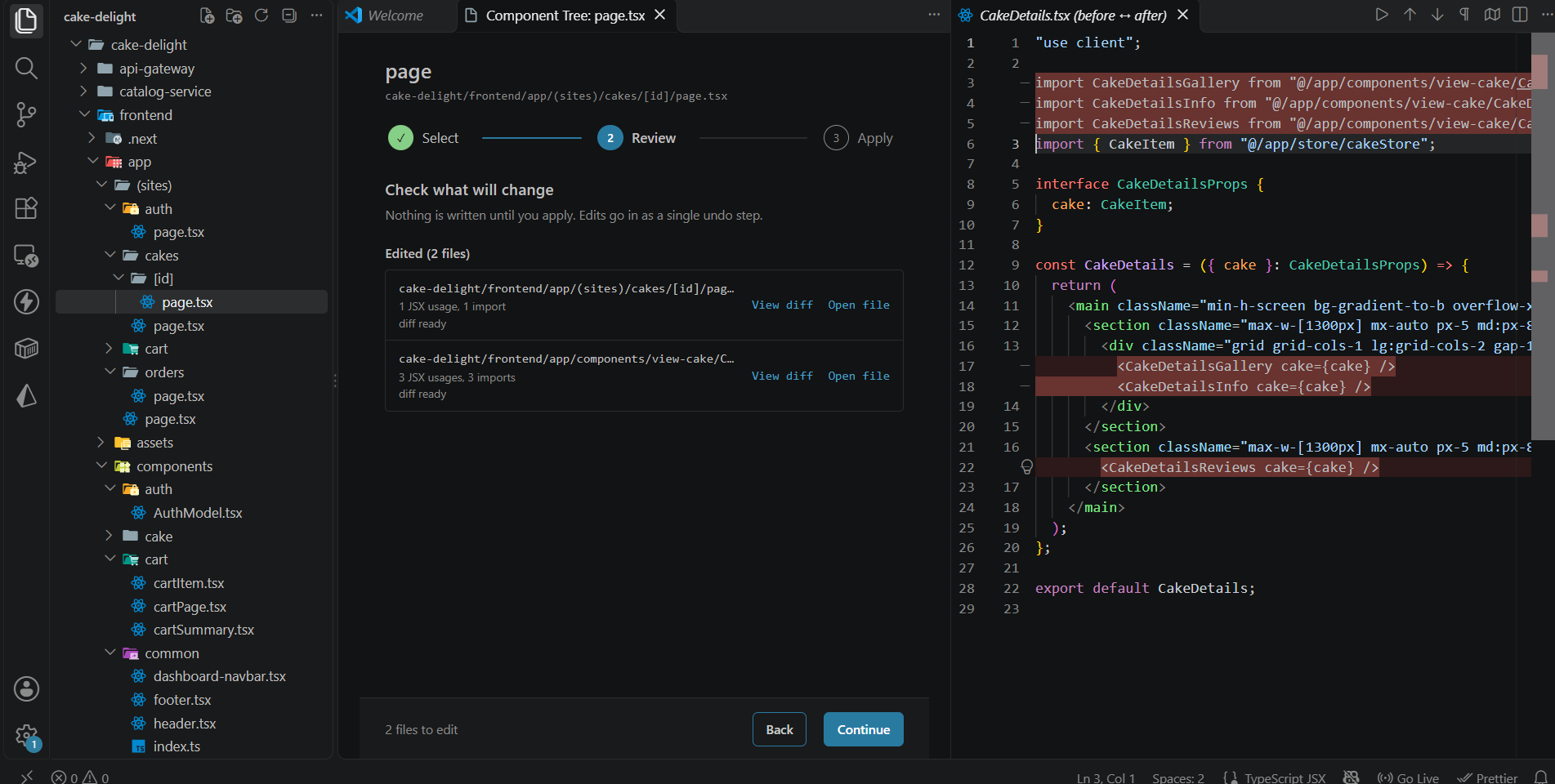
3. Review
See every file that will change and what will be removed (JSX usages, imports, re-exports). Click View diff to open the change side by side. Nothing is written yet.
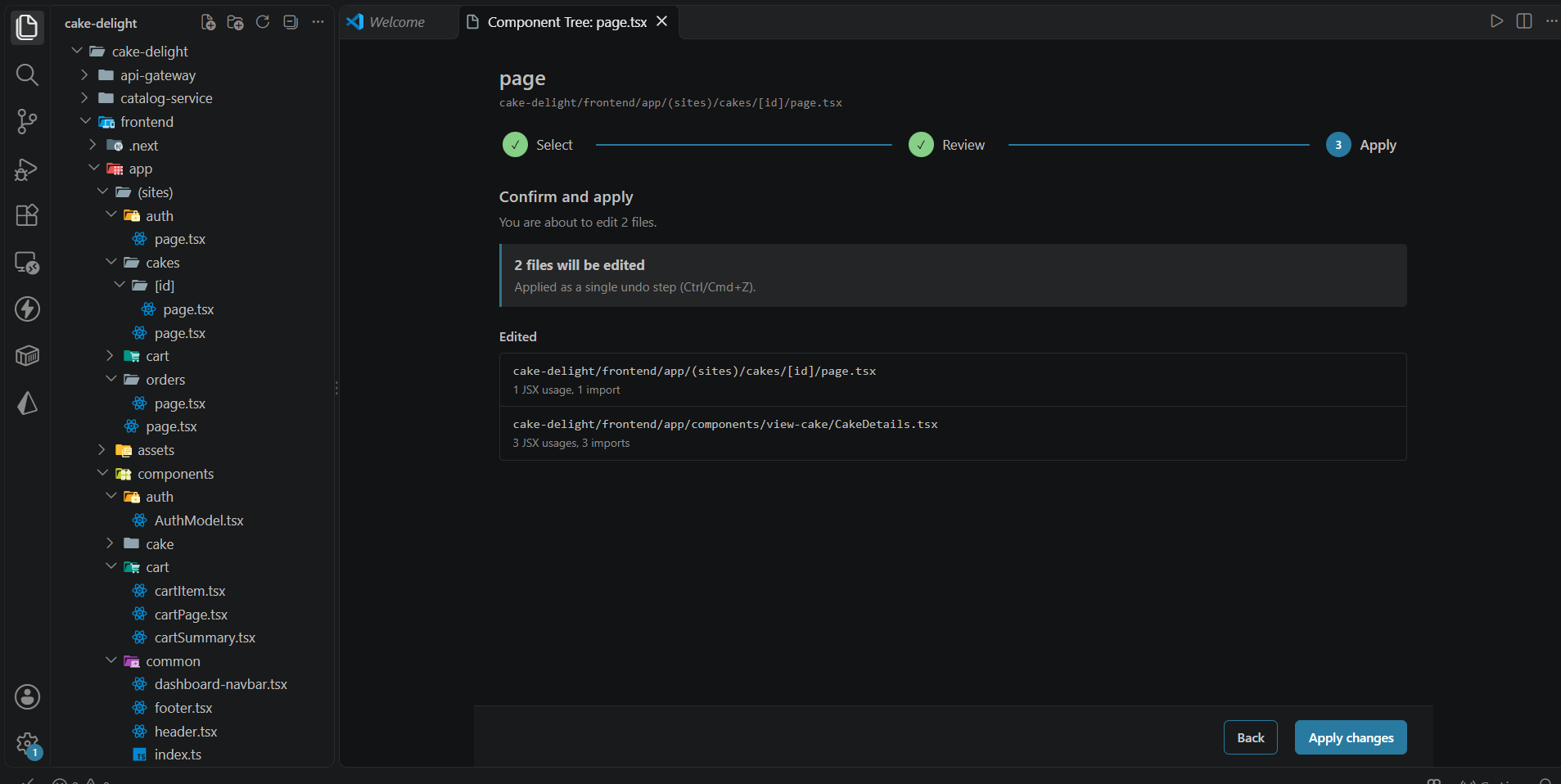
4. Apply
Confirm and apply. After applying, the last step lists every file that changed with a Show diff button, and earlier cleanups from the same session stay listed so you can look back at them.
Safety
- Nothing is written until you press Apply.
- All edits go in as a single undo step (Ctrl/Cmd+Z).
- Deleted files are moved to the Trash, not removed permanently.
- If a file changes after the preview was built, the extension stops and changes nothing. Run the cleanup again.
- Only the lines that are removed change. Quotes, spacing, comments and line endings elsewhere in the file stay as they were.
- Anything the extension cannot remove safely (for example a component still referenced outside JSX) is listed under Check these by hand, and its import is kept.
Settings
| Setting |
Default |
What it does |
componentTreeCleaner.saveAfterCleanup |
withoutFormatting |
How edited files are saved. withoutFormatting skips format-on-save so only removed lines change. normal saves normally and your formatter runs. never leaves files unsaved for you to review. |
componentTreeCleaner.excludeGlob |
**/{node_modules,dist,build,out,.next,.turbo,coverage}/** |
Folders skipped when scanning the workspace for references to a deleted component. |
Good to know
- Removing a JSX element also removes everything nested inside it. For example, removing a
<Dialog> also removes a <Button> placed inside it. Check the diff in the Review step.
- Usages that are not JSX (for example
React.createElement, or a component passed around as a value) are not removed. The import is kept and flagged for you.
- A component that shares a file with others (for example a
dialog.tsx that exports several components) is shown as one row, and ticking it unlinks everything used from that file.
- The extension needs a trusted workspace and real files on disk. It does not run in virtual workspaces.
Feedback
Found a bug or have an idea? Please open an issue on GitHub.
License
MIT

