
Dev ShortcutsUser-owned snippet shortcuts triggered by the "!" prefix in any language. Installation Launch VS Code Quick Open ( Ctrl+P), paste the following command, and press enter.Copied to clipboard |

Dev ShortcutsUser-owned snippet shortcuts for VS Code and Cursor, triggered by the Instead of memorizing fixed snippet packs, you build your own library: every snippet is created, edited, and stored by you, and shows up whenever you type
Features
Quick start
Nothing is pre-installed. Use the Suggestions tab for opt-in templates or create snippets from scratch in Library. ReferenceTrigger (
|
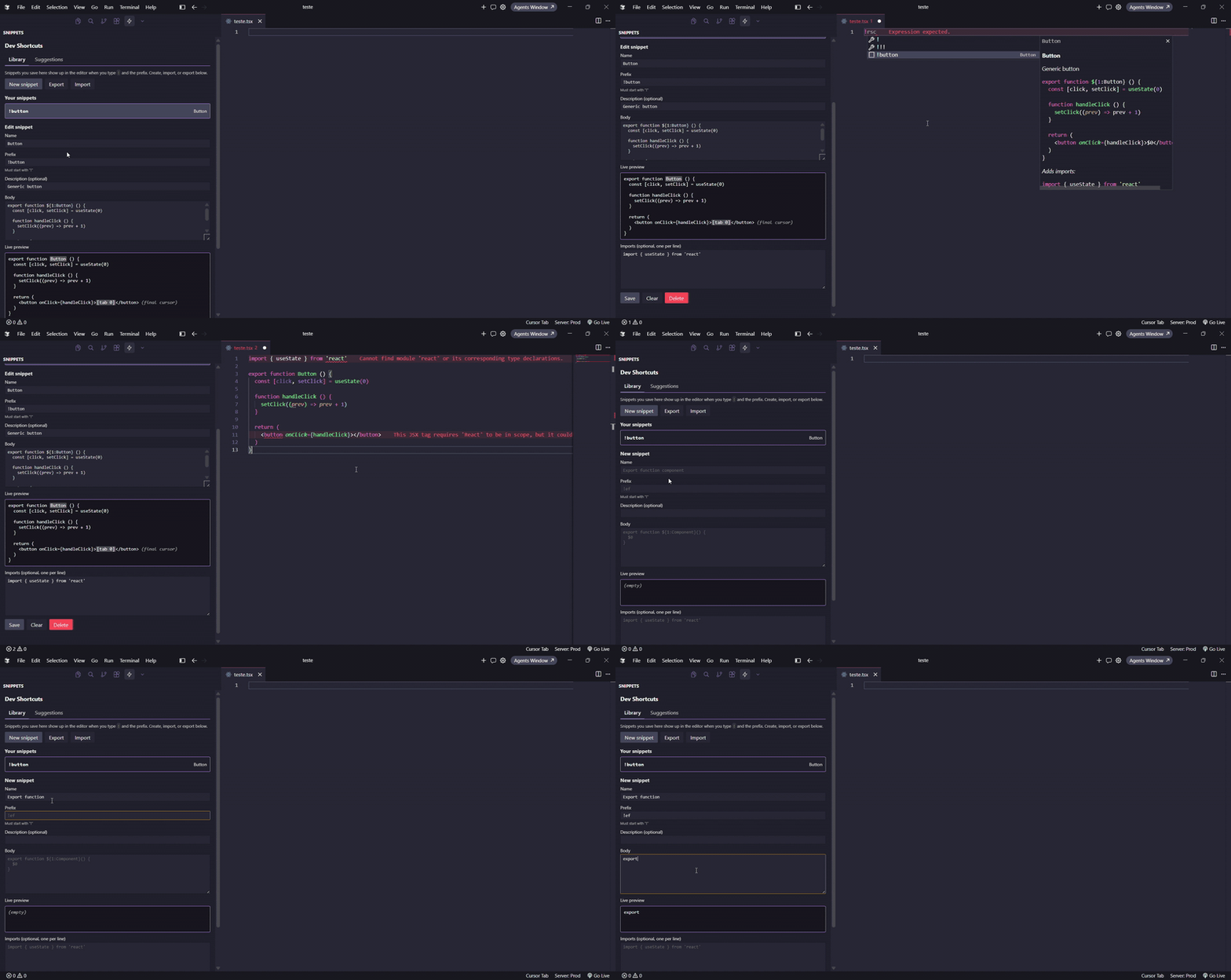
| Tab | Purpose |
|---|---|
| Library | Your snippets: create, edit, delete, import, export. Saved snippets appear in completion when you type ! and the prefix. |
| Suggestions | Opt-in catalog (React, Generic). Add to library copies a template into your store; nothing is installed until you choose. Templates never auto-activate in completion. |
Back up your library
- Export snippets... — saves JSON (
schemaVersion: 1) to a file you choose. - Import snippets... — loads JSON; on duplicate prefixes choose Skip, Overwrite, or Rename.
Storage location
Snippets live in the extension global storage folder (not settings.json):
| Editor | Folder (typical) |
|---|---|
| VS Code (Windows) | %APPDATA%\Code\User\globalStorage\rafaelvieira1720.dev-shortcuts\ |
| Cursor (Windows) | %APPDATA%\Cursor\User\globalStorage\rafaelvieira1720.dev-shortcuts\ |
| VS Code (macOS) | ~/Library/Application Support/Code/User/globalStorage/rafaelvieira1720.dev-shortcuts/ |
| Cursor (macOS) | ~/Library/Application Support/Cursor/User/globalStorage/rafaelvieira1720.dev-shortcuts/ |
Main file: snippets.json. Extension UI state may use state.vscdb in the same folder; deleting only state.vscdb does not remove your snippets.
Commands
| Command | What it does |
|---|---|
Dev Shortcuts: Manage snippets |
Opens the Activity Bar manager |
Dev Shortcuts: Insert snippet... |
Quick pick to insert a snippet without typing ! |
Dev Shortcuts: Export snippets... |
Saves your library to a JSON file |
Dev Shortcuts: Import snippets... |
Loads snippets from JSON, with duplicate handling |
Dev Shortcuts: Add suggested snippet... |
Quick pick from the opt-in suggestion catalog |
Dev Shortcuts: Insert last used snippet |
Re-inserts the most recently used snippet |
Keyboard shortcuts (default)
| Shortcut (Windows/Linux) | macOS | Action |
|---|---|---|
Ctrl+Alt+S |
Cmd+Alt+S |
Insert snippet... |
Ctrl+Alt+Shift+S |
Cmd+Alt+Shift+S |
Insert last used snippet |
Ctrl+Alt+M |
Cmd+Alt+M |
Open snippet manager |
Rebind under Preferences → Keyboard Shortcuts (search for "Dev Shortcuts").
Snippet JSON format
{
  "schemaVersion": 1,
  "snippets": [
    {
      "id": "uuid-v4",
      "name": "Export function component",
      "prefix": "!ef",
      "body": [
        "export function ${1:Component}() {",
        "  $0",
        "}"
      ],
      "imports": [
        "import { useState } from 'react'"
      ]
    }
  ]
}
id, createdAt, and updatedAt are generated when missing. Top-level arrays (no envelope) are also accepted on import.
Prefix rules
- Must start with
!. - Letters, digits,
_, and-are allowed after!. - Must be unique within your library. Conflicts are blocked at save time.
Coexistence with VS Code native snippets
VS Code's built-in .code-snippets files also support !-style prefixes. If you have the same prefix in both Dev Shortcuts and a native snippet file, both will show up in IntelliSense. To avoid the duplicate, remove the snippet from the native .code-snippets file.
Requirements
- VS Code
>= 1.100.0or any compatible editor (Cursor included).
Development
npm install
npm run compile
npm run lint
# Press F5 in VS Code to launch the Extension Development Host
Before each release, run through docs/manual-test-checklist.md in the Extension Development Host.
Suggestions catalog
Open the Suggestions tab in the Activity Bar manager. Categories: React and Generic. Click Add to library to copy a template into your personal store (prefixes remain editable). Same catalog is available via Dev Shortcuts: Add suggested snippet....