Deprecated Finder
VS Code / Cursor extension that scans your workspace for @deprecated symbols, extracts the replacement suggested by the library author (right from the JSDoc), and lets you fix every occurrence — individually or in bulk — with a single click.
Stop hunting for crossed-out APIs in your code. Let the IDE collect them and apply the vendor-recommended fix for you.
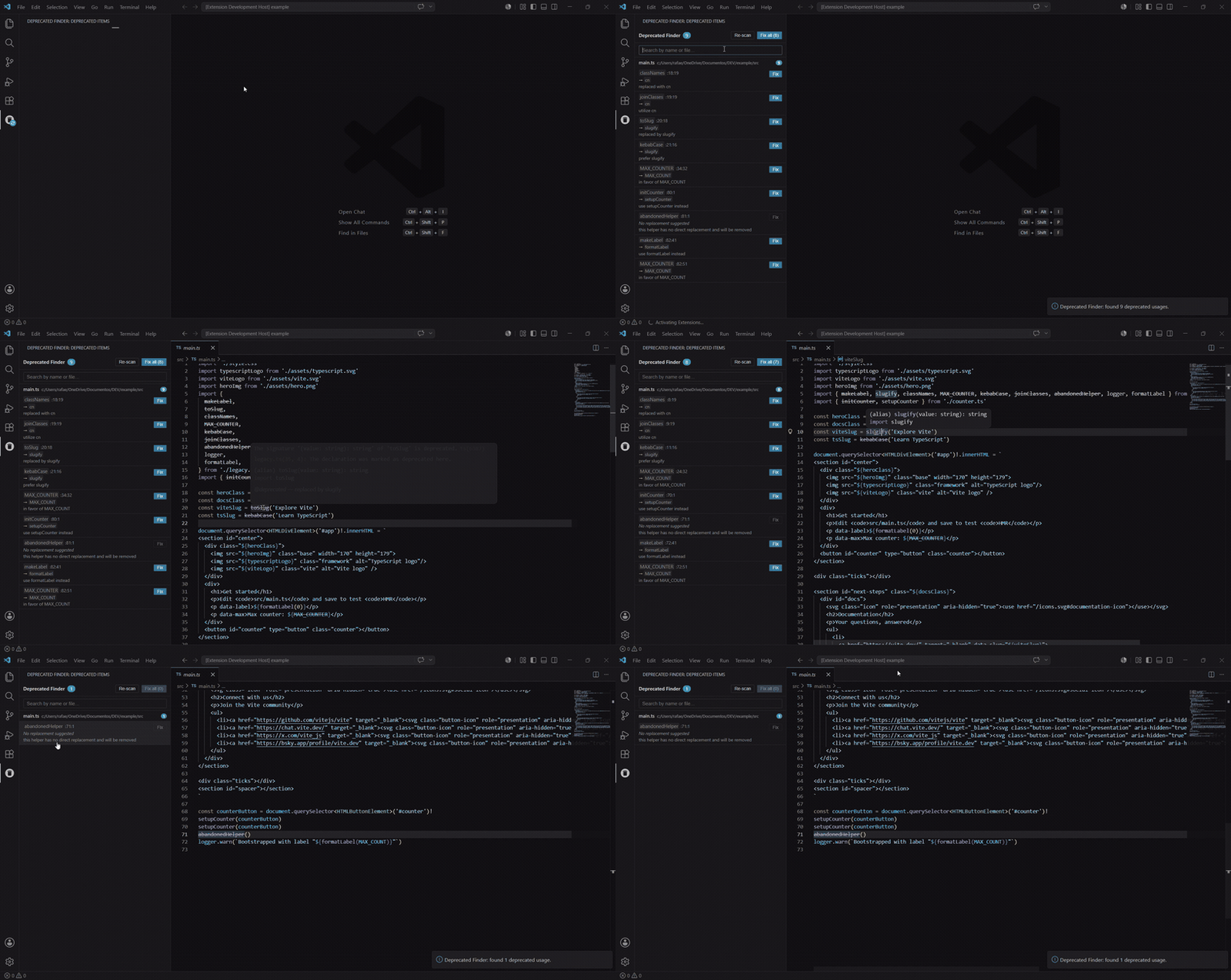
Full demo (MP4, with audio): open on GitHub · direct raw URL
What it does
- Scans
.ts, .tsx, .js, .jsx files in the workspace
- Detects identifiers whose declaration is annotated with the JSDoc tag
@deprecated
- Parses the free-form text of
@deprecated to extract a replacement (e.g. use destroyOnHidden instead → destroyOnHidden)
- Lists every occurrence in a sidebar, grouped by file
- Offers a Fix button per occurrence and a Fix all button for the whole workspace
- Updates both the identifier and the matching
import statement (when the replacement comes from the same file's import)
- Re-scans automatically on file save (only the saved file)
- Provides a Quick Fix on the editor lightbulb (
Ctrl+.)
Why
Libraries like Ant Design, MUI, and Lodash regularly mark old APIs as @deprecated with a clear hint about the replacement. That hint is shown in the IDE tooltip but doing the migration across hundreds of files is still manual. Deprecated Finder centralizes those usages and applies the suggested fix everywhere.
Example: Ant Design Modal v4 → v5
destroyOnClose is marked as @deprecated use destroyOnHidden instead- Deprecated Finder sees the tag, parses
destroyOnHidden, and rewrites the prop in every file with one click.
Usage
- Install the extension and open a workspace.
- The "Deprecated Finder" view appears in the activity bar.
- The first scan runs automatically on activation; click Re-scan to refresh manually.
- Click any item to jump to its location.
- Click Fix on a single item, or Fix all to apply every available replacement.
- Use the lightbulb (
Ctrl+.) on a deprecated symbol to apply the fix inline.
Scan behavior (full workspace vs on-save)
The extension runs two kinds of scan:
| Kind |
Trigger |
Store update |
| Full workspace |
Activation, Re-scan, post–Fix all |
deprecatedStore.set(...) once at the end, replacing the whole list. |
| Single file |
Save (supported languages), after Fix on one item |
deprecatedStore.updateFile(...) merges that file into the current list. |
Why this matters: If updateFile ran while a full scan was still building its in-memory result, the sidebar could briefly show a mixed state: one file already refreshed from the save handler while every other file still reflected the previous scan. That looked like a broken or partial list.
What we do instead: While scanForDeprecated is in progress (including nested full scans), scanSingleFile does not call updateFile. It records the path in a small queue (deduped by normalized path). When the outermost full scan finishes and runs set(...), the extension flushes the queue by running scanSingleFile again for each path, so saves and per-item fixes still land in the store—just after the global snapshot is coherent.
What you might notice: On a very large workspace, if you save repeatedly during a long full scan, the list for those files updates in a batch right after the full scan completes (not necessarily on every intermediate save). The loading banner from the full scan still reflects global progress; the narrow “Re-scanning after save” strip is unchanged for saves outside a full scan.
Queued full scans: If you trigger a new workspace scan while another is still running (for example activation scan plus an immediate Re-scan), the new request waits in line until the current scan finishes, then runs. That avoids the progress text getting stuck (for example on “Building program (1/2)” between tsconfig groups) when a second overlapping scan used to advance the internal serial and silence further progress from the first run. scanRequestSerial still guards deprecatedStore.set and the summary toast inside each run for consistency. With deprecatedFinder.verboseLogging, a superseded run may log Superseded workspace scan discarded … if that path is ever hit.
Large workspaces (slow createProgram): For each tsconfig group, the extension yields to the UI thread, posts how many root files are in the group, then runs ts.createProgram and file analysis inside a Node worker (scanGroupWorker). Roots are compiled in batches (40 per createProgram by default) so one huge graph does not block for minutes on a single call. While the worker is compiling a batch, the sidebar shows elapsed seconds every second so the scan does not look frozen; between batches the worker posts a new compile phase and the host restarts that heartbeat. During per-file analysis, the progress line includes elapsed time and the file name being scanned. If the worker cannot start, the extension falls back to the same batched in-process scan and logs a line to Output → Deprecated Finder (always; verbose mode is not required for that fallback line).
Filtered Fix all: In the sidebar and tabular panel, type in the search box to narrow the list. Fix all (N) counts only visible rows that have a suggestion; clicking it sends those item IDs to the extension so only that subset is fixed. The Command Palette command Deprecated Finder: Fix all (no arguments) still fixes every fixable item in the store, since the palette has no search filter. Webviews reject more than 100,000 IDs per message.
Available commands
Every deprecatedFinder.* command is listed below. Visible in Command Palette means it appears in Ctrl+Shift+P. Commands marked No are hidden there (when: false in package.json) so the palette stays short; they still run from the sidebar, tabular panel, Quick Fix, and from vscode.commands.executeCommand() (including custom keybindings you add in keybindings.json).
| Command ID |
Title |
Description |
Visible in Command Palette |
Invoked from |
deprecatedFinder.scan |
Deprecated Finder: Scan workspace |
Re-scan all supported files in the workspace |
Yes |
Command Palette; Re-scan in sidebar or tabular panel |
deprecatedFinder.openPanel |
Deprecated Finder: Open panel |
Open the tabular panel with all results |
Yes |
Command Palette (or a keybinding you assign) |
deprecatedFinder.fixAll |
Deprecated Finder: Fix all |
Apply replacements: from the palette, every fixable item in the store; from the sidebar or panel, only the items visible in the list after search (must have a parsed suggestion) |
Yes |
Command Palette (whole store); Fix all in sidebar or tabular panel (filtered when a search is active) |
deprecatedFinder.fixItem |
Deprecated Finder: Fix item |
Apply the fix for a single stored item |
No |
Fix in sidebar or tabular panel; editor Quick Fix (Ctrl+.). Arguments: itemId: string |
deprecatedFinder.openFile |
Deprecated Finder: Open file at line |
Open a file and move the cursor to a line |
No |
Clicking a result row in sidebar or tabular panel. Arguments: filePath: string (absolute), line: number (1-based) |
Suggestion patterns recognized
use X insteadreplaced by Xreplaced with Xin favor of Xutilize Xprefer X{@link X}
When no pattern matches, the item still appears in the list but the Fix button stays disabled.
Development
npm install
npm run compile       # one-shot build into ./out
npm run watch         # watch mode
npm run lint          # eslint
For a clean clone matching CI exactly, use npm ci instead of npm install.
Open Run and Debug (or press F5) and choose Run Extension to open the Extension Development Host with this extension loaded. The workspace ships .vscode/launch.json and .vscode/tasks.json, so you do not need to recreate them after cloning.
Contributors: see CONTRIBUTING.md for path comparison rules (cross-platform) and contribution notes.
Settings
Configure in Settings (Ctrl+,) under Deprecated Finder, or in settings.json:
| Setting |
Values / type |
Default |
Purpose |
deprecatedFinder.showScanSummary |
always | whenIssuesFound | never |
whenIssuesFound |
When to show the information toast after a full workspace scan that found source files. whenIssuesFound only notifies if at least one deprecated usage exists. never suppresses that summary toast. The «no source files in workspace» toast still appears when the glob finds no files (empty or non-matching workspace). |
deprecatedFinder.verboseLogging |
boolean |
false |
When true, append detailed scan lines (per tsconfig program group, workspace total, per-file single-file scan) to View → Output → Deprecated Finder. Warnings (e.g. could not load a source file, tsconfig parse warnings) are written to that channel whenever they occur, without a toast. Also logs ignored invalid postMessage payloads from the sidebar/tabular webviews (prefix [webview]) — see CONTRIBUTING.md. |
Related: see Scan behavior (full workspace vs on-save) above for how saves interact with a scan in progress.
Compatibility
- VS Code
>= 1.100.0
- Cursor (uses the same extension format as VS Code; install from the marketplace or from a
.vsix)
Roadmap
- Expand language support beyond TS/JS
- Smarter import rewrites (barrel files, re-exports)
- Optional auto-fix on save
- Configurable scan globs and ignore lists

