
Hydra Sim StudioVS-Code extension for simulating Verilog code. Installation Launch VS Code Quick Open ( Ctrl+P), paste the following command, and press enter.Copied to clipboard |

Hydra Sim Student — FREE Verilog 2-State SimulatorA VS Code extension for running, visualizing, replaying, Verilog 2-State simulations with an AI assistant — step-by-step, directly inside the editor. A future version will support a 4-state simulation, SystemVerilog and Gate Level simulation. Features
Project Configuration (hydra.yaml)Hydra is driven by a single Where it livesHydra looks for it in this order:
The directory holding The two fields you must set
Leaving
|
| Entry | Meaning |
|---|---|
./path/to/file.v |
a single file |
./path/to/dir/ |
all .v/.sv directly in that directory |
./path/to/dir/* |
the above, plus one level into sub-directories |
"!./path/to/file.v" |
exclude a specific file |
"!./path/to/dir/" |
exclude everything collected from a directory |
Only .v and .sv files are collected; all other types are ignored. Duplicate paths are
deduplicated, and exclusions are always applied after every inclusion regardless of order.
Absolute paths are accepted verbatim and may point anywhere on disk.
Simulation settings
| Field | Default | Purpose |
|---|---|---|
working_hierarchy |
"" |
Top-level instance to elaborate — required |
start_time |
0 |
Simulation viewport start time |
time_unit |
ns |
One of fs, ps, ns, us, ms, s |
max_sim_time |
1000 |
Stop time, in time units |
max_sim_cycles |
5000 |
Cycle-count hard stop |
waveform_window_size |
-1 |
Initial visible window width; -1 = full timeline |
max_frozen_windows |
5 |
Frozen waveform panels kept across re-runs (oldest discarded first); 0 = none, -1 = unlimited |
Any field that is missing or holds an invalid value falls back to its default with a warning — it never fails the run.
Example
sources:
  - ./counter.v
  - ./rtl/
  - "!./rtl/scratch.v"

# Simulation configuration
start_time: 0           # simulation viewport start time
time_unit: ns           # fs | ps | ns | us | ms | s
working_hierarchy: "tb_counter"   # top-level module name (REQUIRED before simulation)
max_sim_time: 1000
max_sim_cycles: 5000
waveform_window_size: -1   # initial visible window width (time units); -1 = full timeline
max_frozen_windows: 5      # frozen waveform windows kept across restarts (oldest discarded first); 0 = none, -1 = unlimited
Getting Started
- Open a
.vVerilog file in VS Code. - Press Compile Workspace (see keybindings below) or click the Hydra icon on the left primary sidebar to show up the hierarchy browser and click on "Compile workspace" button.
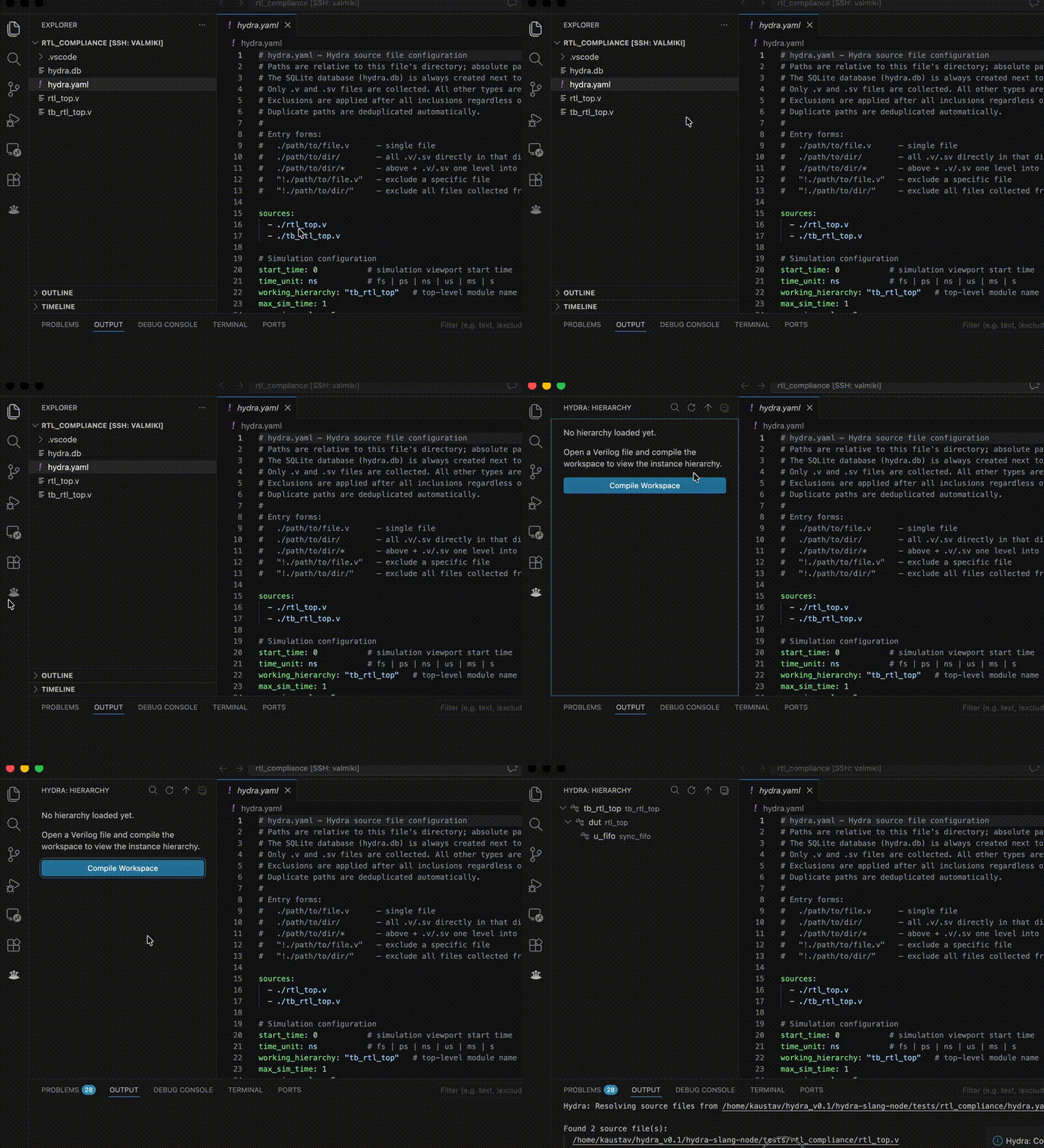
Compiling Workspace
- If a hydra.yaml file is not present then compile does not proceed but a default hydra.yaml is created and prompted to be filled by the extension.
- Fill in
sources:andworking_hierarchy, then compile again — see Project Configuration above for every field and thesources:entry forms.
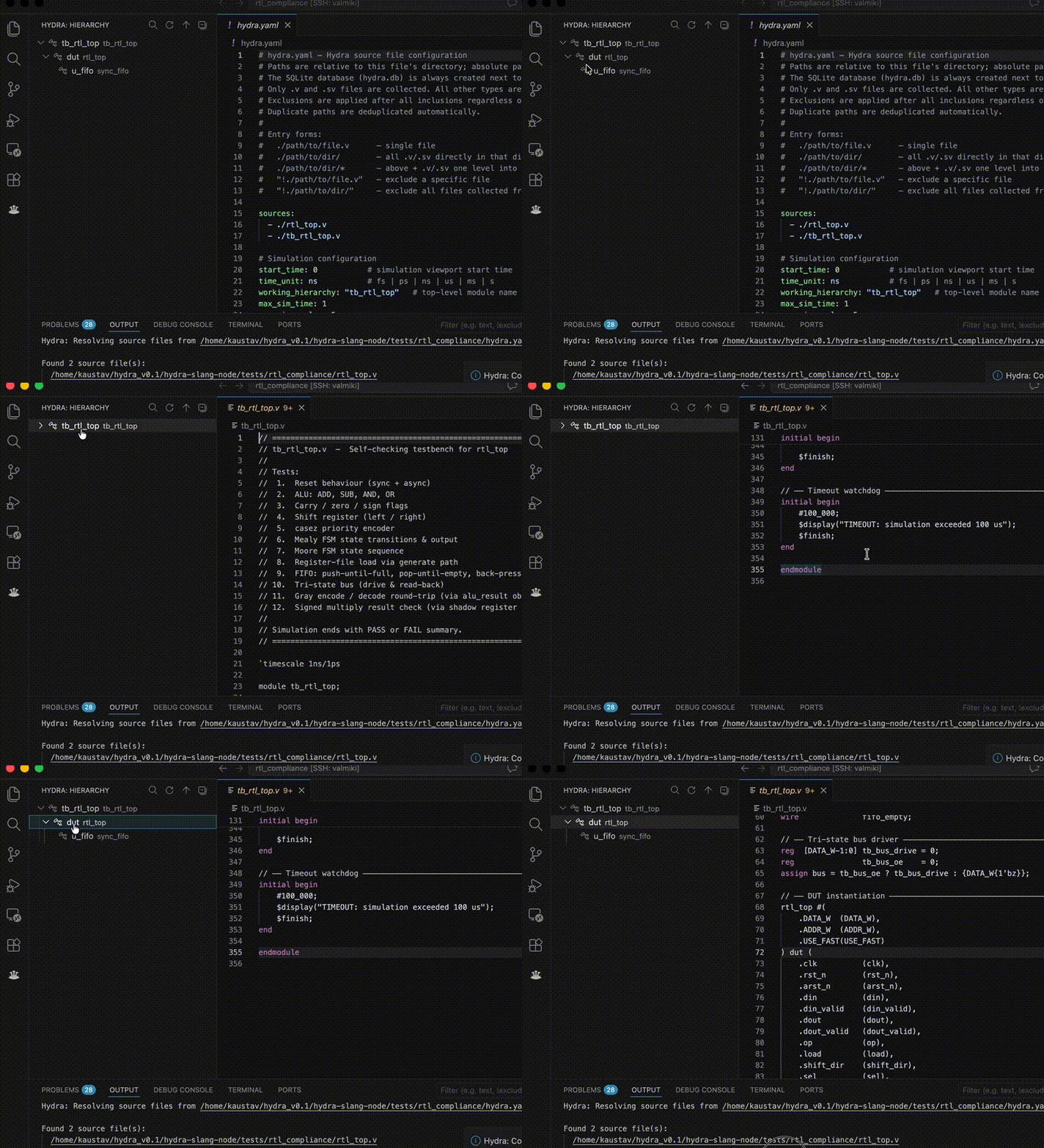
Hierarchy Browser
- Press Run Simulation (see keybindings below) or click on play icon in the top right corner of the file window.
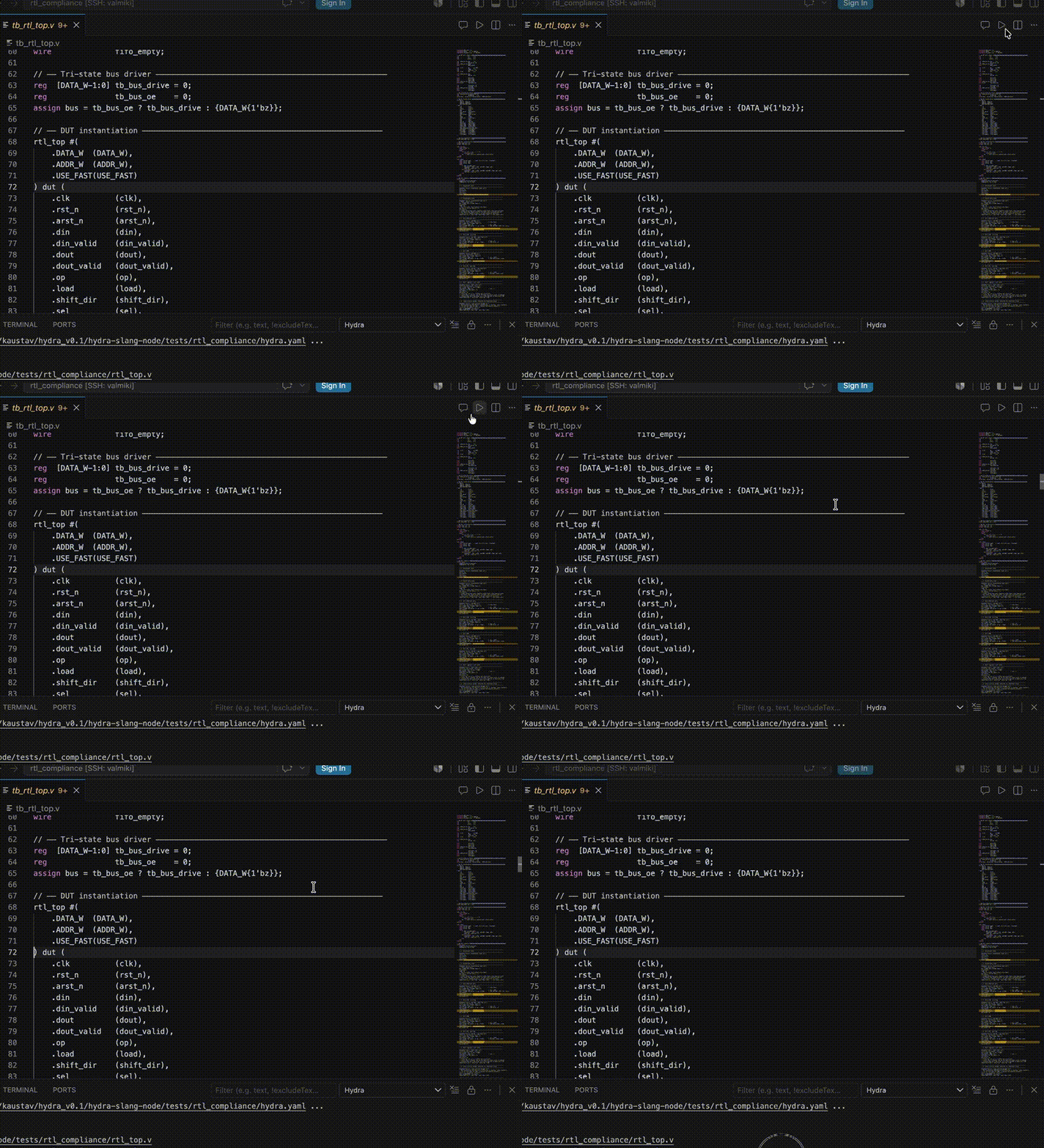
Running Simulation
- The waveform panel opens automatically in a new window.
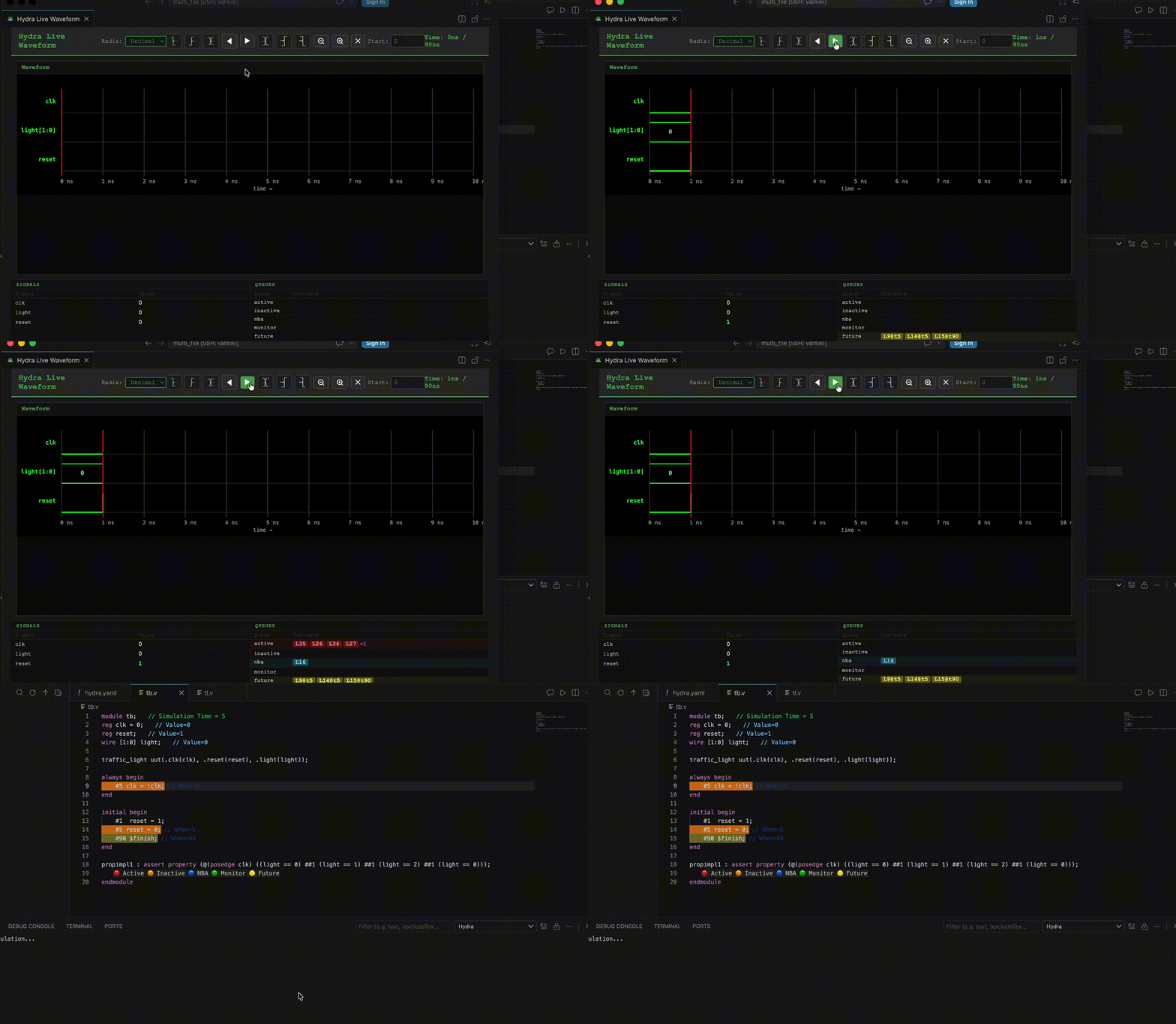
Waveform Panel
- Use Step Forward / Step Backward to navigate the timeline.
- Press Exit Replay to clear all highlights and reset state.
- Press Open RTL Assistant to start the AI chat panel — it also opens on its own when a Verilog file is already open.
Commands & Keybindings
| Title | Linux | macOS |
|---|---|---|
| Hydra: Run Simulation | Ctrl+Shift+F9 |
cmd+Shift+s |
| Hydra: Step Forward | Ctrl+Shift+F10 |
cmd+shift+f |
| Hydra: Step Backward | Ctrl+Shift+F11 |
cmd+shift+a |
| Hydra: Exit Replay | Ctrl+Shift+F12 |
cmd+shift+2 |
| Hydra: Open RTL Assistant | Ctrl+Shift+J |
cmd+shift+j |
| Hydra: Compile Workspace | Ctrl+Shift+F8 |
cmd+shift+8 |
Linux note: Simulation commands use function keys to avoid conflicts with
Ctrl+Alt/ AltGr key combinations common on Linux desktop environments.
Windows note: Windows does not support the extension natively at the moment, kindly invoke VSCode in WSL to use the extension
MacOS note: RTL Assistant is currently not supported on macOS. stay tuned for further updates
note: Apple silicon is the only hardware supported
All commands are also available via the Command Palette (Ctrl+Shift+P). Simulation keybindings require editor focus (editorTextFocus).
You can rebind any command via File → Preferences → Keyboard Shortcuts.
The Hierarchy Browser adds a few more commands that have no keybinding:
| Title | Where |
|---|---|
| Set as Current Working Hierarchy | right-click an instance |
| Add to Waveform | right-click an instance |
| Remove from Waveform | right-click an instance already added |
| Search Instance | Hierarchy view title bar |
| Refresh Hierarchy | Hierarchy view title bar |
| Go to Parent Hierarchy | Hierarchy view title bar |
The three right-click actions are intentionally not in the Command Palette — they act on the instance you clicked.
Editor Decorations
At each simulation step, lines in the active editor are highlighted by their event queue:
| Color | Queue | Meaning |
|---|---|---|
| 🔴 Red | Active | Currently executing statements |
| 🟠 Orange | Inactive | Scheduled later in the same time step |
| 🔵 Cyan | NBA | Non-blocking assignment updates |
| 🟢 Green | Monitor | $monitor / $display callbacks |
| 🟡 Yellow | Future | Events scheduled at a future simulation time |
Additional inline annotations appear automatically:
- Simulation time — shown once below the module header line (
// Simulation Time = N). - Signal values — current
0/1value shown next to each signal declaration (// Value=0). - When / Current markers — each queued line annotated with its scheduled time (
// When=N).
Waveform Viewer
Running a simulation opens a Hydra Live Waveform panel in a separate VS Code window. The panel:
- Updates automatically as you step forward or backward.
- Is retained when hidden — navigating away and back does not require a reload.
- Is frozen in place (title changes to "Hydra Waveform (Frozen)") when you re-run the simulation, so you can compare the old and new runs side by side.
- Plots all accumulated signal transitions over the full simulation time axis.
Panel controls
| Control | Action |
|---|---|
◀ / ▶ |
Step backward / forward |
| Transition jumps | Move to the previous / next value change of the selected signal |
| Edge jumps | Move to the previous / next rising or falling edge (disabled for multi-bit buses) |
| Zoom out / in | Also Ctrl+- and Ctrl+= |
| Fit | Reset the zoom to the default framing — Ctrl+0 |
m |
Drop a measurement marker at the hovered time |
n or Escape |
Clear the marker |
| Radix | Decimal / Hex / Binary — appears when the panel has at least one multi-bit signal |
| Start | Live panel only: re-fetch the window from a new start offset without re-running |
Drag the canvas to pan, and Ctrl+scroll to zoom around the pointer. Select a signal and drop
a marker to enable the jump buttons. Below the plot, a Signals table lists each signal with
its value, source and triggers, and a Queues table lists the five event queues — clicking an
entry jumps the editor to that source line.
Hierarchy Browser
Click the Hydra icon in the activity bar to open the Hierarchy view. Compile Workspace
populates it, rooted at your working_hierarchy.
- Each row shows the instance name, with its module dimmed beside it.
- Click a node to open its file and select the whole instantiation block.
- Right-click a node to re-root the tree (Set as Current Working Hierarchy) or to control which signals the waveform plots (Add to Waveform / Remove from Waveform).
- The title bar has search, refresh, go-to-parent and collapse-all buttons.
RTL Assistant
User can query structural and the simulation information about the verilog. When the RTL assistant is invoked, compilation takes place according to the project configuration in the hydra.yaml file.
- Opens automatically when a Verilog file is already open;
Ctrl+Shift+Jtoggles it. - Compile errors appear as clickable
file, linelinks that jump straight to the problem. - On eligible hardware (an NVIDIA GPU with 8 GB VRAM, 8 GB RAM and 20 GB free disk) the panel offers a one-click download of a local AI model for richer answers. Without it, the built-in assistant still answers structural and simulation queries.
Workflow Overview
Open .v file
     ↓
Edit hydra.yaml with desired configuration ───────────────────────┐
     │                |                                           ↓
     |                |                  Open hierarchy browser in left pane and Compile Workspace
     |                |                                           ↓
     |                |                  navigate design hierarchy through the hierarchy browser
     |                |
     |                |
     |                └───────────────────────┐
     |                                        ↓
     │                         Open RTL Assistant in the top right in the
     │                              verilog active file window
     │                                        ↓
     │                     Query structural and simulation related information
     │                   (simulation gets triggered by the RTL assistant)
     ↓
Run Simulation  ──────────────────────────────────────────────────┐
     ↓                                                            │
Waveform panel opens (new window)                        Re-run freezes old panel
     ↓
First frame applied → editor decorations + inline annotations
     ↓
Step Forward / Step Backward  ←──────────────────────────────────-┐
     ↓                                                            │
Editor decorations update + waveform updates                      │
     ↓                                                            │
Exit Replay → decorations cleared, legend hidden, waveform closed─┘
License
See the repository root for license information.