R3BL Task Management


Manage task spaces - collections of open tabs for different work contexts within a
single git branch. And leverage "The Dashboard Workflow" to unleash your creativity and
invent!
The Dashboard Workflow - Designed for Humans & Fit for Purpose
This extension implements the Dashboard Workflow (created by
Nazmul Idris) - a fluid, non-linear task management methodology
designed for individual developer productivity with or without Coding Agents.
It provides an alternative to traditional, rigid frameworks like Scrum, Agile, or
ticket/issue based systems, and really prioritizes fluidity over rigidity. The mantra is
"start with anything on a blank page", then refine over time.
Invention, creativity, and programming are not linear - projects take many twists and
turns, detours and story arcs. You will learn more about the problem surface as you take
your first steps - for non-trivial problems this can't be known beforehand. This
methodology is designed to work with this non-linearity rather than against it.
It incorporates the use of tooling to help you (and not replace you) by optimizing and
automating this workflow. The tooling removes as much cognitive load as possible, and
manual / menial labor as possible, and gives you the richest context possible, as you move
around rapidly, liberating you from "keeping it all in your head". You do what you are
good at. Let your machine buddies augment you with what they are good at.
Core Principles:
- 1:1 Mapping: Every task is represented by a single Markdown file (
.md) in the
task/ directory. The .md file is the task. This Markdown file is either generated
by a person using a Coding Agent, or manually - it doesn't matter. The goal of the task
file is to capture the high level objectives around the body of work. It can be as
detailed or sparse as you like.
- Context Preservation: A task space remembers the exact files, tabs, and layout open
for that task.
- Fluid Routing: Tasks move dynamically between queues:
- Active Task (HEAD): The single task currently being worked on in a specific IDE
instance.
- Next Queue: A FIFO queue of planned future tasks.
- Previous Stack (Paused): A LIFO stack of tasks that were paused to work on
something else.
- Backlog (Icebox): Tasks moved to
task/pending/ are out of the immediate
workflow pipeline.
- Done: Finished tasks are archived to
task/done/.
- Auto-Pickup: Creating a new
.md file in the task/ directory automatically adds
it to the Next Queue.
How it differs from Scrum, Agile, and Ticket Systems:
- Non-Linear vs. Linear: Traditional systems often force a linear "Sprints" or "Ready
-> Doing -> Done" progression. The Dashboard Workflow recognizes that development is
rarely linear. It allows you to "pivot on a dime", shifting context as discovery happens
without the friction of updating a project management board.
- Opportunistic vs. Planned: Encourages "fixing things when you see them". If you spot
a bug or a refactoring opportunity while working on Task A, you can instantly create
Task B (via a simple
.md file), queue it, and choose to jump into it immediately or
save it for the "Next" slot.
- Fluid Scoping: Use context-preserving Task Spaces to spin off sub-tasks into their
own spaces with their own tab layouts, keeping the mental overhead low.
- Retain knowledge: If you ever want to look back in time and understand the "why"
behind a particular chunk of work, you can always look in your
task/done folder and do
a retrospective. It can also be valuable context, that you don't have to fit in your
head, as you evolve something over a long period of time, that starts out simple, and
evolves into complexity. This knowledge is in your git repo in a Markdown file! You
don't have to look at in an external tool / project management board to get it! You have
it, your team has it, and your Coding Agents have it.
- Coding Agent Synergy: Coding Agents can autonomously drop a task file into the
task/ folder, and it instantly appears in your "Next Queue" dashboard, ready for human
review or joint implementation. And of course, as you explore your codebase with them,
all the history in task/done/, and the info in task/ will help guide them too in
their predictions and pattern matching (if you are using LLM based agents).
Table of Contents
Use Cases
Context Preservation
Stop losing your carefully arranged tabs! Each task space remembers exactly which files
were open, their order, and pinned state - so you can switch contexts without mental
overhead.
Switch between them instantly with Alt+Shift+T without losing your place.
Coding Agent Collaboration
Run multiple Coding Agent instances in parallel (e.g., Claude Code, Gemini CLI in
different terminal tabs or tmux panes), each working on different aspects of your work.
Create task spaces for each to organize files and switch contexts seamlessly.
Attach a task/*.md file (that the Coding Agent manages, with the /r3bl-task custom
command for Claude Code, Gemini CLI, etc.) to each space to track design and
implementation plans, and have completed tasks automatically archived to task/done/ when
they're finished.
Multiple Concurrent Workflows (Same Branch)
Working on a feature but need to quickly review a PR? Or switch between implementation and
research? Create separate task spaces for each workflow on your current branch:
- "Feature: Auth" - Implementation files (src/auth.ts, src/login.ts)
- "Research: OAuth" - Documentation tabs and examples
- "Code Review: PR #123" - All changed files
- "Bug Fix: Login Error" - Debugging context
Multi-IDE Workflows (Different Task Spaces Per IDE)
The problem: VS Code only allows one window per project folder. You can't open the
same project twice in VS Code.
The solution: Use multiple IDEs! Open the same project folder in VS Code, VS Code
Insiders, and/or VSCodium simultaneously - each with a different task space active:
- VS Code: "Feature: Auth" task space with implementation files
- VS Code Insiders: "Research: OAuth" task space with documentation tabs
- VSCodium: "Code Review: PR #123" task space with changed files
Each IDE maintains its own active task space independently. Task space definitions (names,
tabs, files) sync across all IDEs via the shared task-spaces.json file, but which space
is "active" is stored per-IDE instance.
This enables workflows like:
- Parallel development: Implementation in VS Code, research in Insiders, review in
VSCodium
- Side-by-side comparison: Compare different task space configurations across IDEs
- Testing + Development: Test extensions in Insiders while working in stable VS Code
- Multiple Coding Agent sessions: Different agent instances working on different task
spaces
How it works: When you switch task spaces in VS Code, VS Code Insiders' active space
stays unchanged. But if you add/remove tabs from "Feature: Auth" in VS Code, those changes
sync to Insiders if it also has "Feature: Auth" active.
What It Does
- Task Dashboard: A central dialog (Alt+Shift+T) to manage Active, Next, and Paused
tasks.
- 1:1 Mapping: Every task space is tied to a real
.md file in your task/ folder.
- Auto-Pickup: New
.md files in task/ are automatically added to your Next Queue.
- Quick Switching: Keyboard shortcut (Alt+Shift+T) to switch contexts
- Tab State Preservation: Remembers tab order and pinned state across switches and
restarts
- Diff-Based Sync: Only applies minimal changes (close/open/move/pin) for smooth
transitions
- Multi-IDE Support: Different IDEs (VS Code, Insiders, VSCodium) can have different
task spaces active on the same project folder
- Cross-IDE Sync: Tab changes sync when same space is active in multiple IDEs
- Smart Startup: Skips restore if current tabs already match saved state
- Coding Agent Integration: Link task spaces to
task/*.md files for tracking
implementation plans
- Automatic Archival: Completed task files move to
task/done/ automatically
- Status Bar: See your active task space at a glance
- Auto-Save: Current tabs are saved automatically when you switch or modify
- Smart Collision Handling: No data loss - files get numeric suffixes if duplicates
exist (when archiving tasks)
Getting Started
Requirements
- VS Code 1.70.0 or higher
- No external dependencies
Quick Start
Press Alt+Shift+T to open the Task Dashboard.
Create your first task:
- Click "Create New Task Space"
- Name it (e.g., "Feature: User Auth")
- A new
.md file is created in task/ and becomes your Active task.
- All your currently open tabs are saved to this space
Pause and Jump:
- If you are working on Task A and select Task B from the Dashboard, Task A is
automatically moved to the Previous Stack (Paused).
- Your tabs switch automatically.
Finish Task:
- Press Alt+Shift+F or select "Finish Current Task" in the Dashboard.
- Your
.md file moves to task/done/, and you are prompted to pick the next task
from your queues.
Manage spaces:
- Click ✏️ to rename
- Click 🗑️ to delete (archives linked files to task/done/)
Screenshots
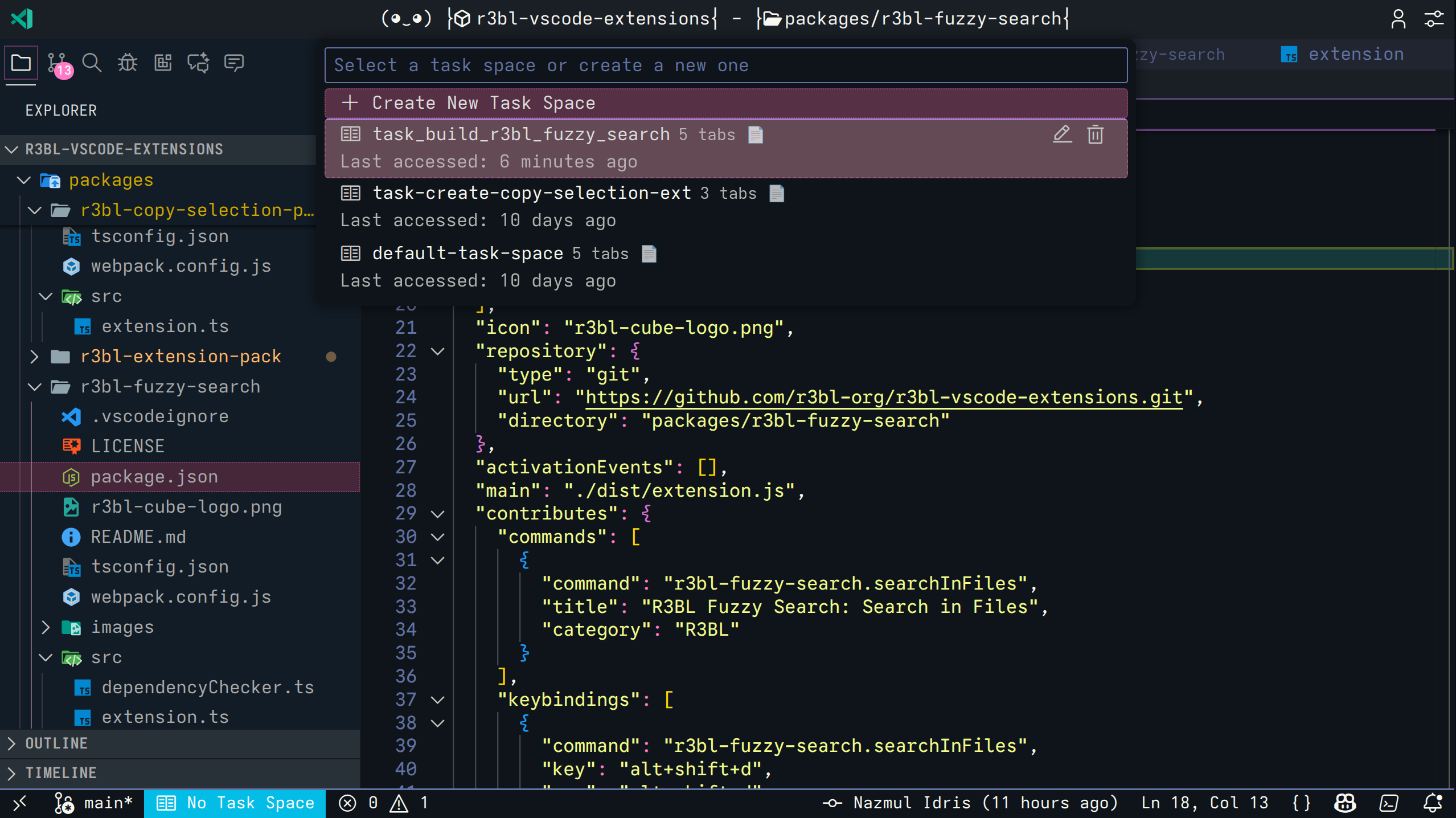 Main dialog showing all your task spaces
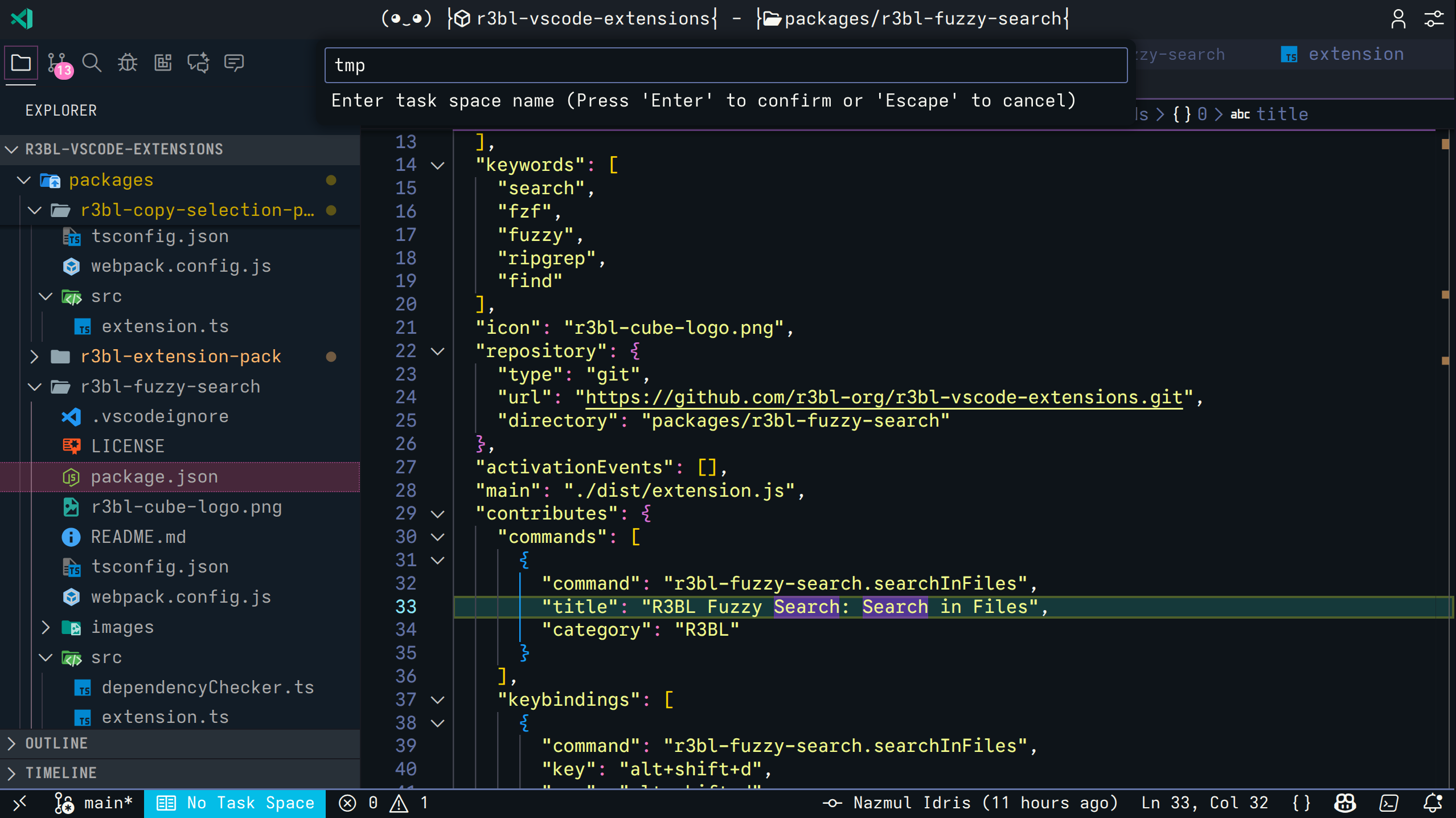 Create a new workflow context
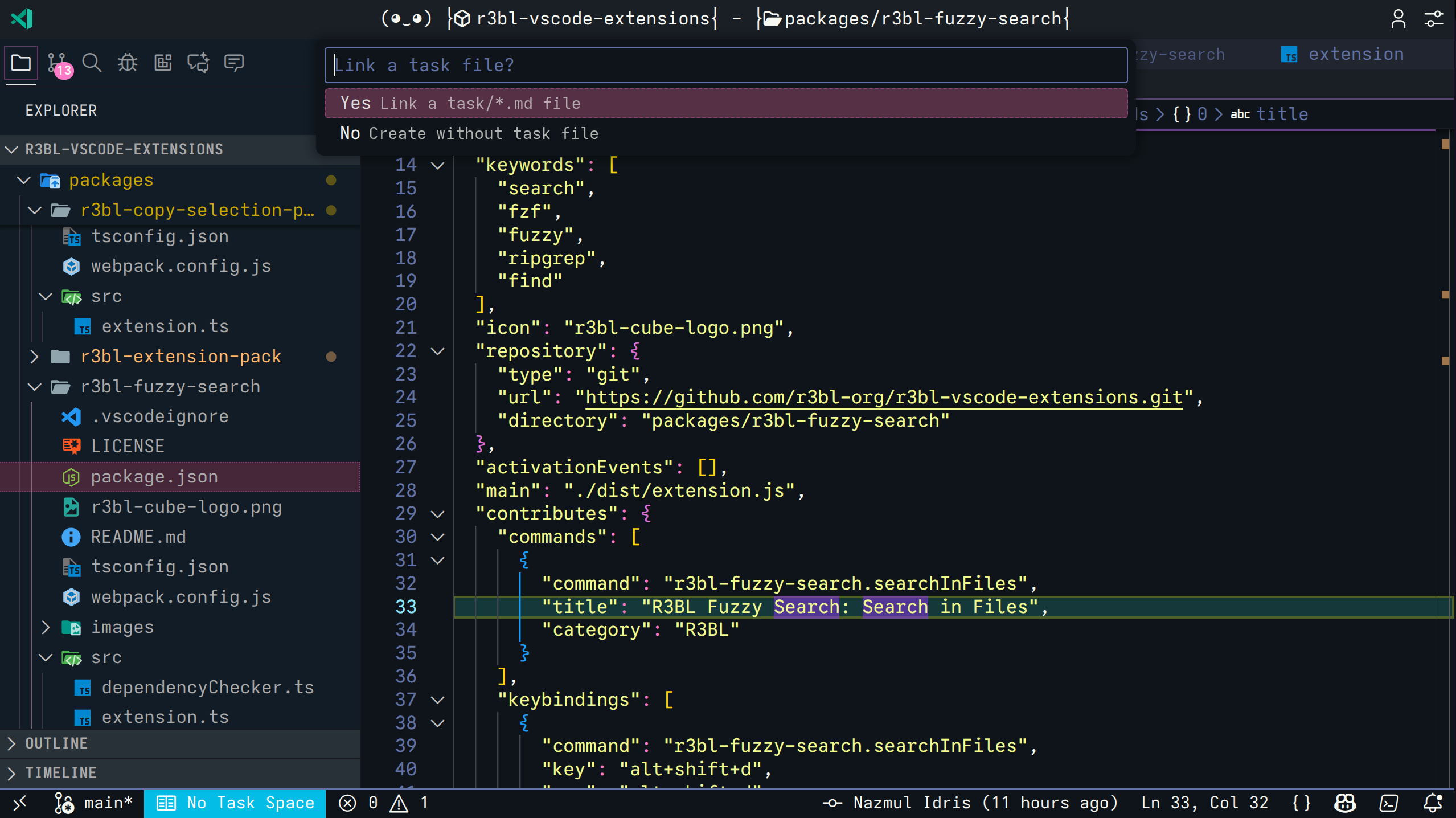 Link to Coding Agent task files
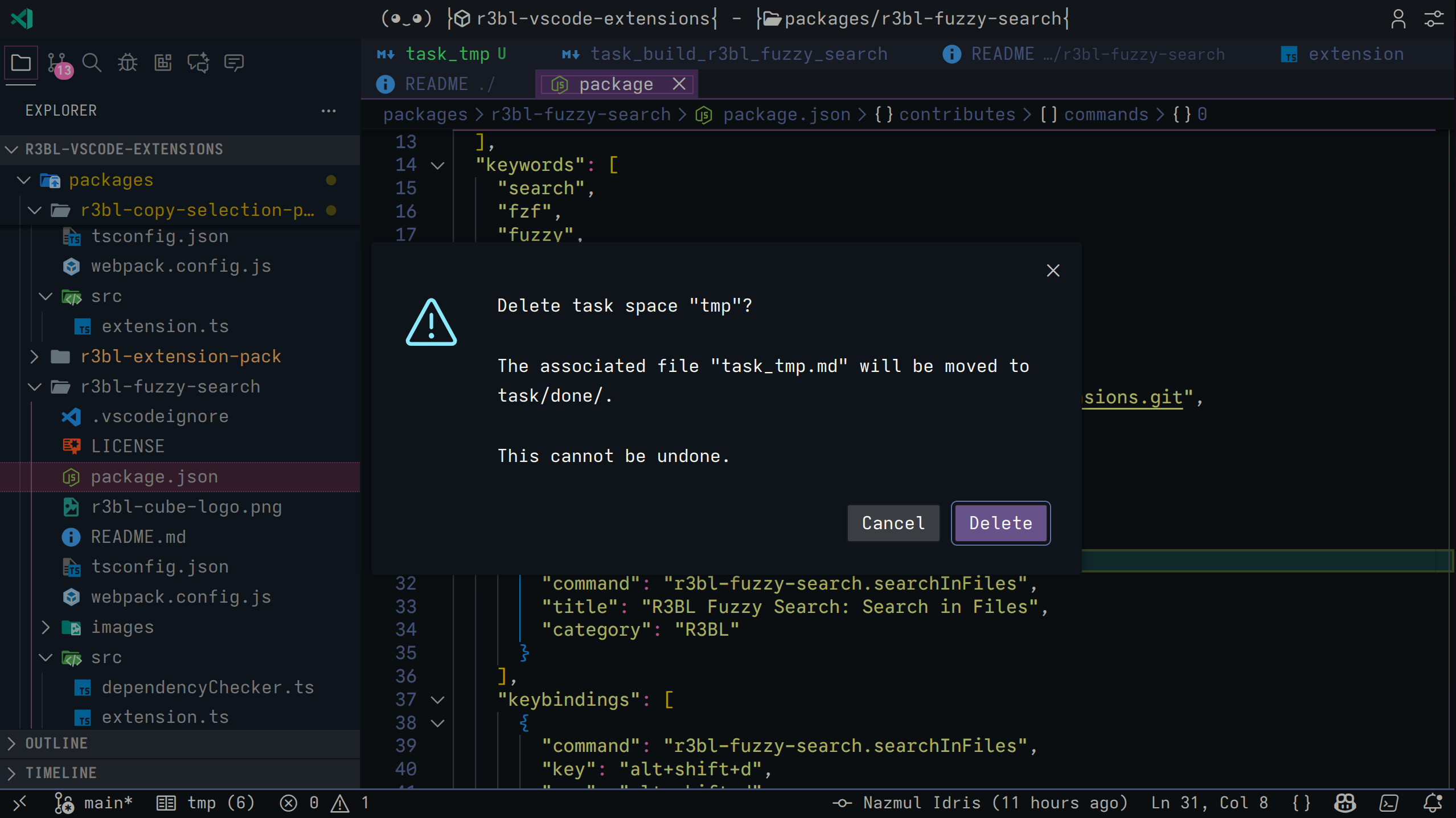 Automatic archival to task/done/
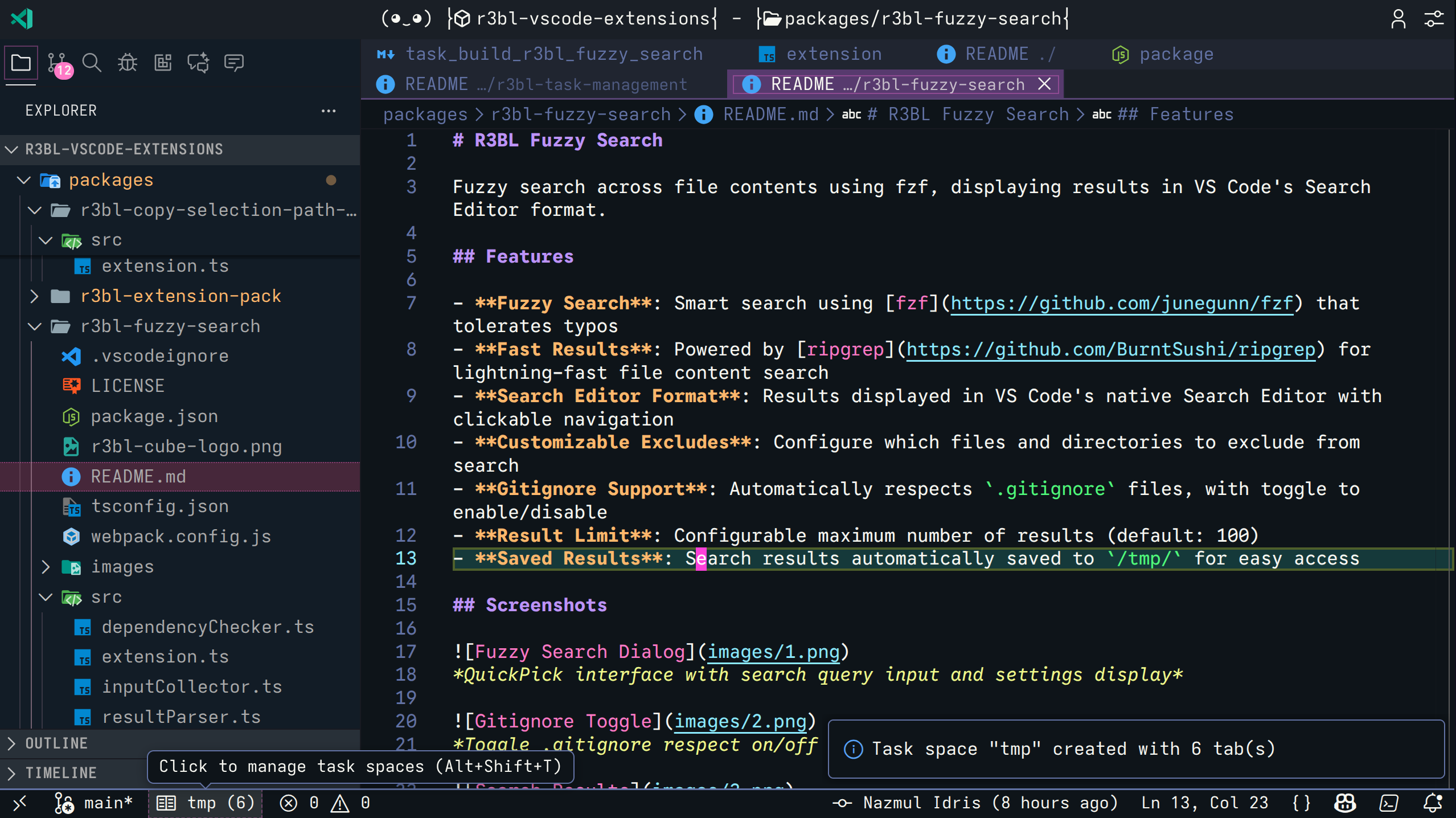 Status bar shows active context
Workflows
Basic Workflow
Create separate task spaces for different aspects of your work on the same branch:
- Open files for "Feature Implementation"
- Press Alt+Shift+T → Create "Feature: Auth Implementation"
- Now switch to research - open documentation tabs
- Press Alt+Shift+T → Create "Research: OAuth Patterns"
- Switch back and forth without losing context
Your previous tabs are auto-saved when you switch.
Coding Agent Workflow
Task spaces integrate with Coding Agents for implementation tracking:
Planning Phase:
- Create
task/auth_feature.md with detailed implementation plan
- Create task space "Feature: Auth" linked to this file
- Give plan to your Coding Agent to work on
Implementation Phase:
- Work with your Coding Agent
- Update task file with progress notes
- All relevant files stay organized in your task space
Completion Phase:
- Delete task space when done
- Linked file automatically moves to
task/done/ (archival)
- Numeric suffix added if file already exists (e.g.,
auth_2.md)
Coding Agent Integration
Install Coding Agent Integration
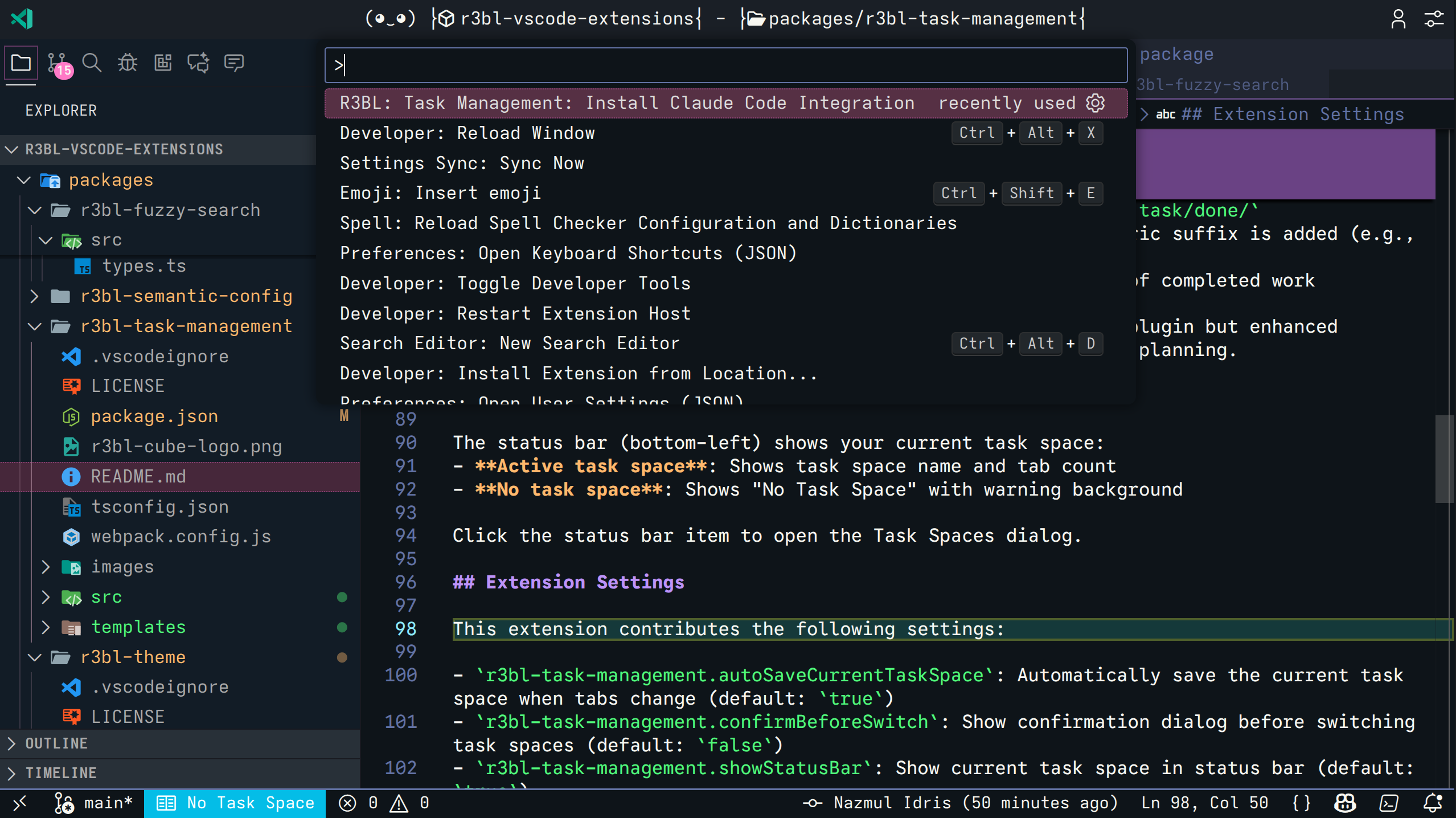 Command palette → "R3BL Task Management: Install Coding Agent Integration"
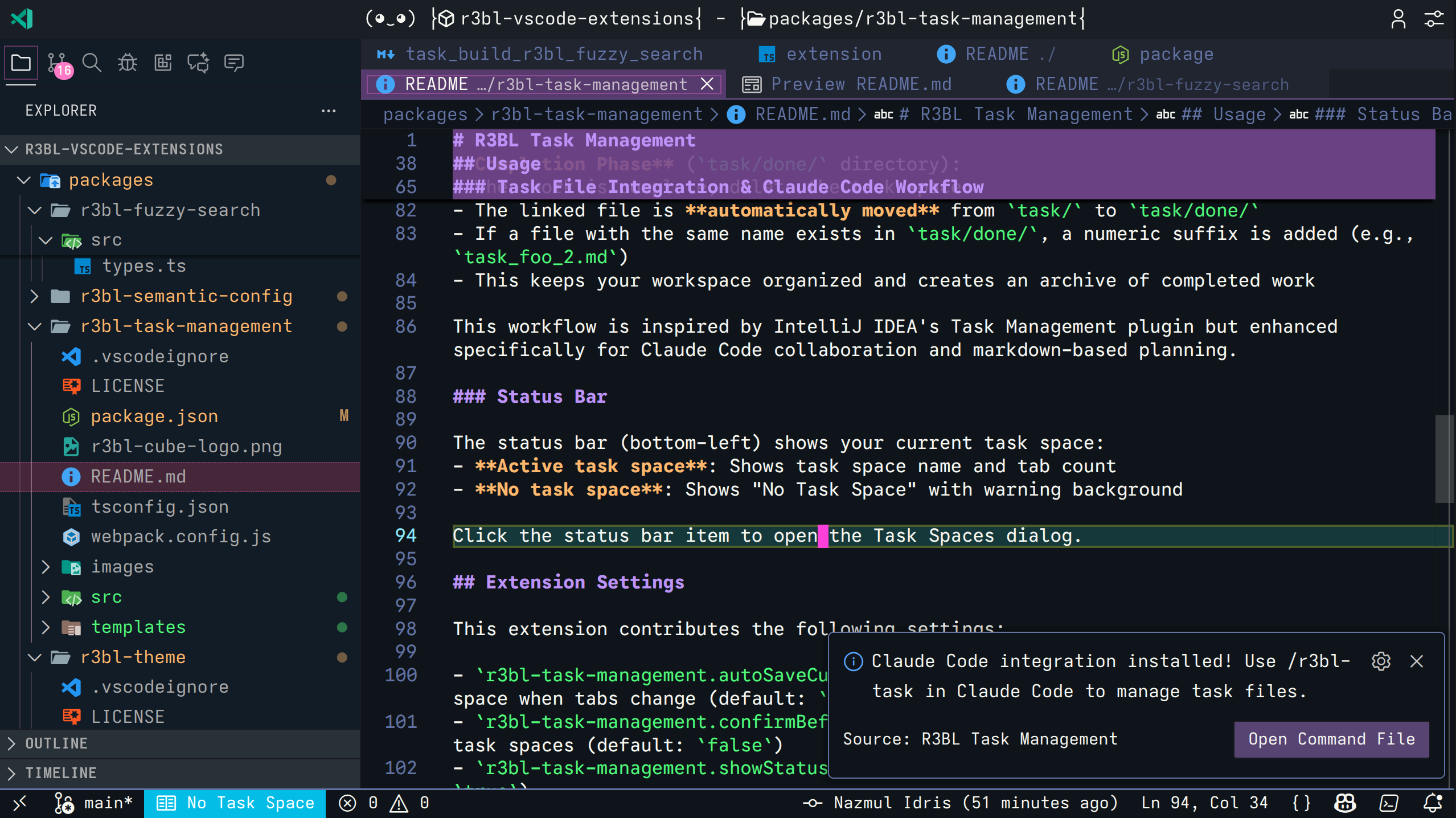 Creates .agent/commands, .gemini/commands, or .claude/commands if needed
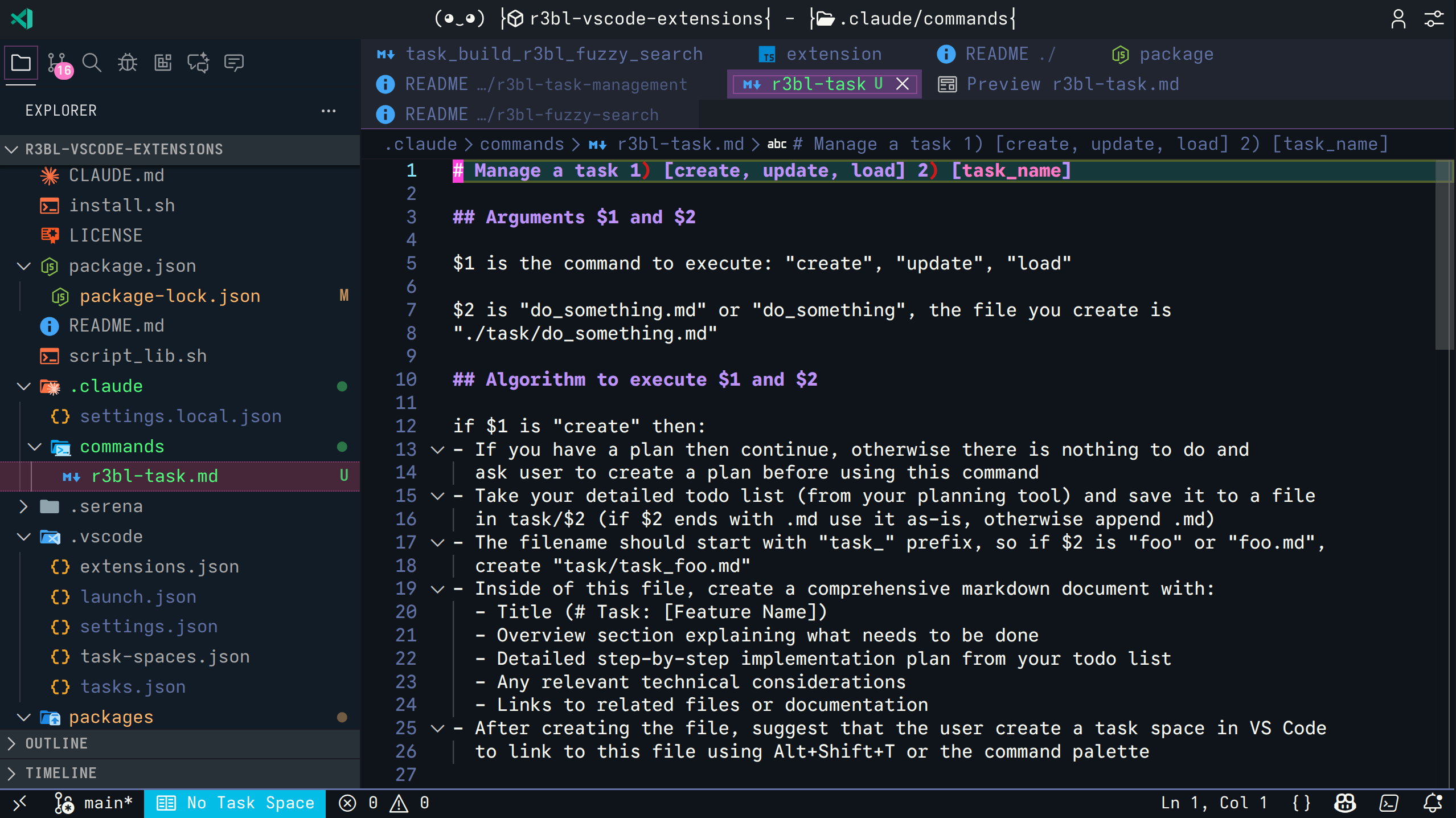 Installs
 /r3bl-task slash command
This installs the /r3bl-task command for your Coding Agent (Claude Code, Gemini CLI,
etc.):
/r3bl-task create [name] - Create task file from your todo list/r3bl-task update [name] - Update progress/r3bl-task load [name] - Resume work on a task
The extension supports the following directories for custom commands (in priority order):
.gemini/commands.claude/commands.agent/commands
If none of these exist, you'll be prompted to choose which one to create.
Automatic Updates
The extension automatically keeps the /r3bl-task command up-to-date:
- When the extension is updated with command improvements, your local command file is
automatically upgraded
- Uses SHA256 checksum comparison to detect changes
- No permission prompt needed (file is expected to be in git for review)
- You'll see a brief notification: "R3BL Task command updated"
- Review changes with
git diff .agent/commands/r3bl-task.md (or your chosen directory)
before committing
- Revert if needed:
git checkout .agent/commands/r3bl-task.md
This ensures you always have the latest command features without manual intervention.
Create Task Space from Task File
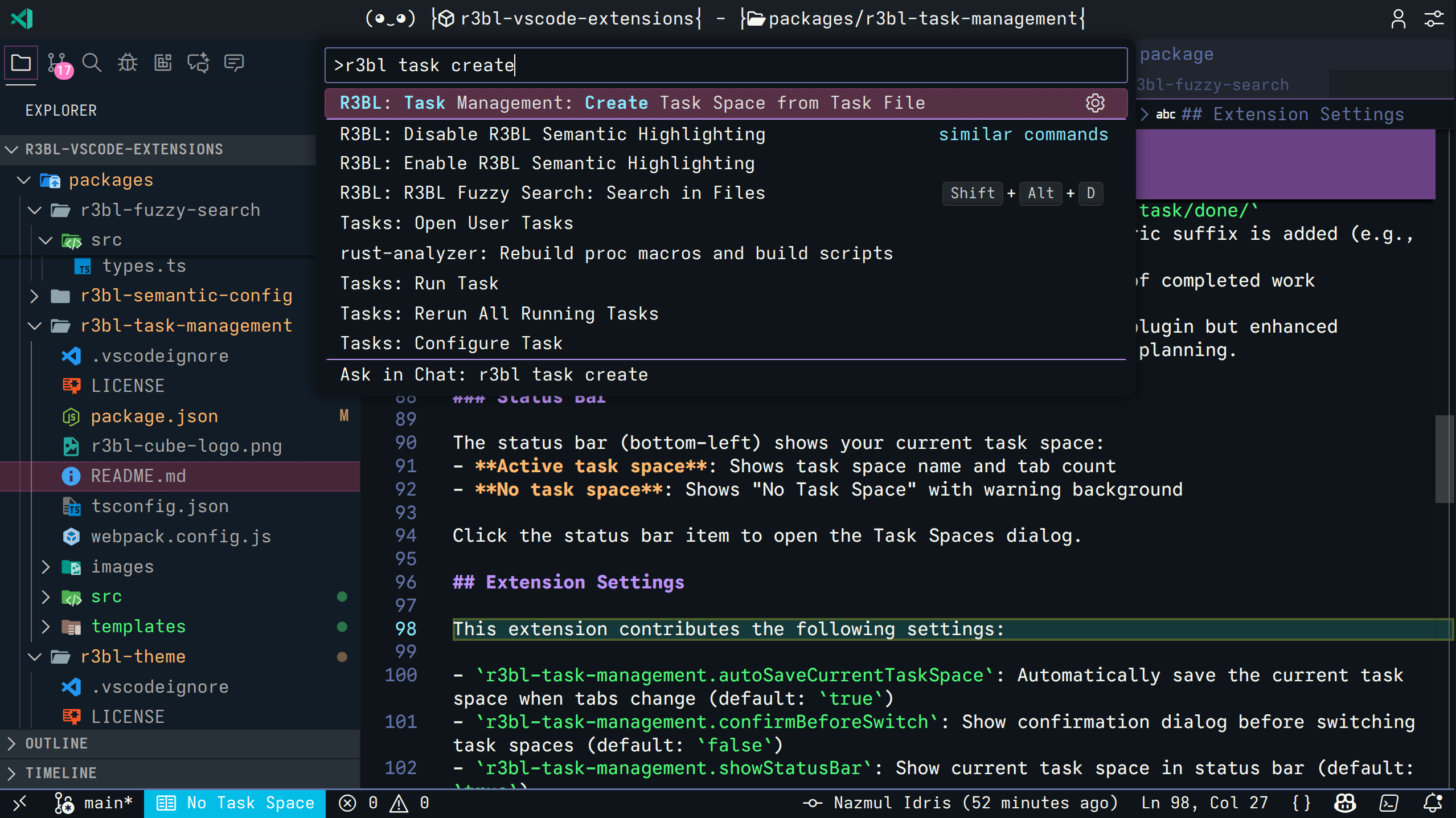 Command palette → "Create Task Space from Task File"
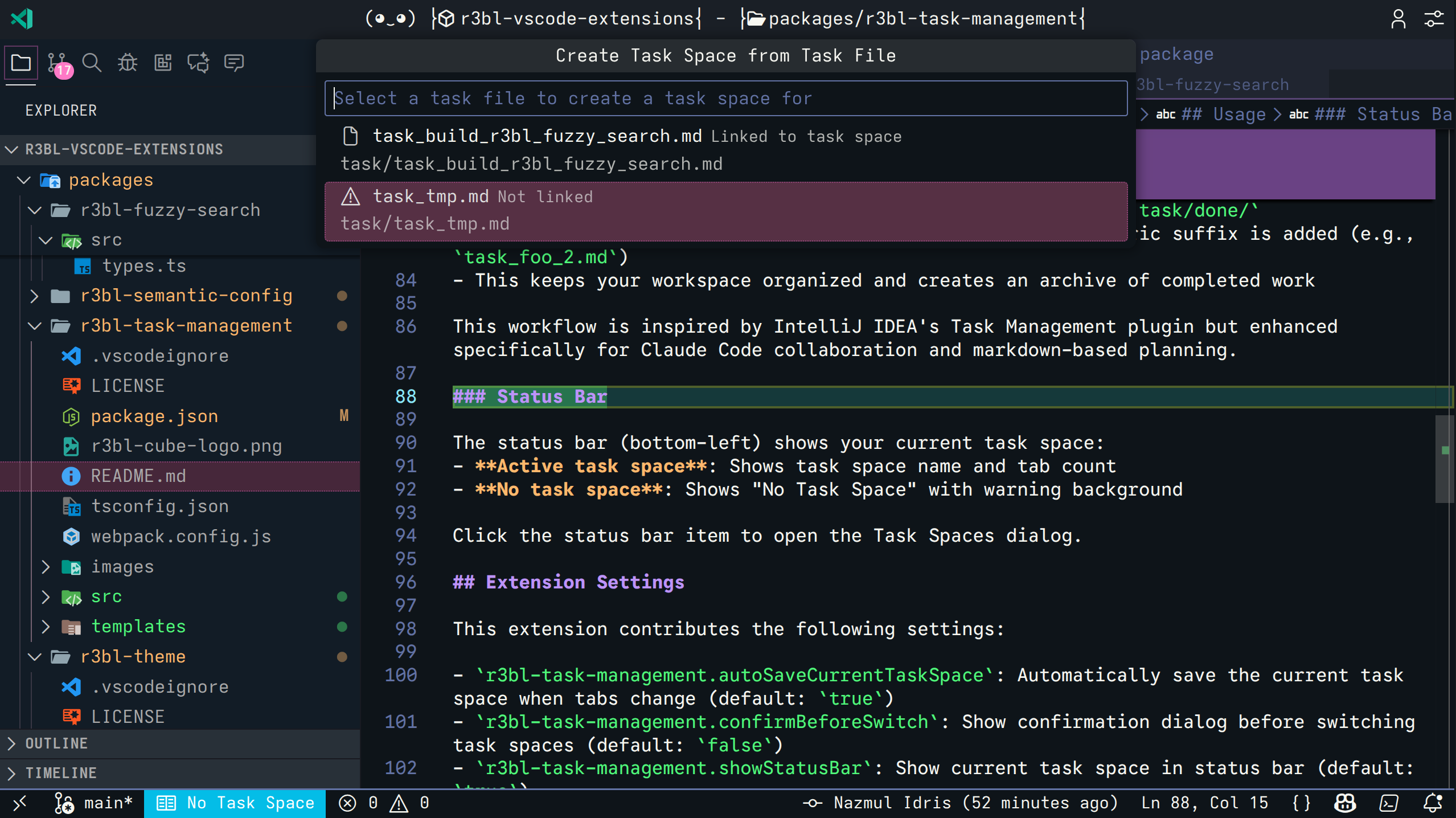 Shows all task/.md files (⚠️ = not linked)*
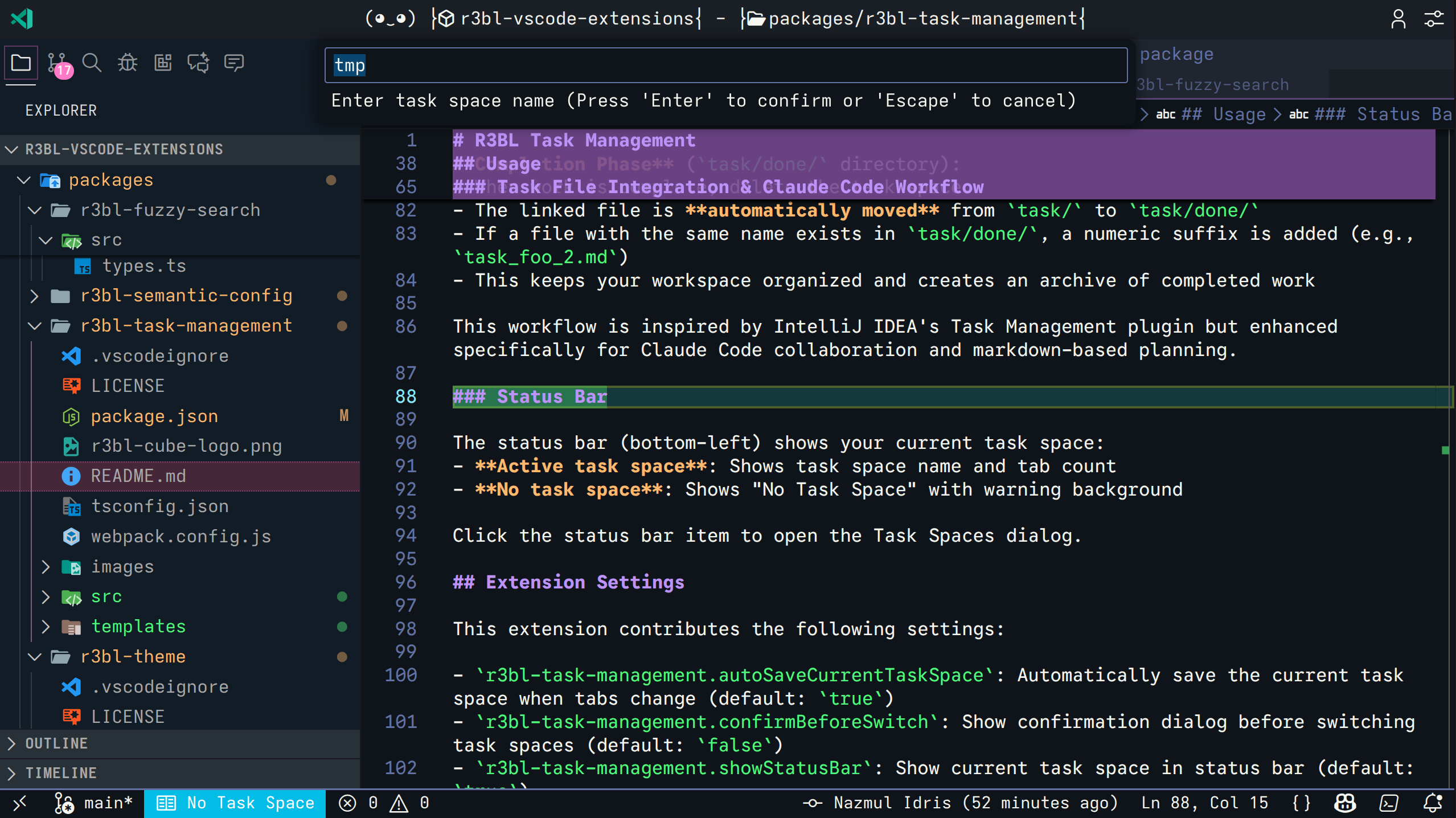 Pre-fills name from filename
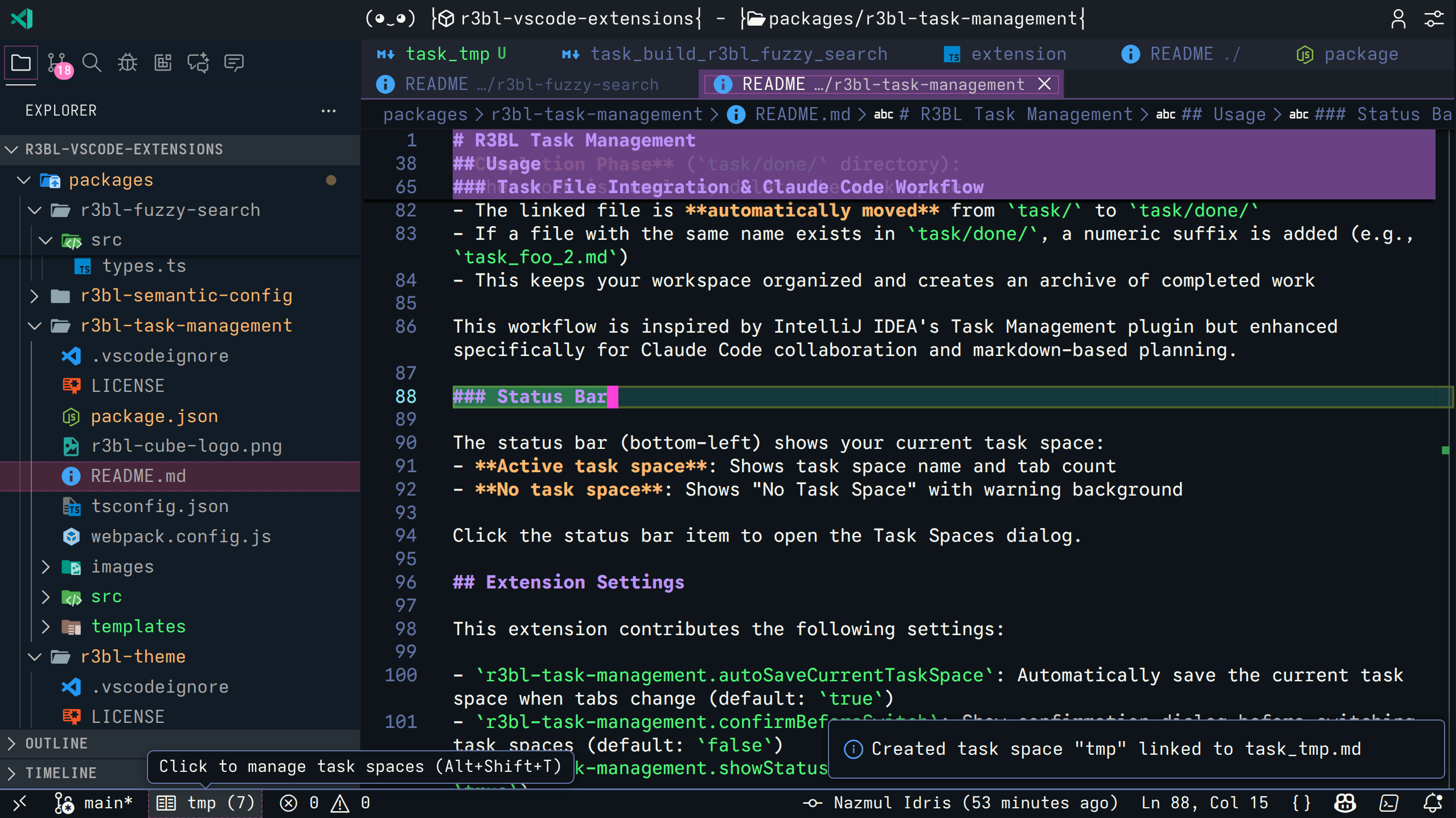 Ready to use!
Smart Prompting
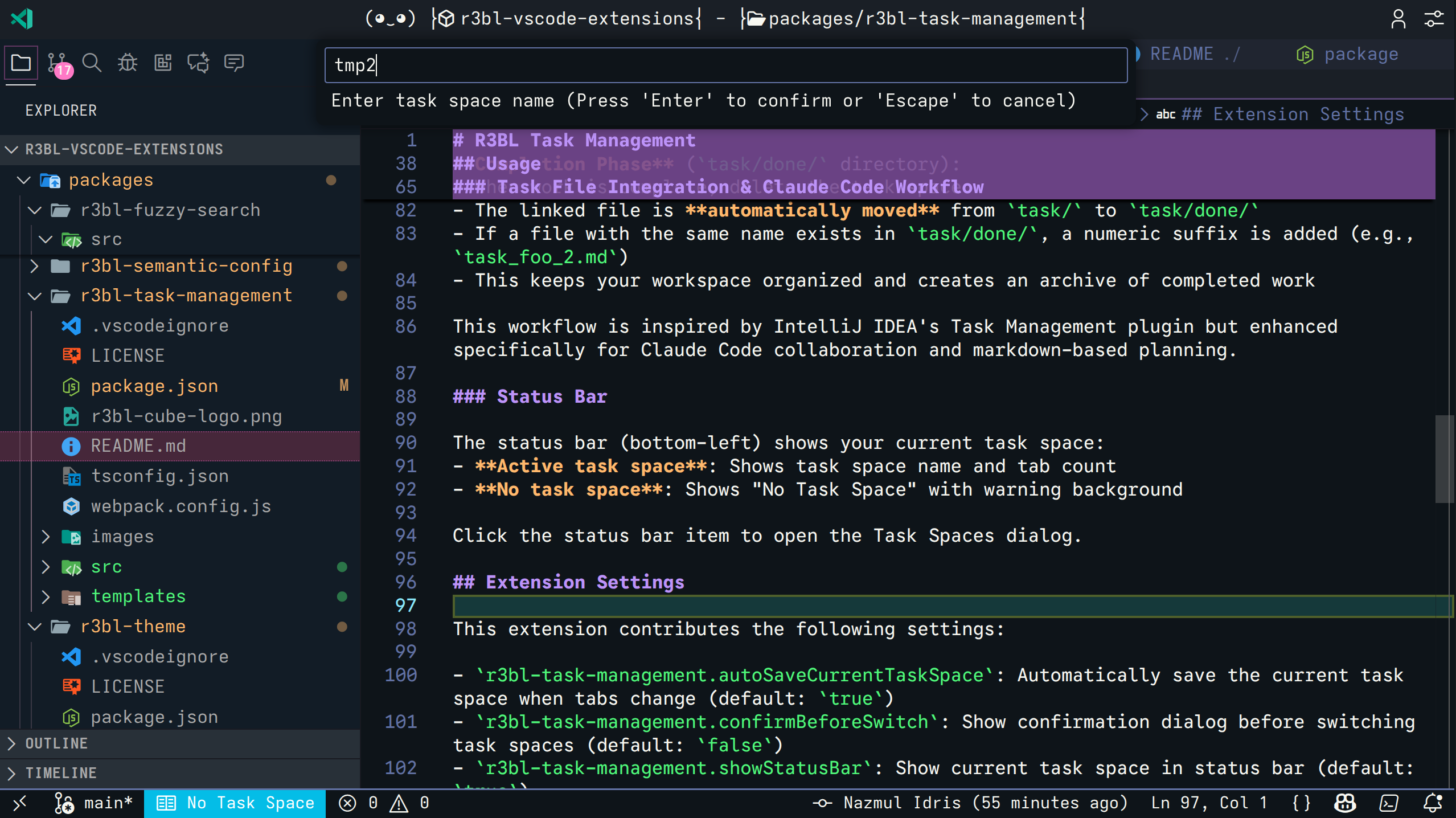 Creating task space with linked file...
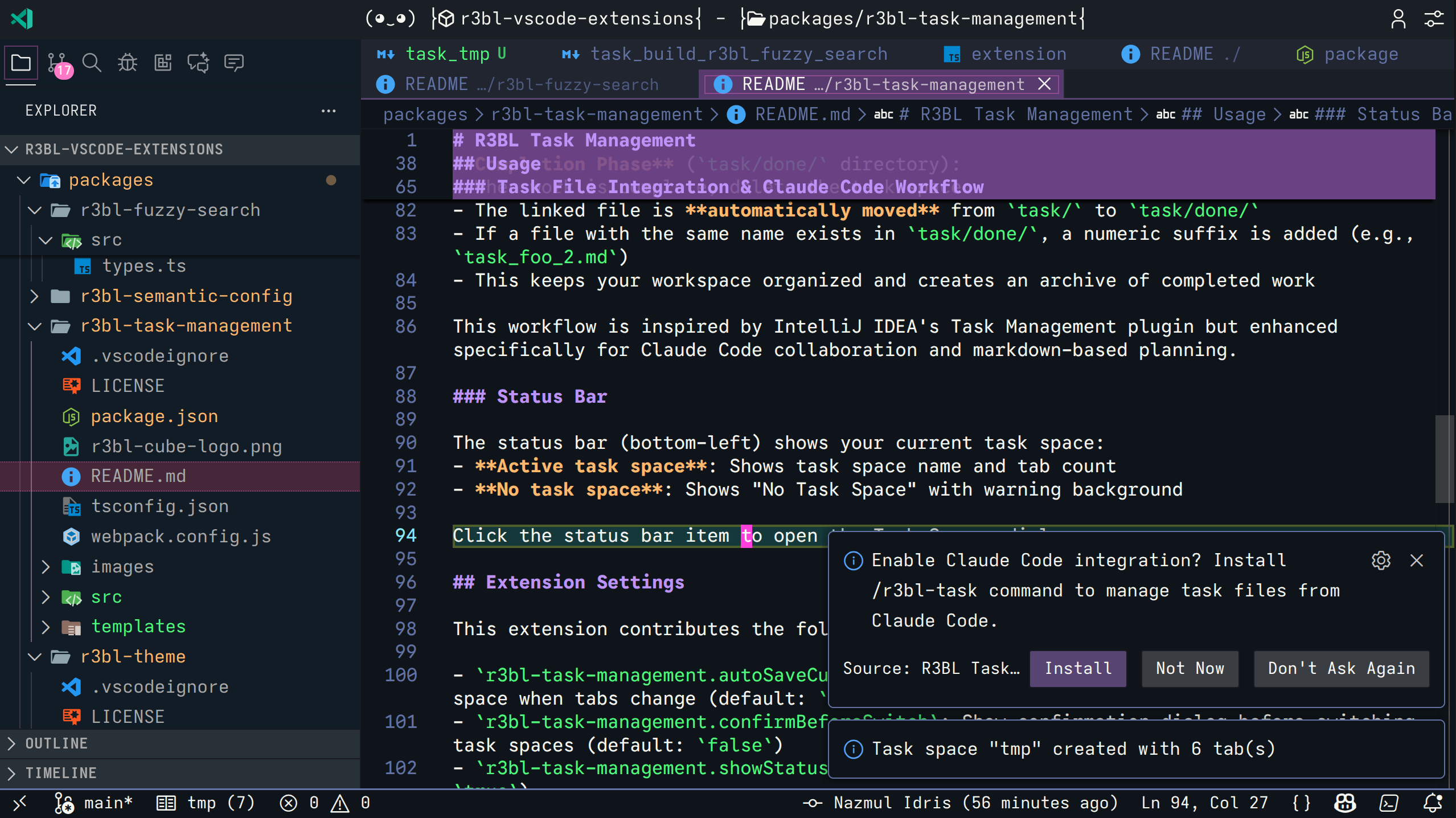 ...prompts to install Coding Agent integration (with "Don't Ask Again" option)
Power User: Multiple Coding Agent Instances
Run multiple Coding Agent instances in parallel (e.g., Claude Code, Gemini CLI in
terminal tabs or tmux panes), each working on different tasks, coordinated through one VS
Code instance:
- Terminal 1:
claude → /r3bl-task create feature_a → Creates task/feature_a.md
- Terminal 2:
claude → /r3bl-task create feature_b → Creates task/feature_b.md
- VS Code: "Create Task Space from Task File" for each
- Switch: Alt+Shift+T to switch between contexts as you work
True parallel development on the same branch!
Important: How It Works
Task Spaces Are WITHIN One Branch
This extension helps you manage multiple workflows WITHIN a single git branch. It does
NOT help you manage different feature branches. When you switch git branches, your task
spaces are tied to what's in .vscode/task-spaces.json on that branch.
Filesystem-Based Memory
Task spaces are stored in .vscode/task-spaces.json in your workspace. The extension's
memory is tied to the filesystem, not global VS Code state.
This means:
- Task spaces are per-workspace (different projects have separate task spaces)
- Task spaces are per-branch if you commit the file to git
- Branch switching can change which task spaces you see
Should You Commit .vscode/task-spaces.json?
✅ Recommended: Add to .gitignore
echo ".vscode/task-spaces.json" >> .gitignore
This extension is designed for personal workflow management. Task spaces help YOU
organize YOUR work - which files are open for implementation vs research vs code review.
This is personal context, not project configuration.
With gitignore:
- ✅ Task spaces are yours alone
- ✅ Branch switching doesn't affect your spaces
- ✅ No merge conflicts
- ✅ Your workflow stays consistent across branches
Example: You're on feature/auth with task spaces "Implementation", "Research",
"Testing". You git checkout main to check something - your task spaces stay exactly the
same. Switch back to feature/auth - everything's still there.
Alternative: Commit It (Team Collaboration)
Only do this if you want to share task spaces with your team (e.g., "here are the
relevant files for this feature").
Note: The extension automatically detects when the file changes (e.g., branch switch)
and reloads task spaces accordingly. This makes committing it possible, but it's still
not the recommended workflow for most users.
Be aware:
- ⚠️ Different branches will have different task spaces
- ⚠️ Merge conflicts are inevitable - Each team member has their own task space data
in the JSON file. When multiple people commit changes to the same file, git will
constantly show merge conflicts
- ⚠️ Team members' personal workflows differ (your "Implementation" space has different
files than theirs)
Reference
Commands
R3BL Task Management: Manage Task Spaces - Open Dashboard (Alt+Shift+T)R3BL Task Management: Finish Current Task - Archive current and pick next
(Alt+Shift+F)R3BL Task Management: Pause and Jump to Next Task - Context switch to Next
(Alt+Shift+J)R3BL Task Management: Close Current Task Space - Save and close active task space
(Alt+Shift+C)R3BL Task Management: Move Current Task to Backlog - Relegate to task/pending/R3BL Task Management: Install Coding Agent Integration - Install /r3bl-task commandR3BL Task Management: Create Task Space from Task File - Create from existing task
file
Keyboard Shortcuts
| Shortcut |
Command ID |
When |
Alt+Shift+T |
r3bl-task-management.showTaskSpaces |
Not in terminal |
Alt+Shift+F |
r3bl-task-management.finishCurrentTask |
Not in terminal |
Alt+Shift+J |
r3bl-task-management.pauseAndJumpToNext |
Not in terminal |
Alt+Shift+C |
r3bl-task-management.closeCurrentTaskSpace |
Not in terminal |
You can customize this shortcut in VS Code's Keyboard Shortcuts settings by searching for
the command ID above.
Extension Settings
r3bl-task-management.autoSaveCurrentTaskSpace - Auto-save on tab changes (default:
true). Disable for "view-only" mode where this instance syncs from others but doesn't
write back.r3bl-task-management.autoSaveDebounceMs - Delay in milliseconds before auto-saving
after tab changes (default: 500, range: 100-5000). Lower values save faster but may
cause more disk writes.r3bl-task-management.confirmBeforeSwitch - Confirm before switching (default: false)r3bl-task-management.showStatusBar - Show status bar item (default: true)r3bl-task-management.restoreTabsOnStartup - Restore tabs from active task space when
VS Code starts (default: true)
Status Bar
Bottom-left corner shows:
- Active task space: Name + tab count (e.g., "Feature: Auth (5)")
- No task space: "No Task Space" with warning background
Click to open Task Spaces dialog.
Task spaces are stored in two separate locations to support multi-instance editing and
avoid git noise:
.vscode/task-spaces.json (Shared File)
This file is synced across all VSCode instances opening the same project. Changes made in
one window (creating/deleting/renaming task spaces, modifying tabs, queue management) are
reflected in others.
{
    "version": "4.0",
    "taskSpaces": [
        {
            "name": "Feature: Authentication",
            "id": "uuid",
            "tabs": [
                { "path": "src/auth.ts", "isPinned": true },
                { "path": "src/login.ts", "isPinned": false }
            ],
            "taskFile": "task/authentication.md",
            "activeTab": "src/auth.ts",
            "createdAt": 1234567890
        }
    ],
    "nextQueueIds": ["uuid-1", "uuid-2"],
    "previousStackIds": ["uuid-3"]
}
VSCode Workspace State (Per-Instance)
Per-instance data is stored in VSCode's workspace state. This data is NOT shared between
VSCode windows, allowing different windows to have different task spaces active
simultaneously.
Storage Location:
- Linux:
~/.config/Code/User/workspaceStorage/<workspace-id>/state.vscode.*
- macOS:
~/Library/Application Support/Code/User/workspaceStorage/<workspace-id>/state.vscode.*
- Windows:
%APPDATA%\Code\User\workspaceStorage\<workspace-id>\state.vscode.*
Data Format:
{
    "activeTaskSpaceId": "uuid",
    "taskSpaceMetadata": {
        "uuid-1": { "lastAccessed": 1234567890 },
        "uuid-2": { "lastAccessed": 1234555555 }
    }
}
Note: This metadata is automatically cleaned up when task spaces are deleted,
preventing any memory leaks or storage bloat.
Multi-Instance Behavior
| Data |
Synced? |
Notes |
| Task space list |
✅ Yes |
Creating/deleting/renaming syncs across all windows |
| Tab content |
✅ Yes |
Adding/removing files from a space syncs |
| Shared Queues |
✅ Yes |
Next Queue and Previous Stack sync across IDEs |
| Active task space |
❌ No |
Each window has its own Active Task pointer |
| Last accessed |
❌ No |
Each window tracks its own usage history |
Example use case: Open the same project in VS Code and VS Code Insiders, with
different task spaces active in each window. Both windows stay in sync for task space
definitions and queues, but each maintains its own focus.
Storage Benefits:
- ✅ Task space definitions remain clean and git-friendly
- ✅ No git noise from frequent timestamp/active space updates
- ✅ Multiple VSCode windows can work on different task spaces simultaneously
- ✅ "Last accessed" sorting still works perfectly per-instance
- ✅ Automatic cleanup when task spaces are deleted (no memory leaks)
Note: The extension automatically migrates from v1.0 → v2.0 → v3.0 → v4.0 format as
needed.
When Does the File Get Saved?
The JSON file is automatically saved to disk in these situations:
- Create task space - Saves the new task space with current tabs
- Delete task space - Saves after removing the space (and archives task file)
- Switch to task space - Saves to persist the switch (Active pointer stored in
workspaceState)
- Queue Management - Saves when adding/removing tasks from Next or Paused queues
- Auto-save tabs - Saves current open tabs (500ms after tab changes)
Note: The lastAccessed timestamp is updated separately in VSCode workspace state and
does NOT trigger file saves, keeping git history clean.
Note on missing files: When auto-save runs, it saves only the tabs that are currently
open. If a file was in your task space but failed to open (e.g., missing on current
branch), it won't be in the "currently open tabs" list and will be automatically removed
from the task space on the next save. This keeps task spaces clean and accurate to your
actual workspace.
Shared Infrastructure
This extension uses the R3BL Shared extension for centralized services across all R3BL
extensions (message queuing, global configuration, and more).
See the
R3BL Shared documentation
for available services, API usage, and configuration options.
Release Notes
See
CHANGELOG.md
for detailed release notes and version history.
License
MIT
Contributing
Found a bug or have a feature request? Please open an issue at:
https://github.com/r3bl-org/r3bl-vscode-extensions/issues
Stay organized and productive!

