⚡ FastClient – Lightweight REST API Client
A tiny, fast REST/HTTP API client for VS Code and all its forks. Send requests, organise them in collections stored as plain JSON files in your repo, switch environments, and import/export cURL — without leaving the editor and without a heavyweight extension.
Features
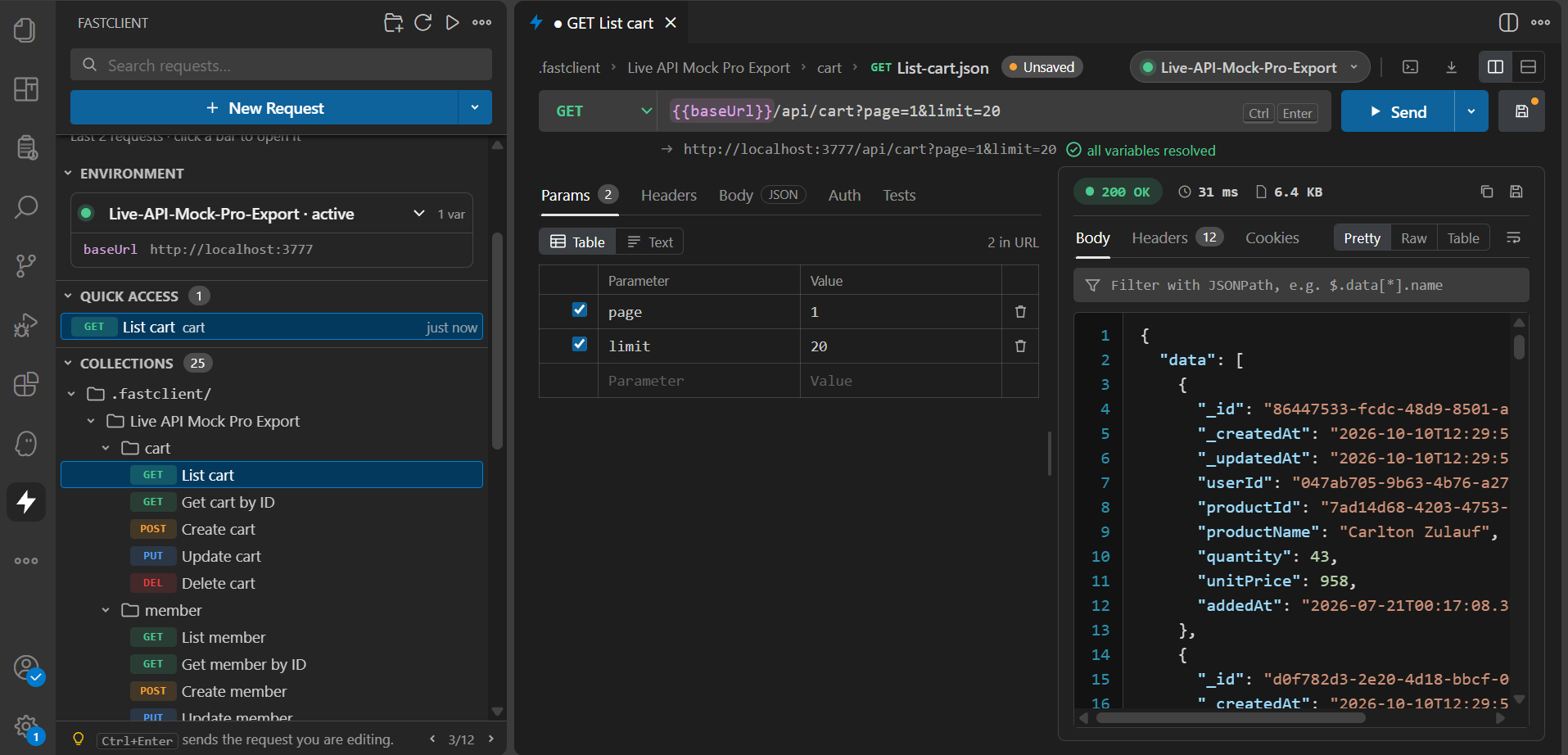
- Request editor – method, URL, query params (synced with the URL), headers, body (JSON, form-urlencoded, multipart with file uploads, raw text) and auth (Basic, Bearer). Request and response sit side by side (or stacked — toggle in the header), with the active environment, Copy as cURL and Import cURL one click away.
- Variable check before sending – the line under the URL shows the resolved URL and flags
{{variables}} the active environment does not define; one click on Add to <env>.local.json asks for the value and stores it in a git-ignored local file.
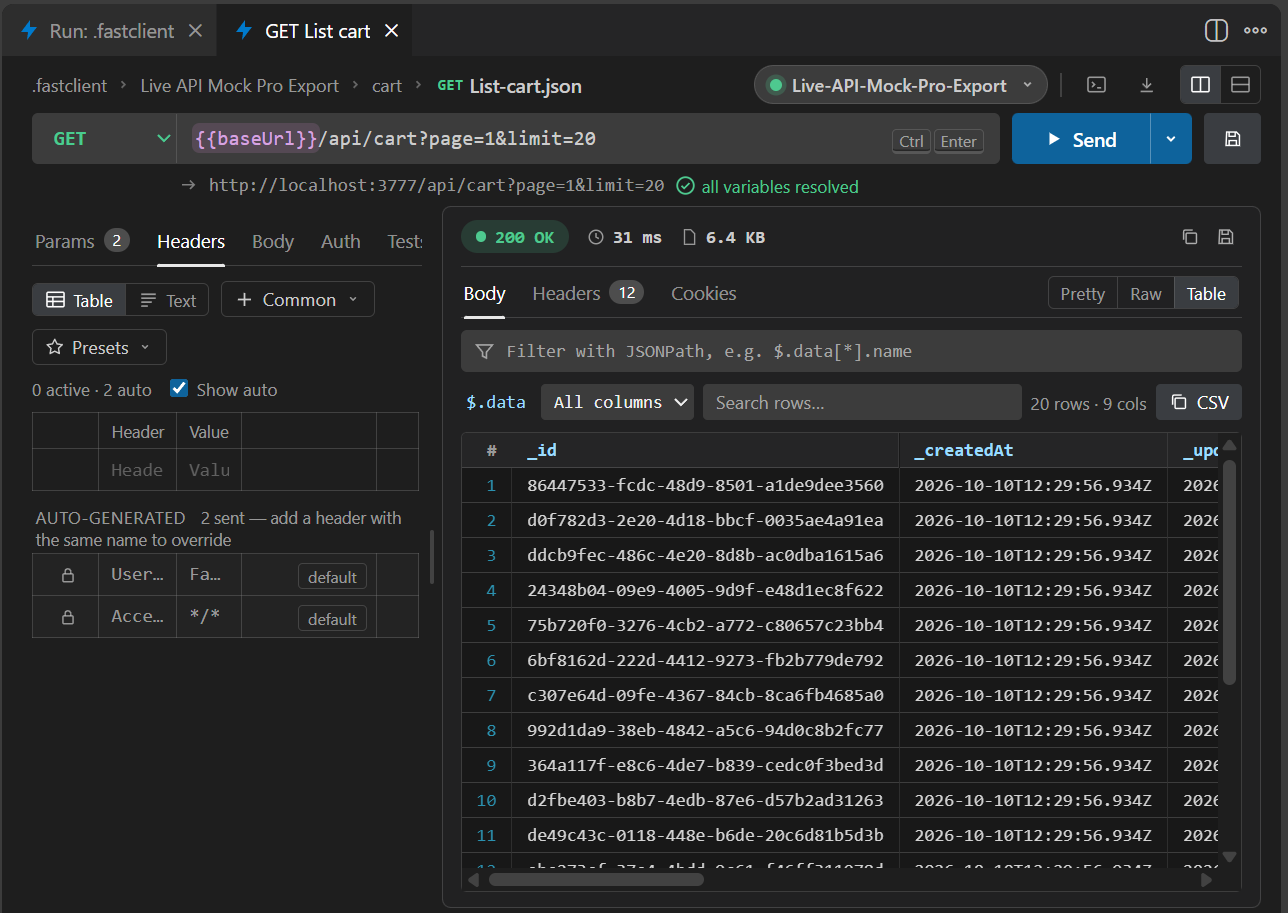
- Response viewer – status, time, size, headers, cookies, pretty-printed and highlighted JSON, a JSONPath filter, a Test results tab and a Table view for JSON arrays (sortable, searchable, copy as CSV).
- Environment card – the sidebar shows the active environment and its variables (secrets masked, captured values marked) at the top.
- Collections as files – requests are saved as readable JSON under
.fastclient/ in your workspace, so they can be committed, reviewed and shared with git. No account, no cloud sync.
- Organisable collections – drag requests into collections and reorder requests or collections in the sidebar. Drag a collection onto another collection to nest it.
- Environments –
{{baseUrl}}-style variables, nested variables, {{$env.NAME}} (process env) and dynamic variables. Secrets go into environments/<name>.local.json, which is git-ignored automatically.
- Tests and chaining – declarative assertions on status, headers, JSON paths and response time, plus capturing response values into
{{variables}}. Run a whole folder or collection and see pass/fail per request.
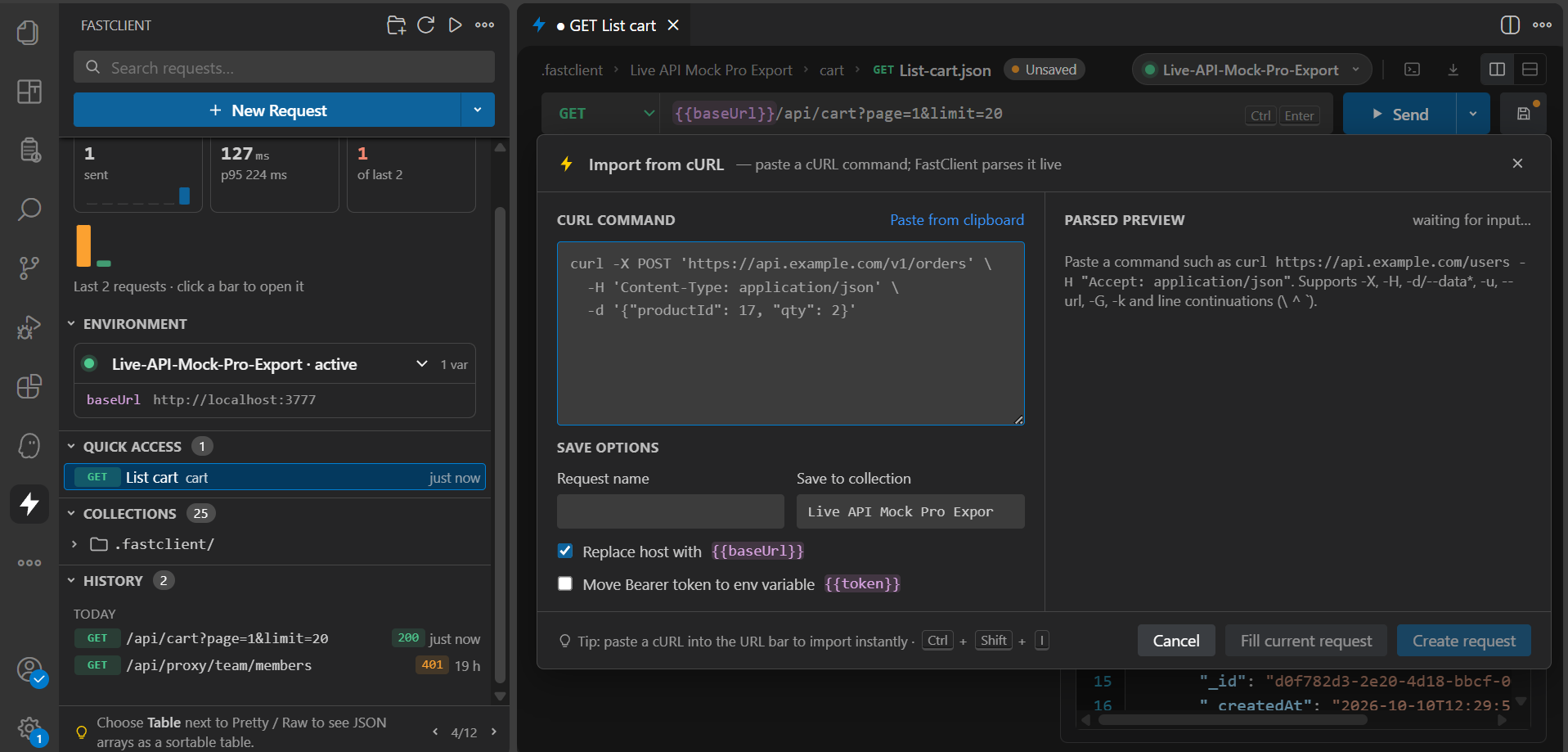
- cURL import / export – paste a cURL command (bash, Windows
cmd and PowerShell styles) or copy any request as cURL.
- Postman & OpenAPI import / export – import Postman collections (v2.0 / v2.1) and environments, OpenAPI 3.x and Swagger 2.0 (JSON or YAML); export any collection as a Postman v2.1 collection or an OpenAPI 3.0 document.
- History – recent requests in the sidebar (configurable limit).
- Networking – follows redirects, timeout, cancel, gzip / deflate / brotli decoding, optional acceptance of self-signed certificates (like
curl -k).
Why it's light
- Zero runtime dependencies – the HTTP client is built on Node's own
http/https modules.
- One small bundle – the whole extension is a single minified file; the UI is plain DOM with no framework. The VSIX is well under 150 KB.
- Lazy activation – nothing runs until you open the FastClient view or run a command.
- No telemetry, no login, no background processes.
Compatibility
Requires an engine compatible with VS Code 1.74+ and uses only stable APIs (no proposed APIs), so it works in:
- Visual Studio Code and VS Code Insiders
- Cursor
- Windsurf
- VSCodium (install from Open VSX or the
.vsix)
- code-server / browser-hosted VS Code (server side)
- Remote – SSH, WSL and Dev Containers (the extension runs on the workspace side, so requests reach hosts such as
localhost on the remote machine)
Getting started
- Click the ⚡ FastClient icon in the activity bar.
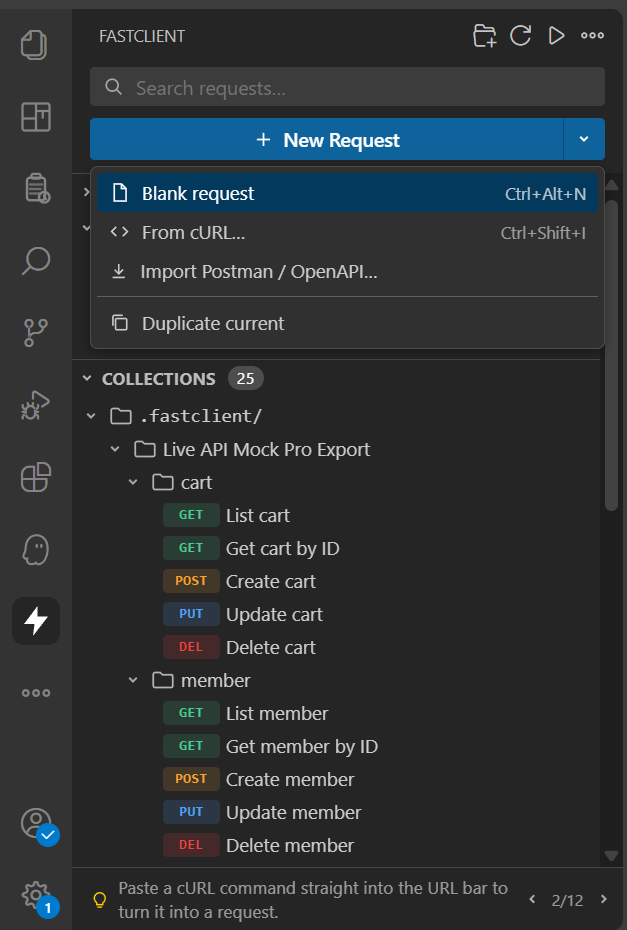
- Create a request with New Request (
Ctrl+Alt+N) or New Request from cURL (Ctrl+Shift+I).
- Press
Ctrl+Enter to send and Ctrl+S to save it into a collection.
In the Collections tree, drag a request onto a collection to move it there. Drop an item above or below a sibling to change its order; drop a collection into another collection to nest it.
Editor layout
- Header – breadcrumb (collection › request, with an Unsaved badge), the environment button (click to switch), Copy as cURL, Import cURL and the layout switch: side by side (default) or stacked. Narrow editors always stack. Drag the divider to resize; double-click it to reset.
- URL bar – method, URL with highlighted
{{variables}}, Send (the arrow next to it opens Save, Save as…, Copy as cURL and Import from cURL) and Save (with a dot while there are unsaved changes).
- Resolved line – under the URL: the URL as it will be sent and a warning for undefined variables. Click a variable or Add {{name}} to
<env>.local.json to enter its value.
- Request tabs – Params, Headers, Body, Auth, Tests.
- Response – status, time, size and a test summary chip; tabs Body, Headers, Cookies and Test results.
Headers, Params and Form fields have a Table / Text switch:
- Table – one row per entry.
Enter moves from name to value and on to the next row, Ctrl+Shift+Backspace deletes the row, Alt+↑ / Alt+↓ reorders rows. Repeated header names are flagged as duplicate.
- Text (bulk edit) – one
Key: Value per line; start a line with // to disable it (Ctrl+/ toggles).
- Smart paste – paste DevTools "Copy request headers", a raw HTTP request,
curl … -H '…', a URL or query string, or a=1&b=2 and the entries are merged in automatically.
- Autocomplete – header names and typical values, plus
{{variables}} after {{. Ctrl+Space shows all suggestions.
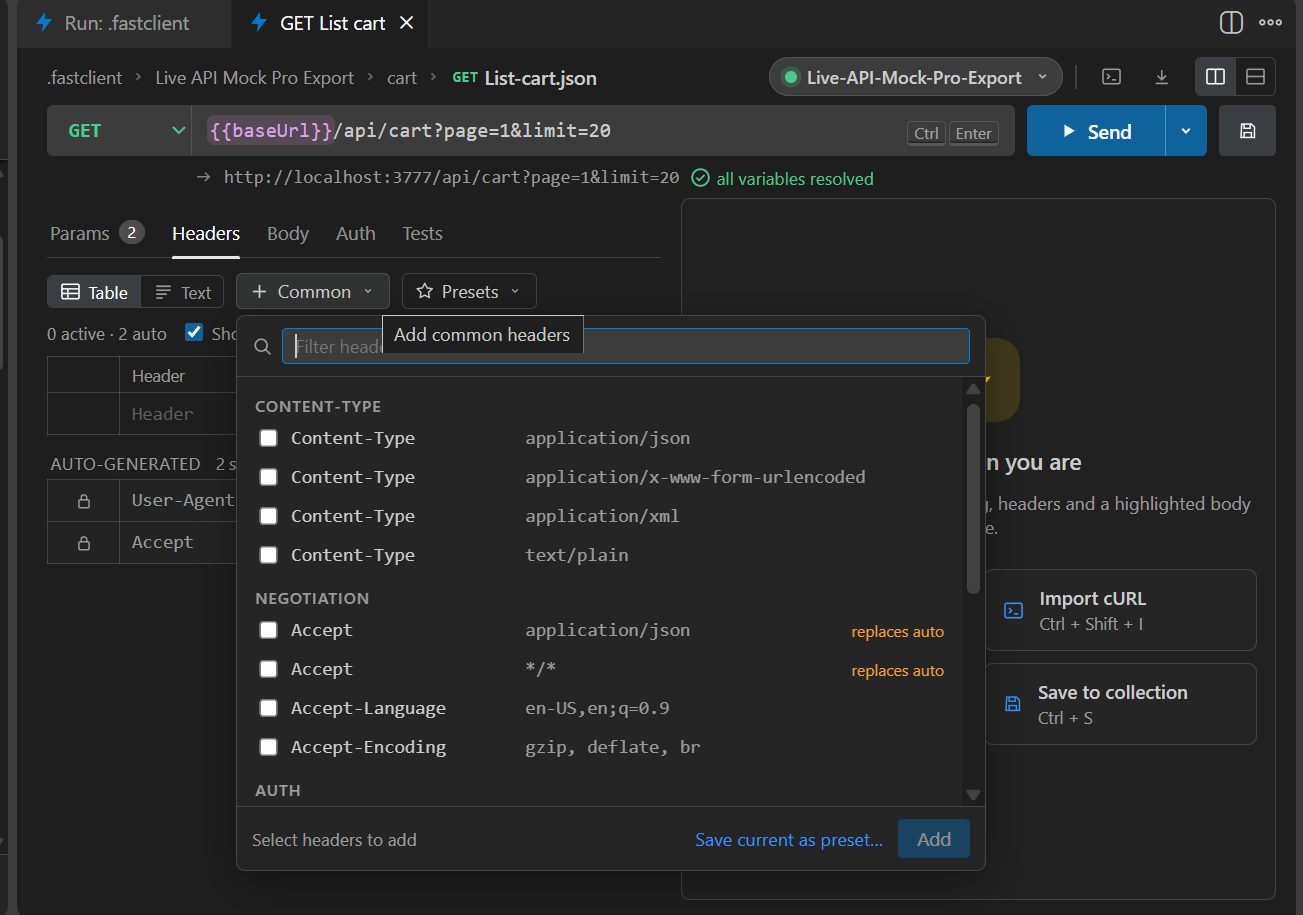
- + Common – a checklist of common headers (Content-Type, Accept, Authorization, Cache-Control, …) with a filter.
- Presets – save the current headers as a preset and apply them to any request.
- Auto-generated headers – shown greyed out:
Authorization (from Auth), Content-Type (from body type), Content-Length, User-Agent and Accept. A header you set with the same name overrides the auto one.
File uploads (multipart)
Choose Multipart as the body type. Each field is Text or File:
- Choose… opens the file dialog. Files inside the workspace are stored relative to the workspace folder (portable); files elsewhere are stored with an absolute path.
- Each file row shows the file name and size, or File not found / No file chosen; uploads over 50 MB are marked large upload.
- Files are streamed from disk when the request is sent (never loaded into memory).
Table view
For JSON responses, choose Table next to Pretty / Raw:
- Shows an array of objects found at the root, at a top-level property or one level deeper (e.g.
$.data, $.items).
- Works on the JSONPath filter result too.
- Columns are the union of keys of the first 200 rows; nested objects and arrays are shown as compact JSON.
- Click a column header to sort; search all columns or one column.
- At most 1,000 rows are rendered; sorting, search and CSV export still use every row.
Tests and running collections
Open the Tests tab of a request. Tests are plain data saved in the request's JSON file — nothing is ever executed, so they are safe in untrusted workspaces.
"tests": [
  { "type": "status", "equals": 200 },
  { "type": "json", "path": "$.data.id", "type_is": "number" },
  { "type": "header", "header": "content-type", "contains": "json" },
  { "type": "time", "lt": 500 },
  { "type": "bodyContains", "value": "ok" }
],
"extract": [
  { "var": "token", "from": "json", "path": "$.data.jwt" }
]
- Add test from response proposes tests (status, typed top-level fields) and token-like fields to capture.
- Capture to variable (
extract) stores a JSON value or header into a runtime {{variable}} that overrides the active environment. Runtime variables are never written to disk.
- Run folder / collection: use the ▶ button on a folder in the sidebar. Requests run one at a time in sidebar order, so a login request can feed the next ones. Results appear in the Run Results page.
- Quick access: starred requests (☆ on any request row) and recently opened ones, per workspace.
- Quick start: shown until you send the first request.
- Environment status: the active environment and a ⚠ count of undefined
{{variables}}. Expand to see which requests use them and add a value.
- Overview: requests sent today with a 7-day trend, average / p95 response time, errors, a response-time chart and the last collection run.
- Tips at the bottom; use ‹ › to browse.
Run results
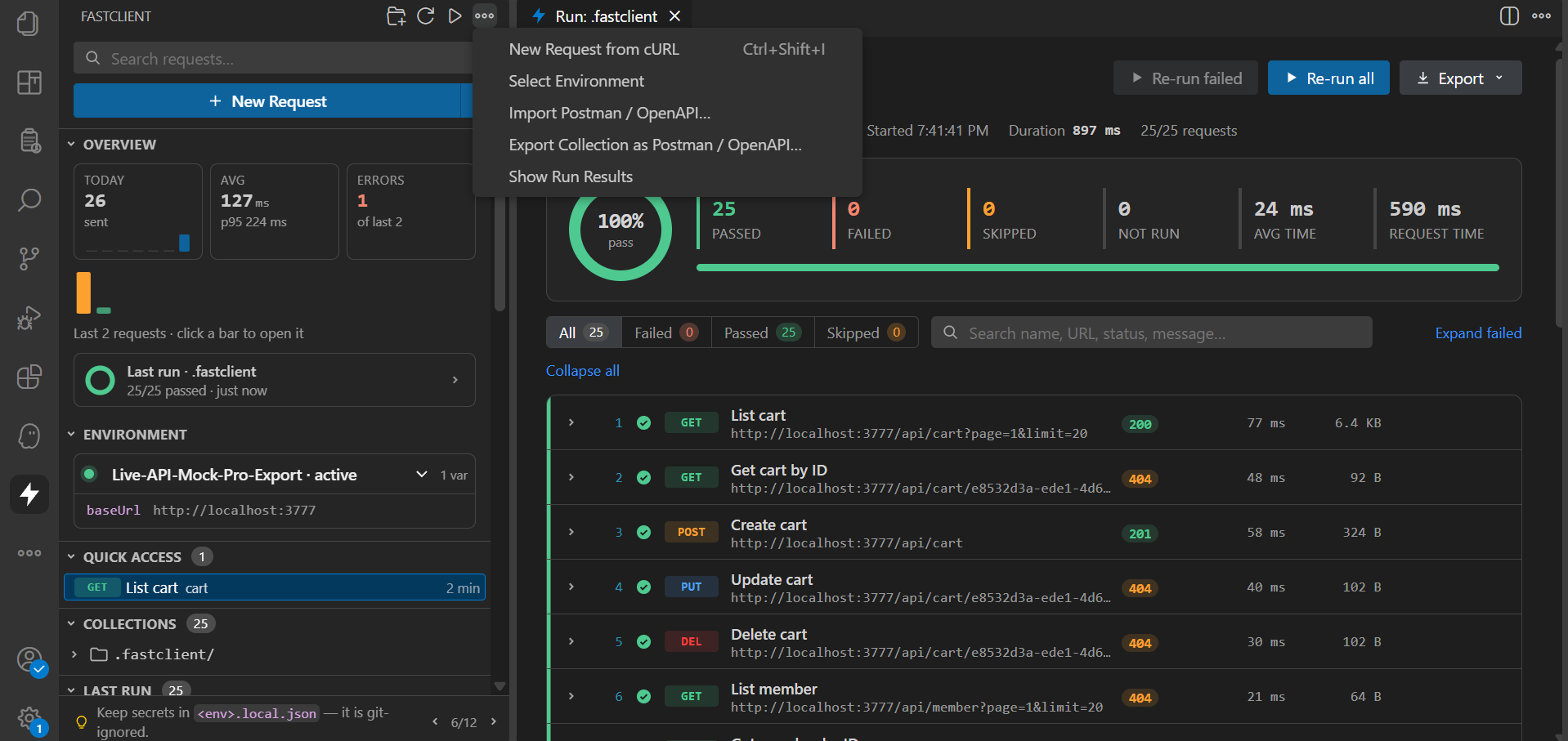
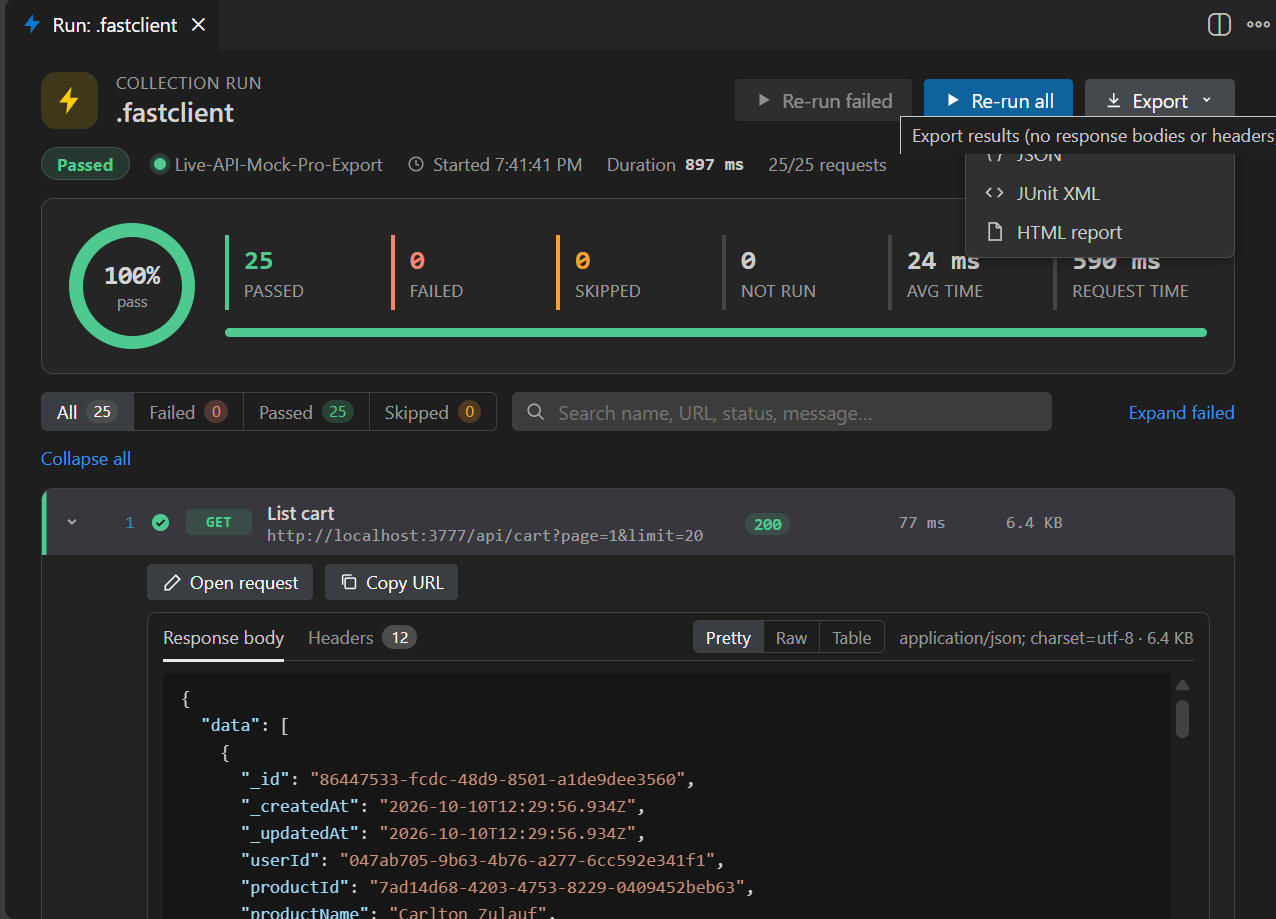
Running a folder or collection opens the Run Results page:
- Header: collection, environment, start time, duration and progress; Stop while running, Re-run failed / Re-run all afterwards.
- Summary: pass ring, passed / failed / skipped counts, average and total request time.
- Requests: method, name, resolved URL, HTTP status, time, size and tests passed. Expand a row to see every test with expected / actual values, and the response.
- Export as JSON, JUnit XML or a self-contained HTML report.
Import and export
Import — New Request ▾ → Import Postman / OpenAPI…, the FastClient: Import Postman / OpenAPI… command, or right-click a .json / .yaml file in the Explorer.
| Source |
What you get |
| Postman collection v2.0 / v2.1 |
Folders, requests, headers, query params, body types, auth. Collection variables go to an environment named after the collection. |
| Postman environment |
An environment with the same name. |
| OpenAPI 3.x / Swagger 2.0 |
One request per operation, grouped by tag. URLs use {{baseUrl}} and path parameters become {{variables}}. |
Importing into an existing collection asks what to do: Update, Replace or Add as copies.
Export — the export button on a collection row or FastClient: Export Collection as Postman / OpenAPI…:
- Postman Collection v2.1 — folders, requests, auth and test scripts.
- OpenAPI 3.0 (YAML or JSON) — one operation per request, folders as tags, parameters, request bodies and security schemes.
Keyboard shortcuts
| Action |
Windows / Linux |
macOS |
| Send request |
Ctrl+Enter |
Cmd+Enter |
| Save request |
Ctrl+S |
Cmd+S |
| Save as… |
Ctrl+Shift+S |
Cmd+Shift+S |
| New request |
Ctrl+Alt+N |
Cmd+Alt+N |
| New request from cURL |
Ctrl+Shift+I |
Cmd+Shift+I |
All commands are also available from the Command Palette under FastClient:.
Settings
| Setting |
Default |
Description |
fastclient.timeout |
30000 |
Request timeout in ms (0 = none). |
fastclient.followRedirects |
true |
Follow HTTP redirects (max 10). |
fastclient.rejectUnauthorized |
true |
Verify TLS certificates. |
fastclient.historyLimit |
20 |
Number of history entries kept. |
fastclient.quickAccess.limit |
5 |
Rows shown in Quick access; 0 hides it. |
fastclient.copyAsCurlResolveVariables |
true |
Resolve {{variables}} when copying as cURL. |
fastclient.runStopOnFailure |
false |
Stop a collection run at the first failed request. |
fastclient.maxResponseView |
5242880 |
Max response bytes rendered in the viewer. |
fastclient.maxResponseBytes |
52428800 |
Max received or decoded response bytes (0 = unlimited). |
fastclient.keepAlive |
true |
Reuse TCP/TLS connections between requests to the same host. |
License
MIT © 2026 Putra Adi Jaya
| |

