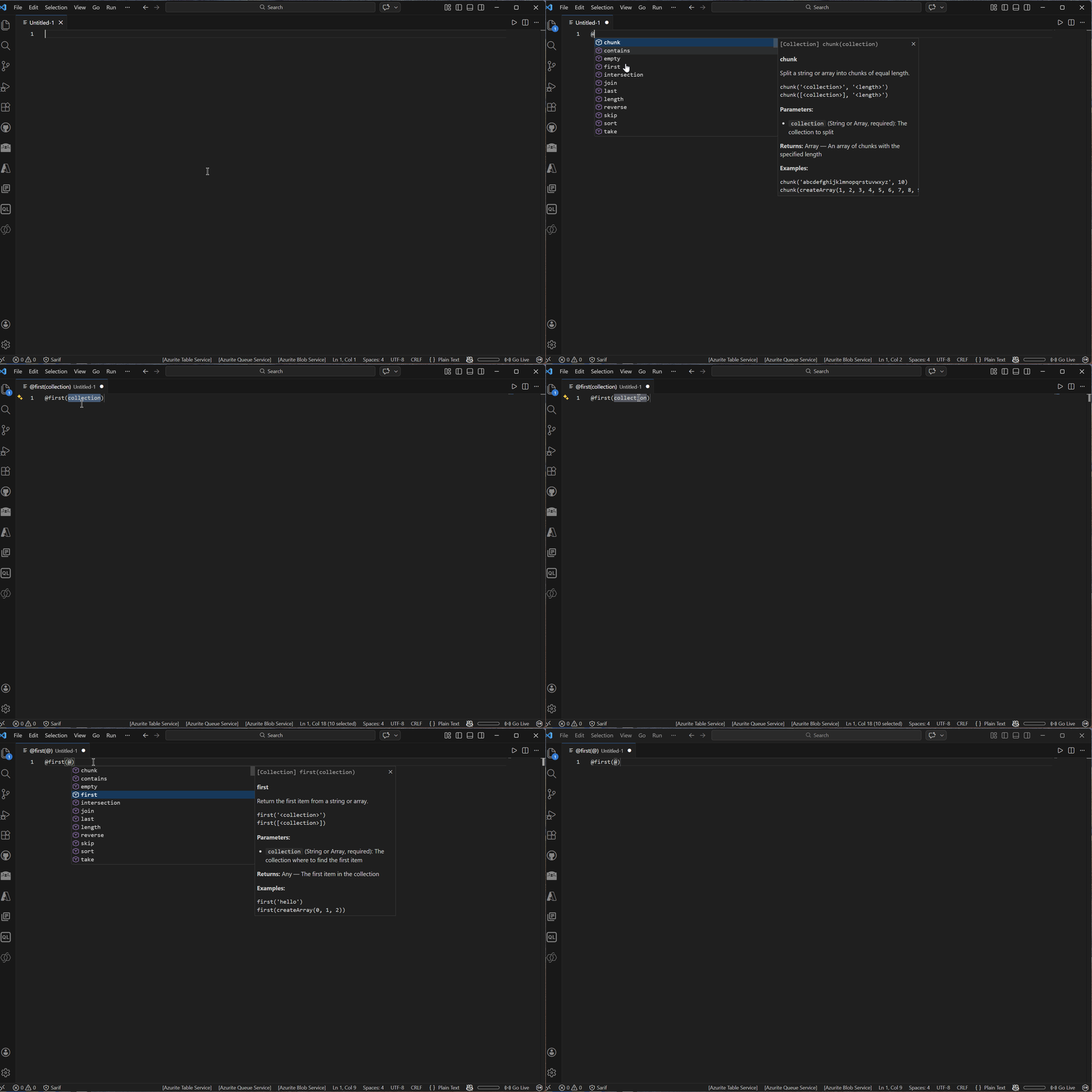
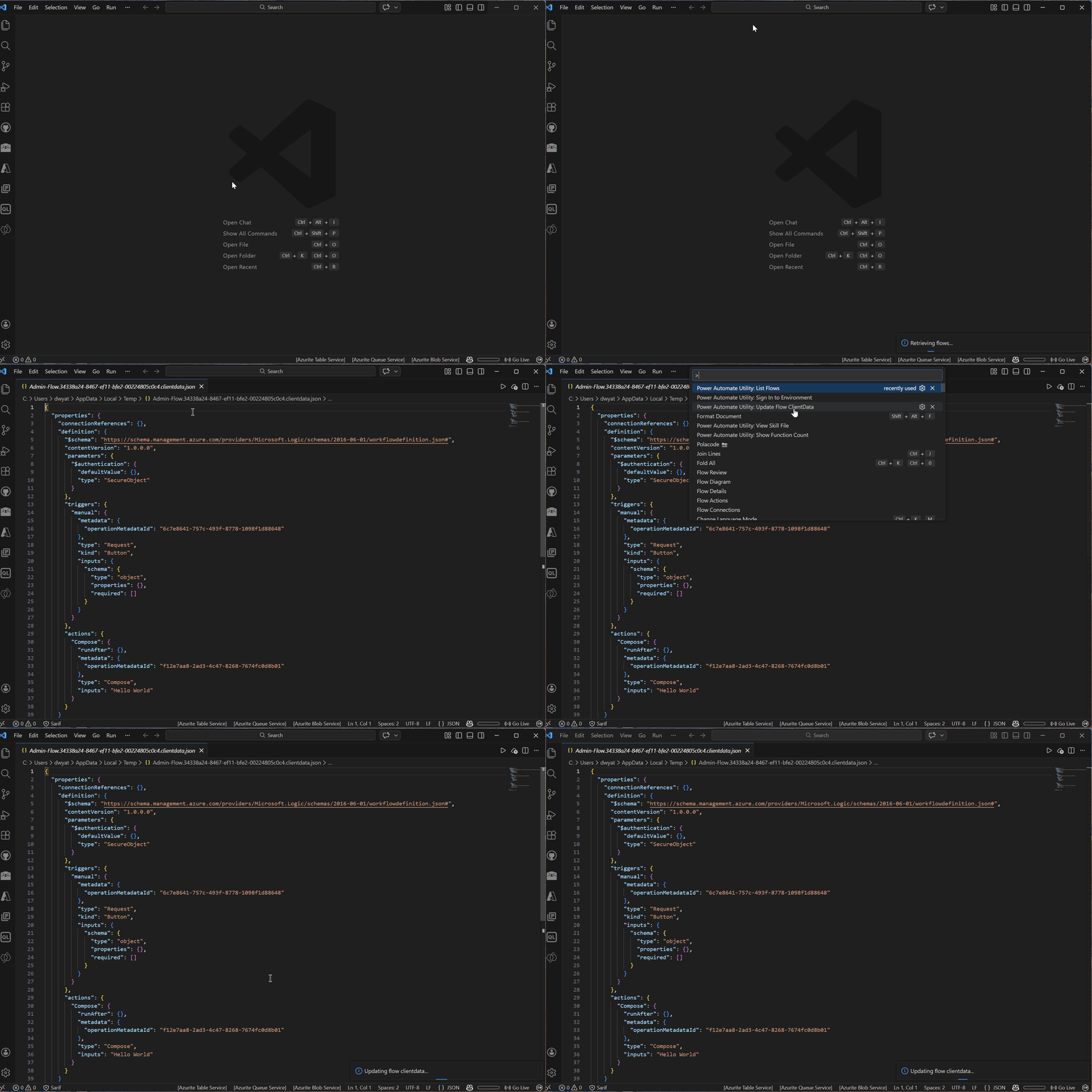
A VS Code extension providing IntelliSense for Power Automate and Logic App expressions (great for scratch padding expressions to copy/paste into ui), along with the ability to edit cloud flows directly from VS Code via the Dataverse API.
Features
Expression IntelliSense
Auto-complete for all Power Automate / Logic App expression functions in .json, .jsonc, and .txt files
Hover documentation showing function signatures, descriptions, and examples
Signature help displaying parameter info as you type inside function parentheses
Edit Power Automate cloud flows directly from VS Code by reading and writing the clientdata field of the Dataverse workflows table.
Note: Only solution-aware flows (flows added to a Solution) are supported. Flows created under "My Flows" outside of a solution are not accessible via this method.
Prerequisites
A Power Platform environment with Dataverse
A browser for the OAuth2 sign-in prompt
The environment URL (e.g. https://yourorg.crm.dynamics.com)
Your tenant ID (e.g. contoso.onmicrosoft.com or a GUID)
Commands
Command
Description
Power Automate Utility: Sign In to Environment
Prompts for tenant ID and environment URL, then opens a browser for OAuth2 sign-in. Tokens are cached in memory for ~55 minutes.
Power Automate Utility: List Flows
Fetches all solution-aware cloud flows from the environment and displays them in a QuickPick. Selecting a flow opens its clientdata for editing.
Power Automate Utility: Open Flow ClientData
Downloads the clientdata JSON for a specific flow and opens it in the editor as a .clientdata.json file.
Power Automate Utility: Update Flow ClientData
Reads the active .clientdata.json file and PATCHes it back to Dataverse. A cloud-upload button also appears in the editor title bar when editing these files.
Power Automate Utility: Show Connection References
Lists all connection references in the signed-in environment. Select one to insert it into the connectionReferences section of the active flow JSON.
Workflow
Open the Command Palette (Ctrl+Shift+P)
Run Sign In to Environment — enter your tenant ID and environment URL, then complete the browser sign-in
Run List Flows — pick a flow from the list
The flow's clientdata opens as a JSON file in the editor
Make your edits
Run Update Flow ClientData (or click the ☁↑ icon in the editor title bar) to save changes back to Dataverse
A standalone bash script is also provided at scripts/flow-commands.sh for use outside VS Code. It requires Python 3 and a browser.
source scripts/flow-commands.sh

# Sign in (opens browser for OAuth2)
flow_sign_in "contoso.onmicrosoft.com" "https://yourorg.crm.dynamics.com"

# List all solution-aware flows
flow_list "https://yourorg.crm.dynamics.com"

# Open a flow's clientdata as a JSON file in VS Code
flow_open "https://yourorg.crm.dynamics.com" "<workflow-guid>"

# Update a flow's clientdata from a local file
flow_update "https://yourorg.crm.dynamics.com" "<workflow-guid>" "myflow.clientdata.json"
Admin Commands
Command
Description
Power Automate Utility: Toggle IntelliSense
Turns intellisense ON/OFF
Power Automate Utility: Show Function Count
Displays the total number of loaded expression functions
Power Automate Utility: View Skill File
Opens a skill file for viewing
Power Automate Utility: Delete Skill File
Removes a custom skill file
Known Limitations
Only solution-aware cloud flows are supported for flow editing
OAuth2 tokens expire after ~60 minutes; re-run Sign In to refresh
The local callback server uses port 5500 — ensure it is available during sign-in