CodeAppJS Plus
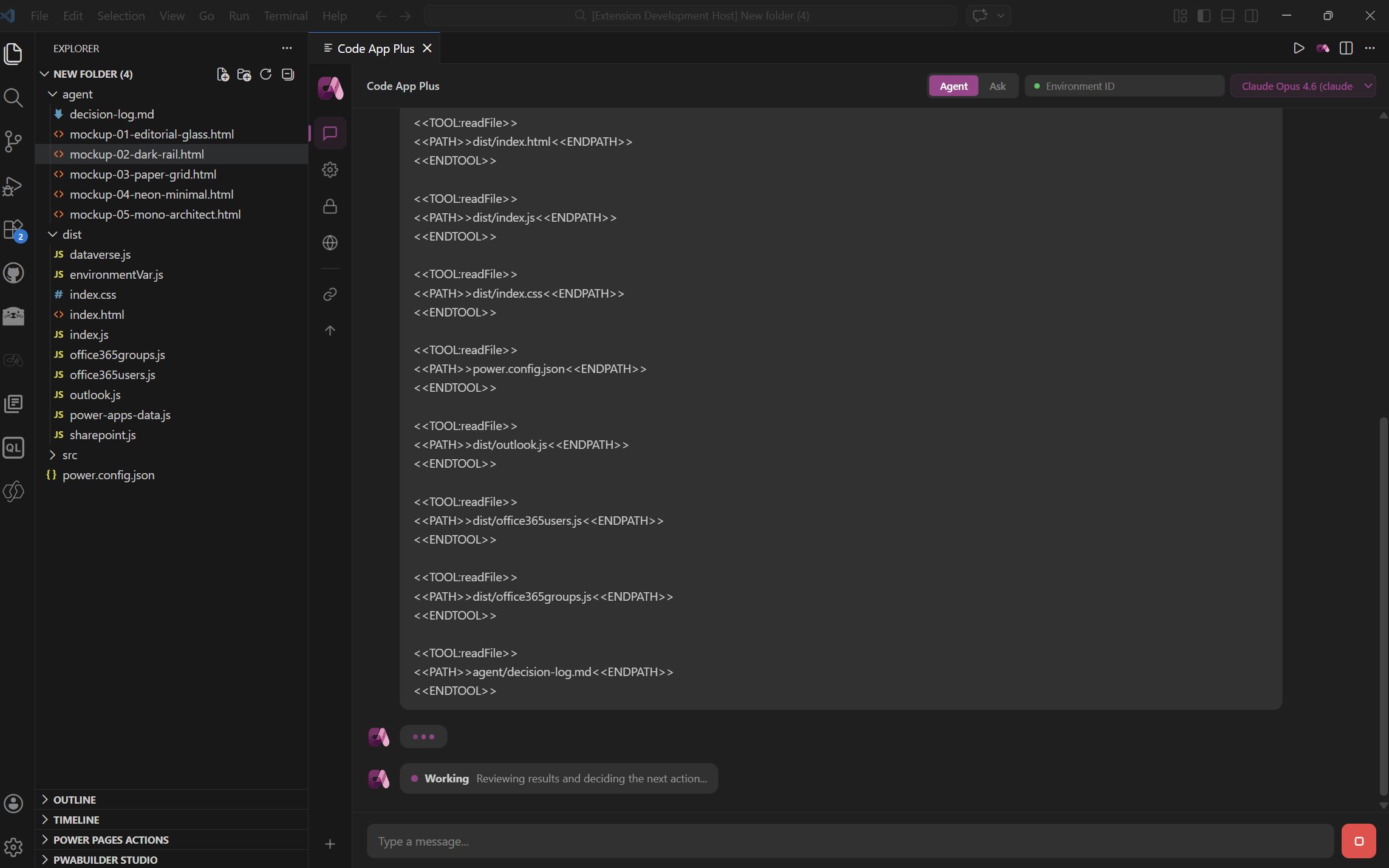
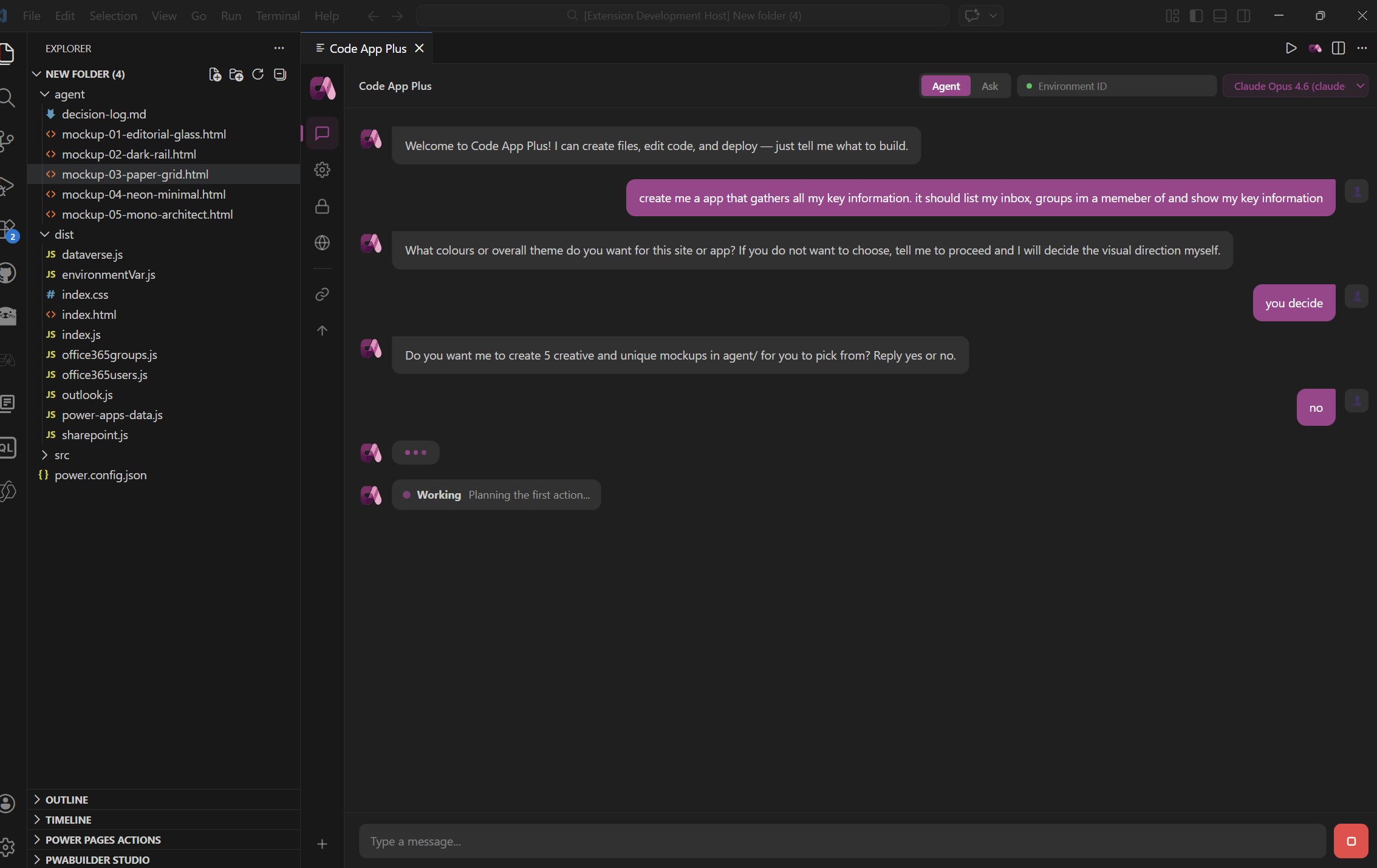
CodeAppJS Plus is a AI Coding Agent for Power Platform code- apps. It combines an AI chat workspace with Power Platform CLI workflows so you can scaffold projects, configure environments, sync connector references, and deploy with less manual setup.
This extension is built on codeapp.js, which is a library aimed at developers building Power Apps with HTML, CSS, and JavaScript in a code-first workflow.
What You Get
- A dedicated chat experience in the Activity Bar and as a command you can open beside your editor.
- Project setup that copies starter files into your workspace and walks you through
power.config.json.
- Built-in Power Platform authentication and environment switching commands.
- Connection reference syncing against the active environment.
- One-click deploy with
pac code push, including app URL detection and appId update when available.
- Workspace-aware prompting that loads shared instructions, skills, and project context.
- Read-only ask flows and action-oriented agent flows for different stages of work.
- Per-project assistant memory in
agent/decision-log.md and rollback support for AI-driven file changes.
Requirements
- VS Code
1.95.0 or newer
- Power Platform CLI (
pac)
- The extension will use the CLI bundled with the Power Platform Tools extension when available.
- If it is not available, CodeAppJS Plus falls back to
pac on your system PATH.
- A VS Code chat model provider that supports the Language Model API
- For most users, that means GitHub Copilot Chat or another compatible provider is installed and enabled.
Quick Start
- Install CodeAppJS Plus.
- Open the folder that will contain your Power Platform code-first app.
- Run
CodeAppJS Plus: Setup Project.
- Fill in the setup form to generate or update
power.config.json.
- Run
CodeAppJS Plus: Authenticate and complete sign-in in the PAC browser flow.
- Run
CodeAppJS Plus: Change Environment to select the target environment.
- Open the CodeAppJS Plus sidebar and start prompting the assistant.
- Run
CodeAppJS Plus: Sync Connections if your app uses connection references.
- Run
CodeAppJS Plus: Deploy (pac code push) when you are ready to publish.
Commands
| Command |
What it does |
CodeAppJS Plus |
Opens the main chat panel. |
CodeAppJS Plus: Setup Project |
Copies the bundled template files into the workspace and helps configure power.config.json. |
CodeAppJS Plus: Authenticate |
Starts pac auth create in a terminal so you can sign in to Power Platform. |
CodeAppJS Plus: Change Environment |
Lists environments and switches the active org selection. Also updates saved environment state and power.config.json when possible. |
CodeAppJS Plus: Sync Connections |
Reads connectionReferences from power.config.json, inspects available PAC connections, and updates reference details. |
CodeAppJS Plus: Deploy (pac code push) |
Runs pac code push, reports progress, and stores the detected appId in power.config.json when available. |
AI Chat Modes
CodeAppJS Plus is designed to support two working styles:
- Ask mode for inspection and explanation without changing files.
- Agent mode for taking action in the workspace, including file creation and edits.
The agent has persistent project memory from agent/decision-log.md
That makes the assistant useful for team workflows where prompt engineering and coding conventions live in source control.
The agent works with all models, though performance varies greatly between models. We recommend (in order):
- Opus 4.6
- Opus 4.5
- GPT 5.4
- Sonnet 4.6
Included Project Support
The agent has additional skills:
- Dataverse code apps
- Environment variables
- Outlook code apps
- Office 365 Groups code apps
- Office 365 Users code apps
- SharePoint code apps
- Frontend design guidance
Workspace Customization
The agent requires a folder to work out of, we recommend using source control like GitHub.
Setup Behavior
When you run project setup, the extension copies files from its bundled template folder into your workspace.
- Existing files are not overwritten.
- If
power.config.json is copied, the extension opens a setup form so you can populate app metadata and environment information.
- If the configured build entry point exists, the HTML
<title> is updated to match the app display name.
Development Steps
- Setup workspace (button)
- Auth with Power Platform (button)
- Setup environment (button)
- Develop app (chat ui)
- Add connections (button)
- Deploy (button)
Deploy and Connection Sync Notes
Deploy and connection sync are PAC-driven workflows intended to reduce repetitive manual steps:
- Deploy captures command output, looks for the Power Apps URL, and stores the detected
appId in power.config.json when possible.
- Connection sync reads
connectionReferences, selects the configured environment if one is set, inspects available connections, and updates reference metadata in power.config.json.
Known Expectations
- This extension assumes you are working inside an open VS Code workspace folder.
- PAC authentication must be completed before environment listing, connection sync, or deploy can succeed.
- The assistant is optimized for Power Platform code-first workflows rather than general-purpose app generation.
Why Teams Use It
CodeAppJS Plus helps keep the moving parts of a code-first Power Apps project in one place:
- templates
- prompts
- skills
- memory
- PAC workflows
- AI-assisted editing
Instead of switching between separate docs, terminals, and helper scripts, you can keep setup, development, and deployment inside the editor.
Feedback
If you are publishing this extension internally or to the marketplace, consider adding screenshots or a short animated walkthrough next. The command surface is already strong; visual proof of the sidebar, setup dialog, and deploy flow will make the listing more persuasive.

