English | 繁體中文
Understand and reuse XML data in VS Code: tree and table views, XPath, CSV/JSON export, formatting, plain-language error messages and Big5 encoding handling. No third-party dependencies.
Website: xmldatatoolkit.pylabs.app
Features
Tree and table views
- Switch views: click the tree icon in the editor title bar, press
Cmd+Alt+T (Windows/Linux: Ctrl+Alt+T), or use the XML Data Toolkit ▸ context menu. Hold Option/Alt while clicking the icon to open the view to the side.
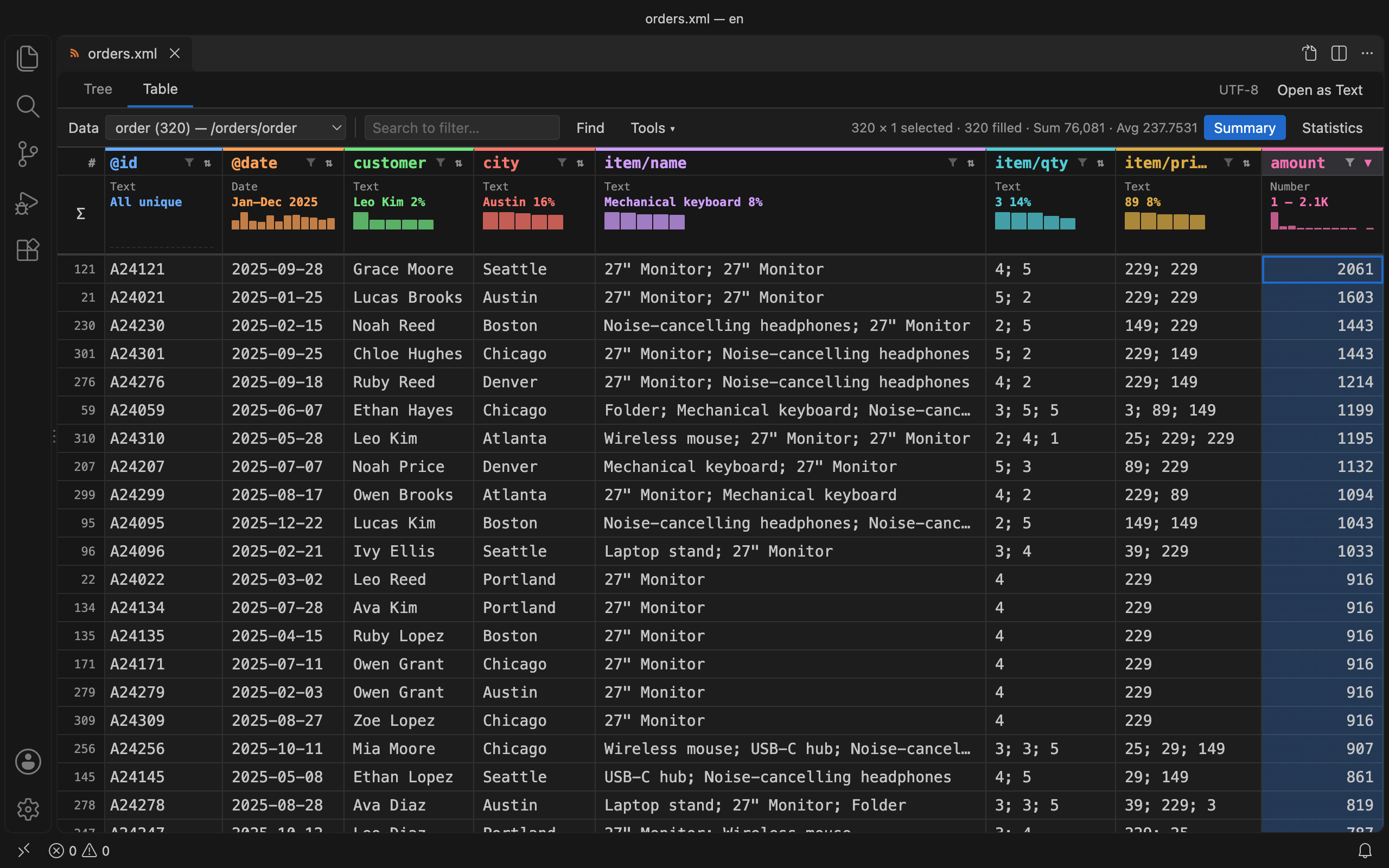
- Table: repeated elements (for example 1,000
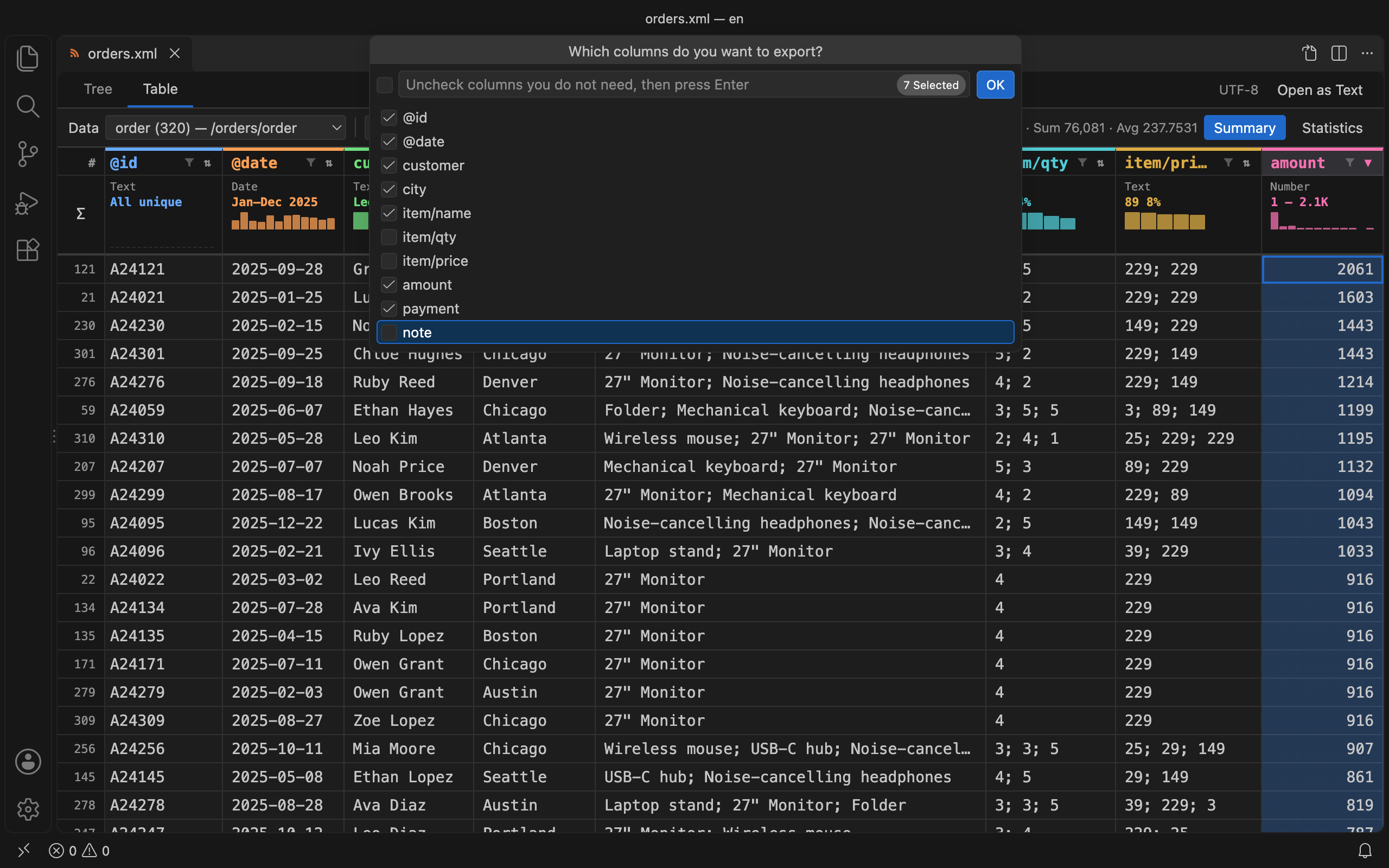
<order> elements) become rows. Attributes (@id), child elements (customer) and deeper paths (item/name) become columns. Use the Data drop-down to switch to another group, such as the line items of every order.
- Sort, search, filter by column, summary row with each column's type and distribution, and a detailed statistics panel.
- Double-click a row or press Enter to select that record in the text editor next to it.
- The table is read-only, so your XML is never changed by accident.
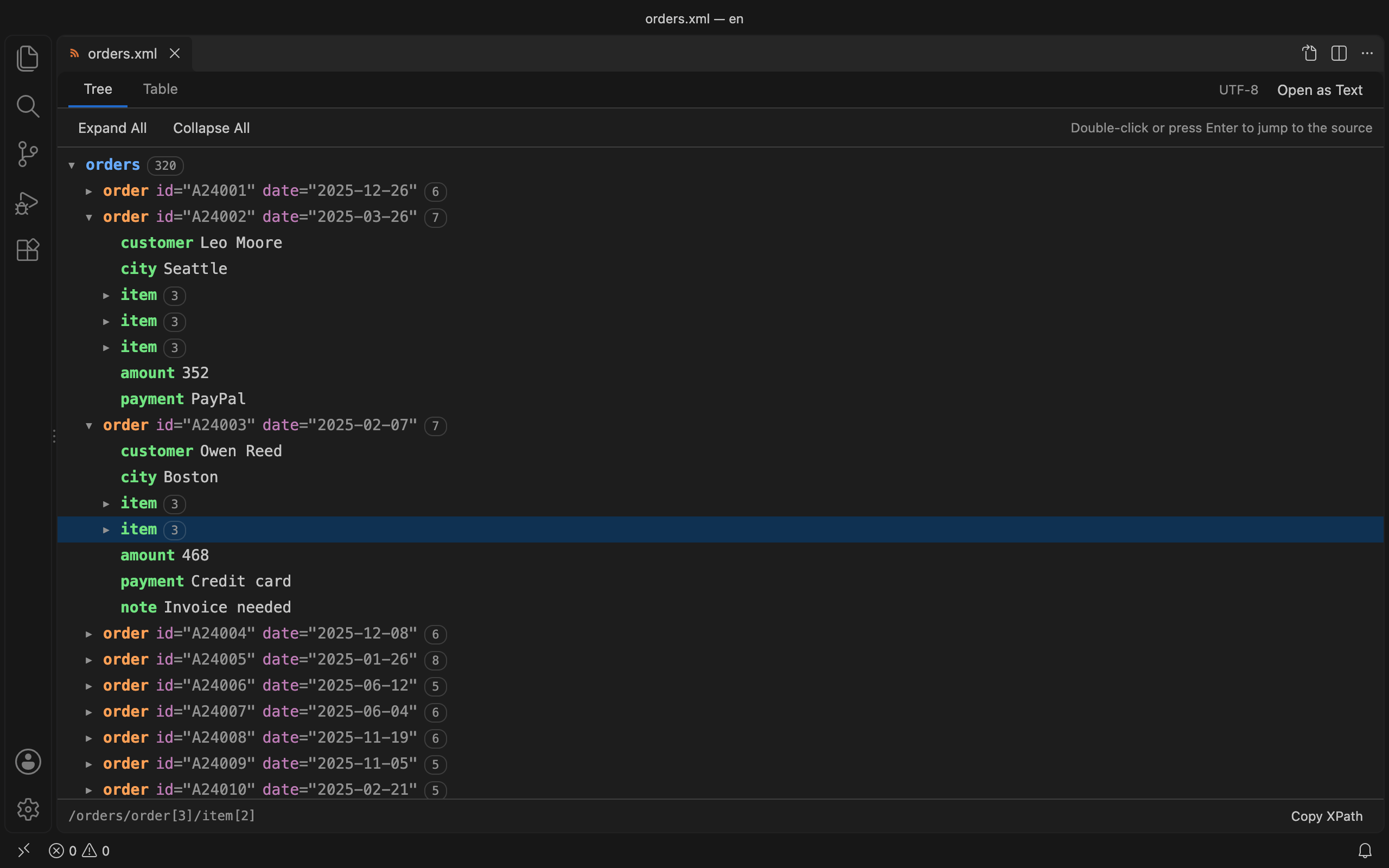
- Tree: each nesting level has its own color, with attributes, text and child counts on every node. Use the arrow keys to move around, and double-click or press Enter to jump to the source. The XPath of the selected node is shown at the bottom and can be copied.
- Default view: set
xmlDataToolkit.defaultView to visual to always open .xml files in the tree and table view.
XPath
- Status bar: shows the XPath of the cursor position, such as
/orders/order[2]/@id. Click it to copy.
- XPath Query (
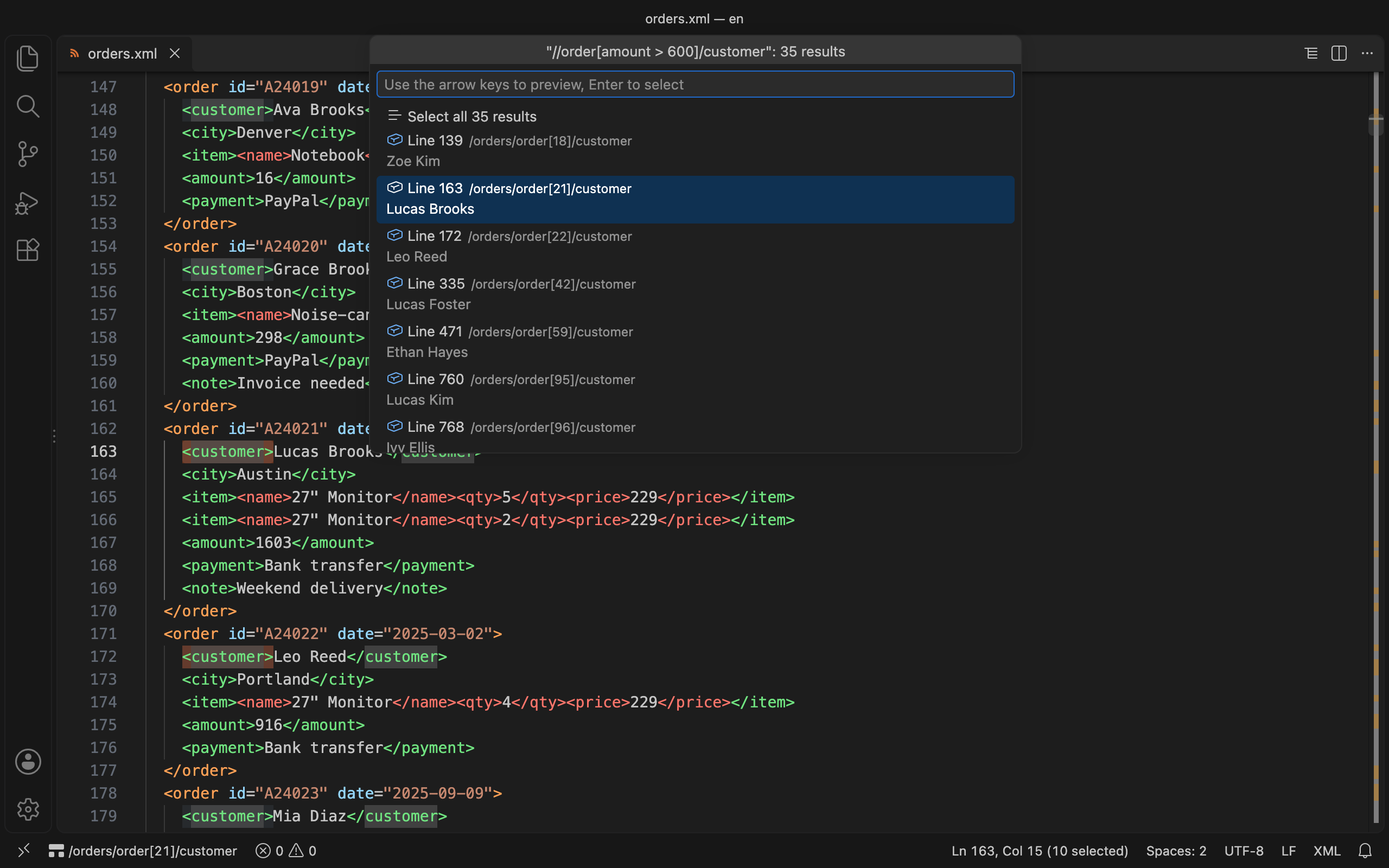
Cmd+Shift+Alt+X, Windows/Linux: Ctrl+Shift+Alt+X): highlights every match, lists them so you can step through with the arrow keys, or selects them all as multiple cursors. Expressions such as count(//order) or sum(//amount) show the result directly.
- Supports XPath 1.0: paths, predicates, all 12 axes, comparisons, arithmetic and the standard functions, plus
ends-with, lower-case and upper-case.
- Element names are matched as written, so
//order works even when the file declares a default namespace, and //x:note works for prefixed names without any setup.
Export
- Export to CSV: choose the data group and columns, then save as Excel-compatible UTF-8 with BOM or plain UTF-8. Exporting from the table's Tools ▾ menu keeps the current filter and sort order.
- Convert to JSON: the whole document, or one data group from the table. Attributes become
@name, repeated elements always become arrays, and values are kept as text (so 00123 stays 00123).
- Pretty Print and Minify only change the whitespace between tags. Text, comments, CDATA and mixed content such as
<p>Some <b>bold</b> text</p> are kept exactly as they are.
- Remove Comments: deletes every comment, including the empty lines they leave behind.
- Rainbow tags: tags are colored by nesting level in the text editor.
Errors in plain language
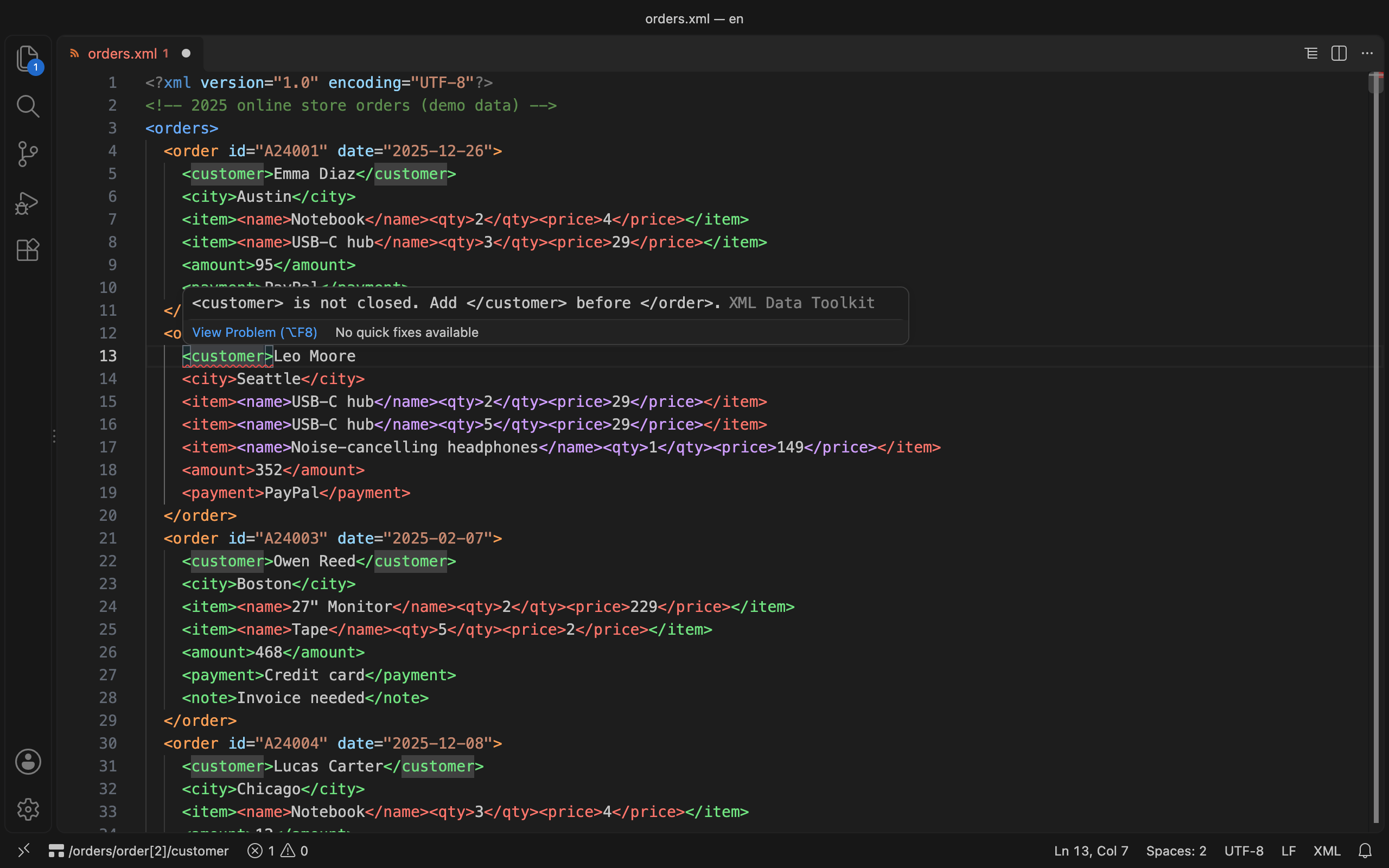
- Problems such as unclosed tags are underlined in the editor and listed in the Problems panel, for example: "
<item> is not closed. Add </item> before </order>."
Encodings
- Opening a Big5-encoded file (or one in the encoding its declaration names) shows a prompt to reopen it correctly or convert it to UTF-8.
- If the content is UTF-8 but the declaration says something else, such as
encoding="Big5", you are offered a one-click fix.
- Converting to UTF-8 also updates the
<?xml encoding="..."?> declaration.
Settings
| Setting |
Default |
Description |
xmlDataToolkit.defaultView |
text |
Open .xml files in the text editor or the visual tree and table view |
xmlDataToolkit.language |
auto |
Language of the visual view and notifications: auto follows VS Code, or choose en, zh-tw or zh-cn |
xmlDataToolkit.colorize |
true |
Color tags by nesting level in the text editor |
xmlDataToolkit.diagnostics |
true |
Underline XML errors and list them in the Problems panel |
xmlDataToolkit.showXPath |
true |
Show the XPath of the cursor position in the status bar |
xmlDataToolkit.colorizeMaxFileSizeKB |
5000 |
Skip coloring and error checking for files larger than this size (KB) |
xmlDataToolkit.visualMaxFileSizeMB |
20 |
Ask before opening larger files in the tree and table view |
Supported languages: English, 繁體中文, 简体中文.
| |

