English | 繁體中文
View, edit, analyze and clean CSV / TSV files in VS Code, with rainbow columns in the text editor and an Excel-like table view.
Website: csvtoolkit.pylabs.app
Features
Switch between text and table
- Title bar button: shows a table icon in text view and a text icon in table view. Switching happens in place and keeps unsaved changes.
- Open table to the side: use the split icon, or hold Option/Alt while clicking the table icon. The text and the table stay in sync.
- Shortcut:
Cmd+Alt+T (Windows/Linux: Ctrl+Alt+T).
- Context menus: switch from the text editor, the editor tab or the Explorer. Inside the table, right-click to insert or delete rows and columns, sort, filter, freeze or clean data.
- Default view: set
csvToolkit.defaultView to table (or run "Open CSV Files as Table by Default") to always open CSV files as a table.
Text view
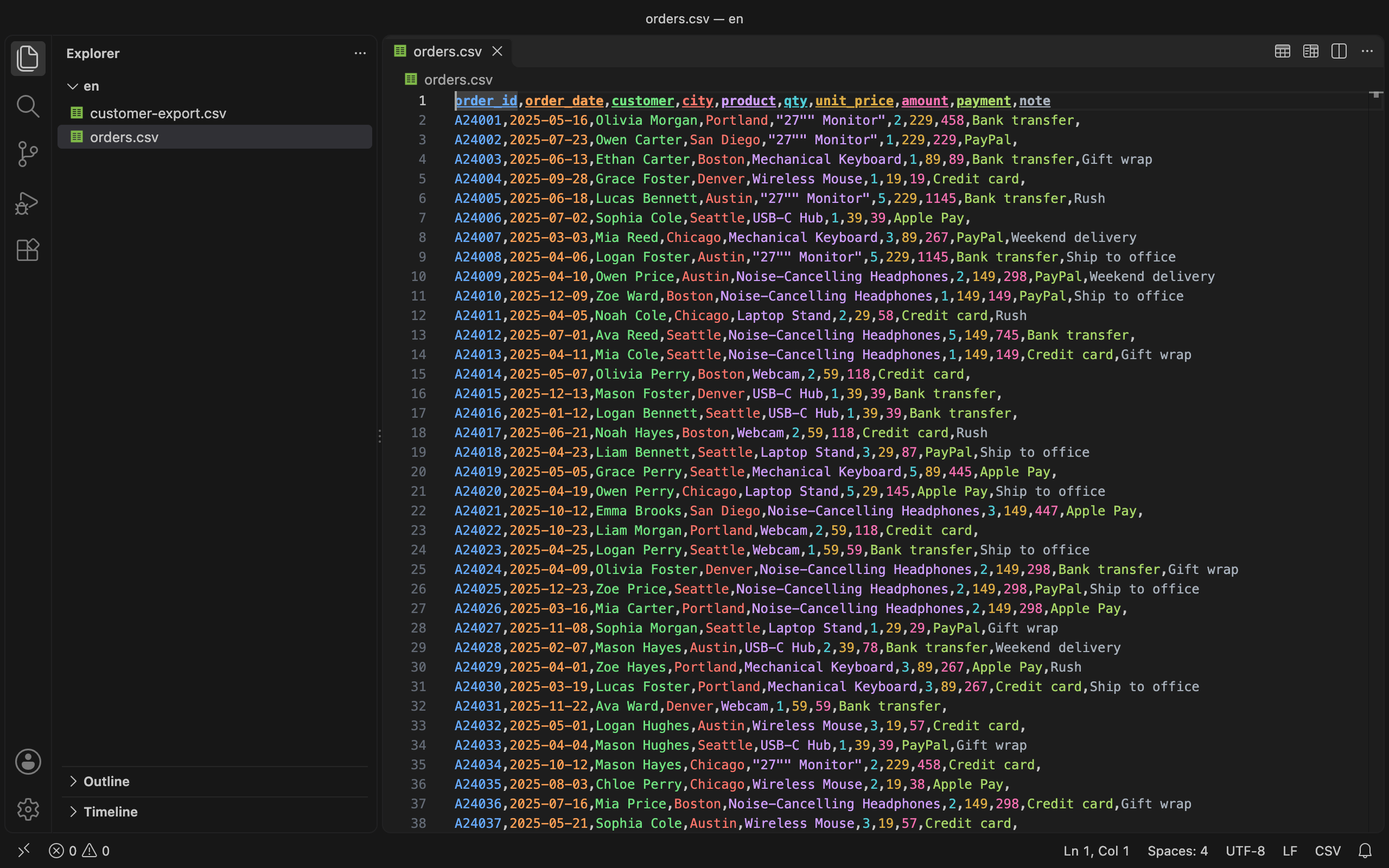
- Rainbow columns: every column gets its own color, and the header row is bold and underlined.
Table view
Editing: click a cell to edit. Enter or Tab confirms, Esc cancels, Alt+Enter inserts a line break. Double-click a header to rename the column.
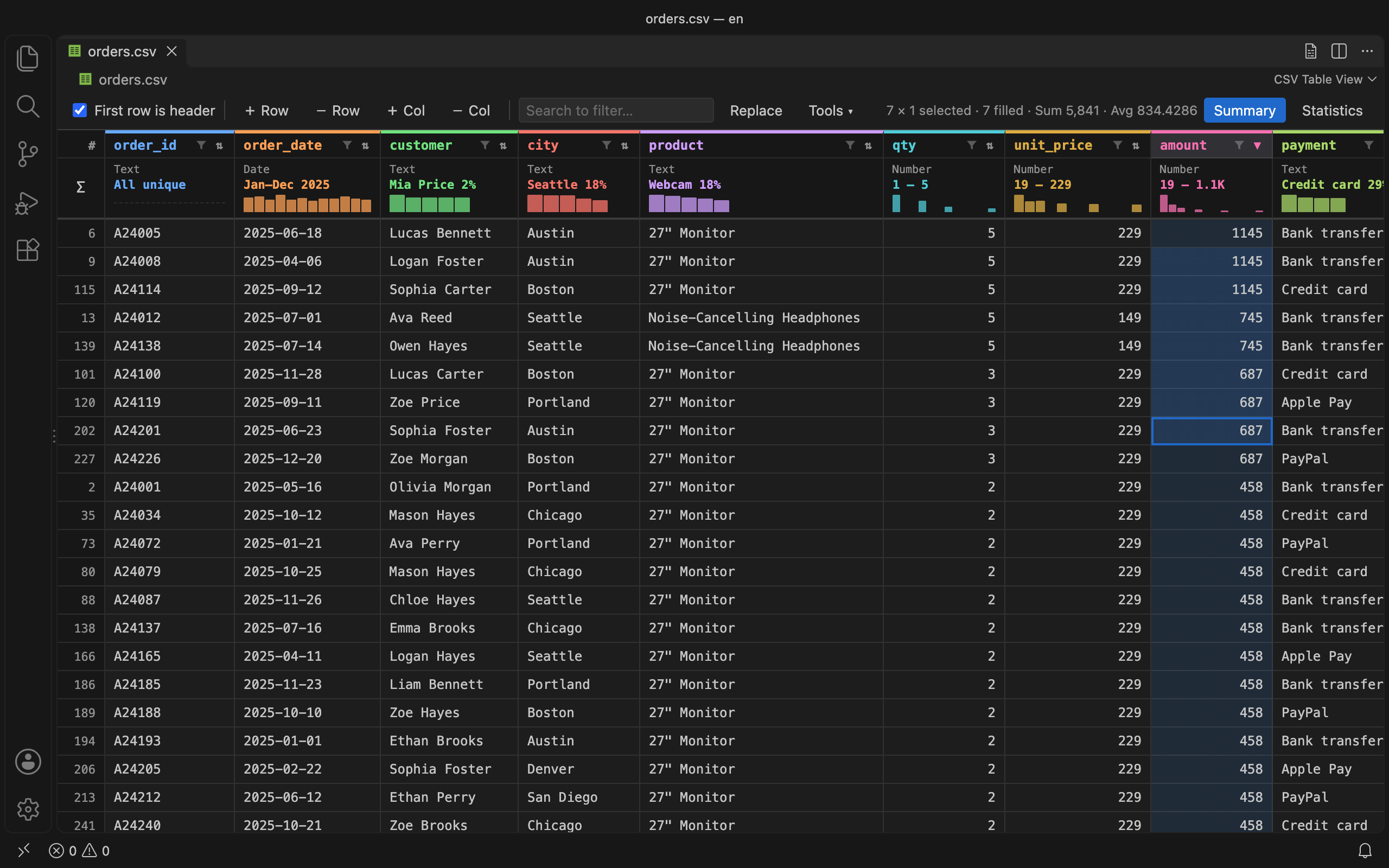
Range selection: drag, or hold Shift and use the arrow keys. Copy, clear with Delete, or paste. Pasting a single value fills the whole range. The toolbar shows the sum and average of the selection, like Excel's status bar.
Rows and columns: insert or delete rows and columns. Drag a header to reorder columns.
Column width: drag the right edge of a header, or double-click it to auto-fit.
Freeze columns: Tools ▾ → Freeze up to this column.
Sorting: click ⇅ next to a header to sort the view. Use Tools ▾ → Apply sort to file to write the order into the file.
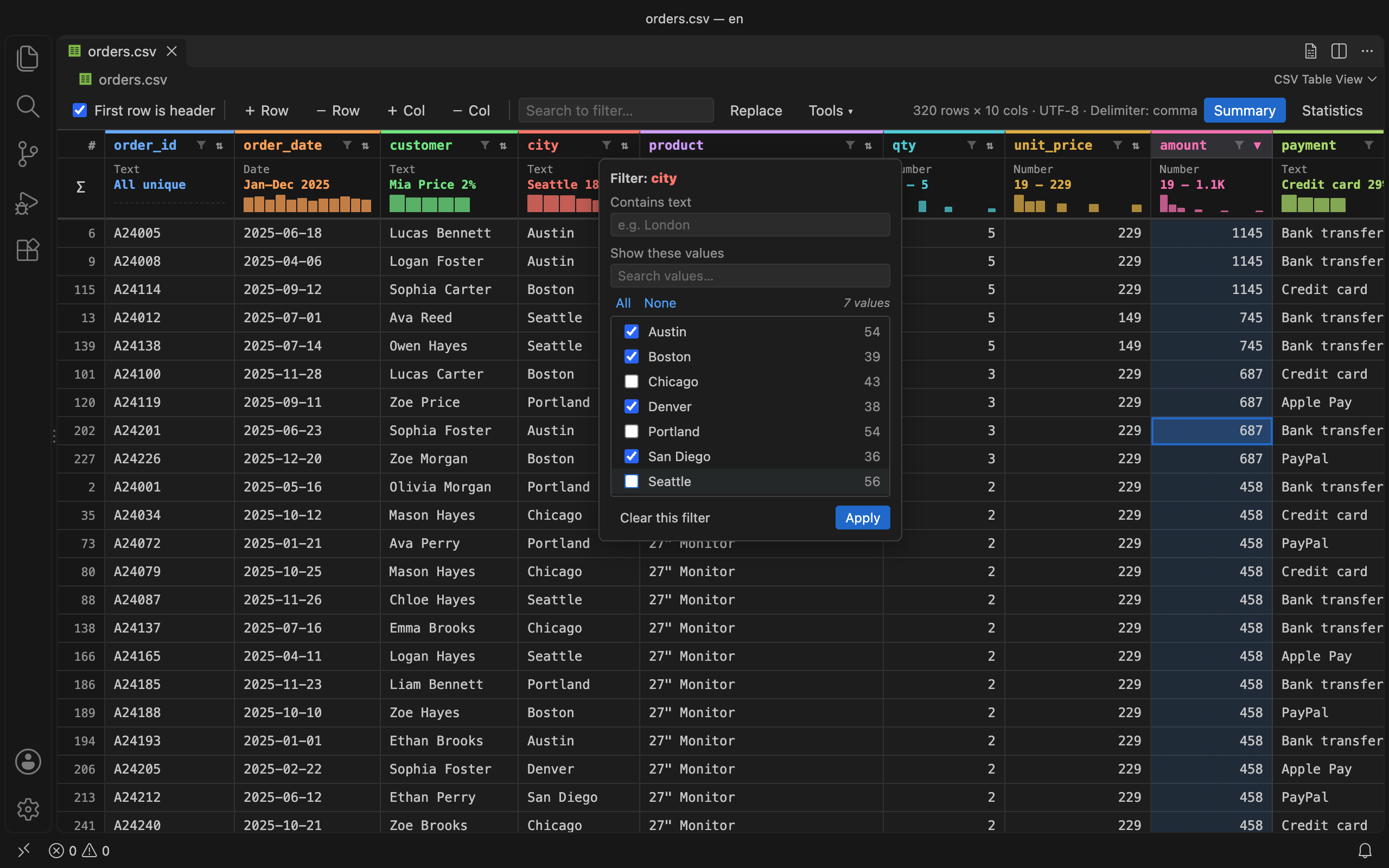
Filtering: the search box filters the whole table. The funnel icon on each header filters by values, by text, or by number range.
Find and replace: with match case, whole cell, and current-column-only options.
Remove duplicate rows: choose which columns to compare and preview the count before deleting.
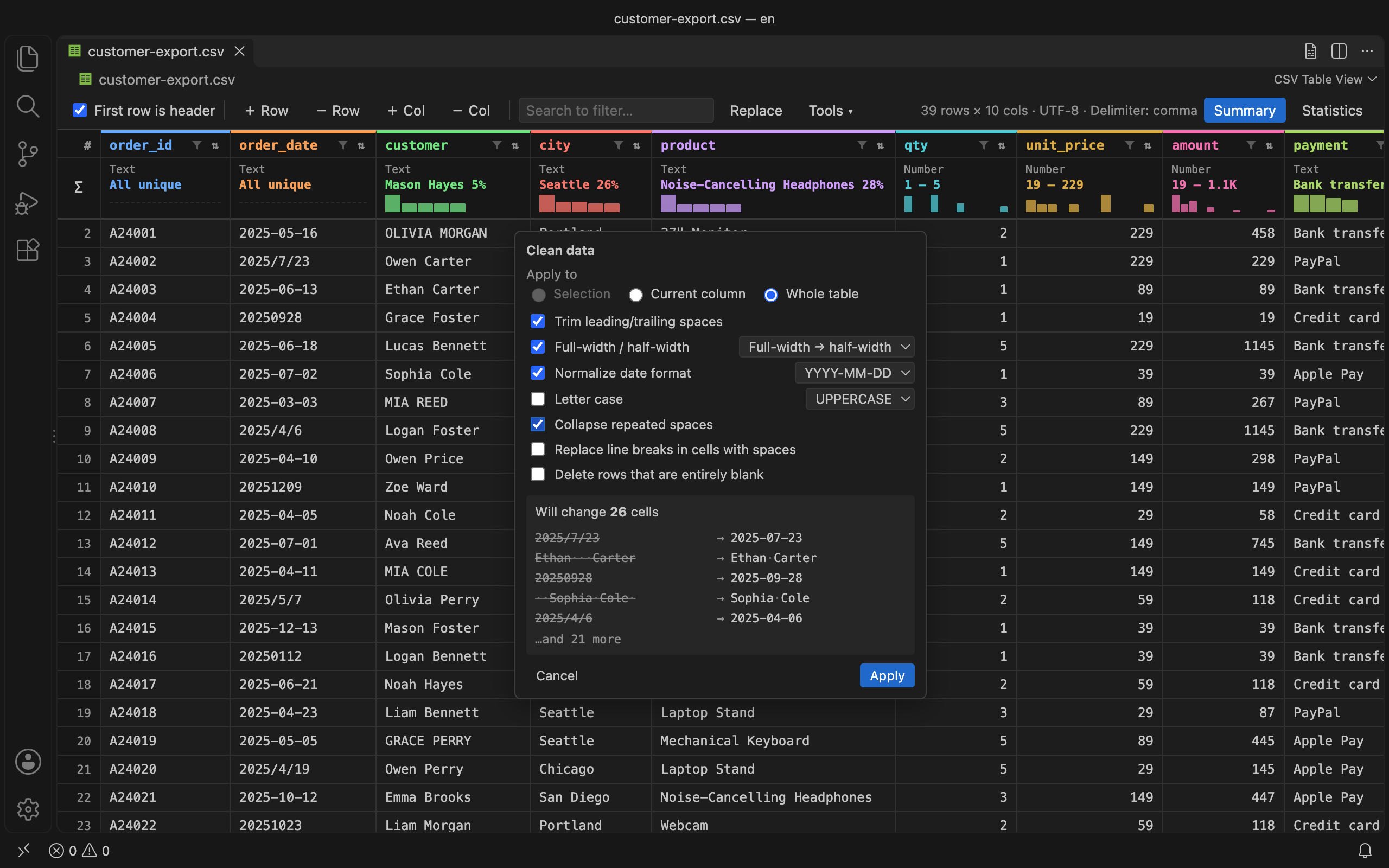
Clean data: for a selection, a column or the whole table, from Tools ▾ → Clean data… or the "Clean Data ▸" context menu:
- trim spaces
- convert between full-width and half-width characters
- normalize dates. Taiwan's ROC calendar is supported, so
113/1/5 becomes 2024-01-05.
- change letter case
- collapse repeated spaces
- replace in-cell line breaks
- delete blank rows
The dialog previews every change before you apply it, and one Cmd/Ctrl+Z undoes the whole batch.
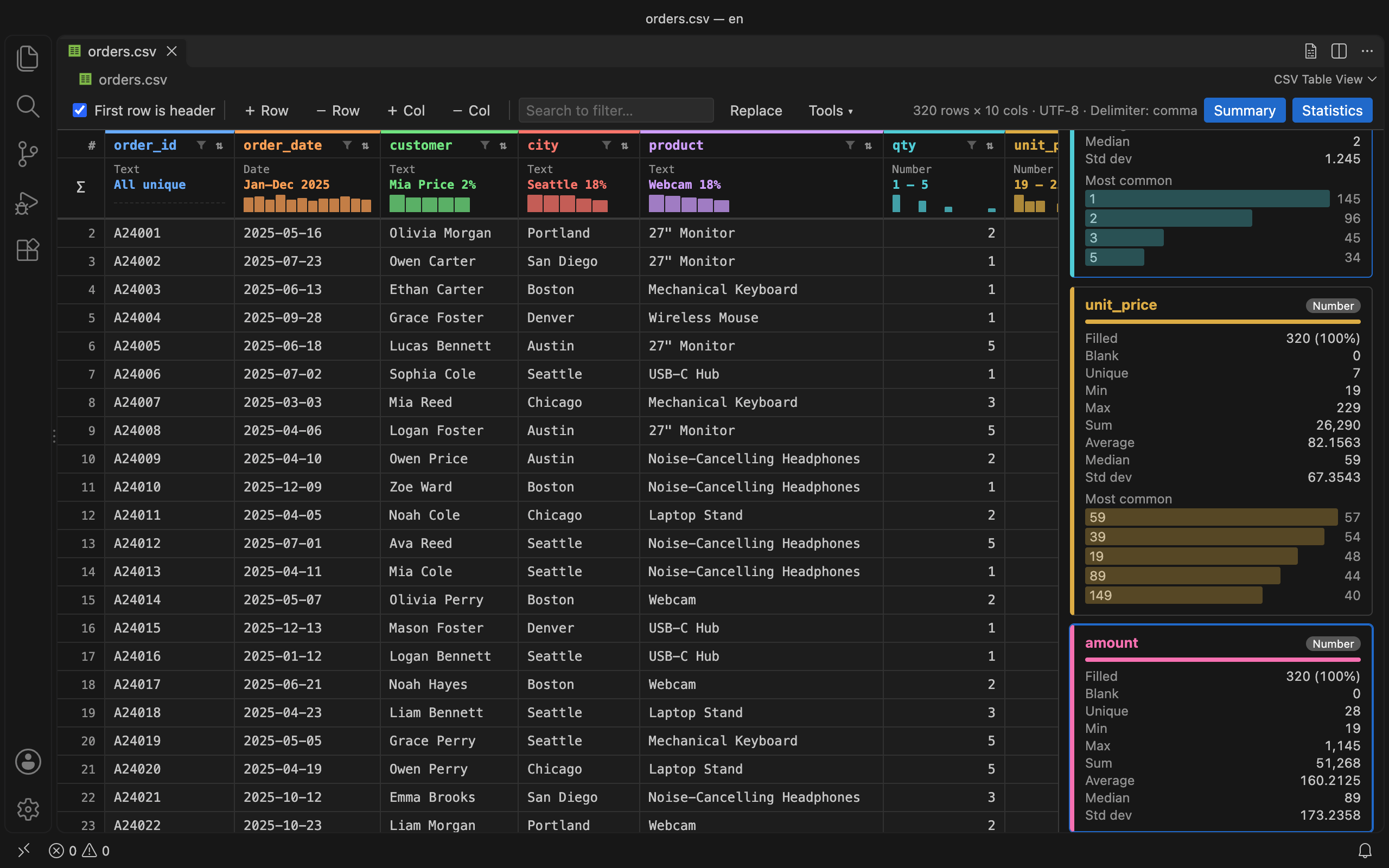
Summary row: pinned under the header. Shows each column's type, a key figure and a mini distribution chart. Click it to open the full statistics panel.
First row is header: toggle per file. The choice is remembered.
Encodings
- Opening a Big5-encoded CSV shows a prompt to reopen it as Big5 or convert it to UTF-8.
- Tools ▾ → Save as Excel-compatible writes UTF-8 with BOM, so Excel shows non-English text correctly.
Every change is written back to the file. Undo (Cmd/Ctrl+Z) and Save (Cmd/Ctrl+S) work as usual. The delimiter (comma, tab, semicolon or pipe) is detected automatically, and quoted fields containing commas or line breaks are handled correctly.
Settings
| Setting |
Default |
Description |
csvToolkit.defaultView |
text |
Open CSV files as text or table |
csvToolkit.language |
auto |
Language of the table view and notifications: auto follows VS Code, or choose en, zh-tw or zh-cn |
csvToolkit.firstRowIsHeader |
true |
Treat the first row as the header for newly opened files |
csvToolkit.colorize |
true |
Color columns in the text editor |
csvToolkit.delimiter |
auto |
Column delimiter |
csvToolkit.colorizeMaxFileSizeKB |
5000 |
Skip coloring files larger than this size (KB) |
Supported languages: English, 繁體中文, 简体中文. Menu and button labels follow the VS Code display language.
Feedback
Questions or bug reports: csvtoolkit@pylabs.app
| |

