easyHeader creates and maintains structured file headers in the Visual Studio editor. Insert, Update, and Delete work directly on the active document and preserve source code outside the header.
Supported Visual Studio versions: Visual Studio 2022 version 17.14 and Visual Studio 2026 (18.x).
Supported SSMS version: SQL Server Management Studio 22.
Check out our extension for VS Code here.
See the Visual Studio Marketplace changelog.
Contents
Features
- Inserts, updates, or deletes easyHeader blocks in supported files without changing code outside the header.
- Automatically inserts headers into supported new files by default; opening or adding an existing file does not trigger auto-insert.
- Configures header fields, defaults, revision-history retention, and compact formatting.
- Updates header timestamps, version, and revision history; a revision note is required when revision history is enabled.
- Uses file-aware comment styles.
.json is unsupported because JSON does not allow comments.
- Generates PowerShell comment-based help for
.ps1, .psm1, and .psd1 files, including parameter sections.
- Optionally uses GitHub Copilot to suggest header values and refresh PowerShell Get-Help sections; source sharing requires consent.
- Preserves the active document's line-ending style when applying changes.
Commands
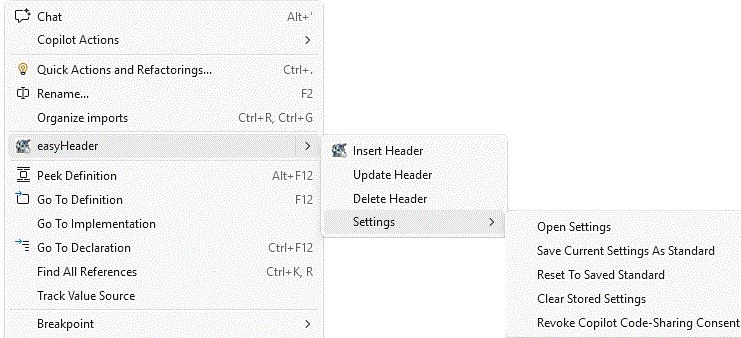
Open a supported source file, right-click in the editor, and choose easyHeader. Visual Studio commands are available from the editor context menu; the adapter does not add VS Code's editor title-bar actions.
| Command |
Description |
| Insert Header |
Creates an easyHeader at the top of the active document. |
| Update Header |
Updates an existing easyHeader, prompting for enabled values and recording a revision when configured. |
| Delete Header |
Removes the easyHeader block while leaving the rest of the document intact. |
The easyHeader > Settings submenu contains:
| Command |
Description |
| Open Settings |
Opens Tools > Options > easyHeader. |
| Save Current Settings As Standard |
Saves the current Visual Studio easyHeader options as a local standard profile. |
| Reset To Saved Standard |
Restores the saved profile after confirmation. |
| Clear Stored Settings |
Deletes the saved standard profile. It does not clear Visual Studio options. |
| Revoke Copilot Code-Sharing Consent |
Turns off the saved permission to share source with Copilot. |
The adapter does not provide VS Code's Apply Current Header To Settings, Clear Workspace/Folder Stored Settings, legacy migration, or prompt navigation commands. Visual Studio options are not stored in VS Code workspace or folder settings.
Command Behavior
Insert
- Creates a new header in the active document. Prompts follow the enabled sections and fields in Tools > Options > easyHeader.
- If Revision History is enabled, the initial entry is created as
File created.
- When inserting a PowerShell file (
.ps1, .psm1, or .psd1), easyHeader uses comment-based help sections such as .SYNOPSIS, .DESCRIPTION, and .EXAMPLE.
- Press Cancel in an input dialog to leave that value empty or keep the current flow, as applicable.
Update
- Updates an existing easyHeader. Existing Synopsis, Description, Usage/Example, and other supported values are used as prompt defaults.
- If Revision History is enabled, Update requires a non-empty revision note and appends it to the revision history.
- Version bump style and version are prompted when Version is enabled; the version can be automatically bumped from the existing value.
- PowerShell Get-Help sections are read into the corresponding prompts and rendered back as
.SYNOPSIS, .DESCRIPTION, .EXAMPLE, .PARAMETER, and .NOTES sections.
- Disabled sections can be removed or retained according to Preserve Disabled Sections On Update.
Delete
- Removes the easyHeader from the active document.
- If no easyHeader is found, easyHeader reports that no header is available to delete.
Settings Profile Commands
- Save Current Settings As Standard captures the current Tools > Options > easyHeader values in a profile stored under the current user's local application data.
- Reset To Saved Standard asks for confirmation before restoring those saved options.
- Clear Stored Settings asks for confirmation and removes only that saved profile. It leaves the current Visual Studio options unchanged.
Supported File Types
easyHeader selects comment syntax by file extension, with language-based handling for supported families. The following comment styles are supported:
| File types |
Header comment style |
.ps1, .psm1, .psd1 |
PowerShell comment-based help block: <# ... #> |
.cshtml, .razor |
@* ... *@ or <!-- ... -->, matching the existing top-of-file style |
.html, .hta, .htm, .xhtml, .xml, .wsf, .svg, .xaml, .md, .markdown, .svelte, .vue |
<!-- ... --> |
.jsonc, .json5, .js, .mjs, .cjs, .ts, .mts, .cts, .jsx, .tsx, .java, .cs, .cpp, .cxx, .cc, .c, .h, .hpp, .hh, .go, .swift, .rs, .dart, .kt, .kts, .php, .scala, .groovy, .css, .scss, .less |
/* ... */ |
| Python files |
Triple-quoted block comment (""" ... """) |
.vbs, .vbe, .wsc |
' line comments |
.bat, .cmd |
:: line comments |
.asm, .a51, .s51, .nasm, .masm, .s, .inc |
; line comments |
.sql, .lua, .pas, .pp, .lpr, .dpr, .adb, .ads, .ada |
-- line comments |
.r, .toml, .ini, .cfg, .conf, shell, YAML, Ruby, and Perl files |
# line comments |
.json is intentionally unsupported because JSON does not allow comments. Unsupported file types are reported without modifying the document.
Settings
Open Tools > Options > easyHeader. Options are grouped into Copilot, General, Sections, and Behavior.
File Encoding Compatibility
For .vbs and .vbe saved files (other file types are not checked for now), easyHeader checks the on-disk encoding during Insert/Update, auto-insert, and file saves. UTF-8 with BOM or UTF-8-compatible text without a BOM triggers a compatibility warning once while the Visual Studio document remains open; VS Code shows it once per file per extension session. Without a BOM, encoding detection is not conclusive; ASCII is also valid UTF-8. Unsaved files are checked after saving.
UTF-8 is supported by easyHeader and works for most languages, but Windows Script Host and other runtimes may reject it or Unicode header characters. Only change encoding if your runtime needs it; UTF-16 is not suitable for every tool.
Accept the warning's offer to open Save As, then use the arrow beside Save > Save with Encoding and select Unicode (Codepage 1200), which is UTF-16 LE with BOM. Confirm replacing the same file if appropriate. Saving includes unsaved edits. The current manual header command stops so you can complete the save before retrying. Declining keeps the existing encoding and continues. easyHeader does not automatically convert files.
Plain-text VBScript should use .vbs. Do not convert genuinely encoded .vbe content or insert plain-text headers into it.
How Settings Work
- Sections controls which fields and multiline sections are included in generated headers.
- Default values prefill Insert prompts. Update prompts use the existing header value when available, otherwise the configured default.
- Version asks for a bump style when enabled and updates the header version during Update.
- Revision History inserts the initial
File created entry and retains the newest number of entries configured by Max Revision Entries.
- Preserve Disabled Sections On Update controls whether disabled sections already in a header are kept (
true) or removed (false).
- Auto-insert headers in new files controls whether easyHeader is automatically added to supported files created through New File or Add New Item. Opening an existing file or adding an existing file to a project does not insert a header.
- Compact Header uses reduced spacing and indentation.
- PowerShell Get-Help Target selects whether
.PARAMETER names come from script-level param(...), function-level param(...), or automatic detection.
- Copilot controls optional suggestions and source-code sharing. See GitHub Copilot and Privacy.
The Created field is determined automatically when inserting or updating a header. For files with local Git history, it uses the earliest commit that added the file, following renames. Otherwise, it uses the filesystem creation date; unsaved new files use the current date. Git push dates are not stored in local history. Update revision entries use the current date, independently of Created.
Options Reference
Author lookup: easyHeader prefers Author default value, then the current user's Git user.email for the active file's directory (including global Git configuration). This identifies the current user, not the file's original Git author. Without Git email, manual Insert/Update can ask permission to look up the Windows work-account sign-in name, then asks you to confirm it. A sign-in name is not a verified email address. Declining or an unavailable profile falls back to username@machine. The profile decision lasts only for the current Visual Studio session; configure Author default value to retain your preferred identity. Auto-insert does not show profile prompts. Existing Author values used by Update remain unchanged unless edited.
| Group |
Option |
Default |
Description |
| Copilot |
Use GitHub Copilot |
true |
Enables optional Copilot suggestions. |
| Copilot |
Allow code sharing with GitHub Copilot |
false |
Remembers permission to send active-file source for Copilot analysis. |
| Copilot |
Copilot model |
empty |
Optional model name; empty uses the Copilot default. |
| General |
Company default value |
Apply your standard in Settings |
Default Company field value. |
| General |
Author default value |
empty |
Preferred Author; otherwise Git email, an optional confirmed Windows profile suggestion, or username@machine is used. |
| General |
Project default value |
empty |
Default Project value; when empty, the nearest supported project file is used, then the containing folder name. |
| General |
License default value |
Proprietary - All rights reserved |
Default License value; blank or Unknown values use this fallback. |
| General |
Dependencies default value |
empty |
Comma-separated default Dependencies. |
| General |
Copyright default value |
Apply your standard in Settings |
Text appended after the automatic copyright year. |
| General |
Max revision entries |
2 |
Maximum number of recent revision entries retained. |
| General |
PowerShell Get-Help target |
auto |
Parameter source: script, function, or auto. |
| Sections |
Insert Company, File, Language, Project, Synopsis, Usage, Description, Dependencies, Author, Created, Last Saved, Version, Copyright, License, Revision History |
true |
Include or omit the corresponding field or section. |
| Behavior |
Compact Header |
false |
Reduces spacing and indentation. |
| Behavior |
Auto-insert headers in new files |
true |
Automatically adds a header to supported files created through New File or Add New Item, not existing files that are opened or added to a project. |
| Behavior |
Preserve Disabled Sections On Update |
false |
Retains disabled sections in an existing header when enabled. |
| Behavior |
Copilot Update PowerShell Dot Sections |
true |
Allows Copilot to refresh PowerShell help sections from code. |
| Behavior |
Copilot Update Header Sections From Code |
true |
Allows Copilot to suggest Synopsis, Description, Usage, and Dependencies. |
| Behavior |
Confirm Copilot Dot Section Update |
true |
Asks before using Copilot to suggest header values. |
Standard Profile Workflow
- Configure options under Tools > Options > easyHeader.
- Choose easyHeader > Settings > Save Current Settings As Standard to save a local baseline.
- Use Reset To Saved Standard to restore the baseline after confirmation.
- Use Clear Stored Settings to remove the baseline and keep current options unchanged.
The adapter uses Visual Studio's user options. It does not have VS Code's User/Workspace/Workspace Folder setting scopes.
PowerShell Get-Help
PowerShell Get-Help
When you are working in a PowerShell file (.ps1, .psm1, or .psd1), easyHeader maps header sections to the comment-based help format that PowerShell's built-in Get-Help cmdlet can read.
How It Works
Synopsis → .SYNOPSISDescription → .DESCRIPTIONUsage → .EXAMPLEAuthor, Version, Company, File, Language, License, Dependencies, and Revision History are grouped inside .NOTES- Each detected script or function parameter produces a
.PARAMETER <Name> section.
- The
powerShellGetHelpTarget setting controls whether parameters are sourced from a param() block at the script level (script), inside the first function (function), or detected automatically (auto).
After running easyHeader: Insert on a .ps1 file, running Get-Help .\MyScript.ps1 -Full in a PowerShell session will display the structured help content.
<#
.SYNOPSIS
    Backs up user profile folders to a network share.

.DESCRIPTION
    Copies Documents, Desktop, and Downloads from the current user profile
    to \\fileserver\backups\<username> using robocopy with logging.

.PARAMETER Destination
    UNC path to the backup target folder.

.PARAMETER LogPath
    Path to write the robocopy log file. Defaults to %TEMP%\backup.log.

.EXAMPLE
    .\Backup-UserProfile.ps1 -Destination \\fileserver\backups\jdoe

.NOTES
    Company  : Pelam Engineering AB
    Author   : Jane Doe
    Version  : 1.0.0
    Created  : 2026-06-26
    File     : Backup-UserProfile.ps1
    Language : PowerShell

    Revision History:
              2026-06-26  1.0.0  Jane Doe
              File created
#>
Using Get-Help
# Display full help for a script
Get-Help .\Backup-UserProfile.ps1 -Full

# Display only the synopsis
Get-Help .\Backup-UserProfile.ps1

# Display examples only
Get-Help .\Backup-UserProfile.ps1 -Examples
If Get-Help Does Not Show the Help Content
If Get-Help returns nothing, shows only auto-generated parameter info, or says help is not available, work through the following steps.
0. HelpNotFoundException — file not found at the given path
The most common cause of this exact error:
Get-Help : Get-Help could not find <path> in a help file in this session.
FullyQualifiedErrorId : HelpNotFound
is simply a wrong path. PowerShell cannot locate the script at the path you provided.
Make sure you are in the correct working directory, or use a path relative to where you are:
# Navigate to the script folder first
Set-Location "C:\Users\Me\MyProject"
Get-Help .\MyScript.ps1 -Full
Alternatively pass the correct absolute path:
Get-Help "C:\Users\Me\MyProject\MyScript.ps1" -Full
Confirm the file exists before calling Get-Help:
Test-Path "C:\Users\Me\MyProject\MyScript.ps1" # Must return True
1. Execution Policy blocking the script
PowerShell may refuse to run or parse scripts if the execution policy is too restrictive.
# Check current policy
Get-ExecutionPolicy

# Allow local scripts (recommended for development machines)
Set-ExecutionPolicy -ExecutionPolicy RemoteSigned -Scope CurrentUser
2. Script is not dot-sourced or imported
Get-Help can read comment-based help directly from a .ps1 file path without running it — but the path must be correct. Always pass the file path explicitly:
Get-Help .\MyScript.ps1 -Full
If the help is inside a function (not at the top of the script), dot-source the file first so the function is loaded into the session, then call Get-Help on the function name:
. .\MyScript.ps1
Get-Help MyFunctionName -Full
3. Updateable Help is out of date (cmdlet help — not relevant for scripts)
For built-in cmdlets, run the following once as Administrator to download current help files:
Update-Help -Force
This does not affect comment-based help in your own scripts, but it can resolve Get-Help returning "no help available" for built-in commands.
The <# ... #> block must appear before the param() block (for scripts) or directly inside the function body (for functions), with no blank lines between the closing #> and param( or function keyword. easyHeader places the block correctly when using Insert.
The closing #> must be the last thing on its line. Text appearing after #> on the same line is fine, but text appearing on the same line as #> before it (for example some text #>) still closes the block — PowerShell stops reading the comment at that point. If the block does not close where expected, check that nothing comes after the intended #> that would re-open or extend the comment.
5. Verify the help is readable
# Quick check — should return your .SYNOPSIS text
(Get-Help .\MyScript.ps1).Synopsis
If this returns a value, Get-Help is working correctly and the full output is available with -Full.
GitHub Copilot and Privacy
Copilot is optional. Insert, Update, and Delete work without it. To enable Copilot suggestions:
- Install and authenticate the GitHub Copilot CLI.
- Make Node.js available on
PATH.
- Enable Use GitHub Copilot under Tools > Options > easyHeader > Copilot.
- Confirm code sharing when prompted, or enable Allow code sharing with GitHub Copilot to remember permission.
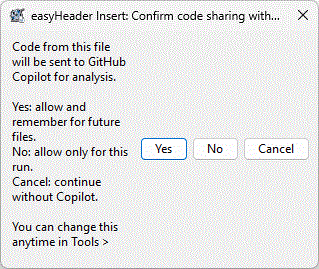
Before sending source code to Copilot, easyHeader asks for consent unless Allow code sharing with GitHub Copilot is already enabled. These choices have the same meaning as the VS Code consent choices, though their button labels differ:
- Yes allows and remembers sharing for future requests (
Yes, always in VS Code).
- No allows sharing for this request only (
Yes, only this file for now in VS Code).
- Cancel declines sharing and continues without Copilot (
No, do not share code in VS Code).
Confirm Copilot Dot Section Update separately controls whether Insert and Update ask before using Copilot to suggest header values. Remembered code-sharing consent can be revoked with easyHeader > Settings > Revoke Copilot Code-Sharing Consent.
For reviewable fields, the dialog displays the current value beside Copilot's editable suggestion. Choose whether to keep the current value or use the suggestion. PowerShell-specific suggestions can include help sections and parameter descriptions.
When Copilot is enabled and approved, the active document's source is sent to GitHub Copilot for analysis. Do not approve sharing for source you are not permitted to disclose. To revoke remembered consent, choose easyHeader > Settings > Revoke Copilot Code-Sharing Consent. The extension does not require Copilot for normal header operations.
Requirements
- Visual Studio 2022 version 17.14 or Visual Studio 2026 (18.x), with the Visual Studio core editor component.
- Node.js 20 or newer on
PATH and the GitHub Copilot CLI for Copilot-assisted suggestions.
Without the Copilot CLI, or when Copilot is declined, easyHeader continues with the normal header workflow. If the CLI is installed but not authenticated, sign in when prompted and retry.
SSMS 22
The same VSIX can be installed into Visual Studio 2022 version 17.14, Visual Studio 2026, and SSMS 22. SSMS 22 distribution is bundled directly into the Visual Studio Marketplace package via its Microsoft.VisualStudio.Ssms installation target; there is no separate SSMS marketplace listing. In SSMS, the easyHeader submenu is available from the SQL query editor's right-click menu.
Close SSMS before uninstalling. This script requires exactly one registered SSMS 22 instance, checks whether easyHeader is installed in that instance, and waits for VSIX Installer to return an exit code:
$ssmsInstances = @(
    Get-ItemProperty 'HKLM:\SOFTWARE\Microsoft\Windows\CurrentVersion\Uninstall\*' -ErrorAction SilentlyContinue
    Get-ItemProperty 'HKLM:\SOFTWARE\WOW6432Node\Microsoft\Windows\CurrentVersion\Uninstall\*' -ErrorAction SilentlyContinue
) | Where-Object DisplayName -eq 'SQL Server Management Studio 22' |
    Where-Object InstallLocation

if ($ssmsInstances.Count -ne 1) {
    throw "Expected exactly one registered SSMS 22 instance; found $($ssmsInstances.Count)."
}

$ssms = $ssmsInstances[0]
$runningSsms = Get-Process -Name Ssms -ErrorAction SilentlyContinue
if ($runningSsms) {
    throw 'Close SSMS normally before uninstalling easyHeader.'
}

$installer = Join-Path $ssms.InstallLocation 'Common7\IDE\VSIXInstaller.exe'
if (-not (Test-Path $installer)) {
    throw "VSIX Installer not found: $installer"
}

$extensionsRoot = Join-Path $env:LOCALAPPDATA "Microsoft\SSMS\22.0_$($ssms.PSChildName)\Extensions"
$manifests = @()
if (Test-Path -LiteralPath $extensionsRoot) {
    $manifests = Get-ChildItem -LiteralPath $extensionsRoot -Filter extension.vsixmanifest -Recurse -File
}

$installed = $false
$installedId = $null
foreach ($manifest in $manifests) {
    [xml]$xml = Get-Content -LiteralPath $manifest.FullName -Raw
    $identity = $xml.SelectSingleNode("//*[local-name()='Identity']")
    if ($identity -and ($identity.GetAttribute('Id') -in @('PelamEngineering.EasyHeader.VisualStudio', 'EasyHeader.VisualStudio'))) {
        $installed = $true
        $installedId = $identity.GetAttribute('Id')
        break
    }
}
if (-not $installed) {
    Write-Output 'easyHeader is not installed in this SSMS 22 instance.'
} else {
    $result = Start-Process -FilePath $installer `
        -ArgumentList @("/instanceIds:$($ssms.PSChildName)", "/uninstall:$installedId") `
        -Wait -PassThru
    if ($result.ExitCode -ne 0) {
        throw "VSIX uninstallation failed with exit code $($result.ExitCode)."
    }
}
Support
For support, file-type questions, or issue reports, visit the easyHeader for Visual Studio Marketplace page.
If you find easyHeader usefull, consider supporting ongoing maintenance. Donate via PayPal
License Agreement
Copyright (c) 2026 Pelam Engineering AB
PreForm@™ EULA
________________________________________
PreForm@™ – Visual Studio Code Extension
IMPORTANT: By installing or using this software, you agree to the terms below. If you do not agree, do not install or use the software.
1. LICENSE GRANT
Pelam Engineering AB grants you a non-exclusive, non-transferable, limited license to install and use the PreForm@™ extension with Visual Studio Code.
This license allows:
• Installation and use on any number of devices
• Use for personal, internal business, or commercial development purposes
2. RESTRICTIONS
You may not:
• Reverse engineer, decompile, or disassemble the software, except where permitted by applicable law
• Use the software in violation of any applicable laws or regulations
• Use the software to create, distribute, or support malicious or harmful activities
• Remove or alter any copyright or proprietary notices
3. EXTENSION USAGE
This software is designed to operate as an extension for Visual Studio Code. Use of the software must comply with the terms that govern your use of Visual Studio Code.
4. DATA AND PRIVACY
The software may process technical or usage-related data necessary for functionality, support, or improvement of the product.
Pelam Engineering AB does not intentionally collect personally identifiable information unless explicitly stated.
Users are responsible for complying with applicable data protection laws when using the software.
5. INTELLECTUAL PROPERTY
The software is licensed, not sold.
Pelam Engineering AB retains all rights, title, and interest in the software.
6. UPDATES
This agreement applies to updates, enhancements, or new versions of the software unless separate terms are provided.
7. TERMINATION
This license terminates automatically if you violate these terms.
Upon termination, you must stop using and delete all copies of the software.
8. WARRANTY DISCLAIMER
The software is provided “AS IS”, without warranties of any kind, either express or implied, including fitness for a particular purpose.
9. LIMITATION OF LIABILITY
To the maximum extent permitted by applicable law, Pelam Engineering AB shall not be liable for any indirect, incidental, or consequential damages arising from the use or inability to use the software.
10. GOVERNING LAW
This agreement is governed by the laws of Sweden.
11. ENTIRE AGREEMENT
This agreement constitutes the entire agreement between you and Pelam Engineering AB regarding the software.

