PW Write-And-Run
Write and run Playwright code on the fly, without restarting the test.
Features
- ▶ Live Code Execution - Run Playwright code on the fly without restarting the test
- ▶ Instant Feedback - Executed commands take effect in the browser immediately
- ▶ Preserved Context - Preserves the scope - variables and functions remain accessible
- ▶ Dynamic Module Loading - Support for (re)loading imported modules
- ▶ Flexible Timeouts - Configurable timeout settings for different scenarios
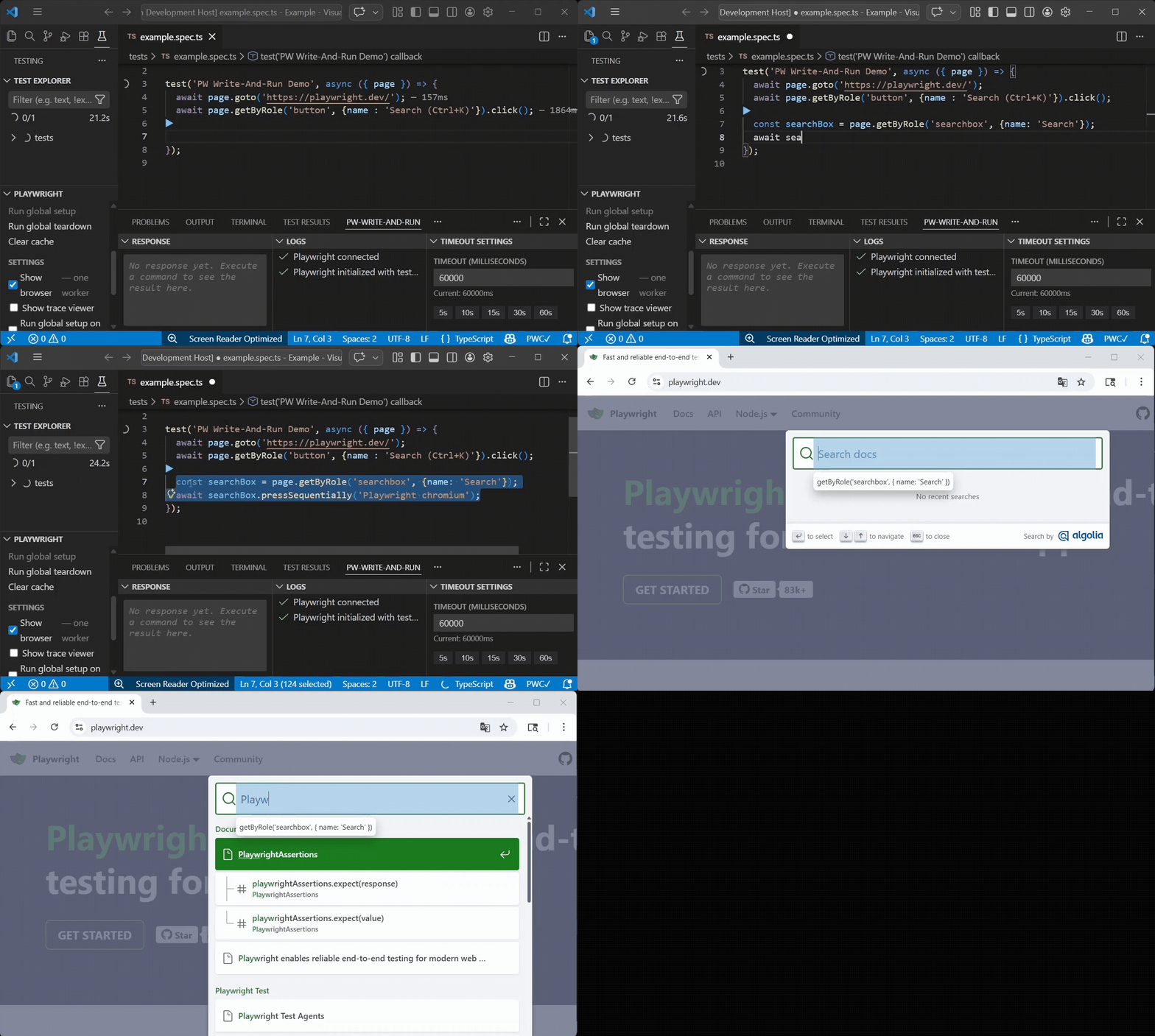
How to Use
Add a Run Point (▶)
- Right-click in your test file → PW Write-And-Run → Add Run Point
- This marks where the test should pause for interactive execution
Run Your Test in Show Browser Mode
- Execute your Playwright test with the Show browser - flag
- The test will pause when it reaches the Run Point
Check Connection Status
- When the Run Point is reached, the status bar indicator changes from PWC⊘ (disconnected) to PWC✓ (connected)
Write and Execute Code Interactively
- Write one or several commands after Run Point
- Select the code you want to execute
- Right-click → Run Selected or press Ctrl+Enter
- Watch the commands execute immediately in the browser
Iterate as Needed
- Continue writing and executing code as many times as you need
- Test different approaches without restarting the test
Clean Up
- When done, remove Run Points: Right-click → PW Write-And-Run → Clear Run Point(s)
Keyboard Shortcuts
- Ctrl+Enter - Execute selected code
Use Cases
- Rapid Prototyping - Test selectors and interactions quickly
- Debugging - Inspect page state and try fixes without restarting
- Learning - Experiment with Playwright API interactively
- Exploration - Discover page elements and behaviors on the fly
Support
For issues, questions, or feature requests, please visit the GitHub repository.
Prerequisites
- Visual Studio Code 1.80.0 or higher
- Playwright installed
- "Playwright Test for VS Code" extension highly recommended
Installation
- Install library to your project with Playwright test
npm install -D pw-execution-context
- Open Visual Studio Code
- Go to Extensions (Ctrl+Shift+X)
- Search for "Playwright Write-And-Run"
- Click Install
| |

