Parquet & ORC Viewer
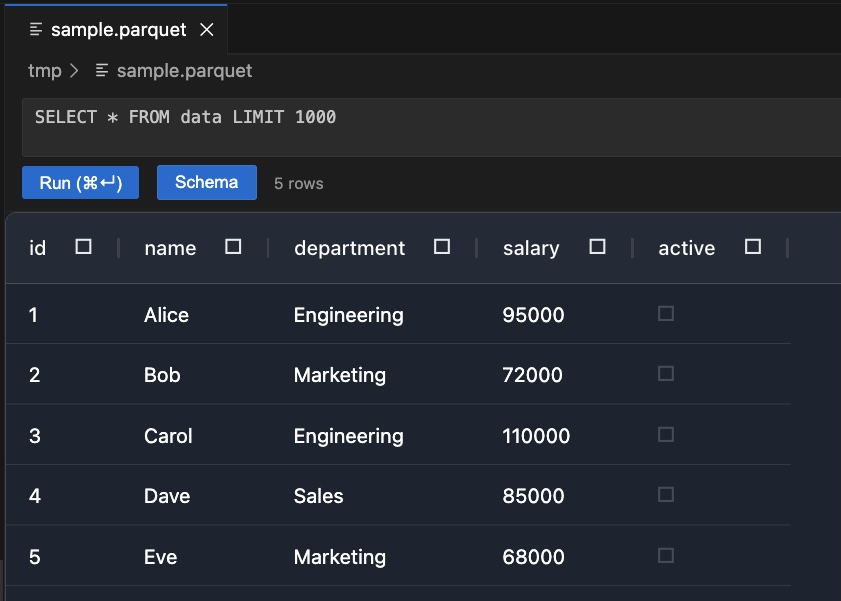
Open .parquet and .orc files directly in VS Code — no conversion tools, no terminal, no Python scripts. Just click the file and explore.
Quick Start
- Install the extension (you're already here — click Install)
- Open any
.parquet or .orc file from the Explorer sidebar — the viewer opens automatically
- Browse your data in the results grid, or type a SQL query and press
Cmd+Enter (Ctrl+Enter on Windows/Linux)
- Explore the schema — click the Schema button to see all column names and types
If VS Code opens the file as raw bytes instead of the viewer, right-click the file → Reopen Editor With… → Parquet Viewer (or ORC Viewer).
Features
- Instant file open — no server, no setup for Parquet files; everything runs inside the editor
- Full DuckDB SQL — run any query: filters, aggregates, window functions, joins against the
data view
- Column filtering — click the filter icon on any column header to filter rows directly in the grid
- Schema explorer — searchable popup listing every column and its type; click a column to insert it into the SQL editor
- ORC support — ORC files are transparently converted to Parquet on first open and cached for instant subsequent opens
SQL Editor
Your file is always available as a DuckDB view called data. The default query when you open a file is:
SELECT * FROM data LIMIT 1000
You can write any SQL against it:
-- Count rows
SELECT COUNT(*) FROM data;

-- Group and aggregate
SELECT department, AVG(salary) AS avg_salary
FROM data
GROUP BY department
ORDER BY avg_salary DESC;

-- Filter
SELECT * FROM data WHERE active = true AND salary > 80000;

-- Inspect schema inline
DESCRIBE data;
Press Cmd+Enter (or Ctrl+Enter) to run. Results appear in the grid immediately.
Column Filtering
Click the filter icon ( ☐ ) next to any column header to filter rows without writing SQL.
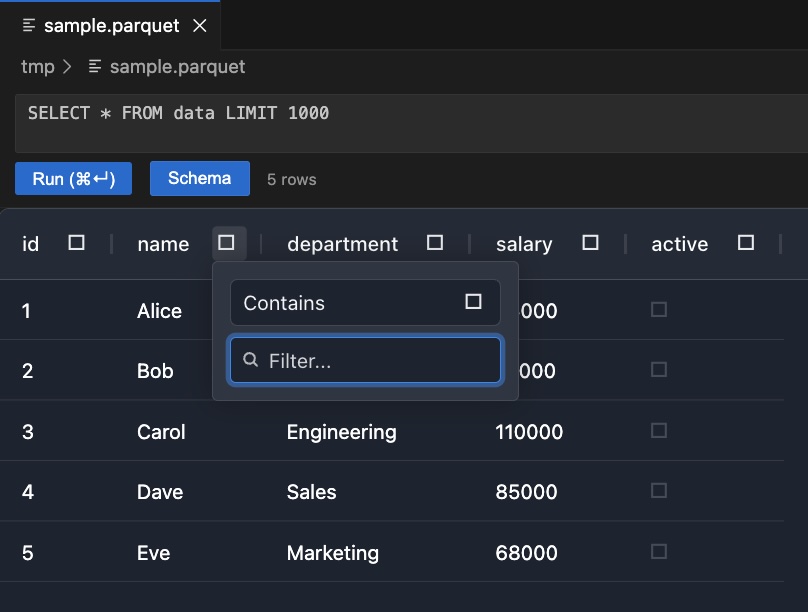
Filters work alongside SQL — combine them freely.
Schema Explorer
Click the Schema button to open a searchable list of all columns and their types.
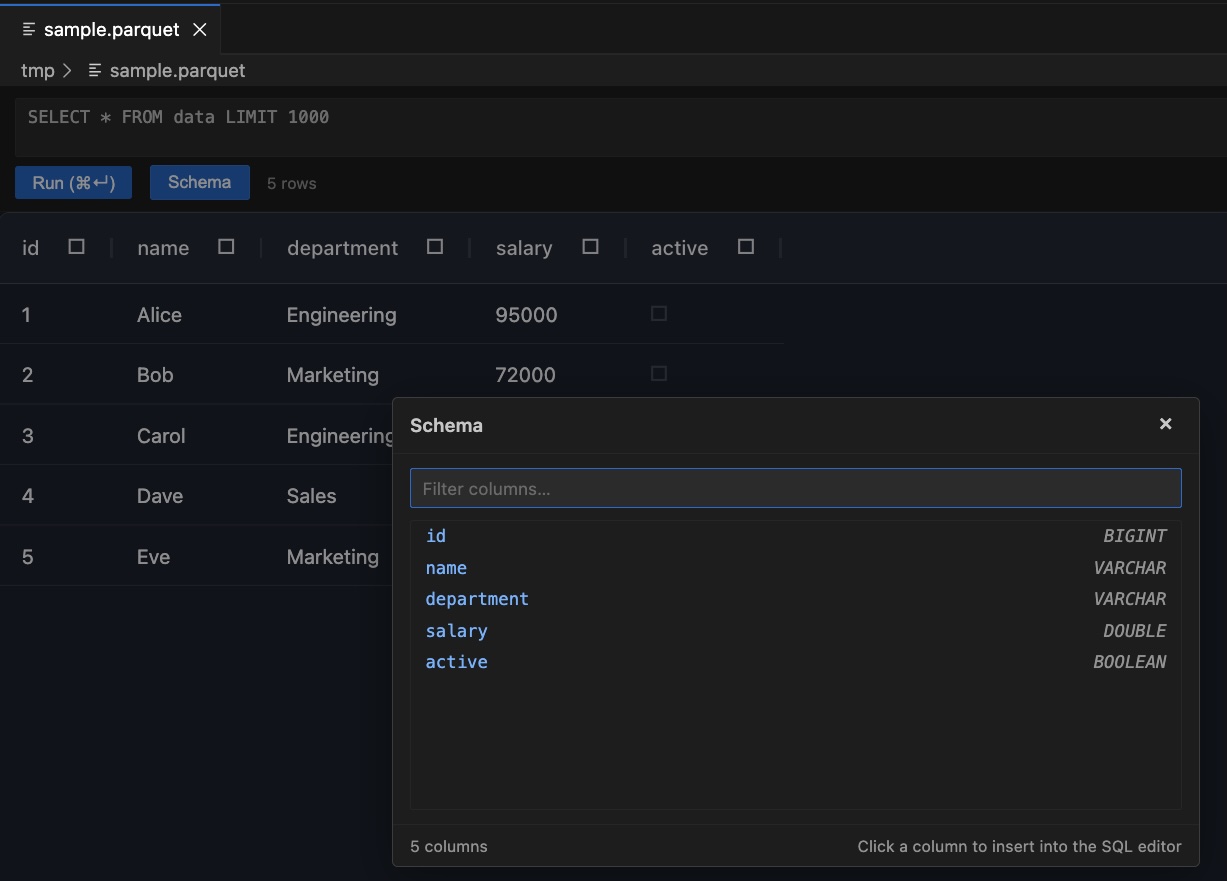
- Search any column name in the filter field at the top
- Click a column to insert it at the cursor in the SQL editor — commas are handled automatically
- The footer shows the total column count
ORC Files
ORC support requires Python with pyarrow installed. On first open, the extension converts the ORC file to Parquet and caches it — subsequent opens are instant.
Install pyarrow:
pip install pyarrow
If your Python is in a virtualenv or a non-default location, point the extension to it:
- Open Settings (
Cmd+,)
- Search for
orcViewer.pythonPath
- Set the full path, e.g.
/opt/homebrew/bin/python3 or ~/venvs/myenv/bin/python
Cache location (macOS): ~/Library/Application Support/Code/User/globalStorage/local.parquet-viewer/orc-cache/
To reclaim disk space, delete that folder — files will be re-converted on next open.
Keyboard Shortcuts
| Action |
Mac |
Windows / Linux |
| Run query |
Cmd+Enter |
Ctrl+Enter |
| Open Schema |
Click Schema button |
Click Schema button |
| Filter column |
Click ☐ on column header |
Click ☐ on column header |
Known Limitations
- In-memory only — the entire file is loaded into memory. Files larger than a few hundred MB may be slow or fail depending on available RAM.
- Read-only — this is a viewer; editing and saving is not supported.
- First Parquet open requires network — DuckDB WASM downloads its Parquet extension from
extensions.duckdb.org once per session. Subsequent opens in the same session are offline.

