Settings Sync for IDEs
   
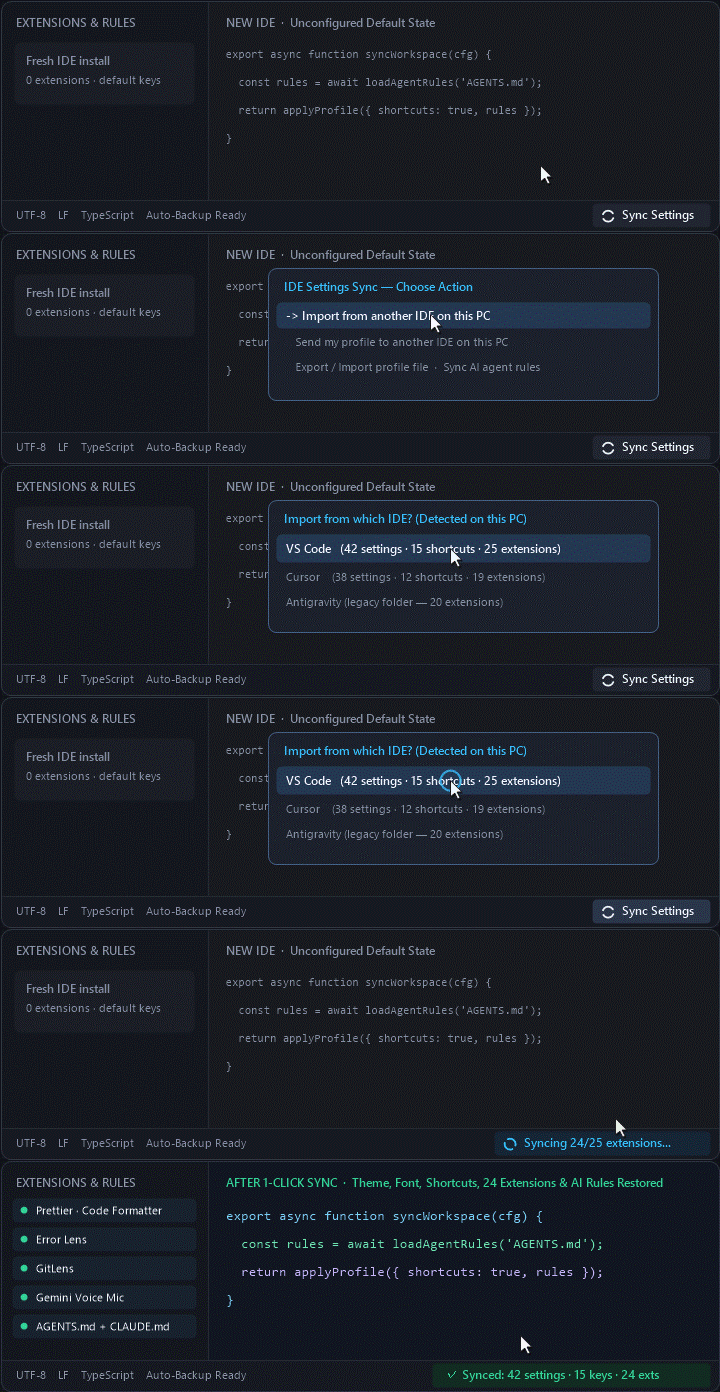
Move and sync your settings, keyboard shortcuts, snippets, extensions, and AI agent rules in one click — across IDEs on the same computer or between two different machines, with an automatic backup saved before every change.
- Supported IDEs:
VS Code · Cursor · Antigravity · Devin (formerly Windsurf) · Trae · Kiro · VSCodium · Positron
- Supported AI Agents:
Claude Code · Gemini · Codex (GPT) · GitHub Copilot · Cline
When You Need This
| Your Situation |
What You Get |
| Switched to a new IDE on the same PC |
Click ↻ Sync Settings → Import from another IDE and pick your previous editor — your theme, fonts, shortcuts, snippets, and extensions are brought over in any direction (VS Code ↔ Antigravity ↔ Cursor ↔ Devin ↔ Trae ↔ Kiro). |
| Settings vanished after an Antigravity 2.0 update |
Automatically detects the separate legacy Antigravity profile folder on your disk and restores your previous setup and extensions. |
| Setting up a second PC or laptop |
Click Export profile to file, drop the .json file into your Google Drive / iCloud / Dropbox / messenger, and click Import profile from file on the second machine (Ctrl ↔ Cmd shortcuts adapt between Windows and Mac automatically, and private keys/passwords are stripped on export). |
| Send your setup to another IDE without opening it |
Click ↻ Sync Settings → Send my profile to another IDE — settings, shortcuts, snippets, and extensions are pushed straight into the neighbor IDE. |
| Working with multiple AI coding agents |
Copy your project rules in one click across CLAUDE.md, AGENTS.md, .agents/AGENTS.md, GEMINI.md, .cursorrules, .github/copilot-instructions.md, and .clinerules. |
| Changed your mind after a sync |
Every operation saves a timestamped restore point first — click Restore from backup to undo file changes in one click. |
What this extension does not do (by design):
- No silent background sync — you stay in control and trigger sync manually with one click whenever you want.
- Microsoft-only extensions (
Pylance, Remote-SSH, Live Share) transfer into official VS Code automatically; in third-party IDEs where Microsoft restricts them from the store, everything else transfers cleanly and those items are listed in the report so you can install them or their open-source equivalents manually in a minute.
- No AI chat history, account sessions, or API keys — excluded intentionally to protect your credentials and prevent workspace corruption.
⚡ 15-Second Quick Start
- Click
↻ Sync Settings in the bottom-right corner of the Status Bar (or run IDE Settings Sync: Open Menu from the Command Palette).
- Choose Import from another IDE, Send my profile to another IDE, Export / Import profile file, or Sync AI agent rules.
- Uncheck any category you prefer to leave untouched and confirm — a clear summary report opens when finished.
Commands
IDE Settings Sync: Open MenuIDE Settings Sync: Import from Another IDE on This PCIDE Settings Sync: Send Profile to Another IDE on This PCIDE Settings Sync: Export Profile to FileIDE Settings Sync: Import Profile from FileIDE Settings Sync: Sync AI Agent Rules in This ProjectIDE Settings Sync: Restore from Backup
Credits
Developed and maintained as a free community tool by PRYSKY Studio.
Licensed under the MIT License.
| |

