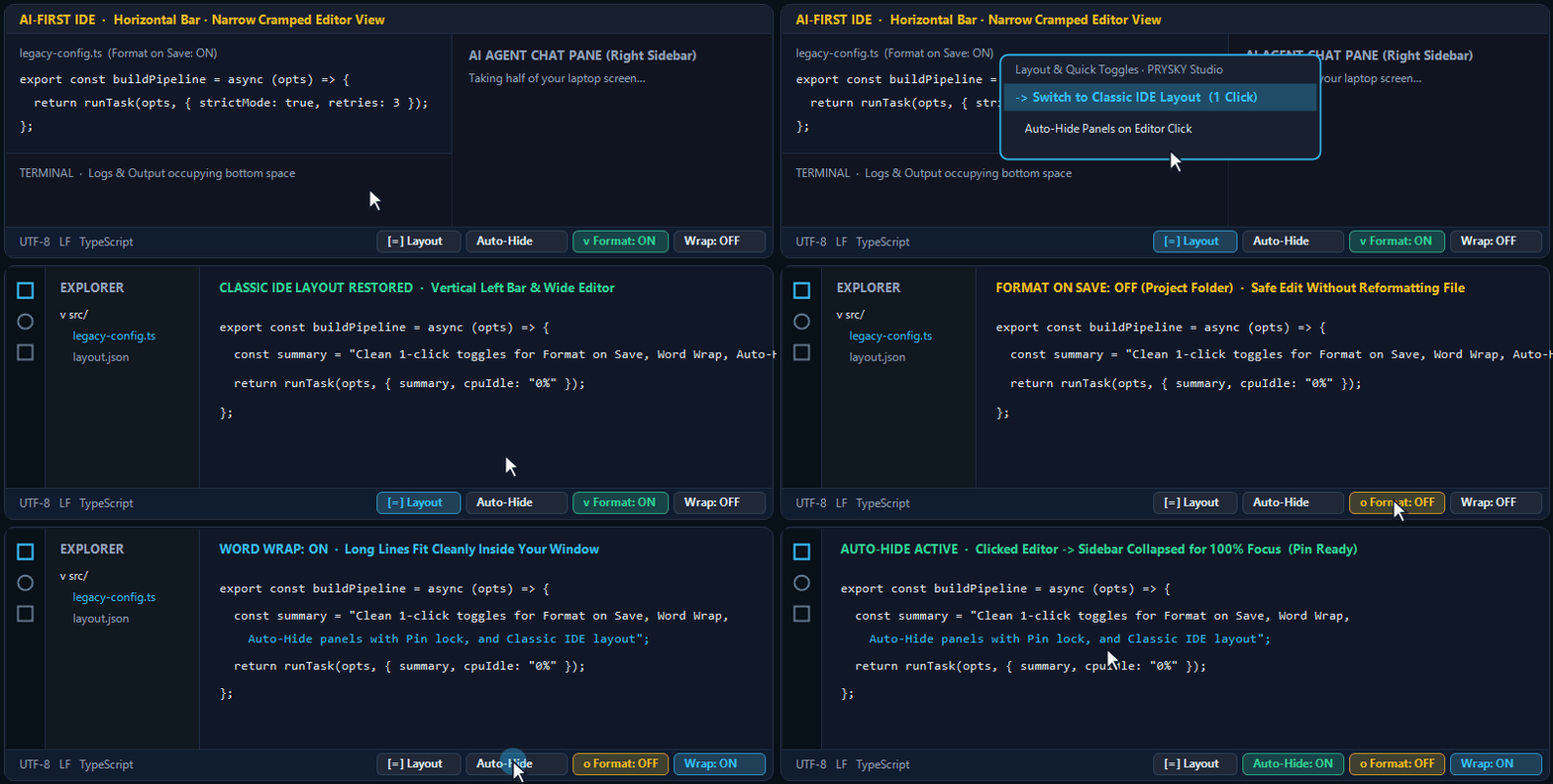
Control your Format on Save, Word Wrap, Minimap, Terminal, Auto-Hide panels, and Classic IDE layout in one click right from the bottom Status Bar — without digging through settings menus or hand-editing JSON files.
Editing a legacy or shared file where auto-formatting rewrites 400 lines
Click ✓ Format on the bottom Status Bar to pause Format on Save in one click — automatically targeting your active .vscode/settings.json project folder if one is present, or your user profile otherwise — and click again to re-enable it.
An AI-first IDE rotated your Activity Bar or cramped your code view
Click Layout → Switch to Classic IDE Layout to restore the vertical left icon bar, place Explorer on the left, and clear distracting panels (click again anytime to restore your previous layout snapshot).
Working on a 13–15" laptop beside a wide AI chat pane
Turn on Auto-Hide: sidebars and bottom panels collapse automatically the moment you click inside a file, while clicking inside AI Chat or Output panes never triggers unwanted hiding.
Watching live logs in the Terminal while Auto-Hide is active
Click the 📌 Pin icon next to Auto-Hide on the Status Bar to lock panels open temporarily without disabling your setup.
Long lines or Markdown prompts run off the right edge of the window
Click Wrap or Minimap directly on the Status Bar to reclaim horizontal reading space in a split second.
Keeping your bottom Status Bar clean and minimal
Open Layout → Choose Visible Status Bar Buttons… and check only the switches you want on the bar — everything else stays one click away inside the Layout menu.
What this extension does not do (by design):
No internal CSS or Electron file patching — uses strictly native IDE layout and editor settings, so IDE updates never break your installation or trigger integrity warnings.
Never interrupts AI chat typing — Auto-Hide reacts only to mouse clicks inside actual document tabs, leaving AI agent chat boxes, search inputs, and debug consoles undisturbed.
No surprise changes on install — Auto-Hide starts OFF until you click it, and Format toggles only editor.formatOnSave without altering formatOnPaste.
⚡ 15-Second Quick Start
Look at the bottom-right corner of the Status Bar right after installing — Layout, Format, Wrap, and Auto-Hide are ready immediately.
Click Format or Wrap to toggle them directly in one click, or click Auto-Hide to reclaim screen space automatically when clicking in code (use 📌 to pin panels open anytime).
Click Layout to switch Classic IDE Layout on/off, toggle Minimap or Terminal, or pick which buttons stay visible on your Status Bar.