Claude Remote Control




Mobile Human-in-the-Loop (HITL) remote control and instant Telegram push client for Claude Code, Cursor, Antigravity 2.0, Antigravity IDE, OpenAI Codex CLI, Gemini CLI, and VS Code — review every finished step, approve in one tap, or dictate voice prompts on the go, even when your computer screen is locked (Win+L).
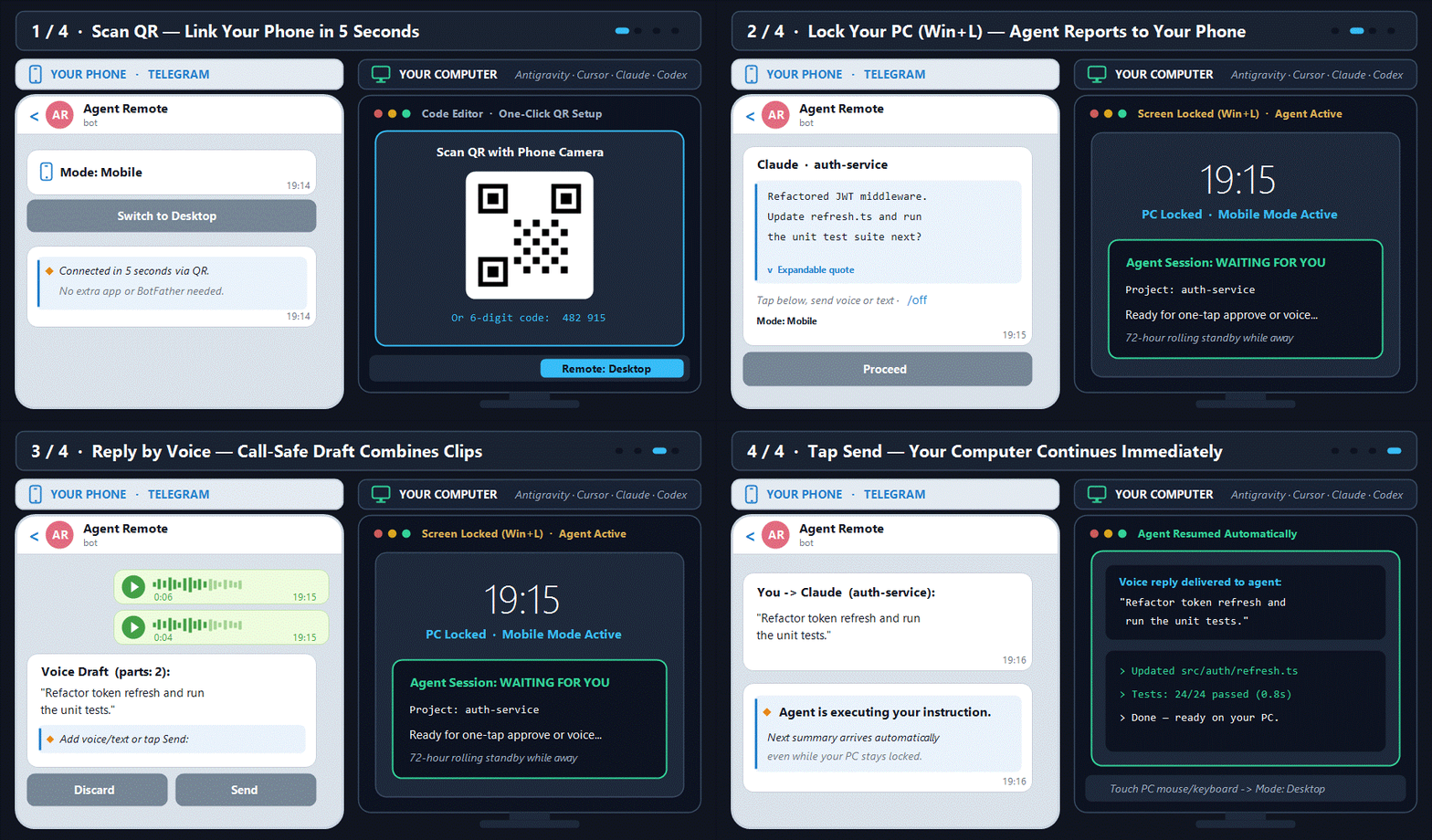
Before You Start
- Local AI agent + Telegram on your phone: Your coding agent runs locally on your own computer, and notifications arrive in your regular Telegram app (
@AgentRemoteTelegramBot) — no extra mobile app to install, no local server to run, and no manual bot token setup.
0. First-Time Phone Setup (Done Once)
Where to start — pick your environment:
- Working inside a code editor (
Cursor, Antigravity IDE, VS Code): Install this extension right in your editor and follow Steps 1–2 below.
- Working outside a code editor — in
Antigravity 2.0 or a terminal (Claude Code, Codex CLI, Gemini CLI): Because Antigravity 2.0 and terminal windows do not have an extension store or QR screen, install this extension once inside any editor on the same computer (Antigravity IDE, Cursor, or VS Code) and complete Steps 1–2 below. Doing this automatically connects Antigravity 2.0 and your terminal agents on this PC. Once linked, you can close the code editor (if Antigravity 2.0 or your terminal was already open during setup, restart that window once).
Step 1. On your computer, inside the code editor (Cursor / Antigravity IDE / VS Code):
- In the bottom-right corner of the editor window, click
Connect Phone (QR).
- A QR code card opens on your monitor along with a prompt to enable agent connection — click
Connect agents.
Step 2. On your phone:
- Open your phone's standard Camera app (as if taking a photo — no need to look for a scanner inside Telegram).
- Point your camera at the QR code on your computer monitor.
- A small
t.me / Open in Telegram banner appears right on your camera screen — tap that banner.
- Telegram opens on the
Agent Remote (@AgentRemoteTelegramBot) chat — tap Start at the bottom of the screen. Your phone and computer are now linked.
1. How to Connect & Use Your Remote Every Day (Pick Your Environment)
A) Inside a Code Editor (Cursor, Antigravity IDE, VS Code)
- On your computer, in the editor window: Click
Remote: Desktop in the bottom-right corner to open the panel, then click 📱 Switch to Mobile Mode (an orange 📱 Remote: Mobile badge lights up in the bottom bar).
- On your computer, in the agent chat: Type your task and press
Enter. Leave the editor window open (do not close it with ✕).
- On your computer: Press
Win+L (Ctrl+Cmd+Q on Mac) to lock your screen with a password, take your hand off the mouse, and head out.
B) In the Standalone Antigravity 2.0 App
(there are no extension buttons inside Antigravity 2.0, and you do not need to keep a code editor open)
- On your phone, in Telegram (
@AgentRemoteTelegramBot): Tap 📱 Switch to Mobile (or send /on).
- On your computer, in the
Antigravity 2.0 chat: Type your task and press Enter. Leave the Antigravity 2.0 window open (do not close it with ✕).
- On your computer: Lock your screen (
Win+L / Ctrl+Cmd+Q), release the mouse, and head out.
C) In a Terminal (Claude Code, OpenAI Codex CLI, Gemini CLI)
(works in any standard terminal window — no code editor needs to stay open)
- On your phone, in Telegram (
@AgentRemoteTelegramBot): Tap 📱 Switch to Mobile (or send /on).
- On your computer, in your terminal (
claude, codex, or gemini): Type your prompt and press Enter. Leave the terminal window open (on your first run of Codex CLI or Gemini CLI in a new folder, confirm the terminal's standard folder trust prompt once).
- On your computer: Lock your screen (
Win+L / Ctrl+Cmd+Q), release the mouse, and head out.
2. Replying on the Go (On Your Phone, in @AgentRemoteTelegramBot)
When the agent finishes a step or asks a question, Telegram sends a push alert with sound and vibration on your lock screen (and smartwatch). Reply in any of 3 ways:
- One-tap approve: Tap
✅ Proceed under the report to continue immediately.
- Text message: Type any instruction in the bot chat and send it.
- Voice Draft (call-safe & mistake-safe):
- Record a voice message in the bot chat — the bot transcribes it into a Draft card (nothing is sent to the agent yet).
- Record 2, 3, or more voice clips in a row or type extra notes — they combine into one draft (an incoming call never submits half a sentence).
- Changed your mind or misspoke? Tap
Discard. Ready? Tap ✅ Send — a ⚡ mark confirms delivery to your PC and the agent starts the next step.
Good to know while away:
- No need to keep Telegram open: Close Telegram or turn off your phone on a flight — every reply resets a 72-hour (3-day) standby timer on your PC.
- Sent a note while the agent was busy (or before starting on PC): Your message stays safe in a 72-hour queue — tap
📤 Send from queue to deliver it on the next pause (or arm it for your next desktop step).
- Subway tunnel or brief signal drop: Telegram buffers outgoing messages on your phone, and brief home Wi-Fi blips reconnect automatically without dropping your active reply.
- Two projects open at once: Swipe Reply left on a specific project's card in Telegram to route your answer to that workspace.
3. Returning to Your Computer
- On your computer: Unlock your screen and simply use your mouse or keyboard (or click the orange
📱 Remote: Mobile badge in the editor bar, or send /off in Telegram).
- Automatic handoff (within 2 seconds): The remote switches back to
🖥 Mode: Desktop, retires outdated mobile approval buttons so your desktop chat never stalls, and silences phone notifications (quick steps under 3 minutes send 0 messages; 3+ minute tasks or errors arrive silently without sound or vibration).
How It Compares
| Capability |
This Extension (Telegram Push) |
Built-in Claude Remote Control |
Typical @BotFather / Debug-Port Tools |
| Supported AI Agents |
6 agents in one chat (Claude Code, Cursor, Antigravity 2.0 / IDE, Codex, Gemini) |
Claude Code terminal only |
Usually 1 editor or a standalone mini-bot |
| Initial Setup |
5-second QR code (zero tokens or launch flags) |
Terminal command + account login |
Manual @BotFather token, chat ID & debug-port flags |
| API Keys & Free Plans |
Works with any login or API key |
Paid subscription login required (blocks raw API keys) |
Often requires pasting paid LLM API keys |
| Phone App |
Your existing Telegram (instant lock-screen & watch push) |
Separate vendor mobile app |
Telegram or local web port |
| Voice Input |
Call-safe multi-clip Voice Draft included out of the box |
Basic dictation, no draft buffer |
Rare or requires your own speech API key |
Password-Locked PC (Win+L) |
Supported (direct background channel, up to 72h rolling standby per reply) |
OS-dependent |
Breaks when tied to simulated screen clicks |
Computer States: What Works & What Does Not
Because your AI agent runs locally on your workstation rather than in a remote cloud sandbox, the computer's operating state matters:
| Computer State When You Step Away |
Works? |
Details |
| Editor or terminal open, minimized, or covered by other windows / browser tabs |
Yes |
Signals pass directly into the running agent session without relying on screen focus. |
Screen locked with password (Win+L / Ctrl+Cmd+Q) or monitor turned off |
Yes |
Your OS and agent continue running behind the lock screen; replies arrive directly in the session. |
Remote Desktop (RDP) window closed |
Yes |
The remote workstation session remains active. |
| System Sleep, Hibernate, closed laptop lid (if set to sleep), or shut-down computer |
No |
Sleep suspends the CPU and network adapter — the agent pauses and cannot wake a sleeping computer remotely. Keep your computer awake and lock the screen (Win+L) instead. |
Structured text, not video streaming: sends readable step summaries and code blocks rather than streaming your desktop screen.
Privacy & Clean Disconnect
- Minimal transit data: Whole project folders are never uploaded. Only the text of the agent's latest step summary and your replies travel transiently between your computer and your Telegram chat (standard Telegram bot chats use cloud transport rather than Secret Chat end-to-end encryption).
- Non-intrusive & reversible: Requires no administrator privileges, never alters core editor binaries, and disconnects cleanly in one click or upon uninstall.
Built-in cloud voice-to-text processes spoken audio transiently to transcribe your reply and requires no API key. Independent tool; not affiliated with Anthropic, Cursor, Google, OpenAI, Microsoft, or Telegram.
License
MIT
| |

