vf-clamp for VS Code
Generate restricted variable fonts from named instance ranges — directly inside VS Code.
A customer who licenses "Light" and "Bold" receives a micro-VF spanning exactly that range, with the font's name table updated to reflect the purchased instances.
Powered by @liiift-studio/vf-clamp and Pyodide (fonttools running in WASM).
Try it live
Want to see the engine before installing? vfclamp.com runs the same
@liiift-studio/vf-clamp core in your browser — drop in a variable font, pick instances, and
download the restricted output. The interactive web demo is the quickest way to understand what
this extension does inside VS Code.
Requirements
- Visual Studio Code 1.85 or newer.
- The extension runs in the local workspace; it requires
extensionKind: workspace and is not available in virtual workspaces.
- ~200 MB of disk for the bundled Pyodide / fonttools runtime, loaded lazily on first generate.
Install
From the marketplace — open the Command Palette (Cmd+Shift+P / Ctrl+Shift+P) and run:
>ext install overpunch.vf-clamp
(The leading > enters Command Palette mode; this is not a terminal command.) You can also search for vf-clamp in the Extensions view.
From a VSIX (local build):
npm install
npm run package
npx vsce package
code --install-extension vf-clamp-*.vsix
Commands
| Command |
Title in palette |
vf-clamp.openPanel |
vf-clamp: Generate Restricted Variable Fonts |
vf-clamp.openFile |
vf-clamp: Open Font File in vf-clamp |
The extension contributes no default keybindings. Bind either command via Preferences → Keyboard Shortcuts (keybindings.json) if you want a hotkey.
Usage
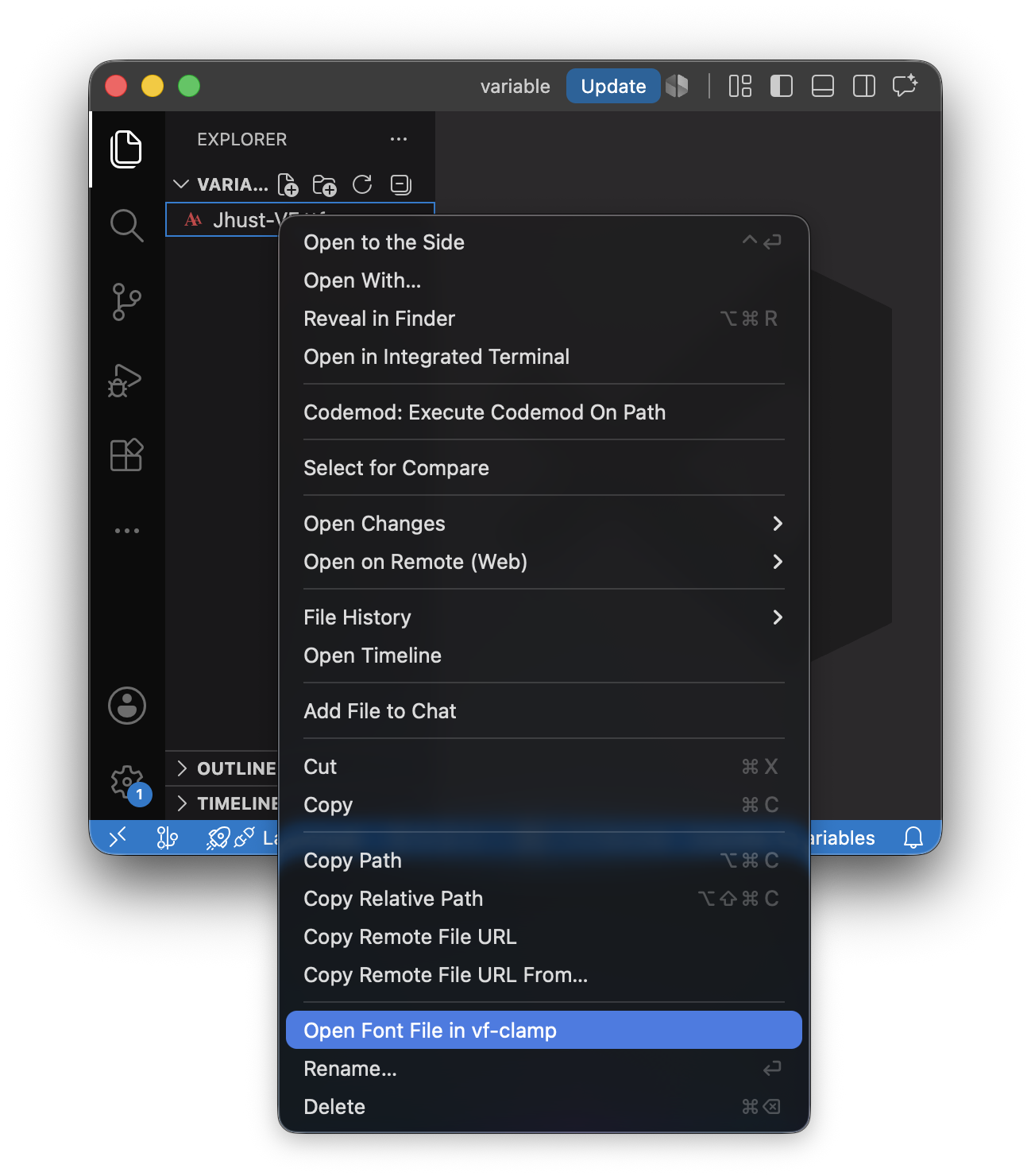
Option 1 — Right-click in Explorer: Right-click any .ttf, .otf, .woff, or .woff2 file in the file explorer and choose vf-clamp: Open Font File. The panel opens pre-loaded with that font.
Option 2 — Command Palette: Open the Command Palette and run vf-clamp: Generate Restricted Variable Fonts. Then use the Select Font button inside the panel.
In the panel:
- Select a variable font file (
.ttf, .otf, .woff, or .woff2)
- Check the named instances you want to include
- Confirm the auto-suggested output name (or type your own)
- Choose a format: TTF, OTF, WOFF, or WOFF2
- Choose an output folder
- Click Generate
Screenshots and a workflow GIF coming with the first marketplace release.
Extension Settings
| Setting |
Default |
Description |
vf-clamp.processingTimeoutMs |
120000 |
Max wait before aborting font processing. |
vf-clamp.defaultFormat |
ttf |
Preselected output format. |
vf-clamp.defaultOutputDir |
"" |
Optional default output directory. |
vf-clamp.maxFontSizeBytes |
209715200 |
Maximum accepted font file size. |
How It Works
The extension calls @liiift-studio/vf-clamp, which uses fonttools running inside Pyodide (Python WASM). The font is:
- Clamped to the axis ranges covered by the selected named instances
- Renamed in the name table (family name, PostScript name) to reflect the range
- Written to your chosen output folder
First run: the font engine initialises on first use — expect ~10–20 seconds. Subsequent runs in the same session are ~1–2 seconds. Long generates can be cancelled from the native progress notification.
Known Issues
- Only variable fonts (
.ttf, .otf, .woff, .woff2) with named instances are supported as input. Static fonts return an empty instance list.
- The font engine stays resident for the lifetime of the VS Code window once loaded.
- Files in untrusted workspaces are not processed until you trust the workspace.
Notes
- All processing happens in the VS Code extension host — your font data never leaves your machine.
- Output filenames are validated; path separators,
.., and NUL bytes are rejected.
License
MIT.
Links

