Codex PowerToysInspect and safely manage Codex skills, plugins, agents, and MCP configuration. Installation Launch VS Code Quick Open ( Ctrl+P), paste the following command, and press enter.Copied to clipboard |

Codex PowerToysSee where every Codex skill, MCP server, plugin, and subagent comes from—and manage global and workspace configuration from one sidebar.
Codex can load resources from Use it to:
How to read the treeResource rows use a simple two-icon format: For example: The first icon has a different meaning for MCP tools:
The second icon identifies the item:
Subagents show only the type icon because they do not have an effective-state indicator. Type-group headings also show only their type icon. Supporting files have no prefix icons. Safe to exploreOpening the sidebar does not rewrite your configuration. Changes happen through explicit commands.
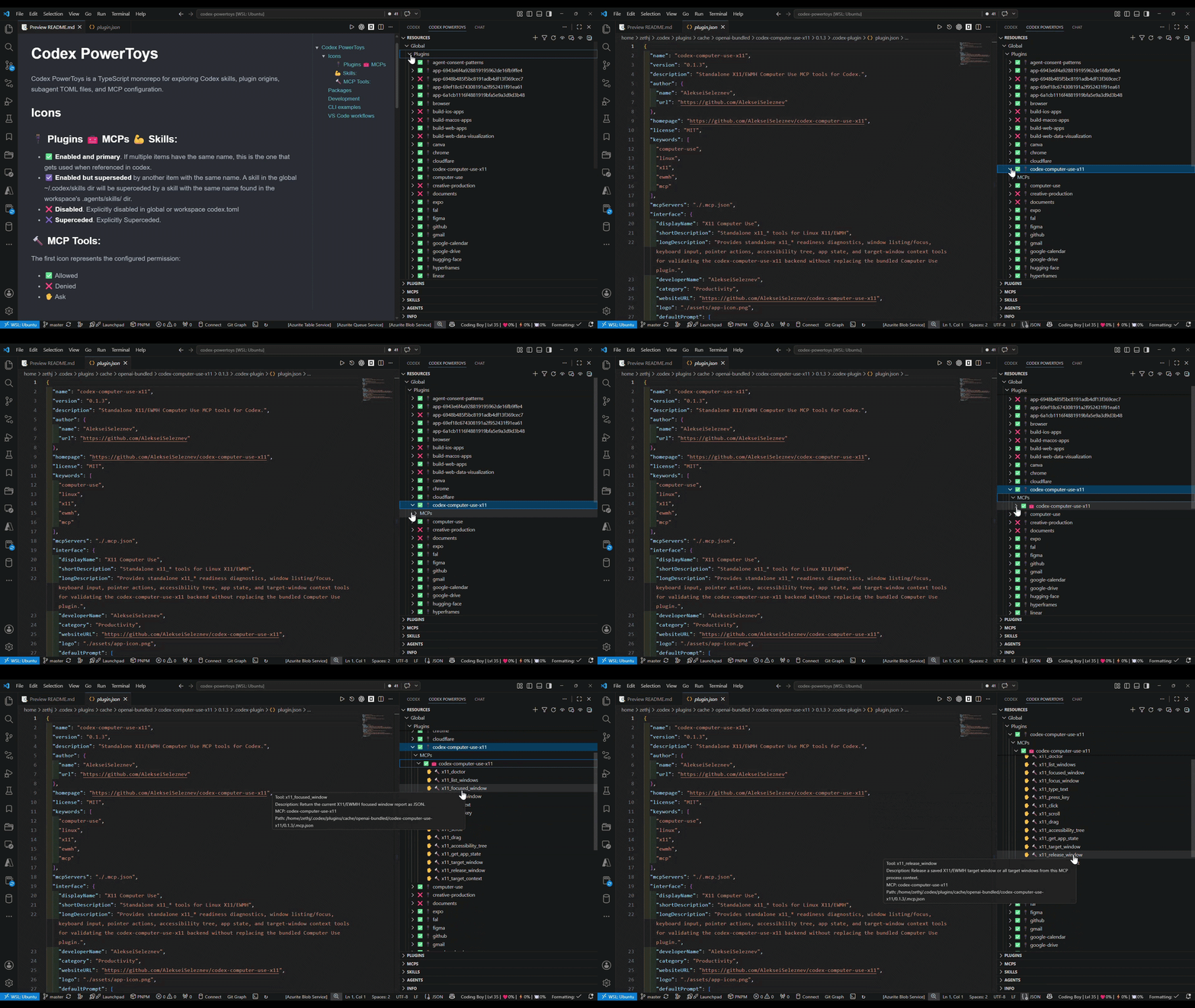
See what Codex will useThe Resources view shows global and workspace configuration together. Plugin-owned skills and MCPs remain nested under the plugin that supplied them, so their origin is visible instead of inferred from a path. When the same name appears more than once, PowerToys identifies the effective copy and marks the others as superseded. Older versions, redundant resources, and disabled overrides are visible immediately. Superseded rows can be shown or hidden from the toolbar. Dedicated Plugins, MCPs, Skills, and Agents views provide flat lists when you already know what you are looking for. Filters match names and source paths as you type. Open the right file immediately
Selecting an item also shows its path, scope, state, description, metadata, and related information in the Info view. Manage both scopes in one placeEnable, disable, or reset skill and plugin overrides from the tree. Enable or disable MCP servers at the scope where they are defined. Managed skills, MCP definitions, and subagent configs can be copied or moved between global and workspace scope. Multi-select, cut/copy/paste, rename, delete, and native drag and drop are supported. Plugin cache contents are not modified in place. Copy a plugin-owned skill or MCP into a global or workspace scope if you want an editable version.
Inspect MCP toolsPowerToys queries enabled, effective MCP servers in the background and lists their tools beneath each server. Tool descriptions and configured permissions appear in the tree and Info view. Successful results and failed probes are cached for the session to avoid repeatedly starting servers. Run Load MCP Tools when you want to query a server again. Get started
Codex PowerToys runs in the desktop VS Code extension host and resolves Codex paths on the active extension host. Open sourceCodex PowerToys is available under the MIT License. Report a problem, request a feature, or review the source at OnePersonLabs/codex-powertoys. |